> ## Documentation Index
> Fetch the complete documentation index at: https://signalschools.co.uk/docs/llms.txt
> Use this file to discover all available pages before exploring further.
# Creating & Managing Action Plans
> A step-by-step guide to creating action plans in Signal, including AI-assisted drafting, linking incidents, scheduling reviews, and completing plans.
Action plans help you structure interventions for students who need additional support. This page covers how to create a new plan, manage it over time, and use AI to assist with drafting and reviews.
## Creating a new action plan
### Navigate to Action Plans
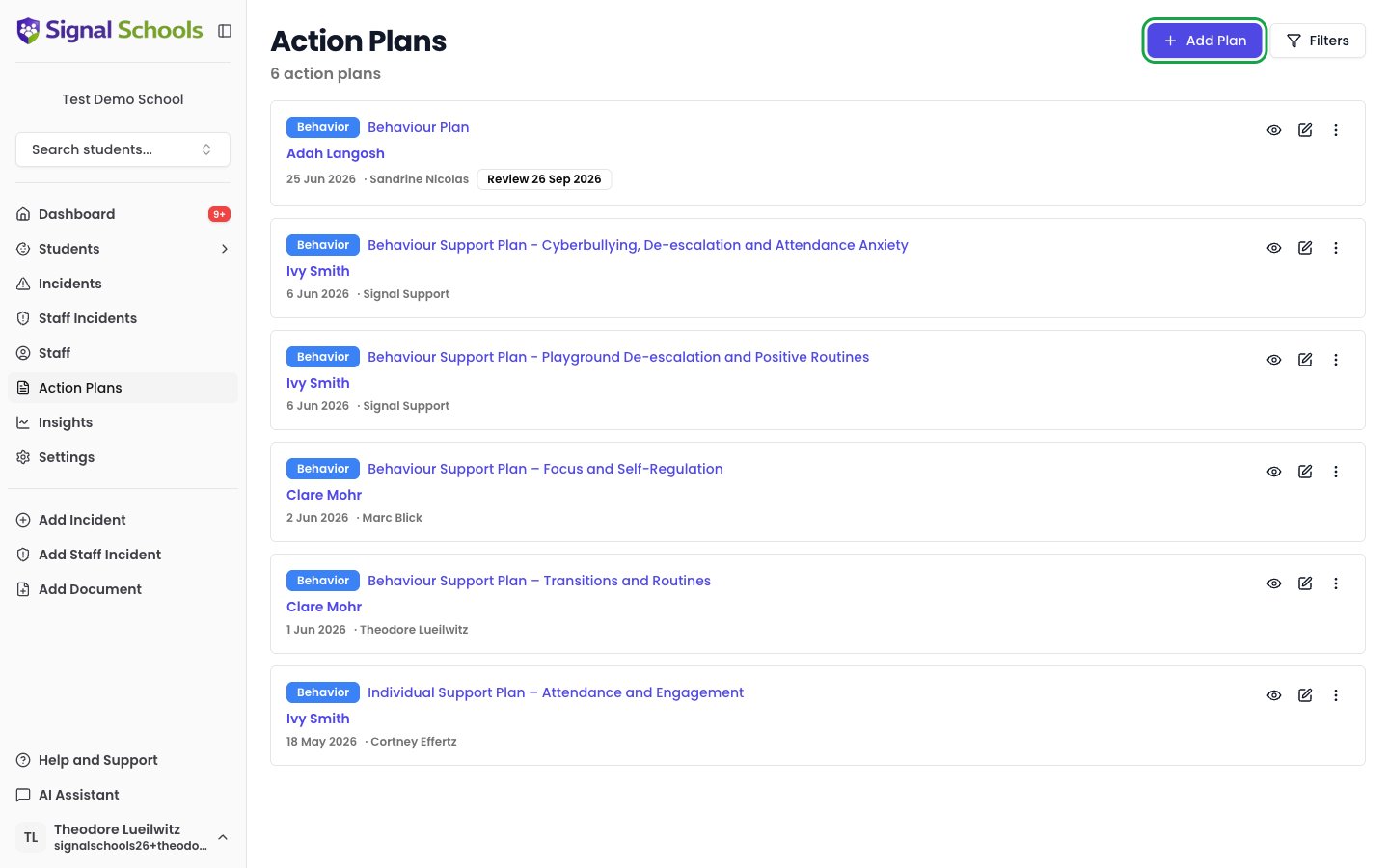
Open **Action Plans** from the sidebar and click **Add Plan**.
 ### Select the action plan type
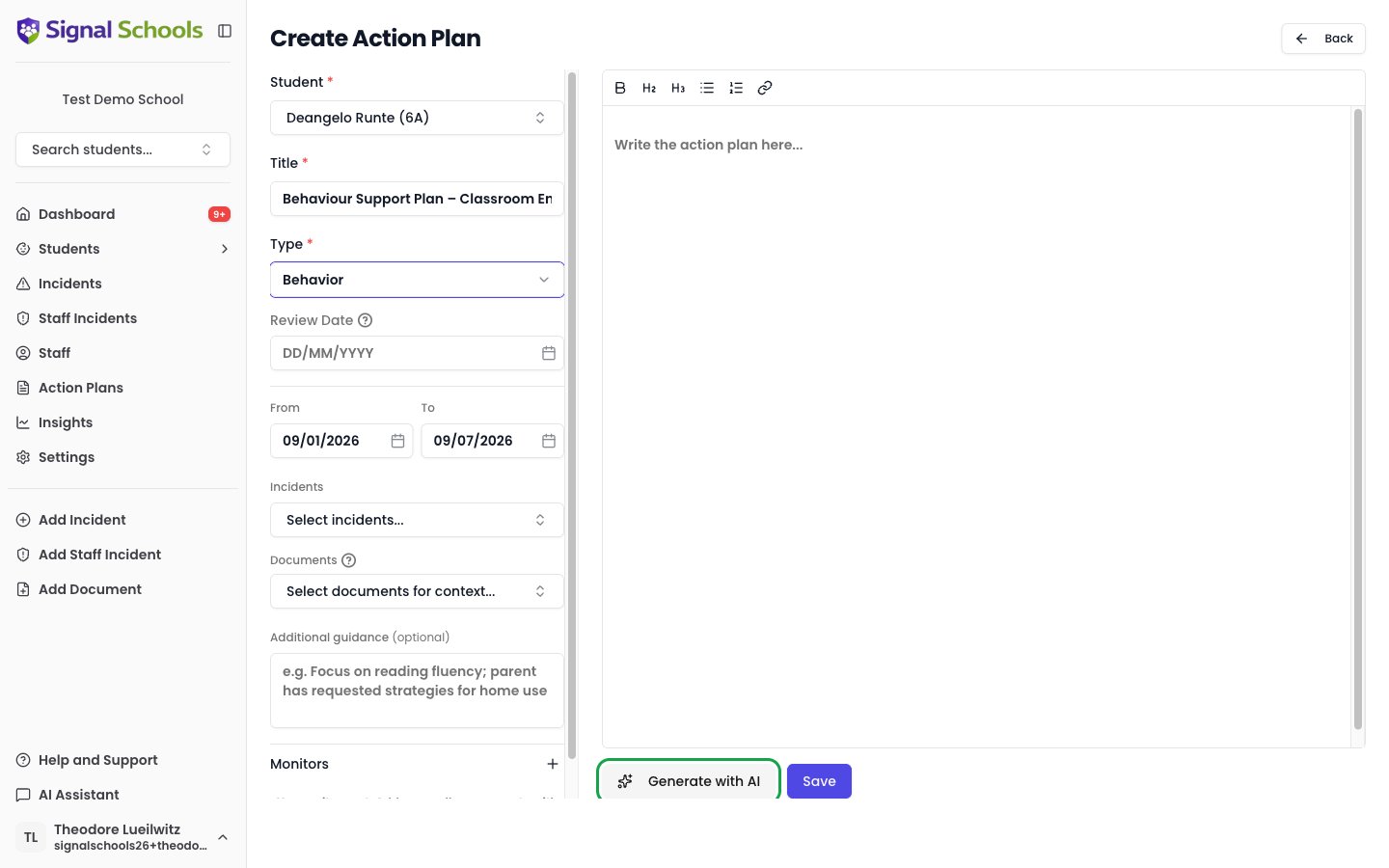
Choose the type of plan you are creating — for example, Behavioural, Medical, or Learning Support. Types are defined by your school in settings and describe the nature of the intervention.
### Choose the student
Search for and select the student this plan is for.
### Write the plan content
Describe the intervention in the content area. Include the objectives, the actions to be taken, who is responsible, and what success looks like.
Alternatively, you can use **AI-assisted generation** to create a draft. Signal's AI drafts plan content based on the selected type and any linked incidents. You review and edit the generated content before saving — the AI provides a starting point, not a finished product.
### Select the action plan type
Choose the type of plan you are creating — for example, Behavioural, Medical, or Learning Support. Types are defined by your school in settings and describe the nature of the intervention.
### Choose the student
Search for and select the student this plan is for.
### Write the plan content
Describe the intervention in the content area. Include the objectives, the actions to be taken, who is responsible, and what success looks like.
Alternatively, you can use **AI-assisted generation** to create a draft. Signal's AI drafts plan content based on the selected type and any linked incidents. You review and edit the generated content before saving — the AI provides a starting point, not a finished product.
 ### Link relevant incidents
Connect the student incidents that prompted or relate to this plan. Linking incidents gives reviewers the full context behind the intervention.
### Set a review date
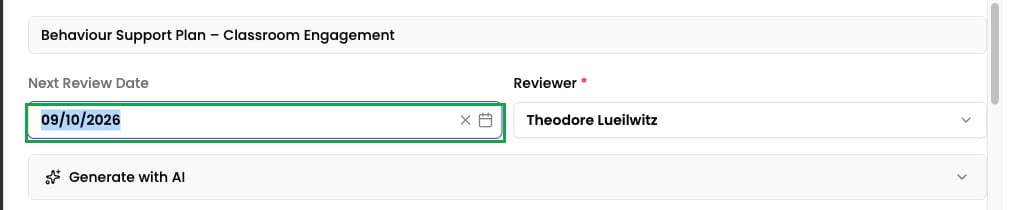
Choose when the plan should be reviewed. You can also assign the review to a specific staff member who will be responsible for carrying it out. Upcoming reviews appear on your dashboard under **Upcoming Reviews**, so you receive a reminder when the date approaches.
### Save
Click **Save** to create the action plan. It is now active and visible to staff with appropriate access.
## AI-assisted generation
Signal can draft action plan content to save you time. The AI uses the plan type, its description, and any linked incidents to produce a structured draft that covers key areas such as objectives, strategies, and expected outcomes.
AI-generated content is always a draft. You should review it carefully, adjust it to reflect the specific circumstances of the student, and add any details the AI may have missed before saving.
## Managing action plans
### Editing plan content
You can update the plan content at any time. Open the action plan and edit the content area to reflect changes in the intervention, new strategies, or updated objectives. Editing and reviewing action plans is available to all roles except Contributor.
### Linking and unlinking incidents
As new incidents are recorded or circumstances change, you can link additional incidents to the plan or remove ones that are no longer relevant. This keeps the plan connected to the current safeguarding picture.
### Scheduling reviews
Set or update the review date at any time. You can assign the review to a specific staff member so the right person is responsible for completing it. When a review is due, it appears on the dashboard to prompt you to assess progress.
When you assign a review to a colleague, they receive an email letting them know the review is theirs, along with the date it is due and a link to open the plan. They are emailed when you first assign them and again if you later hand the review to someone else.
You will not be emailed for reviews you assign to yourself, and editing a plan without changing the reviewer does not send another email.
### Link relevant incidents
Connect the student incidents that prompted or relate to this plan. Linking incidents gives reviewers the full context behind the intervention.
### Set a review date
Choose when the plan should be reviewed. You can also assign the review to a specific staff member who will be responsible for carrying it out. Upcoming reviews appear on your dashboard under **Upcoming Reviews**, so you receive a reminder when the date approaches.
### Save
Click **Save** to create the action plan. It is now active and visible to staff with appropriate access.
## AI-assisted generation
Signal can draft action plan content to save you time. The AI uses the plan type, its description, and any linked incidents to produce a structured draft that covers key areas such as objectives, strategies, and expected outcomes.
AI-generated content is always a draft. You should review it carefully, adjust it to reflect the specific circumstances of the student, and add any details the AI may have missed before saving.
## Managing action plans
### Editing plan content
You can update the plan content at any time. Open the action plan and edit the content area to reflect changes in the intervention, new strategies, or updated objectives. Editing and reviewing action plans is available to all roles except Contributor.
### Linking and unlinking incidents
As new incidents are recorded or circumstances change, you can link additional incidents to the plan or remove ones that are no longer relevant. This keeps the plan connected to the current safeguarding picture.
### Scheduling reviews
Set or update the review date at any time. You can assign the review to a specific staff member so the right person is responsible for completing it. When a review is due, it appears on the dashboard to prompt you to assess progress.
When you assign a review to a colleague, they receive an email letting them know the review is theirs, along with the date it is due and a link to open the plan. They are emailed when you first assign them and again if you later hand the review to someone else.
You will not be emailed for reviews you assign to yourself, and editing a plan without changing the reviewer does not send another email.
 ### Conducting a review
When it is time to review a plan, open it and click **Review**. You can select which recent incidents to include as context, then either write your update manually or use AI to generate a suggested revision.
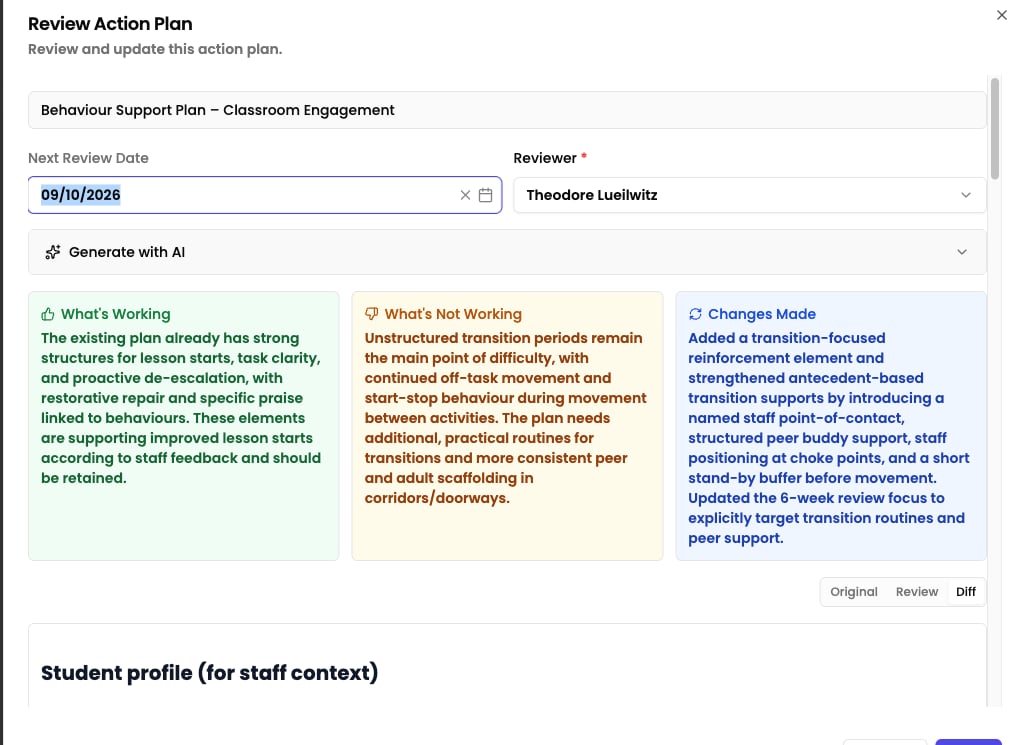
**AI-assisted reviews**: Signal's AI analyses the current plan content, recent incidents, and monitor data (including check-in trends and staff notes) to suggest updates. The AI identifies which strategies are working, which are not, and produces a revised plan.
When AI generates a review, you see:
* **Change summary** — three panels showing what's working well, what's not working, and what changes were made. This gives you a quick overview of the AI's reasoning before you look at the detail.
* **Three view modes** — switch between **Original** (the current plan as-is), **Generated** (the AI's suggested revision, which you can edit), and **Changes** (a visual diff highlighting exactly what was added or removed). This makes it easy to see precisely what the AI changed.
You can edit the generated content before saving. The AI provides a starting point — you make the final decision on what to keep, modify, or discard.
### Conducting a review
When it is time to review a plan, open it and click **Review**. You can select which recent incidents to include as context, then either write your update manually or use AI to generate a suggested revision.
**AI-assisted reviews**: Signal's AI analyses the current plan content, recent incidents, and monitor data (including check-in trends and staff notes) to suggest updates. The AI identifies which strategies are working, which are not, and produces a revised plan.
When AI generates a review, you see:
* **Change summary** — three panels showing what's working well, what's not working, and what changes were made. This gives you a quick overview of the AI's reasoning before you look at the detail.
* **Three view modes** — switch between **Original** (the current plan as-is), **Generated** (the AI's suggested revision, which you can edit), and **Changes** (a visual diff highlighting exactly what was added or removed). This makes it easy to see precisely what the AI changed.
You can edit the generated content before saving. The AI provides a starting point — you make the final decision on what to keep, modify, or discard.
 ### Review history
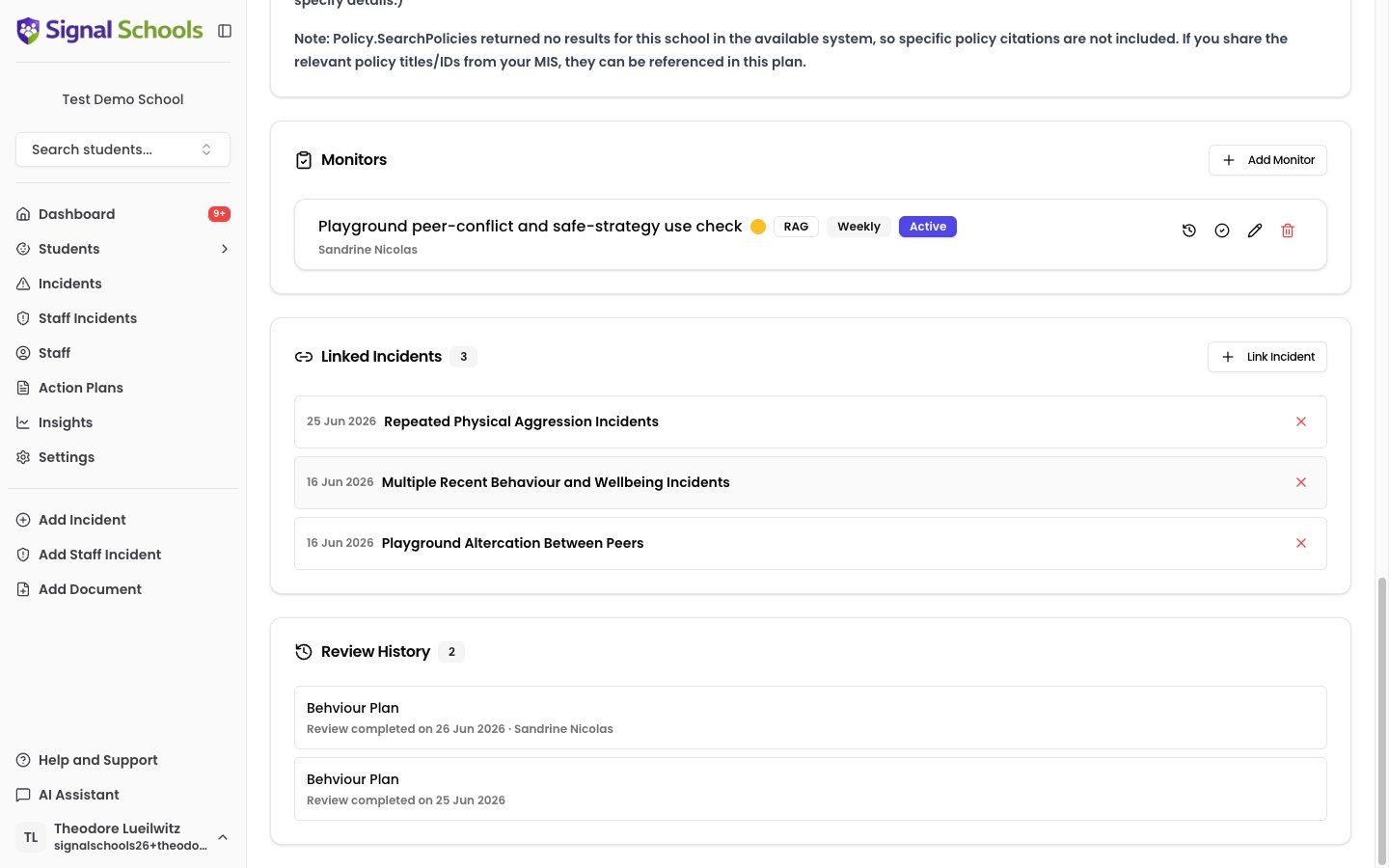
Every review is saved in the plan's review history, creating an auditable record of decisions, changes, and assessments over time. You can see who reviewed the plan, when, and what content was saved.
### Review history
Every review is saved in the plan's review history, creating an auditable record of decisions, changes, and assessments over time. You can see who reviewed the plan, when, and what content was saved.
 ### Completing a plan
When an intervention is complete or no longer needed, mark the plan as completed. Completing a plan marks it as finished and removes it from active lists. You can download a PDF of the completed plan for your records or to share with colleagues.
When you complete an action plan, all active monitors attached to it are automatically ended. Make sure any outstanding check-ins have been completed before marking the plan as complete.
### PDF download
You can download a PDF of any action plan at any time. The PDF includes the plan content, linked incidents, review history, and monitor records — useful for sharing with external agencies, including in transfer files, or keeping offline records.
### Reopening a completed plan
If circumstances change and the intervention needs to resume, you can reopen a completed plan. This restores it to active status so you can continue tracking progress and scheduling reviews.
## Configuring action plan types
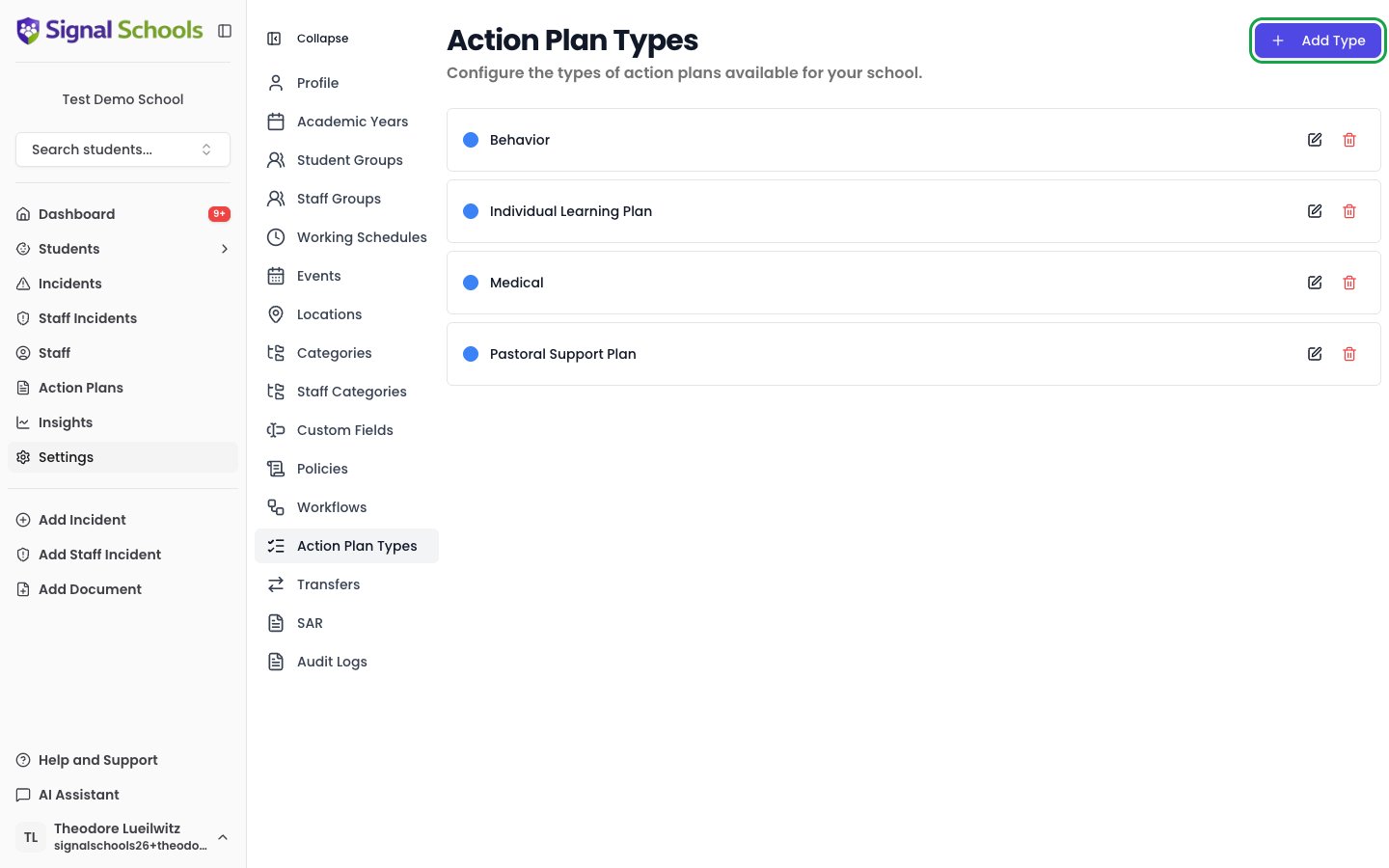
Action plan types are managed in **Settings > Action Plan Types**. You can create, edit, and organise the types your school uses.
Each type has a name and a description. The description helps staff choose the right type when creating a plan and is also used by the AI when generating plan content.
**Define types that reflect your school's interventions.** Common examples include Behavioural, Medical, Learning Support, Pastoral, and Attendance. You can add as many types as you need.
### Completing a plan
When an intervention is complete or no longer needed, mark the plan as completed. Completing a plan marks it as finished and removes it from active lists. You can download a PDF of the completed plan for your records or to share with colleagues.
When you complete an action plan, all active monitors attached to it are automatically ended. Make sure any outstanding check-ins have been completed before marking the plan as complete.
### PDF download
You can download a PDF of any action plan at any time. The PDF includes the plan content, linked incidents, review history, and monitor records — useful for sharing with external agencies, including in transfer files, or keeping offline records.
### Reopening a completed plan
If circumstances change and the intervention needs to resume, you can reopen a completed plan. This restores it to active status so you can continue tracking progress and scheduling reviews.
## Configuring action plan types
Action plan types are managed in **Settings > Action Plan Types**. You can create, edit, and organise the types your school uses.
Each type has a name and a description. The description helps staff choose the right type when creating a plan and is also used by the AI when generating plan content.
**Define types that reflect your school's interventions.** Common examples include Behavioural, Medical, Learning Support, Pastoral, and Attendance. You can add as many types as you need.
 ## Dashboard reminders
Upcoming reviews appear on your dashboard under **Upcoming Reviews**, showing plans that are due for review in the next 30 days. This ensures that reviews are not overlooked and that plans remain current.
## Dashboard reminders
Upcoming reviews appear on your dashboard under **Upcoming Reviews**, showing plans that are due for review in the next 30 days. This ensures that reviews are not overlooked and that plans remain current.