> ## Documentation Index
> Fetch the complete documentation index at: https://signalschools.co.uk/docs/llms.txt
> Use this file to discover all available pages before exploring further.
# Monitors & Check-ins
> Set up scheduled check-ins within action plans to track student progress. Learn how monitors work, how to record check-ins, and how they appear on your dashboard.
Monitors are scheduled check-ins attached to an action plan. They ensure ongoing oversight of a student's progress between formal reviews, giving you a structured way to track how an intervention is working over time.
 ## What monitors are
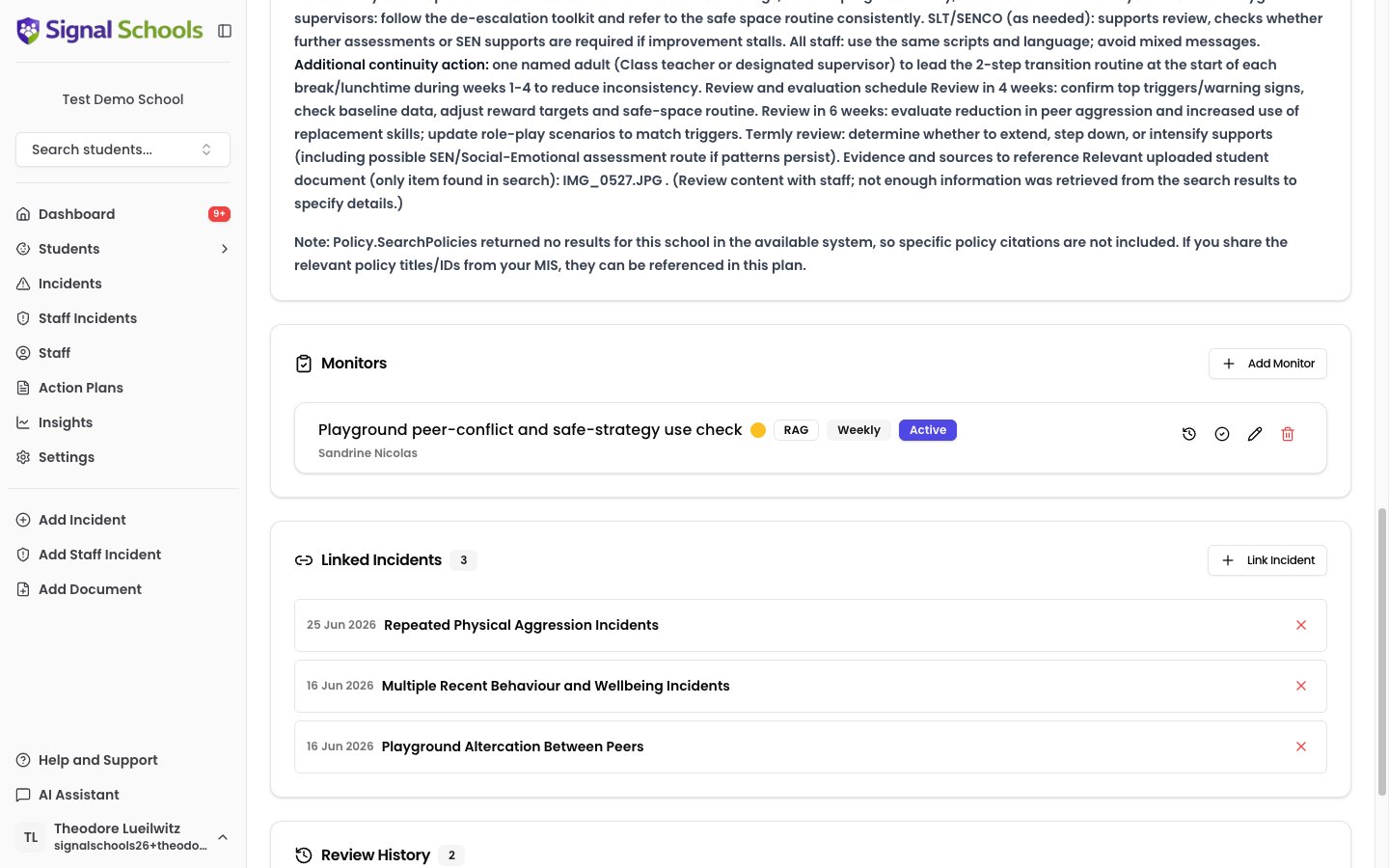
A monitor is a repeating task assigned to a specific staff member. At regular intervals, the assigned staff member records a check-in — noting the student's progress, any concerns, and suggested next steps. This creates a detailed log of how the student is responding to the intervention.
Each monitor has:
* **An assigned staff member** — the person responsible for carrying out the check-ins
* **A frequency** — how often check-ins should happen: Hourly, Daily, or Weekly
* **A type** — either RAG (Red/Amber/Green rating) or Scale (a numeric rating within configurable bounds)
* **An end date** — an optional date when the monitor will automatically stop generating check-ins
* **A parent action plan** — every monitor belongs to an action plan
## Setting up a monitor
### Open the action plan
Navigate to the action plan you want to add a monitor to and open its detail page.
### Go to the Monitors section
Scroll to the **Monitors** section of the action plan.
### Click Add Monitor
Click **Add Monitor** to create a new check-in schedule.
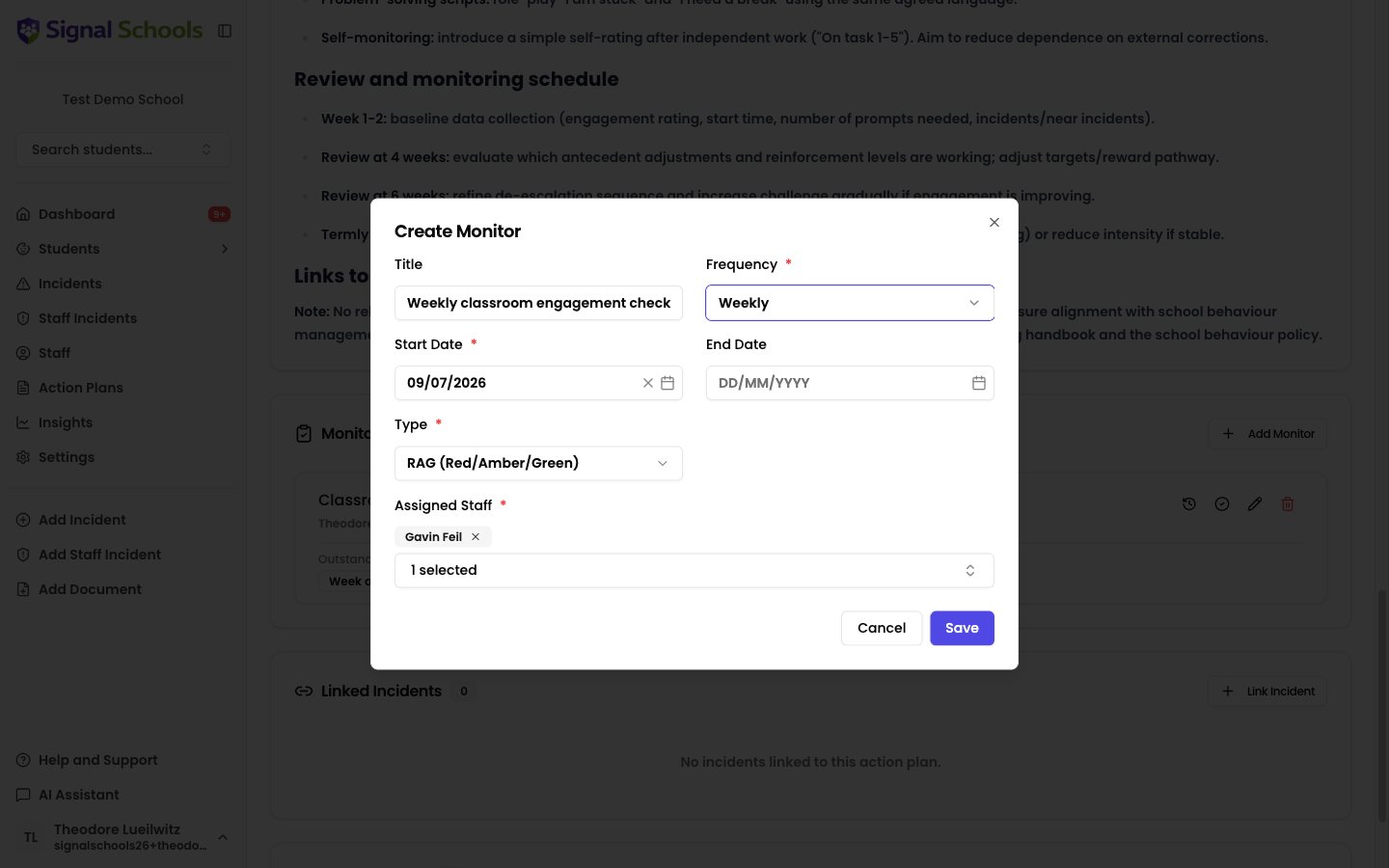
### Assign a staff member
Choose the staff member who will be responsible for carrying out the check-ins. This should be someone who has regular contact with the student.
### Set the frequency
Choose how often check-ins should happen — Hourly, Daily, or Weekly. The frequency should reflect the level of oversight the student needs — more frequent for higher-concern cases, less frequent for stable situations.
### Choose the monitor type
Select the type of check-in:
* **RAG** — each check-in records a Red, Amber, or Green rating, giving a quick visual indicator of how the student is doing.
* **Scale** — each check-in records a numeric value within configurable upper and lower bounds that you set when creating the monitor (for example, 1–10).
### Set an end date (optional)
You can set an end date for the monitor. When the end date is reached, the monitor stops generating check-ins automatically. If you do not set an end date, the monitor continues until you complete it manually or the action plan is completed.
### Save
Click **Save** to activate the monitor. The assigned staff member will see pending check-ins on their dashboard.
## What monitors are
A monitor is a repeating task assigned to a specific staff member. At regular intervals, the assigned staff member records a check-in — noting the student's progress, any concerns, and suggested next steps. This creates a detailed log of how the student is responding to the intervention.
Each monitor has:
* **An assigned staff member** — the person responsible for carrying out the check-ins
* **A frequency** — how often check-ins should happen: Hourly, Daily, or Weekly
* **A type** — either RAG (Red/Amber/Green rating) or Scale (a numeric rating within configurable bounds)
* **An end date** — an optional date when the monitor will automatically stop generating check-ins
* **A parent action plan** — every monitor belongs to an action plan
## Setting up a monitor
### Open the action plan
Navigate to the action plan you want to add a monitor to and open its detail page.
### Go to the Monitors section
Scroll to the **Monitors** section of the action plan.
### Click Add Monitor
Click **Add Monitor** to create a new check-in schedule.
### Assign a staff member
Choose the staff member who will be responsible for carrying out the check-ins. This should be someone who has regular contact with the student.
### Set the frequency
Choose how often check-ins should happen — Hourly, Daily, or Weekly. The frequency should reflect the level of oversight the student needs — more frequent for higher-concern cases, less frequent for stable situations.
### Choose the monitor type
Select the type of check-in:
* **RAG** — each check-in records a Red, Amber, or Green rating, giving a quick visual indicator of how the student is doing.
* **Scale** — each check-in records a numeric value within configurable upper and lower bounds that you set when creating the monitor (for example, 1–10).
### Set an end date (optional)
You can set an end date for the monitor. When the end date is reached, the monitor stops generating check-ins automatically. If you do not set an end date, the monitor continues until you complete it manually or the action plan is completed.
### Save
Click **Save** to activate the monitor. The assigned staff member will see pending check-ins on their dashboard.
 ## Recording a check-in
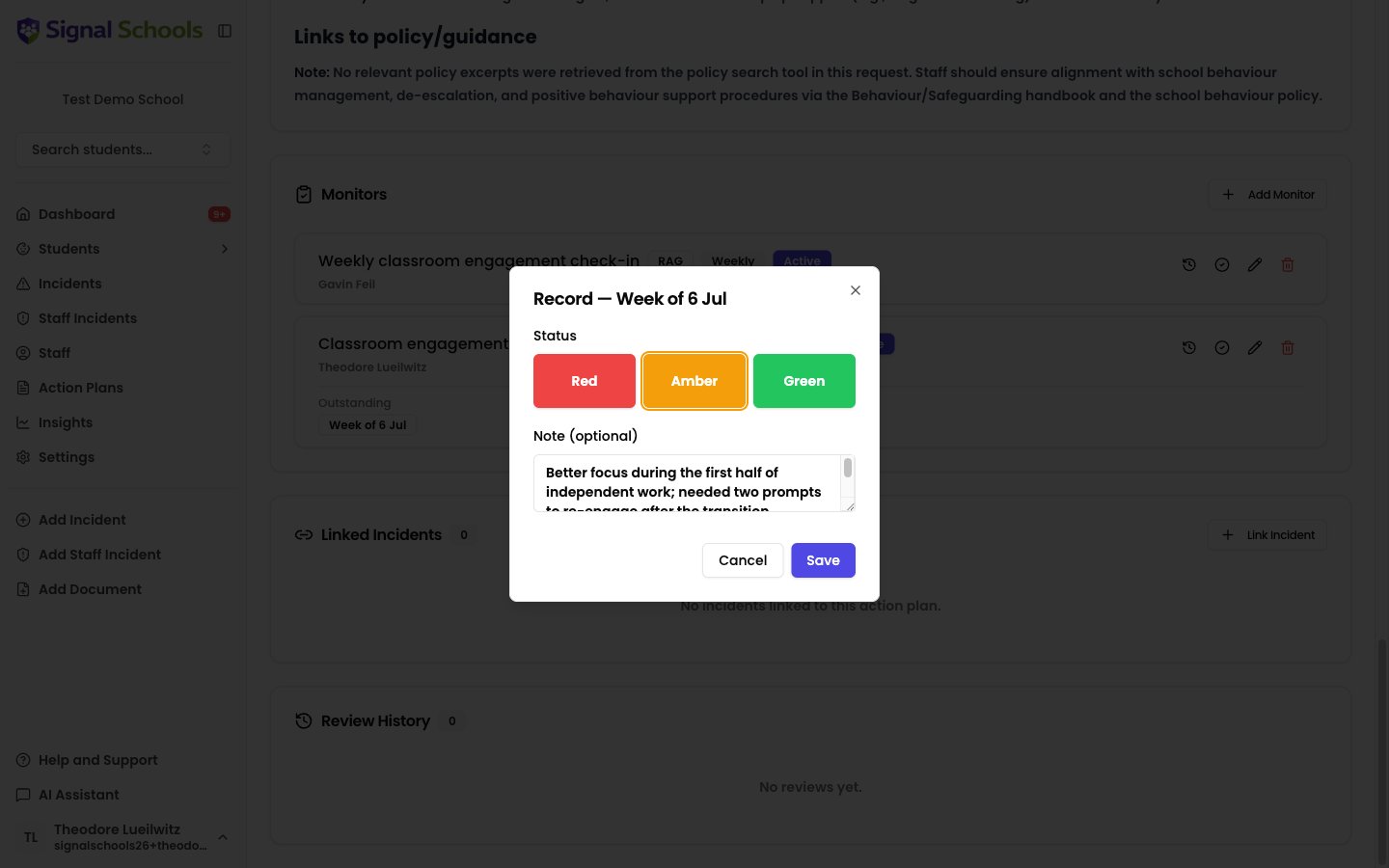
When a check-in is due, the assigned staff member records their observation:
* **RAG monitors** — select Red (significant concern), Amber (some concern), or Green (positive progress).
* **Scale monitors** — enter a numeric value within the bounds you set when creating the monitor (for example, 1–10).
* **Note** (optional) — add a short note to provide context for the rating, such as what happened or what you observed.
Each check-in is saved as part of the monitor's history, building a detailed picture of the student's journey over time. When an action plan review is conducted, monitor data — including trends and staff notes — is automatically included in the AI's analysis to assess whether strategies are working.
## Recording a check-in
When a check-in is due, the assigned staff member records their observation:
* **RAG monitors** — select Red (significant concern), Amber (some concern), or Green (positive progress).
* **Scale monitors** — enter a numeric value within the bounds you set when creating the monitor (for example, 1–10).
* **Note** (optional) — add a short note to provide context for the rating, such as what happened or what you observed.
Each check-in is saved as part of the monitor's history, building a detailed picture of the student's journey over time. When an action plan review is conducted, monitor data — including trends and staff notes — is automatically included in the AI's analysis to assess whether strategies are working.
 ## Pending monitors on your dashboard
When a check-in is due, it appears on your dashboard under **Pending Monitors**. This section shows all monitors assigned to you that need attention, so you can stay on top of your check-in schedule without having to remember dates manually.
## Pending monitors on your dashboard
When a check-in is due, it appears on your dashboard under **Pending Monitors**. This section shows all monitors assigned to you that need attention, so you can stay on top of your check-in schedule without having to remember dates manually.
 ## Managing monitors
### Editing a monitor
You can change the frequency or other details of a monitor at any time by opening it from the action plan's detail page.
### Reassigning a monitor
If responsibility for a student changes — for example, because a staff member is leaving or a different colleague now has more regular contact — you can reassign the monitor to a different staff member.
### Completing a monitor
When the intervention is progressing well and ongoing check-ins are no longer needed, you can mark the monitor as complete. This removes it from the dashboard and stops generating future check-ins.
## Completing plans and monitors
When an action plan is completed, all its active monitors are automatically ended. Make sure any outstanding check-ins are completed before completing the plan.
If the action plan is later reopened, you will need to create new monitors — the previously ended monitors are not automatically restored.
## Tips
**Assign monitors to staff with regular contact.** The most useful check-ins come from staff who see the student frequently — form tutors, teaching assistants, or pastoral leads. They are best placed to observe day-to-day progress and spot emerging concerns.
**Match the frequency to the level of concern.** A student on a crisis intervention may need hourly or daily check-ins, while a stable pastoral plan might only need weekly monitoring. Adjust the frequency as the situation evolves.
**Be specific in check-in notes.** Record concrete observations rather than general impressions. Specific details make it easier to track trends and inform future reviews.
## Managing monitors
### Editing a monitor
You can change the frequency or other details of a monitor at any time by opening it from the action plan's detail page.
### Reassigning a monitor
If responsibility for a student changes — for example, because a staff member is leaving or a different colleague now has more regular contact — you can reassign the monitor to a different staff member.
### Completing a monitor
When the intervention is progressing well and ongoing check-ins are no longer needed, you can mark the monitor as complete. This removes it from the dashboard and stops generating future check-ins.
## Completing plans and monitors
When an action plan is completed, all its active monitors are automatically ended. Make sure any outstanding check-ins are completed before completing the plan.
If the action plan is later reopened, you will need to create new monitors — the previously ended monitors are not automatically restored.
## Tips
**Assign monitors to staff with regular contact.** The most useful check-ins come from staff who see the student frequently — form tutors, teaching assistants, or pastoral leads. They are best placed to observe day-to-day progress and spot emerging concerns.
**Match the frequency to the level of concern.** A student on a crisis intervention may need hourly or daily check-ins, while a stable pastoral plan might only need weekly monitoring. Adjust the frequency as the situation evolves.
**Be specific in check-in notes.** Record concrete observations rather than general impressions. Specific details make it easier to track trends and inform future reviews.