> ## Documentation Index
> Fetch the complete documentation index at: https://signalschools.co.uk/docs/llms.txt
> Use this file to discover all available pages before exploring further.
# Events
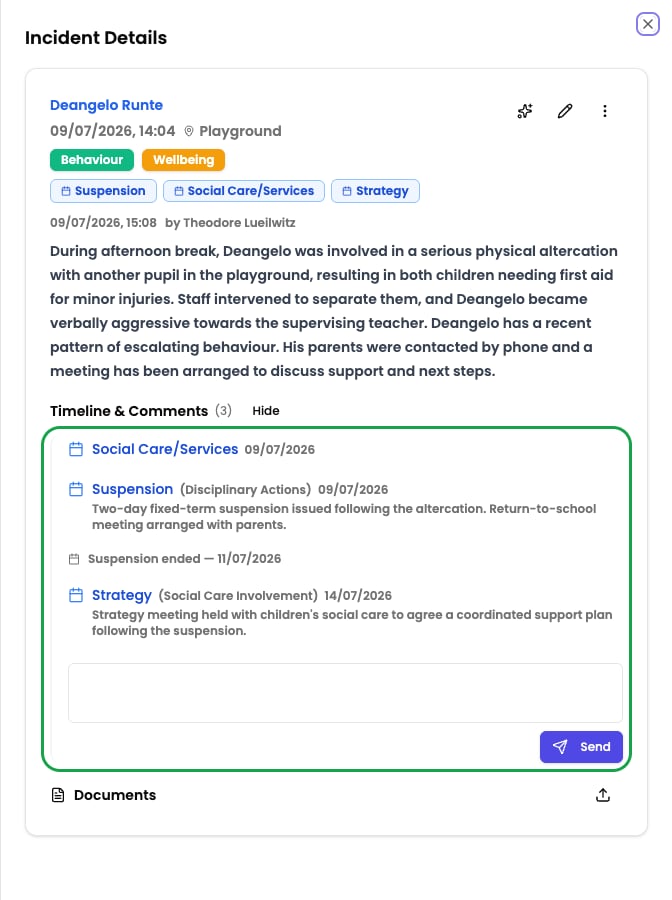
> Record the key milestones in a safeguarding case — social care meetings, exclusions, and external agency contact — so they appear on the incident timeline and can be traced across every incident for a student.
Events capture the significant things that happen around a safeguarding case: a social care core group meeting, a fixed-term suspension, a referral to CAMHS, or contact from the police. Recording them as events — rather than burying them in free-text comments — gives you a clear, structured history of what has happened and when.
 ## Events vs categories
Events and [categories](/docs/incidents/setting-up-categories) are easy to confuse, but they answer different questions — and they work together.
* **Categories describe the incident itself** — *what kind of concern* this is, such as Physical, Neglect, or Online Safety. You apply them once, when the incident is recorded.
* **Events describe the consequences and outcomes** — *what was done, and what happened next* as a result. A suspension, a strategy meeting, a police referral. You add them over the life of a case, as things unfold.
An incident is categorised once but can gather many events over time. Use categories to say *what the concern was*; use events to record *the actions and outcomes that followed*.
## Why use events
Recording outcomes as structured events — instead of leaving them in comments — gives you four things categories and free text cannot:
* **Time-specific history** — every event has its own start date (and an optional end date for anything spanning a period, such as a fixed-term exclusion), so you can see *exactly when* each meeting, action, or agency contact happened. Events appear as dated markers on the incident timeline, in order.
* **The full picture for a child** — events are linked to the student, not just one incident. When you open any incident for that student, you also see events recorded on their *other* incidents, so you can make decisions with everything that has happened in front of you.
* **Filterable analysis** — because events are structured and dated, you can filter and count incidents by event type in [Insights](/docs/insights/overview) — for example, how many suspensions were recorded this term, or how often a particular agency has been involved.
* **Richer AI context** — events tell the AI what was *done* about a concern, not just what the concern was. That lets it reason about your response — for example, what happened *after* a suspension, or whether a referral was followed up.
## How events are organised
Events are built from two configurable building blocks:
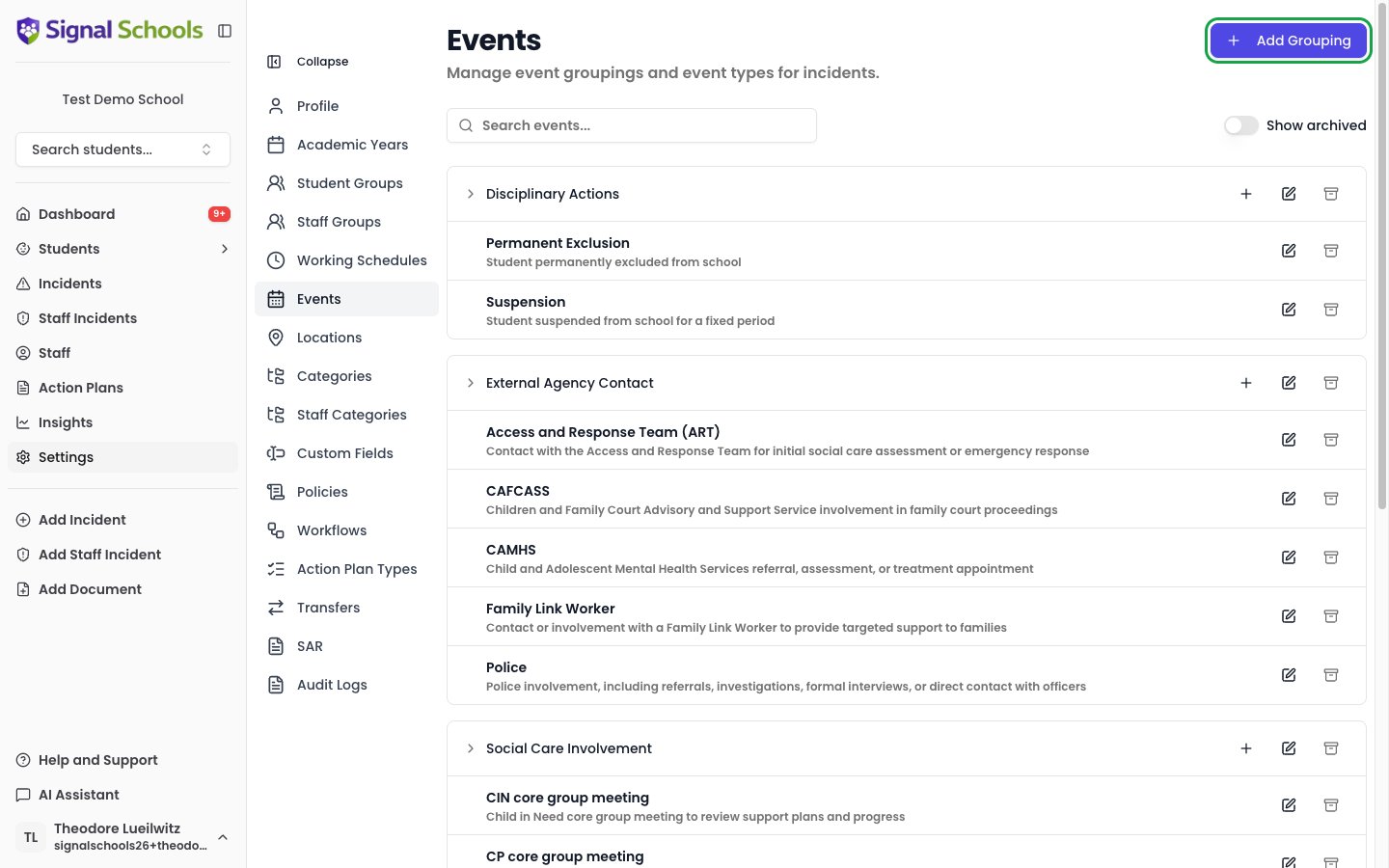
* **Event groupings** — broad categories such as *Social Care Involvement*, *Disciplinary Actions*, or *External Agency Contact*.
* **Event types** — the specific event within a grouping, such as *CP core group meeting*, *Suspension*, or *Police*.
Every school starts with a sensible set of default groupings and types, which you can rename, add to, or archive to match how your school works. See [Setting up event types](/docs/events/setting-up-event-types).
## Events vs categories
Events and [categories](/docs/incidents/setting-up-categories) are easy to confuse, but they answer different questions — and they work together.
* **Categories describe the incident itself** — *what kind of concern* this is, such as Physical, Neglect, or Online Safety. You apply them once, when the incident is recorded.
* **Events describe the consequences and outcomes** — *what was done, and what happened next* as a result. A suspension, a strategy meeting, a police referral. You add them over the life of a case, as things unfold.
An incident is categorised once but can gather many events over time. Use categories to say *what the concern was*; use events to record *the actions and outcomes that followed*.
## Why use events
Recording outcomes as structured events — instead of leaving them in comments — gives you four things categories and free text cannot:
* **Time-specific history** — every event has its own start date (and an optional end date for anything spanning a period, such as a fixed-term exclusion), so you can see *exactly when* each meeting, action, or agency contact happened. Events appear as dated markers on the incident timeline, in order.
* **The full picture for a child** — events are linked to the student, not just one incident. When you open any incident for that student, you also see events recorded on their *other* incidents, so you can make decisions with everything that has happened in front of you.
* **Filterable analysis** — because events are structured and dated, you can filter and count incidents by event type in [Insights](/docs/insights/overview) — for example, how many suspensions were recorded this term, or how often a particular agency has been involved.
* **Richer AI context** — events tell the AI what was *done* about a concern, not just what the concern was. That lets it reason about your response — for example, what happened *after* a suspension, or whether a referral was followed up.
## How events are organised
Events are built from two configurable building blocks:
* **Event groupings** — broad categories such as *Social Care Involvement*, *Disciplinary Actions*, or *External Agency Contact*.
* **Event types** — the specific event within a grouping, such as *CP core group meeting*, *Suspension*, or *Police*.
Every school starts with a sensible set of default groupings and types, which you can rename, add to, or archive to match how your school works. See [Setting up event types](/docs/events/setting-up-event-types).
 ## Where events appear
Events show as start and end markers, interleaved chronologically with comments on the incident.
Events recorded on one incident surface on the student's other incidents, giving cross-incident context.
Filter and count incidents by event type to analyse trends across your school.
Adding an event can trigger a workflow — for example, alerting the DSL when an exclusion is recorded.
## Learn more
Add, edit, and remove events on an incident or while recording one.
Configure the event groupings and types available to your school.
## Where events appear
Events show as start and end markers, interleaved chronologically with comments on the incident.
Events recorded on one incident surface on the student's other incidents, giving cross-incident context.
Filter and count incidents by event type to analyse trends across your school.
Adding an event can trigger a workflow — for example, alerting the DSL when an exclusion is recorded.
## Learn more
Add, edit, and remove events on an incident or while recording one.
Configure the event groupings and types available to your school.