> ## Documentation Index
> Fetch the complete documentation index at: https://signalschools.co.uk/docs/llms.txt
> Use this file to discover all available pages before exploring further.
# Recording events
> Add events to an incident to record meetings, exclusions, and agency contact — either while creating the incident or at any time afterwards.
You can record an event while creating an incident or add one to an existing incident at any time. Each event belongs to one student and one incident.
You need the **Contributor** role or above to record events.
## Recording an event on an existing incident
### Open the incident
Open the incident you want to add the event to.
### Choose Record Event
Open the incident's **More actions** menu (the **⋮** button) and choose **Record Event**.
### Choose the event type
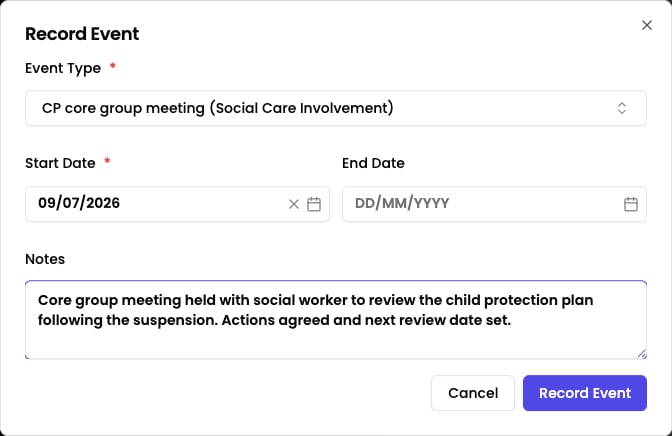
In the **Event Type** field, select an event type — for example, *Suspension* or *Police*. Types are grouped to make them easy to find, so you can search by grouping too. If your school has not set up the type you need, an [administrator can add it](/docs/events/setting-up-event-types).
### Set the dates
Choose a **Start Date** — it defaults to today. If the event spans a period (such as a fixed-term exclusion), also set an **End Date**. Events with an end date show both a start and an end marker on the timeline.
### Add notes and details
Optionally add **Notes**.
### Save
Click **Record Event**. The event appears immediately on the incident timeline.
 You can also record an event from a student's profile. On the **Events** card, click the **+** button, pick the incident to attach it to, then fill in the same form.
## Adding events while creating an incident
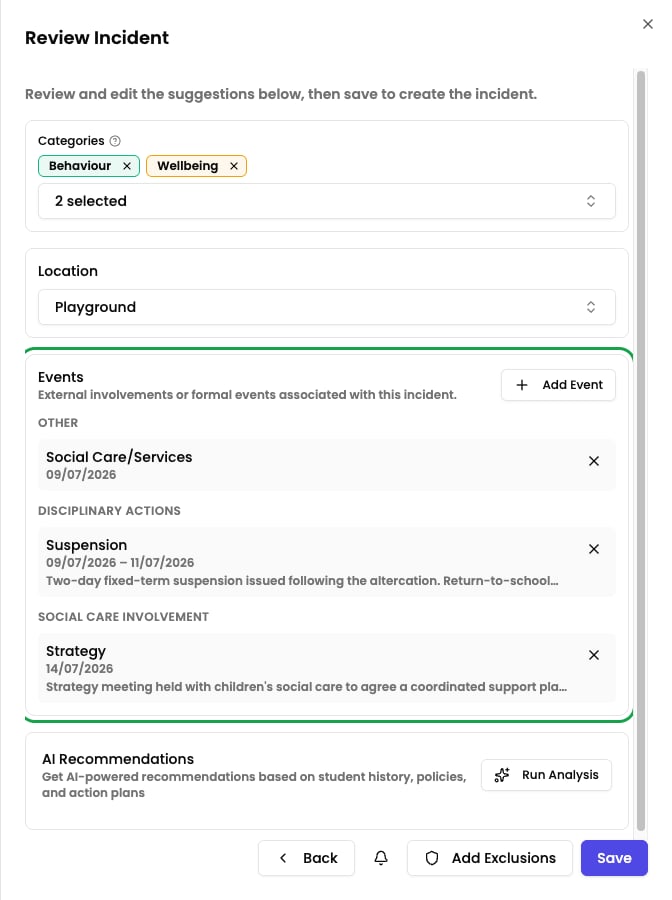
When you record a new incident you can add events at the same time. After the AI analyses your description, an **Events** section appears in the review step — click **Add Event** to add one.
If the AI suggests events based on your description, they are pre-filled for you to review — you can keep, edit, or remove them before saving.
You can also record an event from a student's profile. On the **Events** card, click the **+** button, pick the incident to attach it to, then fill in the same form.
## Adding events while creating an incident
When you record a new incident you can add events at the same time. After the AI analyses your description, an **Events** section appears in the review step — click **Add Event** to add one.
If the AI suggests events based on your description, they are pre-filled for you to review — you can keep, edit, or remove them before saving.
 ### Incidents with more than one main student
An event always applies to a single student. When an incident has **more than one main student**, you choose which student each event applies to in the Add Event dialog before saving.
To keep things accurate, events are not suggested automatically when an incident has multiple main students — add them manually and pick the student each one relates to.
## Editing an event
Find the event and choose **Edit** to open the **Edit Event** dialog. You can change the dates and notes. The event type is fixed once the event is created. Click **Update Event** to save.
You can edit or delete an event you created. Users with the **DSL**, **Deputy DSL**, or **Owner** role can edit or delete any event.
## Deleting an event
Choose **Delete** on the event and confirm. The event is removed from the timeline. Deleting an event does not affect the incident or any comments.
## Seeing events from other incidents
When you view an incident, events recorded on the same student's **other** incidents also appear on the timeline, clearly marked with the incident they came from. This gives you the wider history without having to open every incident individually. Events from other incidents are read-only here — open the originating incident to change them.
### Incidents with more than one main student
An event always applies to a single student. When an incident has **more than one main student**, you choose which student each event applies to in the Add Event dialog before saving.
To keep things accurate, events are not suggested automatically when an incident has multiple main students — add them manually and pick the student each one relates to.
## Editing an event
Find the event and choose **Edit** to open the **Edit Event** dialog. You can change the dates and notes. The event type is fixed once the event is created. Click **Update Event** to save.
You can edit or delete an event you created. Users with the **DSL**, **Deputy DSL**, or **Owner** role can edit or delete any event.
## Deleting an event
Choose **Delete** on the event and confirm. The event is removed from the timeline. Deleting an event does not affect the incident or any comments.
## Seeing events from other incidents
When you view an incident, events recorded on the same student's **other** incidents also appear on the timeline, clearly marked with the incident they came from. This gives you the wider history without having to open every incident individually. Events from other incidents are read-only here — open the originating incident to change them.