> ## Documentation Index
> Fetch the complete documentation index at: https://signalschools.co.uk/docs/llms.txt
> Use this file to discover all available pages before exploring further.
# Setting up event types
> Configure the event groupings and event types available to your school, so staff can record meetings, exclusions, and agency involvement consistently.
Event types and their groupings are configured in Settings. Setting them up to match your school's language and processes means staff record events consistently and your [Insights](/docs/insights/overview) reports stay meaningful.
You need the **DSL** or **Owner** role to manage event types and groupings.
## Groupings and types
Events are organised in two levels:
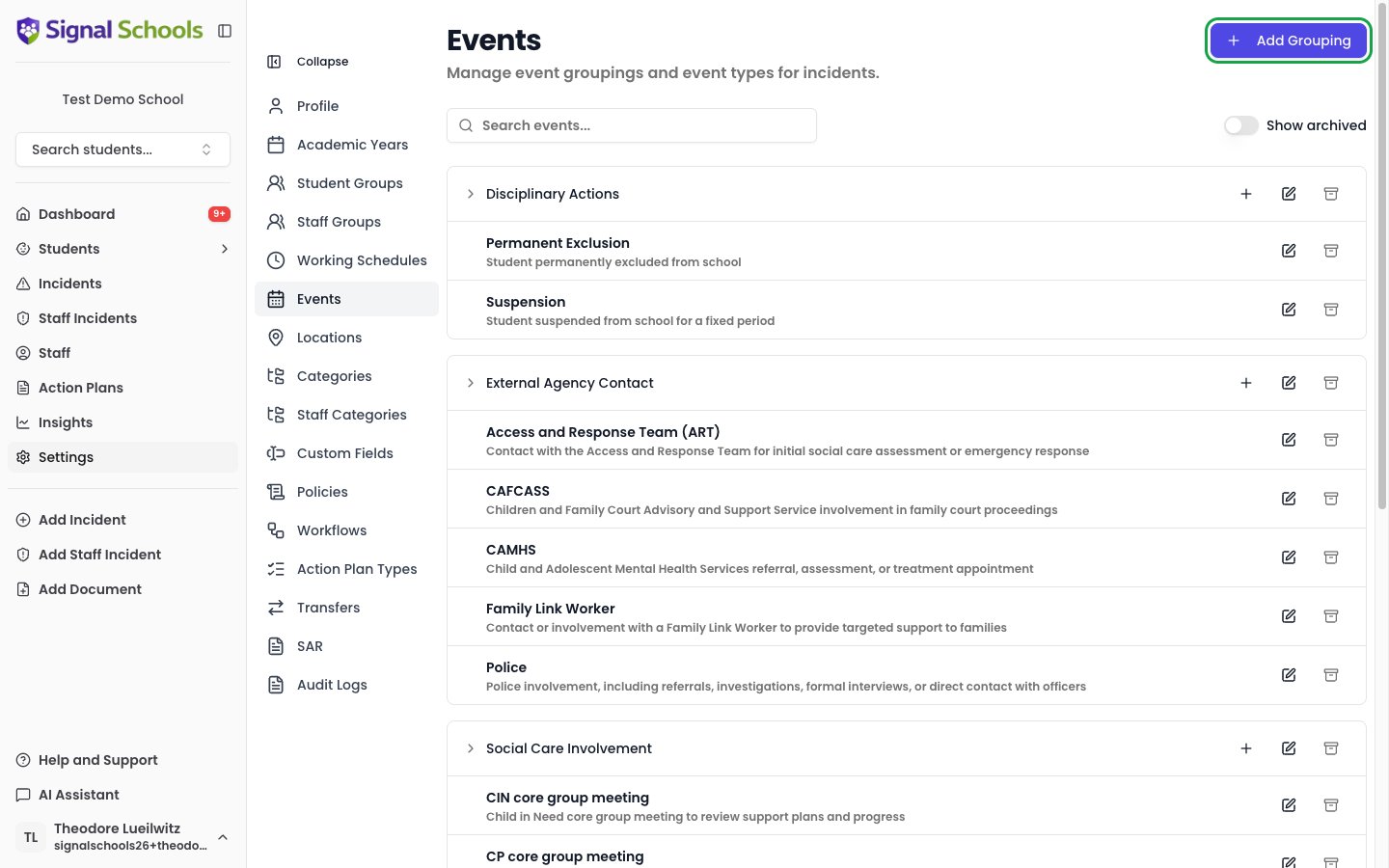
* An **event grouping** is a broad heading, such as *Social Care Involvement*, *Disciplinary Actions*, or *External Agency Contact*.
* An **event type** sits inside a grouping — for example, *CP core group meeting* under *Social Care Involvement*, or *Suspension* under *Disciplinary Actions*.
Every school starts with a default set of groupings and types covering the most common safeguarding events. You can adjust these at any time.
 ## Managing event groupings
### Go to Settings
Open **Settings** from the sidebar and select **Events**.
### Add a grouping
Click **Add Grouping** in the top right. Give it a clear **Name** and an optional **Description**, then save.
### Edit or archive a grouping
Each grouping row has icon buttons to **Edit grouping** and **Archive grouping**. Archiving hides the grouping from the options staff see when recording new events; events already recorded under it are not affected. Turn on **Show archived** to see and **Restore** archived groupings.
## Managing event types
### Add an event type
On a grouping row, click the **Add event type** (**+**) button. Give the type a **Name**, an optional **Description**, and confirm its **Grouping**.
### Edit or archive
Use the **Edit** icon to rename a type or move it to a different grouping. Use the **Archive** icon to remove a type you no longer use from the options offered for new events, without affecting events already recorded.
Use the **Search events...** box to find a grouping or type quickly when your list is long.
Archiving a type or grouping is safe and reversible — it only controls what staff can choose when recording *new* events. Historic events remain on their incidents and in your reports.
## Managing event groupings
### Go to Settings
Open **Settings** from the sidebar and select **Events**.
### Add a grouping
Click **Add Grouping** in the top right. Give it a clear **Name** and an optional **Description**, then save.
### Edit or archive a grouping
Each grouping row has icon buttons to **Edit grouping** and **Archive grouping**. Archiving hides the grouping from the options staff see when recording new events; events already recorded under it are not affected. Turn on **Show archived** to see and **Restore** archived groupings.
## Managing event types
### Add an event type
On a grouping row, click the **Add event type** (**+**) button. Give the type a **Name**, an optional **Description**, and confirm its **Grouping**.
### Edit or archive
Use the **Edit** icon to rename a type or move it to a different grouping. Use the **Archive** icon to remove a type you no longer use from the options offered for new events, without affecting events already recorded.
Use the **Search events...** box to find a grouping or type quickly when your list is long.
Archiving a type or grouping is safe and reversible — it only controls what staff can choose when recording *new* events. Historic events remain on their incidents and in your reports.