> ## Documentation Index
> Fetch the complete documentation index at: https://signalschools.co.uk/docs/llms.txt
> Use this file to discover all available pages before exploring further.
# MIS Integration
> Connect Signal to your Management Information System (MIS) to automatically sync student, staff, contact, and attendance data.
Signal integrates with **Arbor**, **Bromcom**, and **Wonde** — Management Information Systems and data platforms used by many UK schools. Connecting your MIS keeps Signal up to date with your school's data without manual entry.
MIS integration requires the **Owner** or **DSL** role. Each school can connect one MIS at a time.
## What data is synced
When connected, Signal automatically syncs the following data:
| Data type | What is synced |
| ------------------------ | ---------------------------------------------------------------------------- |
| **Students** | Names, dates of birth, UPNs (Unique Pupil Numbers), year groups, and classes |
| **Staff** | Names and roles |
| **Contacts & guardians** | Parent and guardian names, relationships, phone numbers, and email addresses |
| **Attendance** | Attendance records, used by Signal's AI for pattern analysis |
Synced data flows one way — from your MIS into Signal. Changes you make in Signal (such as adding a student to a group) are not sent back to your MIS.
## Provider-specific data processing
For DPIA and due-diligence detail by provider, see:
* [Arbor Data Processing](/docs/mis-integration/arbor)
* [Bromcom Data Processing](/docs/mis-integration/bromcom)
* [Wonde Data Processing](/docs/mis-integration/wonde)
## Connecting to Bromcom
### Ensure Signal has access in Bromcom
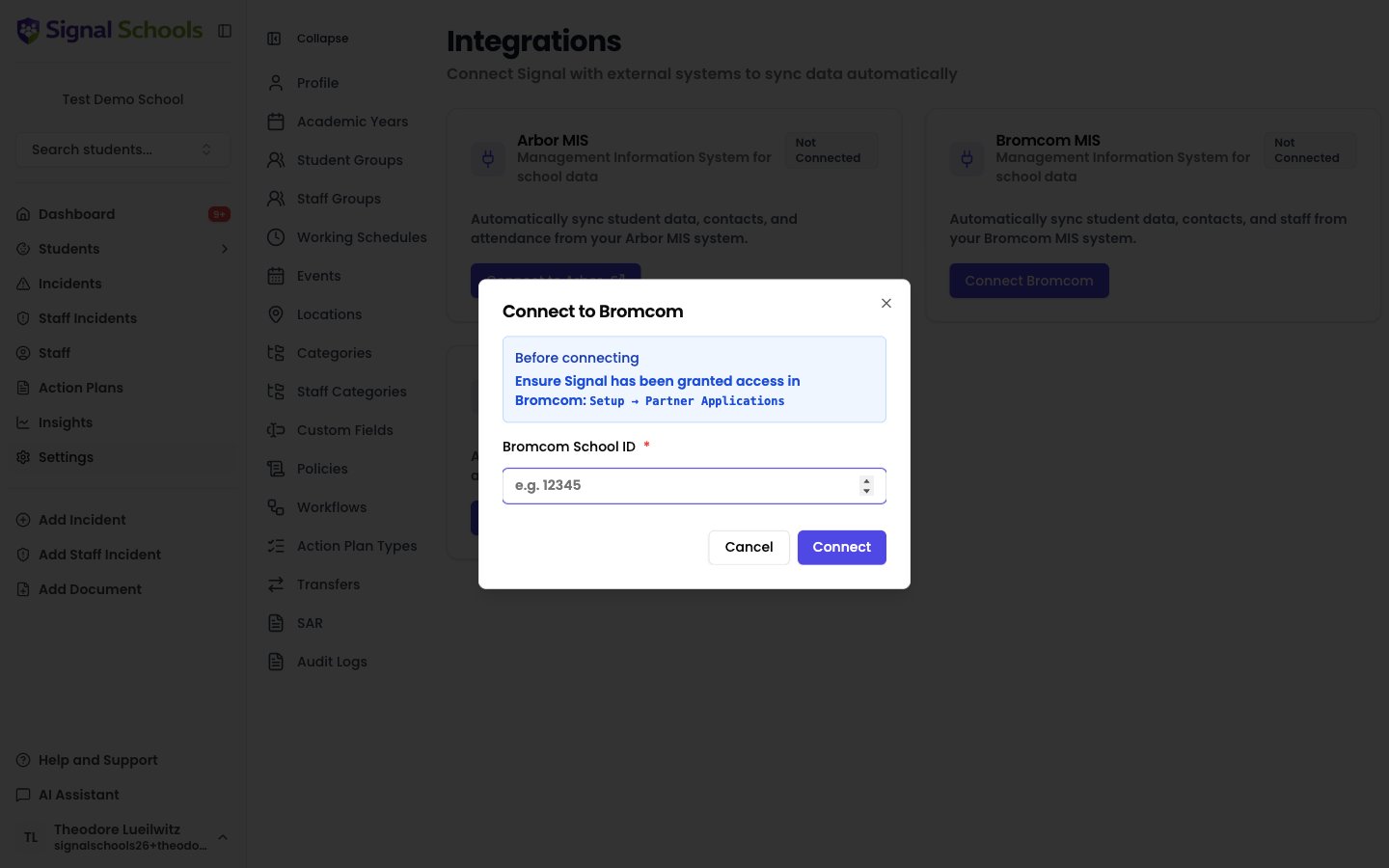
Before connecting, your Bromcom administrator must grant Signal access via **Setup → Partner Applications** in Bromcom.
### Go to integration settings
Go to **Settings → Integrations** from the sidebar.
 ### Click Connect Bromcom
Click **Connect Bromcom**. A dialog appears asking for your Bromcom School ID.
### Click Connect Bromcom
Click **Connect Bromcom**. A dialog appears asking for your Bromcom School ID.
 ### Enter your School ID
Enter the numeric School ID for your school in Bromcom. Your IT team or Bromcom administrator can provide this.
You can find your School ID in Bromcom under **Setup → School Details** or by asking your Bromcom account manager.
### Click Connect
Signal validates the School ID and checks that your email address exists as a staff member in the Bromcom school. If everything checks out, the connection is established.
### Wait for the first sync
Signal begins syncing your data automatically. The first sync may take 20–30 minutes depending on the size of your school. You can see the sync progress on the Integrations page.
### Review your data
Check your student list, staff list, and year groups to confirm everything has come through correctly.
## Connecting to Arbor
### Go to integration settings
Go to **Settings → Integrations** from the sidebar.
### Connect to Arbor
Click **Connect to Arbor**. This redirects you to Arbor's website.
### Authorise Signal in Arbor
Sign in to Arbor and authorise Signal to access your school's data.
### Return to Signal
You are redirected back to Signal automatically. The connection is confirmed once you arrive back in Signal.
### Wait for the first sync
Signal begins syncing your data automatically. The first sync may take 20–30 minutes depending on the size of your school.
### Review your data
Check your student list, staff list, and year groups to confirm everything has come through correctly.
## Connecting via Wonde
Wonde is a data integration platform that connects to many different MIS providers. If your school uses Wonde, you can connect Signal through Wonde instead of connecting directly to your MIS.
### Go to integration settings
Go to **Settings → Integrations** from the sidebar.
### Click Connect via Wonde
Click **Connect via Wonde**. A dialog appears asking for your contact details.
### Enter your details
Provide your first name, last name, email address, and optionally a phone number. Signal uses these to request access to your school's data via Wonde.
### Submit the request
Click **Request Access**. Signal sends an access request to Wonde on your behalf. The connection status changes to **Pending**.
### Approve access in Wonde
Your school's IT administrator or Wonde account holder needs to approve the access request in the Wonde portal. Signal is notified automatically when this happens.
The approval process is managed by Wonde and your school. Signal cannot speed this up — if you need help, contact your school's Wonde administrator.
### Wait for the first sync
Once approved, Signal begins syncing your data automatically. The first sync may take 20–30 minutes depending on the size of your school.
### Review your data
Check your student list, staff list, and year groups to confirm everything has come through correctly.
## Automatic syncing
Once connected, Signal syncs with your MIS automatically on a daily schedule. This ensures that new students, leavers, class changes, and updated contact details are reflected in Signal without any action from you.
Attendance is synced multiple times per day (morning and afternoon) to keep records current.
You do not need to remember to sync — Signal handles it automatically. Any changes in your MIS (new enrolments, class moves, updated contacts) will appear in Signal after the next scheduled sync.
## Disconnecting your MIS
Go to **Settings → Integrations** and click the disconnect button next to your MIS connection — **Disconnect Arbor**, **Disconnect Bromcom**, or **Disconnect Wonde**, depending on your provider.
Disconnecting stops future syncs but does not delete data already imported into Signal. Your existing student, staff, and attendance records remain intact.
Each school can only have one MIS connected at a time. If you need to switch from one MIS to another (e.g. Arbor to Bromcom), disconnect your current MIS first, then connect the new one. If you see a message about contacting support, email [support@signalschools.com](mailto:support@signalschools.com) for assistance.
## Importing from your previous safeguarding supplier
Once your MIS integration is connected and an initial sync has completed successfully, you can import historical data from your previous safeguarding system (such as CPOMS). The import option becomes available on the **Settings → Integrations** page after a successful MIS sync.
This is a one-time process that brings your existing safeguarding records into Signal, ensuring continuity when switching platforms.
If you need help with importing data from your previous supplier, contact [support@signalschools.com](mailto:support@signalschools.com).
## Troubleshooting
* Confirm that Signal has been granted access in Bromcom under **Setup → Partner Applications**.
* Double-check that you have entered the correct School ID.
* Ensure your email address matches a staff member in the Bromcom school.
* If you are a super admin, the staff email check is bypassed — contact support if you still encounter issues.
* Confirm with your IT team or Arbor administrator that your school's Arbor account is set up to allow third-party integrations.
* Check that your school's network does not block outbound connections to Arbor's servers.
* Try disconnecting and re-authorising the connection from **Settings → Integrations**.
* Verify that the missing records exist and are active in your MIS. Signal only syncs active students and staff.
* If a student has recently enrolled, they may not appear until the next daily sync.
* Check that the student's year group and class are correctly assigned in your MIS.
* Contacts are synced from your MIS along with their relationship to each student. Make sure the contact records are complete in your MIS (name, relationship, and at least one phone number or email).
* If the contacts were recently added, they will appear after the next daily sync.
* Attendance data is used by Signal's AI features for pattern analysis. It may take a sync cycle for new attendance data to appear.
* Confirm that attendance is being recorded in your MIS for the relevant time period.
* Access requests must be approved by your school's Wonde administrator in the Wonde portal.
* Contact your IT team or Wonde account holder to check the status of the request.
* If the request was declined, you can disconnect and try again from **Settings → Integrations**.
* Disconnect your current MIS from **Settings → Integrations**.
* If the disconnect button is not available, contact [support@signalschools.com](mailto:support@signalschools.com) to have the old connection removed.
* Once removed, you can connect to a different MIS.
* Go to **Settings → Integrations** and click the disconnect button next to your MIS connection — **Disconnect Arbor**, **Disconnect Bromcom**, or **Disconnect Wonde**, depending on your provider.
* Disconnecting stops future syncs but does not delete data already imported into Signal. Your existing student, staff, and attendance records remain intact.
### Enter your School ID
Enter the numeric School ID for your school in Bromcom. Your IT team or Bromcom administrator can provide this.
You can find your School ID in Bromcom under **Setup → School Details** or by asking your Bromcom account manager.
### Click Connect
Signal validates the School ID and checks that your email address exists as a staff member in the Bromcom school. If everything checks out, the connection is established.
### Wait for the first sync
Signal begins syncing your data automatically. The first sync may take 20–30 minutes depending on the size of your school. You can see the sync progress on the Integrations page.
### Review your data
Check your student list, staff list, and year groups to confirm everything has come through correctly.
## Connecting to Arbor
### Go to integration settings
Go to **Settings → Integrations** from the sidebar.
### Connect to Arbor
Click **Connect to Arbor**. This redirects you to Arbor's website.
### Authorise Signal in Arbor
Sign in to Arbor and authorise Signal to access your school's data.
### Return to Signal
You are redirected back to Signal automatically. The connection is confirmed once you arrive back in Signal.
### Wait for the first sync
Signal begins syncing your data automatically. The first sync may take 20–30 minutes depending on the size of your school.
### Review your data
Check your student list, staff list, and year groups to confirm everything has come through correctly.
## Connecting via Wonde
Wonde is a data integration platform that connects to many different MIS providers. If your school uses Wonde, you can connect Signal through Wonde instead of connecting directly to your MIS.
### Go to integration settings
Go to **Settings → Integrations** from the sidebar.
### Click Connect via Wonde
Click **Connect via Wonde**. A dialog appears asking for your contact details.
### Enter your details
Provide your first name, last name, email address, and optionally a phone number. Signal uses these to request access to your school's data via Wonde.
### Submit the request
Click **Request Access**. Signal sends an access request to Wonde on your behalf. The connection status changes to **Pending**.
### Approve access in Wonde
Your school's IT administrator or Wonde account holder needs to approve the access request in the Wonde portal. Signal is notified automatically when this happens.
The approval process is managed by Wonde and your school. Signal cannot speed this up — if you need help, contact your school's Wonde administrator.
### Wait for the first sync
Once approved, Signal begins syncing your data automatically. The first sync may take 20–30 minutes depending on the size of your school.
### Review your data
Check your student list, staff list, and year groups to confirm everything has come through correctly.
## Automatic syncing
Once connected, Signal syncs with your MIS automatically on a daily schedule. This ensures that new students, leavers, class changes, and updated contact details are reflected in Signal without any action from you.
Attendance is synced multiple times per day (morning and afternoon) to keep records current.
You do not need to remember to sync — Signal handles it automatically. Any changes in your MIS (new enrolments, class moves, updated contacts) will appear in Signal after the next scheduled sync.
## Disconnecting your MIS
Go to **Settings → Integrations** and click the disconnect button next to your MIS connection — **Disconnect Arbor**, **Disconnect Bromcom**, or **Disconnect Wonde**, depending on your provider.
Disconnecting stops future syncs but does not delete data already imported into Signal. Your existing student, staff, and attendance records remain intact.
Each school can only have one MIS connected at a time. If you need to switch from one MIS to another (e.g. Arbor to Bromcom), disconnect your current MIS first, then connect the new one. If you see a message about contacting support, email [support@signalschools.com](mailto:support@signalschools.com) for assistance.
## Importing from your previous safeguarding supplier
Once your MIS integration is connected and an initial sync has completed successfully, you can import historical data from your previous safeguarding system (such as CPOMS). The import option becomes available on the **Settings → Integrations** page after a successful MIS sync.
This is a one-time process that brings your existing safeguarding records into Signal, ensuring continuity when switching platforms.
If you need help with importing data from your previous supplier, contact [support@signalschools.com](mailto:support@signalschools.com).
## Troubleshooting
* Confirm that Signal has been granted access in Bromcom under **Setup → Partner Applications**.
* Double-check that you have entered the correct School ID.
* Ensure your email address matches a staff member in the Bromcom school.
* If you are a super admin, the staff email check is bypassed — contact support if you still encounter issues.
* Confirm with your IT team or Arbor administrator that your school's Arbor account is set up to allow third-party integrations.
* Check that your school's network does not block outbound connections to Arbor's servers.
* Try disconnecting and re-authorising the connection from **Settings → Integrations**.
* Verify that the missing records exist and are active in your MIS. Signal only syncs active students and staff.
* If a student has recently enrolled, they may not appear until the next daily sync.
* Check that the student's year group and class are correctly assigned in your MIS.
* Contacts are synced from your MIS along with their relationship to each student. Make sure the contact records are complete in your MIS (name, relationship, and at least one phone number or email).
* If the contacts were recently added, they will appear after the next daily sync.
* Attendance data is used by Signal's AI features for pattern analysis. It may take a sync cycle for new attendance data to appear.
* Confirm that attendance is being recorded in your MIS for the relevant time period.
* Access requests must be approved by your school's Wonde administrator in the Wonde portal.
* Contact your IT team or Wonde account holder to check the status of the request.
* If the request was declined, you can disconnect and try again from **Settings → Integrations**.
* Disconnect your current MIS from **Settings → Integrations**.
* If the disconnect button is not available, contact [support@signalschools.com](mailto:support@signalschools.com) to have the old connection removed.
* Once removed, you can connect to a different MIS.
* Go to **Settings → Integrations** and click the disconnect button next to your MIS connection — **Disconnect Arbor**, **Disconnect Bromcom**, or **Disconnect Wonde**, depending on your provider.
* Disconnecting stops future syncs but does not delete data already imported into Signal. Your existing student, staff, and attendance records remain intact.