> ## Documentation Index
> Fetch the complete documentation index at: https://signalschools.co.uk/docs/llms.txt
> Use this file to discover all available pages before exploring further.
# Recording Your First Incident
> A complete walkthrough for recording your first safeguarding incident in Signal, from start to finish.
This guide walks you through recording a safeguarding concern in Signal from start to finish. By the end, you will have created your first incident and seen how Signal's AI helps you classify and manage it.
## Before you begin
Make sure the following are in place:
* Your school has been [set up in Signal](/docs/getting-started/initial-setup) (at minimum, incident categories have been configured).
* You have an account with at least the **Contributor** role.
* You are [logged in](/docs/getting-started/login-authentication).
## Recording an incident
### Start a new incident
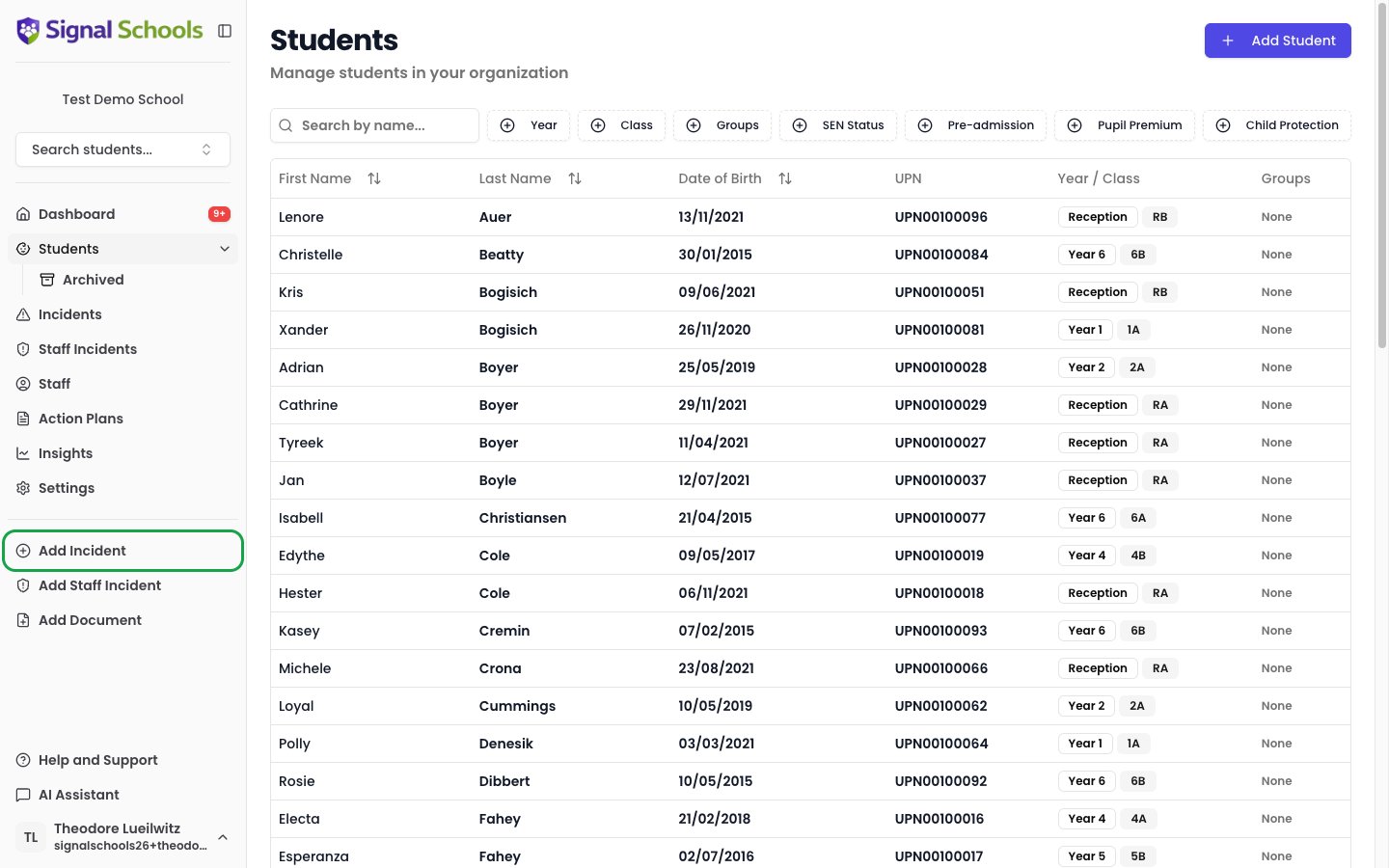
Click **Add Incident** from the sidebar navigation or from the dashboard. This opens the incident form.
 ### Select the student
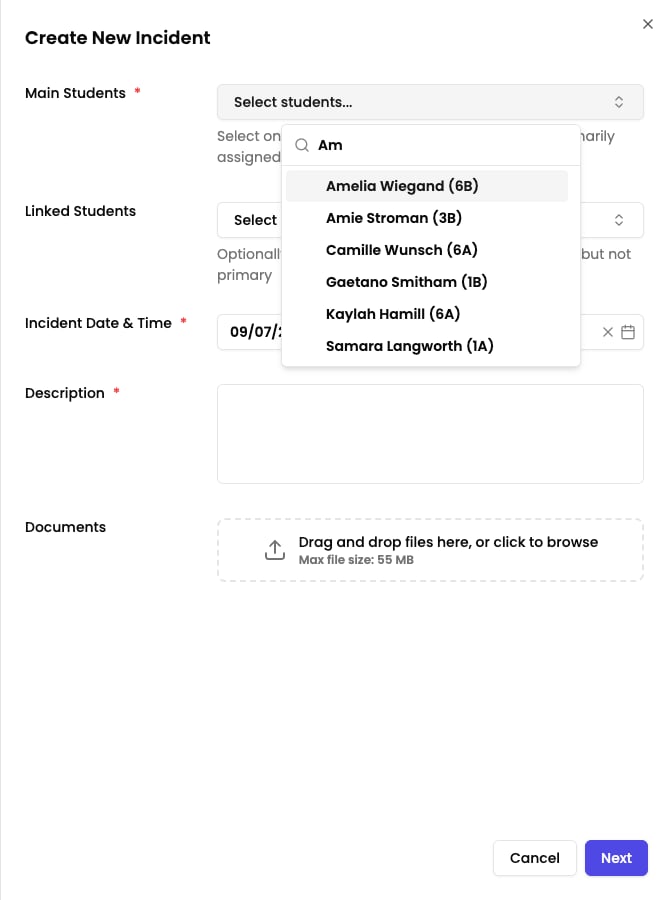
Search for and select the student the concern is about. Start typing their name and choose from the results.
If additional students are involved (for example, siblings or witnesses), you can link them to the incident as well.
### Select the student
Search for and select the student the concern is about. Start typing their name and choose from the results.
If additional students are involved (for example, siblings or witnesses), you can link them to the incident as well.
 ### Set the date and time
Enter the date and time the concern arose. This defaults to the current date and time, but you can change it if you are recording something that happened earlier.
### Write your description
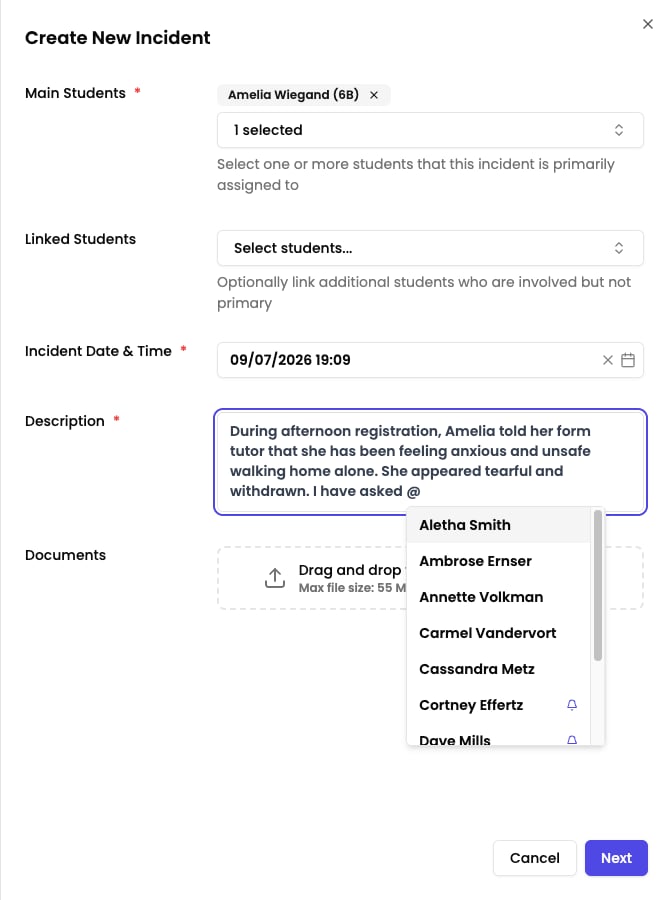
Describe what happened in your own words. Include what you saw, heard, or were told, and any relevant context. Be factual and specific.
Write in plain language as if you were telling a colleague. Signal's AI will analyse your description to suggest categories, locations, and events, so the more detail you provide, the better the suggestions will be.
### Set the date and time
Enter the date and time the concern arose. This defaults to the current date and time, but you can change it if you are recording something that happened earlier.
### Write your description
Describe what happened in your own words. Include what you saw, heard, or were told, and any relevant context. Be factual and specific.
Write in plain language as if you were telling a colleague. Signal's AI will analyse your description to suggest categories, locations, and events, so the more detail you provide, the better the suggestions will be.
 ### Attach documents (optional)
If you have supporting evidence — such as photos, letters, screenshots, or reports — click **Attach Documents** to upload them to the incident.
### Send for AI analysis
Click **Next** to save your description. Signal's AI will analyse what you have written and suggest appropriate categories (such as Physical, Emotional, or Neglect) and any relevant events, including external agency involvement (such as Police or CAMHS).
### Attach documents (optional)
If you have supporting evidence — such as photos, letters, screenshots, or reports — click **Attach Documents** to upload them to the incident.
### Send for AI analysis
Click **Next** to save your description. Signal's AI will analyse what you have written and suggest appropriate categories (such as Physical, Emotional, or Neglect) and any relevant events, including external agency involvement (such as Police or CAMHS).
 ### Review the AI suggestions
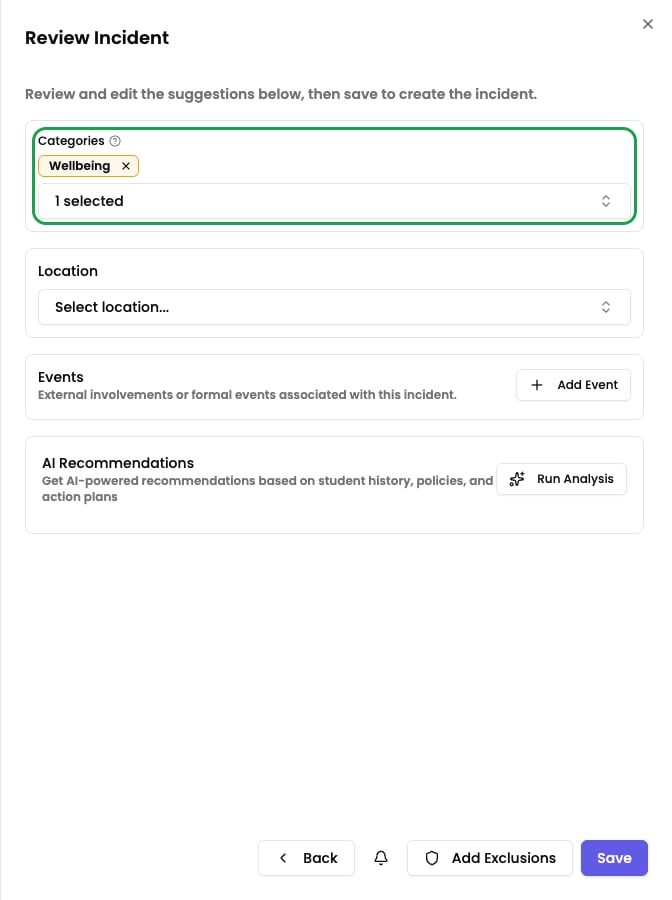
Look through the suggested categories and events. Select the ones that apply and deselect any that do not. You are always in control — AI suggestions are recommendations, not decisions.
### Select the location
Signal's AI suggests a location based on your description. Review the suggestion and adjust it if needed. You can also select a different location from your school's list (for example, playground, classroom, or off-site).
### Save the incident
Click **Save** to finalise the incident. It is now recorded in Signal and visible to staff with the appropriate access.
## What happens next
Once your incident is saved, several things happen automatically:
* **Workflows are checked.** If the incident matches any [workflows](/docs/workflows/overview) your school has configured, the relevant staff are notified.
* **It appears on dashboards.** The incident shows up in the student's timeline and on the dashboards of staff who need to see it.
* **AI analysis is stored.** The categories, events, and any matched [policies](/docs/policies/overview) are linked to the incident for future reference.
* **AI Recommendations (optional).** After submitting, you can click the **Run Analysis** button to generate Short Term Actions as recommendations for the incident. This step is entirely optional.
* **Collaboration begins.** Other staff can add [comments and @mentions](/docs/incidents/collaboration) to discuss the concern and coordinate a response.
If you are a DSL or Deputy DSL, you can also edit the incident later to add further details, update categories, or link additional students. See [Managing incidents](/docs/incidents/managing-incidents) for more.
## Next steps
Now that you have recorded your first incident, explore these related topics:
Learn about all the fields and options available when creating incidents.
Collaborate with colleagues by adding comments and tagging staff on incidents.
Find out how staff can report concerns by email, creating draft incidents for you to review.
Discover how AI analyses incidents, generates summaries, and powers the AI Assistant.
### Review the AI suggestions
Look through the suggested categories and events. Select the ones that apply and deselect any that do not. You are always in control — AI suggestions are recommendations, not decisions.
### Select the location
Signal's AI suggests a location based on your description. Review the suggestion and adjust it if needed. You can also select a different location from your school's list (for example, playground, classroom, or off-site).
### Save the incident
Click **Save** to finalise the incident. It is now recorded in Signal and visible to staff with the appropriate access.
## What happens next
Once your incident is saved, several things happen automatically:
* **Workflows are checked.** If the incident matches any [workflows](/docs/workflows/overview) your school has configured, the relevant staff are notified.
* **It appears on dashboards.** The incident shows up in the student's timeline and on the dashboards of staff who need to see it.
* **AI analysis is stored.** The categories, events, and any matched [policies](/docs/policies/overview) are linked to the incident for future reference.
* **AI Recommendations (optional).** After submitting, you can click the **Run Analysis** button to generate Short Term Actions as recommendations for the incident. This step is entirely optional.
* **Collaboration begins.** Other staff can add [comments and @mentions](/docs/incidents/collaboration) to discuss the concern and coordinate a response.
If you are a DSL or Deputy DSL, you can also edit the incident later to add further details, update categories, or link additional students. See [Managing incidents](/docs/incidents/managing-incidents) for more.
## Next steps
Now that you have recorded your first incident, explore these related topics:
Learn about all the fields and options available when creating incidents.
Collaborate with colleagues by adding comments and tagging staff on incidents.
Find out how staff can report concerns by email, creating draft incidents for you to review.
Discover how AI analyses incidents, generates summaries, and powers the AI Assistant.