> ## Documentation Index
> Fetch the complete documentation index at: https://signalschools.co.uk/docs/llms.txt
> Use this file to discover all available pages before exploring further.
# Managing Incident Visibility
> The three ways to control who can see safeguarding records in Signal — student restrictions on a staff member, workflow exclusions, and per-incident visibility — and when to use each.
By default, every member of staff with the Contributor role or above can see the incidents recorded in Signal. For most concerns that is exactly what you want. But some cases are too sensitive for wide access — an allegation against a member of staff, a concern involving a colleague's own child, or a highly sensitive disclosure.
Signal gives you **three distinct ways** to control who can see what. They work at different levels, and you can combine them. This page explains each one, when to reach for it, and how to set it up.
Safeguarding leads always keep full visibility. Staff with the **DSL**, **Deputy DSL**, or **Owner** role are never hidden from records by any of these controls.
## The three controls at a glance
Stop **one staff member** seeing **everything** about a particular child — profile, incidents, documents, and alerts. Set on the staff member's page.
Automatically hide **every incident that matches a rule** (for example, a whole category) from chosen staff or Staff Groups. Set once, applies school-wide.
Restrict **a single incident** by hand — override or fine-tune who can see just that one record.
Use this table to decide which control fits:
| You want to… | Use | Level |
| -------------------------------------------------------------------------------------- | --------------------------- | --------------------------- |
| Prevent a relative on staff from seeing a child's safeguarding records at all | **Student restrictions** | Per staff member, per child |
| Keep a whole category of concern (e.g. "Sensitive") visible to safeguarding leads only | **Workflow exclusions** | School-wide rule |
| Lock down one specific incident that is more sensitive than the rest | **Per-incident visibility** | Single incident |
These controls **hide** records — excluded staff see no sign the record exists, so confidentiality is protected. They are separate from staff **roles**, which govern what a person can do across the whole platform. See [Staff & permissions](/docs/staff/overview) for roles.
***
## 1. Student restrictions
Student restrictions stop **one individual staff member** from seeing **anything** about **a particular child**. When you restrict a staff member from a student, that child's profile, incidents, and documents all disappear for that person, and they stop receiving alerts about them.
This is the right control when the sensitivity is tied to a *person*, not to the nature of a case. The classic example is a **member of staff who is a relative** of a child at the school — a parent, sibling, aunt, or uncle who works there. They should not be able to read that child's safeguarding history through Signal, regardless of what the concerns are about.
Only staff with the **DSL** role can apply or manage student restrictions.
Restrictions are configured on the **staff member's** page — not on the student's profile. You choose the students that this particular member of staff should **not** be able to view.
Select **Staff** from the sidebar and open the member of staff you want to restrict.
Scroll to the **Student Restrictions** section on their page.
Click **Edit Restrictions** and select the students this staff member should **not** be able to see. You can restrict them from more than one child.
Save your changes. The restriction takes effect immediately — those students vanish from that staff member's view straight away.
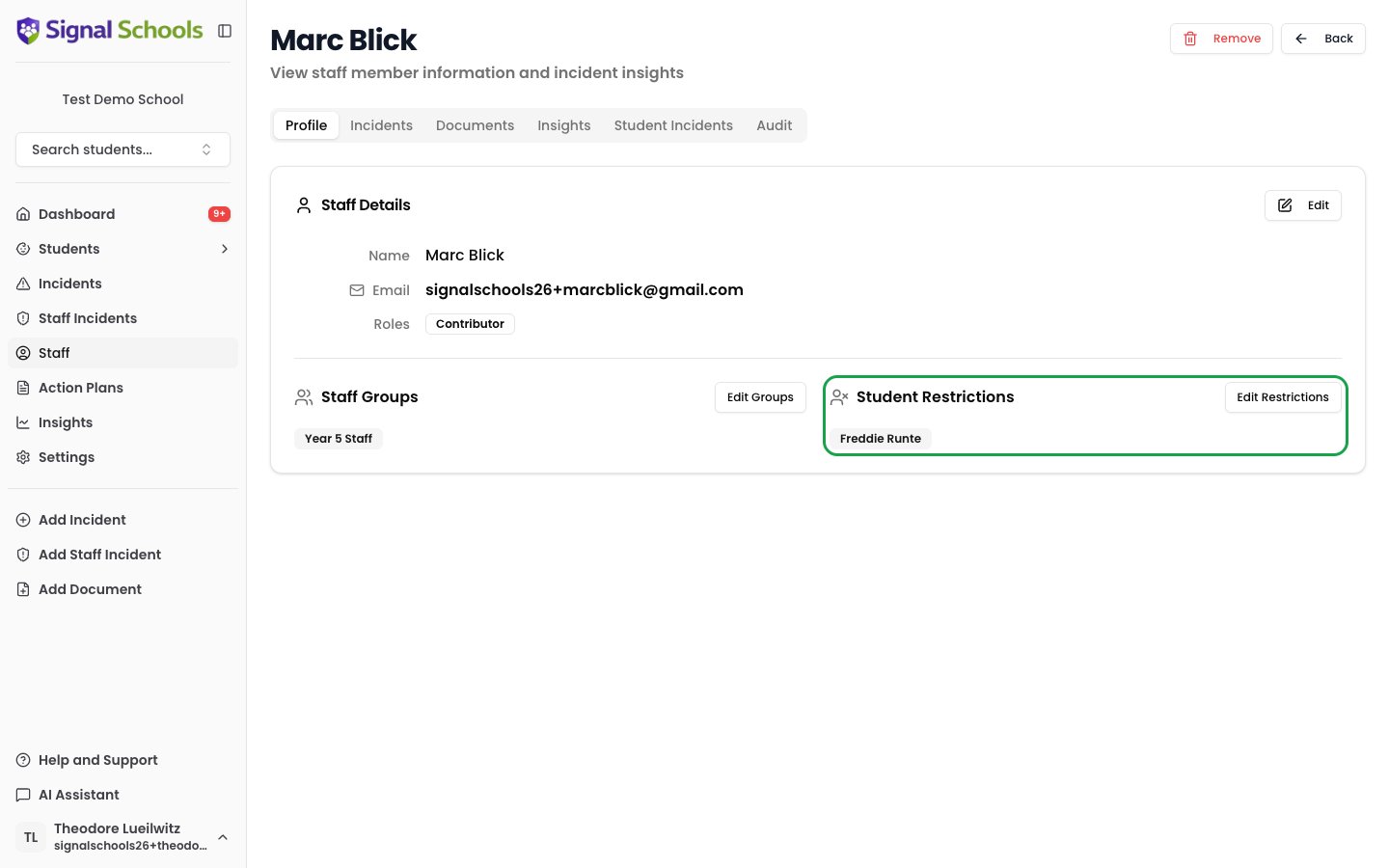 The **Staff** list shows a **Restrictions** column, so you can see at a glance who has restrictions in place and filter by it.
Restrictions override normal role-based access — a restricted student is hidden even if the staff member would otherwise have permission to see them. Only restrict a member of staff from a child where there is a clear safeguarding reason to do so.
***
## 2. Workflow exclusions
A [workflow](/docs/workflows/overview) watches for incidents that match criteria you define — a category, a location, a Staff Group, and so on. An **Apply Exclusions** action on a workflow automatically hides every matching incident from the staff you choose. Set the rule once, and it protects both existing and future incidents without anyone having to remember.
This is the right control when the sensitivity is tied to the *type* of concern rather than a single record. For example, you might decide that every incident in a **"Sensitive"** category should only ever be visible to safeguarding leads.
Workflows and their Apply Exclusions action are managed by staff with the **DSL** role or above.
### How workflow exclusions behave
When an incident matches a workflow with an Apply Exclusions action:
1. Signal identifies the staff members or Staff Groups configured on the action.
2. Those staff are **excluded** — the incident disappears from their lists, the student's profile, and search.
3. Excluded staff see **no indication** the incident exists, protecting the case's confidentiality.
The rule is checked live, every time an incident is viewed, so restrictions apply to **all matching incidents — past and future**:
* Creating or enabling a workflow immediately restricts every existing incident that matches it, including ones imported from a previous system.
* Disabling or deleting the workflow immediately restores visibility.
* If an incident's categories change so it no longer matches, the restriction lifts automatically — and reapplies if it matches again.
### Setting up an Apply Exclusions action
When you add an **Apply Exclusions** action to a workflow, choose one of:
* **DSL Staff Only** — hide matching incidents from everyone except DSLs, Deputy DSLs, and Owners. The simplest way to keep concerns visible to safeguarding leads only, without maintaining a Staff Group of everyone else.
* **Staff Groups** — exclude everyone in one or more Staff Groups.
* **Individual Users** — exclude named staff members.
The **Staff** list shows a **Restrictions** column, so you can see at a glance who has restrictions in place and filter by it.
Restrictions override normal role-based access — a restricted student is hidden even if the staff member would otherwise have permission to see them. Only restrict a member of staff from a child where there is a clear safeguarding reason to do so.
***
## 2. Workflow exclusions
A [workflow](/docs/workflows/overview) watches for incidents that match criteria you define — a category, a location, a Staff Group, and so on. An **Apply Exclusions** action on a workflow automatically hides every matching incident from the staff you choose. Set the rule once, and it protects both existing and future incidents without anyone having to remember.
This is the right control when the sensitivity is tied to the *type* of concern rather than a single record. For example, you might decide that every incident in a **"Sensitive"** category should only ever be visible to safeguarding leads.
Workflows and their Apply Exclusions action are managed by staff with the **DSL** role or above.
### How workflow exclusions behave
When an incident matches a workflow with an Apply Exclusions action:
1. Signal identifies the staff members or Staff Groups configured on the action.
2. Those staff are **excluded** — the incident disappears from their lists, the student's profile, and search.
3. Excluded staff see **no indication** the incident exists, protecting the case's confidentiality.
The rule is checked live, every time an incident is viewed, so restrictions apply to **all matching incidents — past and future**:
* Creating or enabling a workflow immediately restricts every existing incident that matches it, including ones imported from a previous system.
* Disabling or deleting the workflow immediately restores visibility.
* If an incident's categories change so it no longer matches, the restriction lifts automatically — and reapplies if it matches again.
### Setting up an Apply Exclusions action
When you add an **Apply Exclusions** action to a workflow, choose one of:
* **DSL Staff Only** — hide matching incidents from everyone except DSLs, Deputy DSLs, and Owners. The simplest way to keep concerns visible to safeguarding leads only, without maintaining a Staff Group of everyone else.
* **Staff Groups** — exclude everyone in one or more Staff Groups.
* **Individual Users** — exclude named staff members.
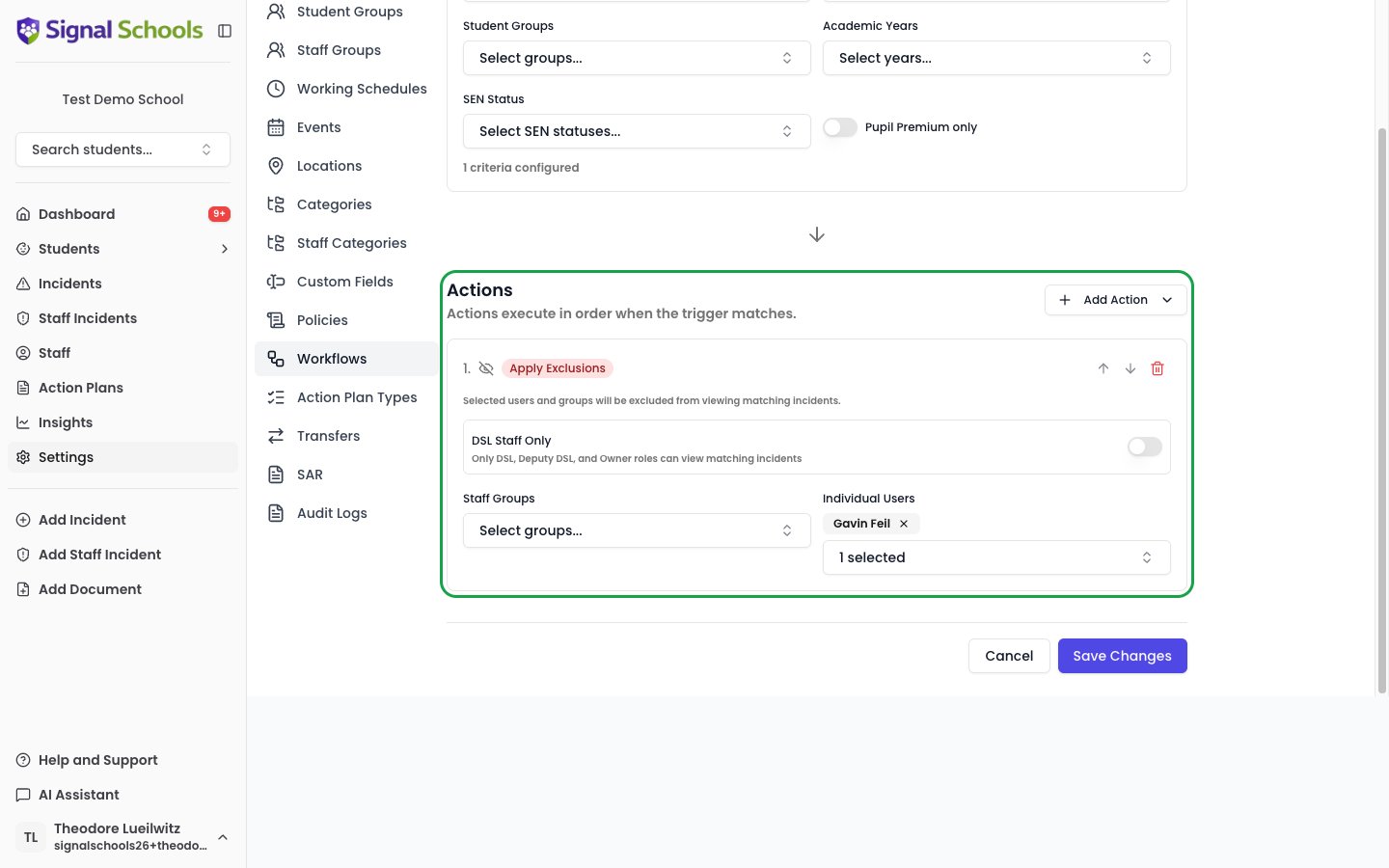 Excluding too many staff can make cases hard to manage. Always make sure the relevant DSLs and senior leaders keep access.
For the full workflow setup, see [Apply exclusions on a workflow](/docs/workflows/student-restrictions).
***
## 3. Per-incident visibility
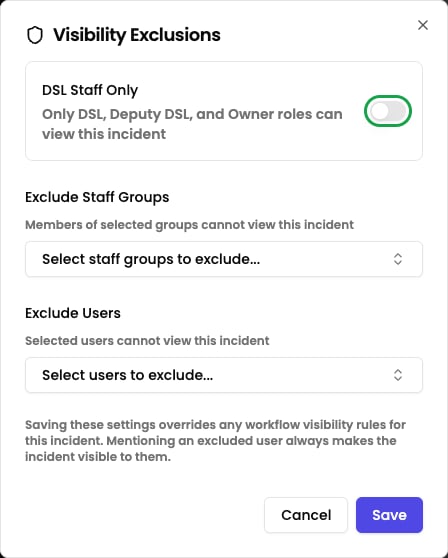
Sometimes a **single incident** needs different visibility from everything around it — either more restricted than the default, or different from what a workflow rule would give it. **Manage Visibility** on the incident lets you take manual control of that one record.
Only staff with the **Owner**, **DSL**, or **Deputy DSL** role can set or change an incident's visibility.
You can set visibility when you first record an incident, or edit it later from the incident detail view. The options mirror the workflow ones:
* **DSL Staff Only** — only DSLs, Deputy DSLs, and Owners can see the incident. All other staff are excluded.
* **Exclude Staff Groups** — choose entire Staff Groups to exclude.
* **Exclude Users** — choose individual staff members who should not see it.
Excluding too many staff can make cases hard to manage. Always make sure the relevant DSLs and senior leaders keep access.
For the full workflow setup, see [Apply exclusions on a workflow](/docs/workflows/student-restrictions).
***
## 3. Per-incident visibility
Sometimes a **single incident** needs different visibility from everything around it — either more restricted than the default, or different from what a workflow rule would give it. **Manage Visibility** on the incident lets you take manual control of that one record.
Only staff with the **Owner**, **DSL**, or **Deputy DSL** role can set or change an incident's visibility.
You can set visibility when you first record an incident, or edit it later from the incident detail view. The options mirror the workflow ones:
* **DSL Staff Only** — only DSLs, Deputy DSLs, and Owners can see the incident. All other staff are excluded.
* **Exclude Staff Groups** — choose entire Staff Groups to exclude.
* **Exclude Users** — choose individual staff members who should not see it.
 ### How per-incident visibility works with workflows
If your school uses workflow exclusions, **Manage Visibility** opens pre-filled with what the workflow rules currently apply — so you can see exactly who is excluded today before you change anything.
Saving makes your settings **authoritative for this incident**. From that point the workflow rules no longer apply to it, even if the workflow changes later. Setting exclusions when you first record an incident does the same thing.
To hand control back to the automatic rules, open **Manage Visibility** again and choose **Reset to workflow rules**. This clears every manual setting — including the DSL Staff Only toggle — and the matching workflow rules apply again immediately.
Reset removes every manual setting, so the incident's visibility becomes whatever the workflow rules say. If **no** workflow rule matches the incident, resetting leaves it visible to all staff. The option only appears when a rule currently matches.
If an excluded member of staff needs access to **one** specific incident — a pastoral lead directly involved in the case, say — **@mention them** in the incident description or a comment. Mentioning someone always makes that incident visible to them, without changing the workflow or the incident's visibility settings.
***
## How the three controls combine
You can use all three together. When Signal works out whether a member of staff can see a record, every applicable control is respected:
* A **student restriction** hides everything about that child from the restricted staff member — this always wins for that person.
* A **workflow exclusion** hides matching incidents from the staff it names, unless a manual per-incident setting has taken over that incident.
* A **per-incident setting**, once saved, is authoritative for that one incident and replaces the workflow rules for it.
* Safeguarding leads (**DSL**, **Deputy DSL**, **Owner**) keep full visibility throughout — none of these controls hide records from them.
**Staff incidents** — concerns or allegations about a member of staff — sit outside these controls. They are visible only to Owners, DSLs, and Deputy DSLs, and a staff member named in one is automatically prevented from seeing it, even if they are a DSL. See [Staff incidents](/docs/staff-incidents/overview).
## Related pages
The full guide to setting up automatic, rule-based visibility.
Set an incident's visibility as you record it.
Edit visibility and other details on an existing incident.
How roles govern what each member of staff can do.
### How per-incident visibility works with workflows
If your school uses workflow exclusions, **Manage Visibility** opens pre-filled with what the workflow rules currently apply — so you can see exactly who is excluded today before you change anything.
Saving makes your settings **authoritative for this incident**. From that point the workflow rules no longer apply to it, even if the workflow changes later. Setting exclusions when you first record an incident does the same thing.
To hand control back to the automatic rules, open **Manage Visibility** again and choose **Reset to workflow rules**. This clears every manual setting — including the DSL Staff Only toggle — and the matching workflow rules apply again immediately.
Reset removes every manual setting, so the incident's visibility becomes whatever the workflow rules say. If **no** workflow rule matches the incident, resetting leaves it visible to all staff. The option only appears when a rule currently matches.
If an excluded member of staff needs access to **one** specific incident — a pastoral lead directly involved in the case, say — **@mention them** in the incident description or a comment. Mentioning someone always makes that incident visible to them, without changing the workflow or the incident's visibility settings.
***
## How the three controls combine
You can use all three together. When Signal works out whether a member of staff can see a record, every applicable control is respected:
* A **student restriction** hides everything about that child from the restricted staff member — this always wins for that person.
* A **workflow exclusion** hides matching incidents from the staff it names, unless a manual per-incident setting has taken over that incident.
* A **per-incident setting**, once saved, is authoritative for that one incident and replaces the workflow rules for it.
* Safeguarding leads (**DSL**, **Deputy DSL**, **Owner**) keep full visibility throughout — none of these controls hide records from them.
**Staff incidents** — concerns or allegations about a member of staff — sit outside these controls. They are visible only to Owners, DSLs, and Deputy DSLs, and a staff member named in one is automatically prevented from seeing it, even if they are a DSL. See [Staff incidents](/docs/staff-incidents/overview).
## Related pages
The full guide to setting up automatic, rule-based visibility.
Set an incident's visibility as you record it.
Edit visibility and other details on an existing incident.
How roles govern what each member of staff can do.