> ## Documentation Index
> Fetch the complete documentation index at: https://signalschools.co.uk/docs/llms.txt
> Use this file to discover all available pages before exploring further.
# Understanding Incidents
> Incidents are the foundation of safeguarding in Signal. Learn what they are, what information they capture, and how they fit into your school's safeguarding workflow.
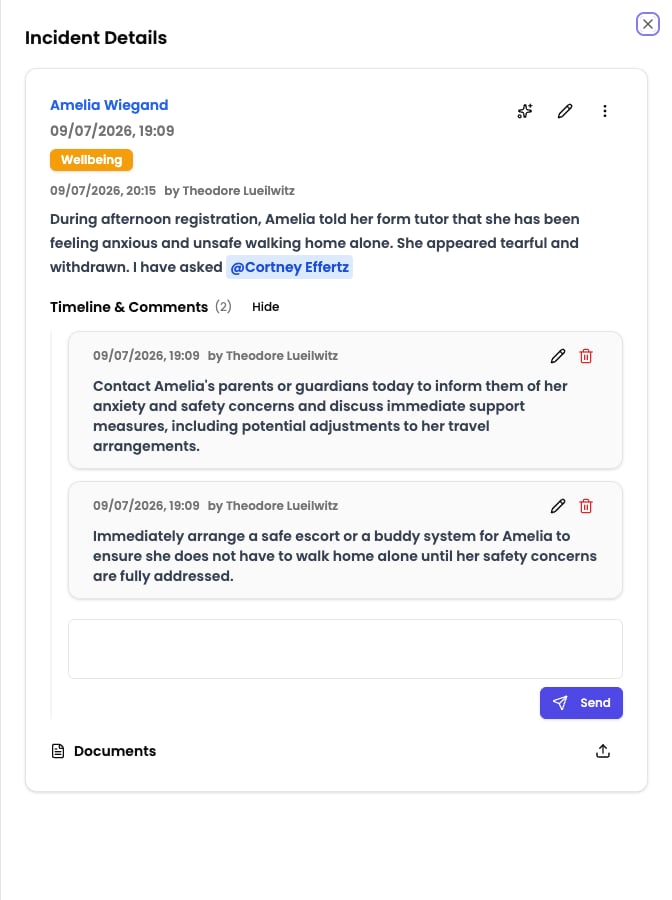
Every safeguarding concern, disclosure, observation, or report is recorded in Signal as an **incident**. Incidents create a clear, auditable record of what happened, when, and who was involved. They are the foundation of your school's safeguarding picture.
 ## Two types of incident
Signal supports two types of incident, each designed for different safeguarding scenarios.
Concerns about a child or young person. Visible to all staff with at least the Contributor role, subject to any restrictions or visibility exclusions. This is the most common type of incident.
Concerns or allegations involving a staff member. Access is restricted to Owners, DSLs, and Deputy DSLs only, with automatic self-exclusion for named staff. See the [Staff Incidents](/docs/staff-incidents/overview) section for full details.
The rest of this section focuses on student incidents. Staff incidents follow a similar structure but with tighter access controls.
## What an incident captures
Each incident records the following information:
* **Description** — a detailed account of what happened, in the staff member's own words. The description supports rich text formatting and [@mentions](/docs/incidents/collaboration) to tag colleagues.
* **Date and time** — when the concern arose or was observed.
* **Categories** — the type of concern, such as Physical, Emotional, Neglect, Online Safety, or Behaviour. Categories are [configured by your school](/docs/incidents/setting-up-categories).
* **Location** — where the incident happened. Locations are [configured in settings](/docs/incidents/setting-up-locations).
* **Agencies** — any external organisations involved, such as social services, police, or CAMHS. Agencies are [configured in settings](/docs/incidents/setting-up-agencies).
* **Staff present** — staff members who were involved or witnessed the event.
* **Linked students** — the main student the concern is about, plus any additional students involved (siblings, witnesses, or other children connected to the event).
* **Documents** — file attachments such as photos, letters, reports, or other evidence.
* **Custom fields** — additional data fields that appear based on the categories, student groups, or student properties. These are configured separately in [Settings > Custom Fields](/docs/incidents/custom-fields).
## Documents and evidence
You can attach files to any incident to support the concern. Common attachments include photographs, scanned letters, medical reports, and screenshots. Documents are stored securely and linked to the incident record.
## Visibility exclusions
Only users with the Owner, DSL, or Deputy DSL role can set visibility exclusions.
Sometimes an incident is sensitive enough that certain staff members should not see it. Visibility exclusions let the Owner, DSL, or Deputy DSL restrict access to a specific incident by excluding individual staff members or entire Staff Groups.
You can also mark an incident as **DSL only**, which hides it from everyone except DSLs, Deputy DSLs, and Owners.
## AI analysis on submission
When you submit an incident, Signal's AI analyses the description and suggests:
* **Categories** — the types of concern that best match what you described
* **Location** — where the incident likely took place
* **Agencies** — external organisations that may need to be involved
* **Recommendations** — suggested actions and considerations based on the content
You review these suggestions and accept, adjust, or dismiss them before saving. The AI saves time and helps ensure nothing is missed, but you always have the final say.
## Incident lifecycle
An incident follows a straightforward path from creation to ongoing management:
1. A staff member records the concern — either by [creating an incident directly](/docs/incidents/recording-incidents) or by [sending an email](/docs/incidents/email-drafts) to the school's Signal address.
2. Signal's AI analyses the description and suggests categories, location, and agencies.
3. The staff member reviews the suggestions, selects categories, and saves the incident.
4. Workflows are checked automatically. If the incident matches any workflows, [alerts](/docs/workflows/alerts) are sent to the relevant staff.
5. The incident appears on the student's timeline and in the incident list.
6. Staff can [add comments, @mention colleagues](/docs/incidents/collaboration), and attach further documents as the situation develops.
7. The incident forms part of the student's ongoing safeguarding record, feeding into [insights](/docs/insights/overview), [action plans](/docs/action-plans/overview), and the [AI Assistant](/docs/ai-features/overview).
## Learn more
Step-by-step guide to creating a new student incident.
How staff can flag concerns by email without logging in.
Comments, @mentions, and coordinating safeguarding responses.
Search, filter, edit, and manage your incident records.
Configure the concern types your school uses to classify incidents.
Define the places where incidents can occur.
Add the external organisations your school works with.
## Two types of incident
Signal supports two types of incident, each designed for different safeguarding scenarios.
Concerns about a child or young person. Visible to all staff with at least the Contributor role, subject to any restrictions or visibility exclusions. This is the most common type of incident.
Concerns or allegations involving a staff member. Access is restricted to Owners, DSLs, and Deputy DSLs only, with automatic self-exclusion for named staff. See the [Staff Incidents](/docs/staff-incidents/overview) section for full details.
The rest of this section focuses on student incidents. Staff incidents follow a similar structure but with tighter access controls.
## What an incident captures
Each incident records the following information:
* **Description** — a detailed account of what happened, in the staff member's own words. The description supports rich text formatting and [@mentions](/docs/incidents/collaboration) to tag colleagues.
* **Date and time** — when the concern arose or was observed.
* **Categories** — the type of concern, such as Physical, Emotional, Neglect, Online Safety, or Behaviour. Categories are [configured by your school](/docs/incidents/setting-up-categories).
* **Location** — where the incident happened. Locations are [configured in settings](/docs/incidents/setting-up-locations).
* **Agencies** — any external organisations involved, such as social services, police, or CAMHS. Agencies are [configured in settings](/docs/incidents/setting-up-agencies).
* **Staff present** — staff members who were involved or witnessed the event.
* **Linked students** — the main student the concern is about, plus any additional students involved (siblings, witnesses, or other children connected to the event).
* **Documents** — file attachments such as photos, letters, reports, or other evidence.
* **Custom fields** — additional data fields that appear based on the categories, student groups, or student properties. These are configured separately in [Settings > Custom Fields](/docs/incidents/custom-fields).
## Documents and evidence
You can attach files to any incident to support the concern. Common attachments include photographs, scanned letters, medical reports, and screenshots. Documents are stored securely and linked to the incident record.
## Visibility exclusions
Only users with the Owner, DSL, or Deputy DSL role can set visibility exclusions.
Sometimes an incident is sensitive enough that certain staff members should not see it. Visibility exclusions let the Owner, DSL, or Deputy DSL restrict access to a specific incident by excluding individual staff members or entire Staff Groups.
You can also mark an incident as **DSL only**, which hides it from everyone except DSLs, Deputy DSLs, and Owners.
## AI analysis on submission
When you submit an incident, Signal's AI analyses the description and suggests:
* **Categories** — the types of concern that best match what you described
* **Location** — where the incident likely took place
* **Agencies** — external organisations that may need to be involved
* **Recommendations** — suggested actions and considerations based on the content
You review these suggestions and accept, adjust, or dismiss them before saving. The AI saves time and helps ensure nothing is missed, but you always have the final say.
## Incident lifecycle
An incident follows a straightforward path from creation to ongoing management:
1. A staff member records the concern — either by [creating an incident directly](/docs/incidents/recording-incidents) or by [sending an email](/docs/incidents/email-drafts) to the school's Signal address.
2. Signal's AI analyses the description and suggests categories, location, and agencies.
3. The staff member reviews the suggestions, selects categories, and saves the incident.
4. Workflows are checked automatically. If the incident matches any workflows, [alerts](/docs/workflows/alerts) are sent to the relevant staff.
5. The incident appears on the student's timeline and in the incident list.
6. Staff can [add comments, @mention colleagues](/docs/incidents/collaboration), and attach further documents as the situation develops.
7. The incident forms part of the student's ongoing safeguarding record, feeding into [insights](/docs/insights/overview), [action plans](/docs/action-plans/overview), and the [AI Assistant](/docs/ai-features/overview).
## Learn more
Step-by-step guide to creating a new student incident.
How staff can flag concerns by email without logging in.
Comments, @mentions, and coordinating safeguarding responses.
Search, filter, edit, and manage your incident records.
Configure the concern types your school uses to classify incidents.
Define the places where incidents can occur.
Add the external organisations your school works with.