> ## Documentation Index
> Fetch the complete documentation index at: https://signalschools.co.uk/docs/llms.txt
> Use this file to discover all available pages before exploring further.
# Recording an Incident
> A step-by-step guide to recording a new safeguarding incident in Signal, from writing the description to reviewing AI suggestions and saving.
Recording an incident in Signal is a guided process. You write the description, and Signal's AI helps you classify and complete the record. This page walks you through each step.
You need at least the **Contributor** role to create incidents.
 ## Creating an incident step by step
### Open the incident form
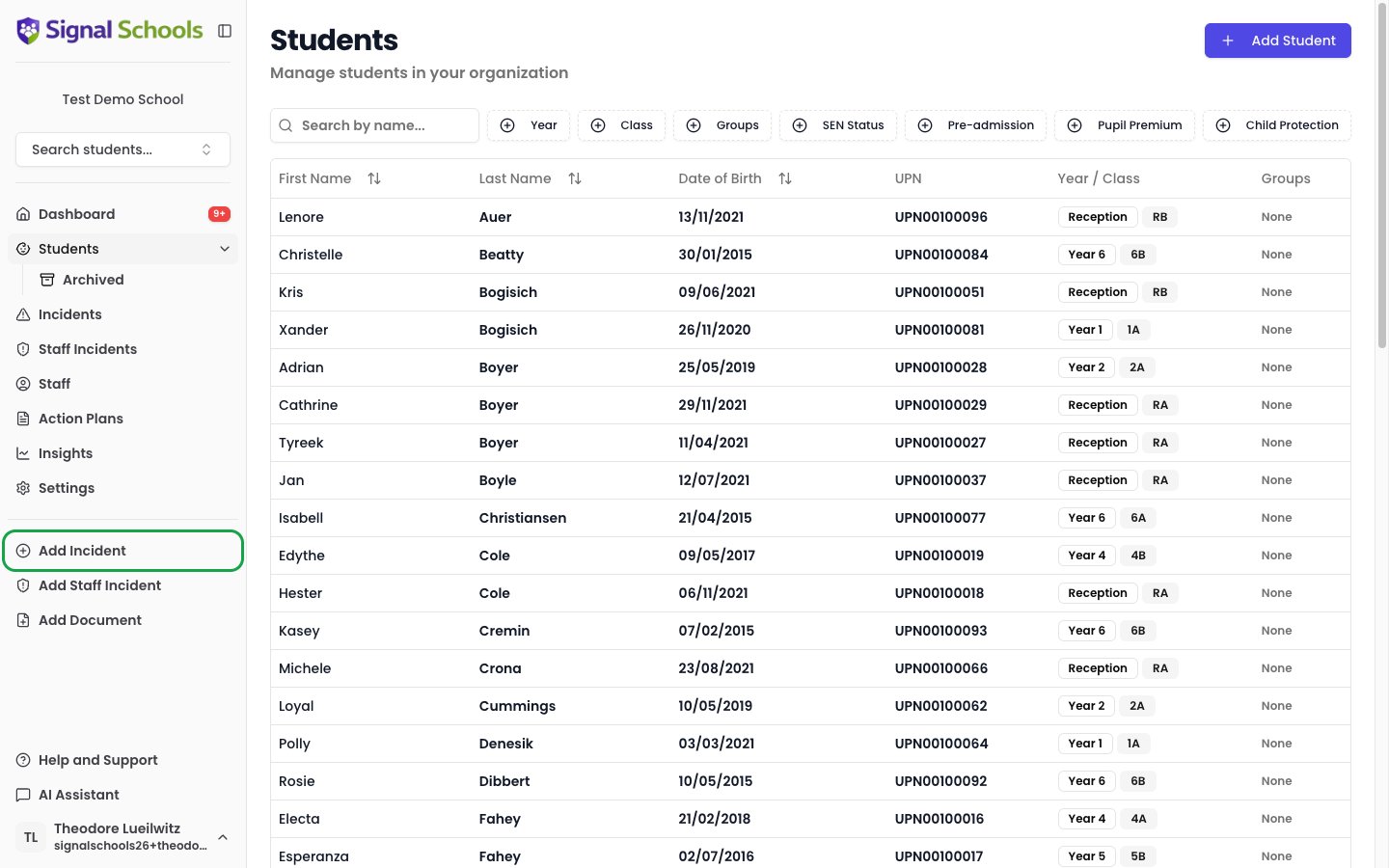
Click **Add Incident** from the sidebar quick action or from your dashboard. The incident creation form opens as a side panel.
### Select the main student
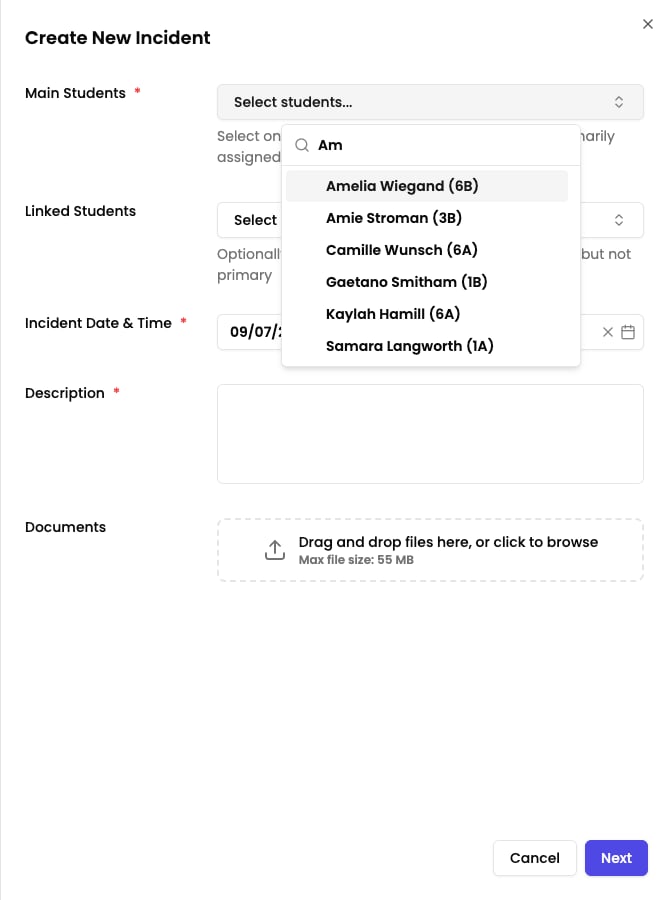
Search for and select the student the concern is about. You must select at least one main student. You can select multiple students if the concern involves more than one child equally.
## Creating an incident step by step
### Open the incident form
Click **Add Incident** from the sidebar quick action or from your dashboard. The incident creation form opens as a side panel.
### Select the main student
Search for and select the student the concern is about. You must select at least one main student. You can select multiple students if the concern involves more than one child equally.
 ### Add linked students (optional)
If other students are connected to the concern — such as siblings, witnesses, or other children involved — add them as linked students. Linked students are associated with the incident but are not the primary subject.
### Set the date and time
Choose the date and time the concern arose or was observed. This defaults to the current date and time, but you can adjust it to reflect when the event actually happened.
### Write the description
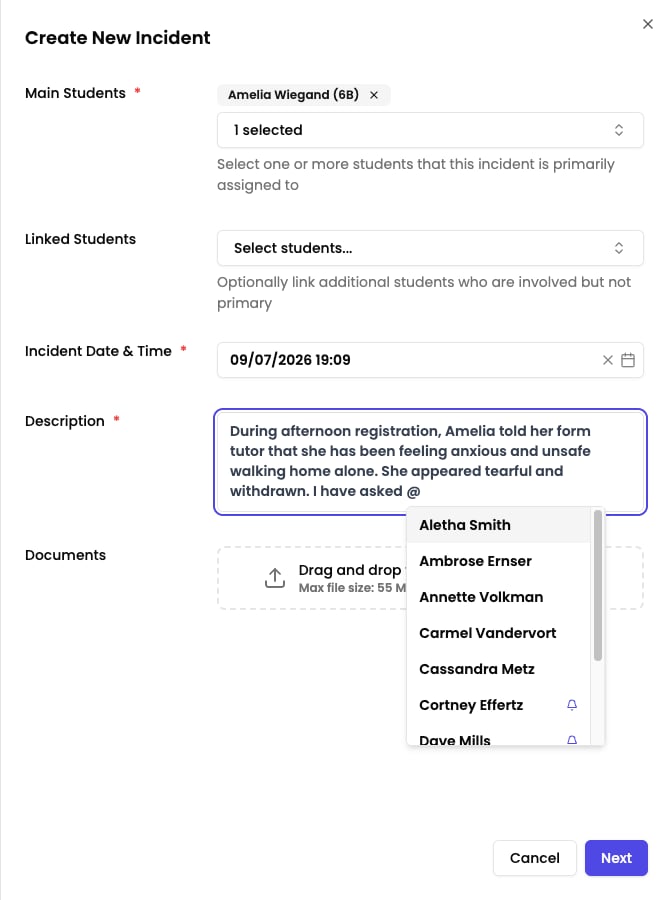
Describe what happened in your own words using the rich text editor. Be specific and factual — include what you saw, heard, or were told, who was involved, and any immediate actions you took.
You can **@mention** colleagues in the description by typing `@` followed by their name. Mentioned colleagues will see a notification on their dashboard.
### Add linked students (optional)
If other students are connected to the concern — such as siblings, witnesses, or other children involved — add them as linked students. Linked students are associated with the incident but are not the primary subject.
### Set the date and time
Choose the date and time the concern arose or was observed. This defaults to the current date and time, but you can adjust it to reflect when the event actually happened.
### Write the description
Describe what happened in your own words using the rich text editor. Be specific and factual — include what you saw, heard, or were told, who was involved, and any immediate actions you took.
You can **@mention** colleagues in the description by typing `@` followed by their name. Mentioned colleagues will see a notification on their dashboard.
 ### Attach documents (optional)
If you have supporting evidence — photographs, scanned letters, reports, or screenshots — upload them using the document attachment area. You can attach multiple files.
### Submit for AI analysis
When you have completed the description and attachments, click **Next**. Signal's AI analyses your description to suggest how the incident should be classified.
### Attach documents (optional)
If you have supporting evidence — photographs, scanned letters, reports, or screenshots — upload them using the document attachment area. You can attach multiple files.
### Submit for AI analysis
When you have completed the description and attachments, click **Next**. Signal's AI analyses your description to suggest how the incident should be classified.
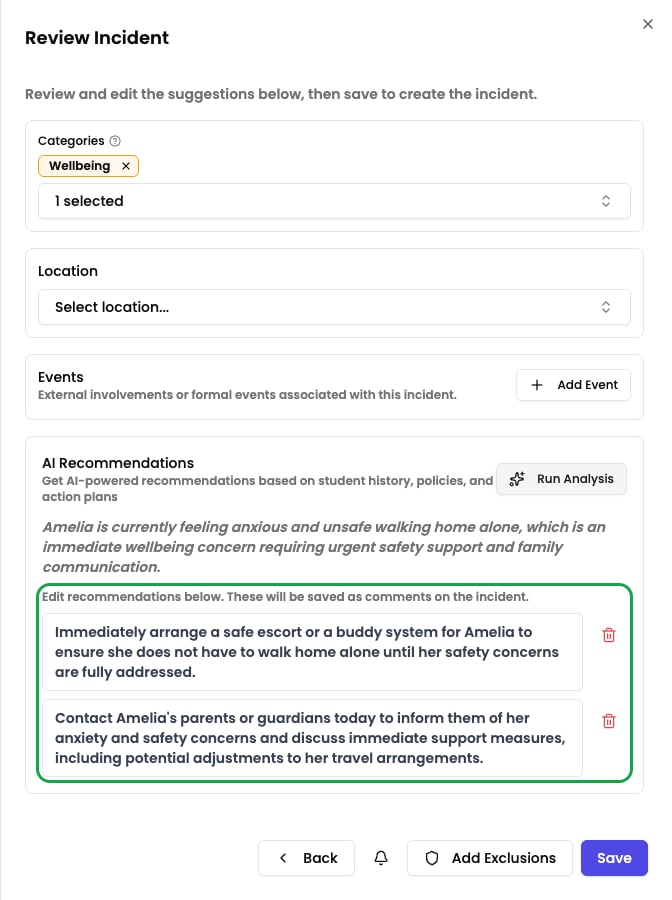
 ### Review AI suggestions
After analysis, Signal presents its suggestions:
* **Categories** — the types of concern the AI has identified (e.g. Physical, Emotional, Neglect). Suggested categories are pre-selected, but you can add or remove them.
* **Location** — where the AI thinks the incident took place. You can change this.
* **Agencies** — external organisations the AI thinks may be relevant. You can add or remove them.
Review each suggestion and adjust as needed.
### Review AI suggestions
After analysis, Signal presents its suggestions:
* **Categories** — the types of concern the AI has identified (e.g. Physical, Emotional, Neglect). Suggested categories are pre-selected, but you can add or remove them.
* **Location** — where the AI thinks the incident took place. You can change this.
* **Agencies** — external organisations the AI thinks may be relevant. You can add or remove them.
Review each suggestion and adjust as needed.
 ### Select categories
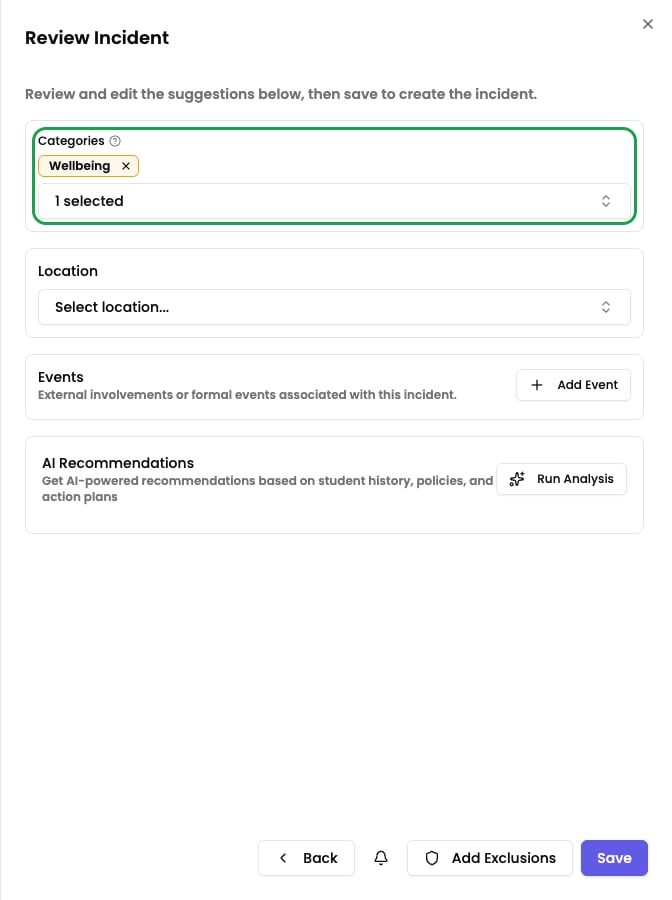
Choose at least one category for the incident. Categories are required. If the AI has pre-selected categories, confirm they are correct or adjust them.
### Complete custom fields (if applicable)
If your school has configured [custom fields](/docs/incidents/custom-fields), additional questions may appear based on the selected categories and the student's properties. For example, a Physical category might ask for the type of restraint. Complete any custom fields that appear.
### Review AI recommendations
Signal's AI also provides action recommendations based on the incident. These might include suggested next steps, relevant policies, or areas to follow up on. You can review, edit, or dismiss individual recommendations before saving.
### Select categories
Choose at least one category for the incident. Categories are required. If the AI has pre-selected categories, confirm they are correct or adjust them.
### Complete custom fields (if applicable)
If your school has configured [custom fields](/docs/incidents/custom-fields), additional questions may appear based on the selected categories and the student's properties. For example, a Physical category might ask for the type of restraint. Complete any custom fields that appear.
### Review AI recommendations
Signal's AI also provides action recommendations based on the incident. These might include suggested next steps, relevant policies, or areas to follow up on. You can review, edit, or dismiss individual recommendations before saving.
 ### Set visibility exclusions (optional)
Only users with the **Owner**, **DSL**, or **Deputy DSL** role can set visibility exclusions.
If the incident is sensitive, you can restrict who can see it. Options include:
* **DSL only** — hides the incident from everyone except DSLs, Deputy DSLs, and Owners
* **Exclude specific staff** — prevent named staff members from seeing the incident
* **Exclude Staff Groups** — prevent entire groups from seeing the incident
### Save the incident
Click **Save** to create the incident. Signal saves the record and checks it against your school's alert rules.
## What happens after saving
Once the incident is saved, several things happen automatically:
* **Workflows are checked** — if the incident matches any of your school's [workflows](/docs/workflows/overview), actions are triggered automatically — alerting staff, emailing parents, or restricting visibility.
* **The incident appears on dashboards** — it shows up in the incident list, on the student's timeline, and in any filtered views that match its categories or other attributes.
* **It feeds into insights** — the incident contributes to your school's [safeguarding analytics](/docs/insights/overview) and trend data.
* **The AI Assistant can reference it** — the incident becomes available to the [AI Assistant](/docs/ai-features/overview) for future queries and research.
## Tips for recording incidents
**Be specific in your description.** Include what you directly observed, heard, or were told. Use the child's own words where possible, enclosed in quotation marks. Note the date, time, and location, and describe any visible injuries or signs of distress.
**Attach evidence where possible.** Photographs, body maps, letters, screenshots, or other documents strengthen the record and provide important context for anyone reviewing the incident later.
**Record concerns promptly.** The sooner you record a concern after it arises, the more accurate and detailed your account will be. Signal is designed to make this quick — you can create an incident in just a few minutes.
The AI suggestions are there to help, not to decide for you. Always review the suggested categories, location, and agencies to make sure they accurately reflect the concern. You have the final say on how every incident is classified.
### Set visibility exclusions (optional)
Only users with the **Owner**, **DSL**, or **Deputy DSL** role can set visibility exclusions.
If the incident is sensitive, you can restrict who can see it. Options include:
* **DSL only** — hides the incident from everyone except DSLs, Deputy DSLs, and Owners
* **Exclude specific staff** — prevent named staff members from seeing the incident
* **Exclude Staff Groups** — prevent entire groups from seeing the incident
### Save the incident
Click **Save** to create the incident. Signal saves the record and checks it against your school's alert rules.
## What happens after saving
Once the incident is saved, several things happen automatically:
* **Workflows are checked** — if the incident matches any of your school's [workflows](/docs/workflows/overview), actions are triggered automatically — alerting staff, emailing parents, or restricting visibility.
* **The incident appears on dashboards** — it shows up in the incident list, on the student's timeline, and in any filtered views that match its categories or other attributes.
* **It feeds into insights** — the incident contributes to your school's [safeguarding analytics](/docs/insights/overview) and trend data.
* **The AI Assistant can reference it** — the incident becomes available to the [AI Assistant](/docs/ai-features/overview) for future queries and research.
## Tips for recording incidents
**Be specific in your description.** Include what you directly observed, heard, or were told. Use the child's own words where possible, enclosed in quotation marks. Note the date, time, and location, and describe any visible injuries or signs of distress.
**Attach evidence where possible.** Photographs, body maps, letters, screenshots, or other documents strengthen the record and provide important context for anyone reviewing the incident later.
**Record concerns promptly.** The sooner you record a concern after it arises, the more accurate and detailed your account will be. Signal is designed to make this quick — you can create an incident in just a few minutes.
The AI suggestions are there to help, not to decide for you. Always review the suggested categories, location, and agencies to make sure they accurately reflect the concern. You have the final say on how every incident is classified.