> ## Documentation Index
> Fetch the complete documentation index at: https://signalschools.co.uk/docs/llms.txt
> Use this file to discover all available pages before exploring further.
# Parent Mode
> Hide sensitive information during parent and carer meetings with Parent Mode.
## What is Parent Mode?
Parent Mode is a privacy toggle designed for use during face-to-face meetings with parents or carers. When activated, sensitive safeguarding information is hidden from the screen, allowing you to reference a student's record without accidentally exposing confidential details.
 ## When to use Parent Mode
Parent Mode is useful when you need to:
* Discuss a student's progress during a parent meeting while Signal is open on screen
* Share your screen during a virtual meeting with parents
* Reference records at your desk when parents or visitors are nearby
## How it works
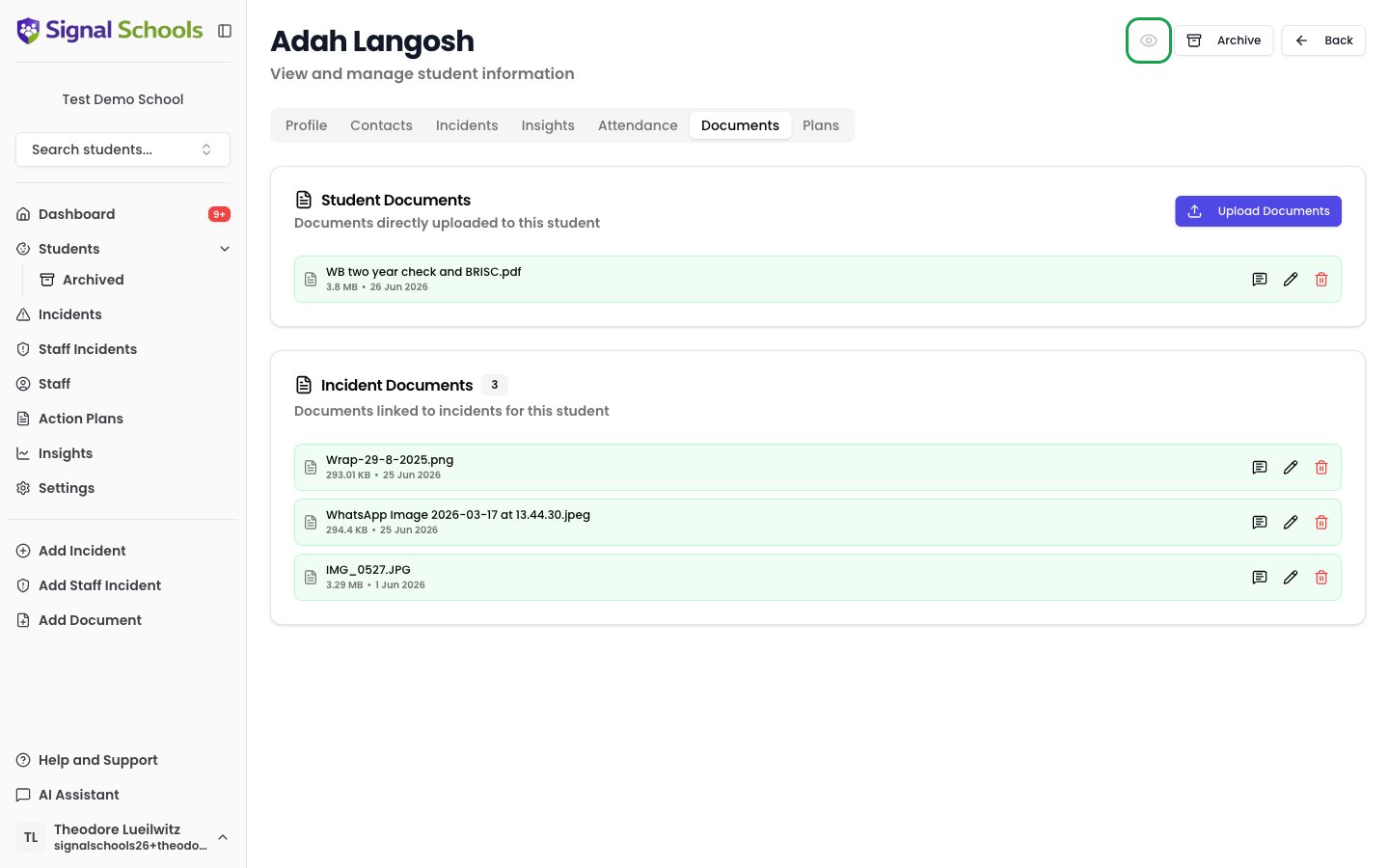
Open the student's profile detail view and toggle Parent Mode on. Sensitive information is immediately hidden.
Navigate Signal as normal. Incidents in hidden categories and edit history are concealed from view.
Toggle Parent Mode off from the student's profile detail view to return to the full view with all information visible.
## When to use Parent Mode
Parent Mode is useful when you need to:
* Discuss a student's progress during a parent meeting while Signal is open on screen
* Share your screen during a virtual meeting with parents
* Reference records at your desk when parents or visitors are nearby
## How it works
Open the student's profile detail view and toggle Parent Mode on. Sensitive information is immediately hidden.
Navigate Signal as normal. Incidents in hidden categories and edit history are concealed from view.
Toggle Parent Mode off from the student's profile detail view to return to the full view with all information visible.
 ## What is hidden?
When Parent Mode is active:
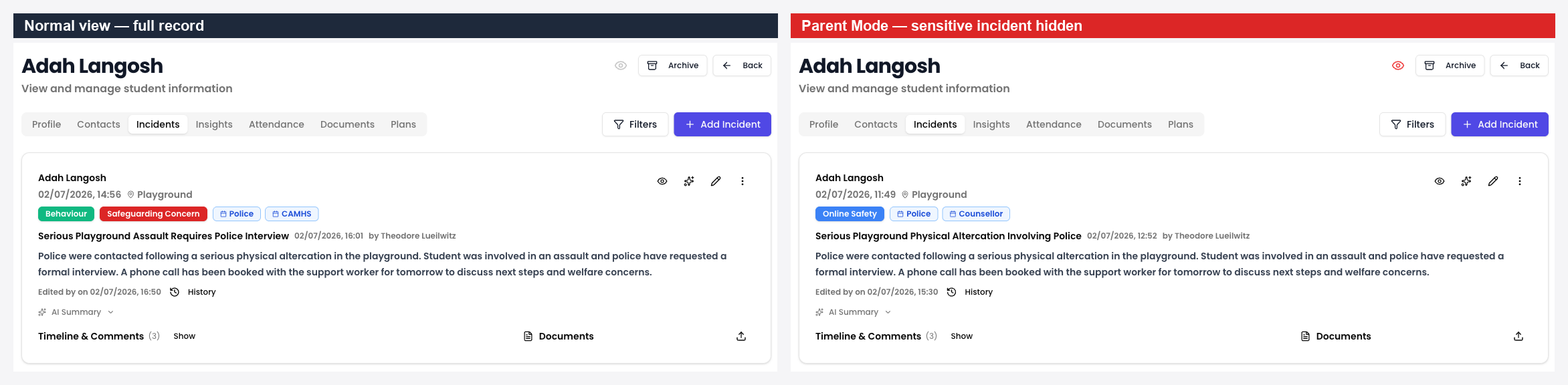
* **Incidents in hidden categories** — any incidents belonging to categories marked "Hide in parent mode" are hidden from the student's profile
* **Edit history** — the edit history of incidents is hidden, so only the current version is visible
## Configuring hidden categories
You can control which categories are hidden in Parent Mode from **Settings > Categories**. Each category has a "Hide in parent mode" option that determines whether incidents in that category are concealed when Parent Mode is active.
This gives you fine-grained control over what parents see. For example, you might choose to hide sensitive categories such as child protection or staff conduct, while leaving general behaviour or attendance categories visible.
Toggle Parent Mode on **before** the parent arrives or joins the meeting. This ensures no sensitive information is visible at any point during the conversation.
## Important notes
* Parent Mode affects only your current view — it does not change what other staff members see
* No data is deleted or modified — everything is still there when you turn Parent Mode off
* Parent Mode is available to all roles
## What is hidden?
When Parent Mode is active:
* **Incidents in hidden categories** — any incidents belonging to categories marked "Hide in parent mode" are hidden from the student's profile
* **Edit history** — the edit history of incidents is hidden, so only the current version is visible
## Configuring hidden categories
You can control which categories are hidden in Parent Mode from **Settings > Categories**. Each category has a "Hide in parent mode" option that determines whether incidents in that category are concealed when Parent Mode is active.
This gives you fine-grained control over what parents see. For example, you might choose to hide sensitive categories such as child protection or staff conduct, while leaving general behaviour or attendance categories visible.
Toggle Parent Mode on **before** the parent arrives or joins the meeting. This ensures no sensitive information is visible at any point during the conversation.
## Important notes
* Parent Mode affects only your current view — it does not change what other staff members see
* No data is deleted or modified — everything is still there when you turn Parent Mode off
* Parent Mode is available to all roles