> ## Documentation Index
> Fetch the complete documentation index at: https://signalschools.co.uk/docs/llms.txt
> Use this file to discover all available pages before exploring further.
# Notification settings
> Choose which email notifications you receive from Signal — mentions, replies, alerts, and the daily summary — from your profile.
Signal emails you when something needs your attention — someone mentions you, replies to your incident, or an alert is raised. You control which of these emails you receive from the **Notifications** section of your profile. Turning one off simply stops that email; the activity still happens in Signal and is always visible in the app.
 ## Where to find your settings
1. Click your name at the bottom of the sidebar, or go to **Settings**.
2. Open the **Profile** page.
3. Scroll to the **Notifications** section.
Everyone can reach their own notification settings — you are only ever changing your own emails, not anyone else's.
## What you can turn on or off
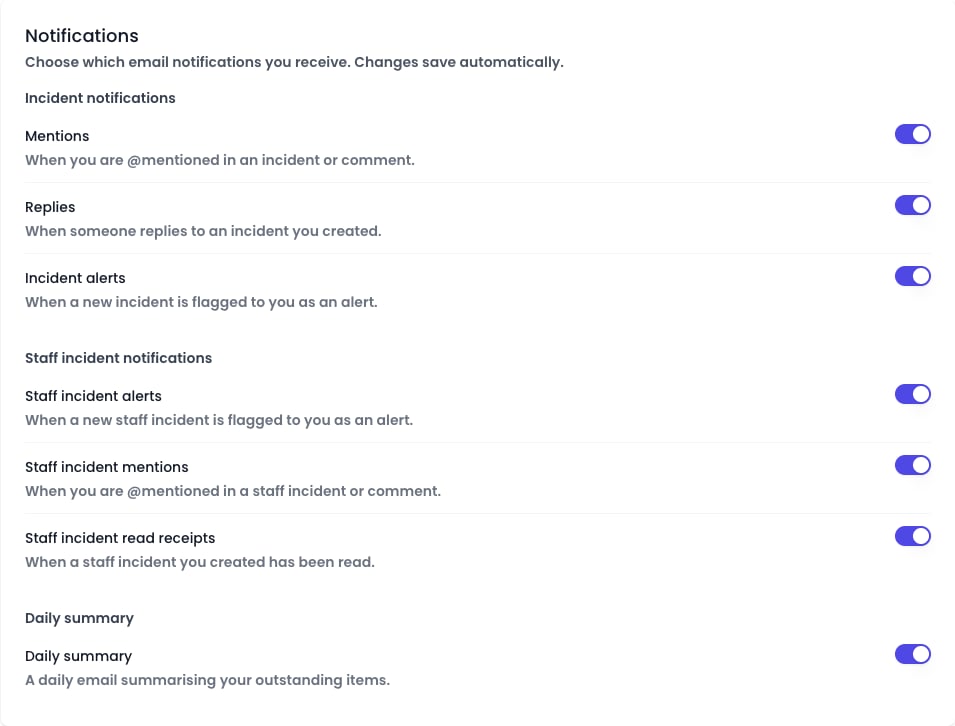
Your settings are grouped so you can find the right switch quickly. Each one is on by default.
### Incident notifications
* **Mentions** — when a colleague @mentions you in an incident or a comment.
* **Replies** — when someone replies to an incident you created.
* **Incident alerts** — when a new incident is flagged to you as an [alert](/docs/workflows/alerts).
### Staff incident notifications
Staff incident settings are only shown to **DSL**, **Deputy DSL**, and **Owner** users, because only those roles can see [staff incidents](/docs/staff-incidents/overview).
* **Staff incident alerts** — when a new staff incident is flagged to you as an alert.
* **Staff incident mentions** — when you are @mentioned in a staff incident or a comment.
* **Staff incident read receipts** — when a staff incident you created has been read.
### Daily summary
* **Daily summary** — the once-a-day [daily digest](/docs/notifications/daily-digest) email that rounds up everything outstanding for you.
## Saving your choices
Your settings save **automatically** the moment you flip a switch — there is no **Save** button. If a change cannot be saved, Signal shows a message and restores the previous setting, so your preferences always reflect what is stored.
Turning a notification off is a good way to cut email noise while staying fully up to date in the app — Signal still records every mention, reply, and alert on the relevant incident.
## What stays on regardless
Some emails are not covered by these settings because they are essential, and cannot be switched off here:
* **Sign-in codes** and other account or security emails.
* **Transfer** emails to and from other schools.
These always send so you can always access your account and complete safeguarding transfers.
## If you work at more than one school
Your notification settings apply to you across every school you belong to in Signal. If you turn off **Mentions**, for example, you stop receiving mention emails everywhere, not just at one school.
## Where to find your settings
1. Click your name at the bottom of the sidebar, or go to **Settings**.
2. Open the **Profile** page.
3. Scroll to the **Notifications** section.
Everyone can reach their own notification settings — you are only ever changing your own emails, not anyone else's.
## What you can turn on or off
Your settings are grouped so you can find the right switch quickly. Each one is on by default.
### Incident notifications
* **Mentions** — when a colleague @mentions you in an incident or a comment.
* **Replies** — when someone replies to an incident you created.
* **Incident alerts** — when a new incident is flagged to you as an [alert](/docs/workflows/alerts).
### Staff incident notifications
Staff incident settings are only shown to **DSL**, **Deputy DSL**, and **Owner** users, because only those roles can see [staff incidents](/docs/staff-incidents/overview).
* **Staff incident alerts** — when a new staff incident is flagged to you as an alert.
* **Staff incident mentions** — when you are @mentioned in a staff incident or a comment.
* **Staff incident read receipts** — when a staff incident you created has been read.
### Daily summary
* **Daily summary** — the once-a-day [daily digest](/docs/notifications/daily-digest) email that rounds up everything outstanding for you.
## Saving your choices
Your settings save **automatically** the moment you flip a switch — there is no **Save** button. If a change cannot be saved, Signal shows a message and restores the previous setting, so your preferences always reflect what is stored.
Turning a notification off is a good way to cut email noise while staying fully up to date in the app — Signal still records every mention, reply, and alert on the relevant incident.
## What stays on regardless
Some emails are not covered by these settings because they are essential, and cannot be switched off here:
* **Sign-in codes** and other account or security emails.
* **Transfer** emails to and from other schools.
These always send so you can always access your account and complete safeguarding transfers.
## If you work at more than one school
Your notification settings apply to you across every school you belong to in Signal. If you turn off **Mentions**, for example, you stop receiving mention emails everywhere, not just at one school.