> ## Documentation Index
> Fetch the complete documentation index at: https://signalschools.co.uk/docs/llms.txt
> Use this file to discover all available pages before exploring further.
# Adding Policies
> How to upload, classify, and manage your school's safeguarding policy documents in Signal, including importing from a web page and updating versions.
Uploading your school's policies to Signal ensures that staff have easy access to the right guidance and that the AI can match policies to incidents automatically. This page covers how to add, update, and organise your policies.
You need the **DSL** or **Owner** role to manage policies.
## Adding a single policy
### Go to Settings
Open **Settings** from the sidebar and select **Policies**.
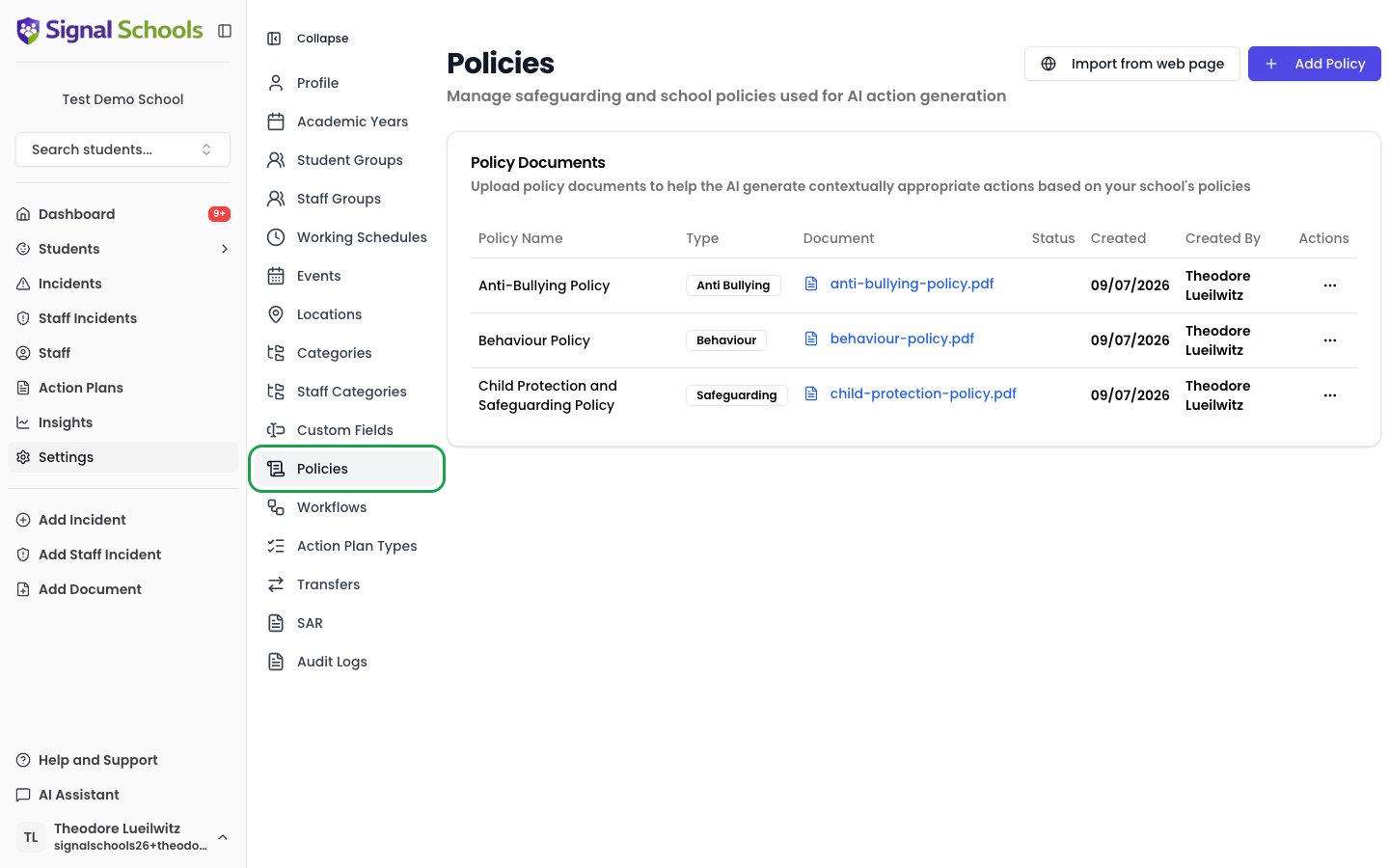 ### Click Add Policy
Click the **Add Policy** button to open the policy form.
### Enter the policy title
Give the policy a clear, descriptive title — for example, "Child Protection Policy 2025-26" or "Anti-Bullying Policy".
### Choose a Policy Type
Select the **Policy Type** that best fits this policy:
* **Child Protection & Safeguarding Policy** — combined child protection and safeguarding procedures, managing allegations
* **Staff Behaviour Policy / Code of Conduct** — staff conduct, low-level concerns
* **Safer Recruitment Policy** — recruitment, vetting and checking procedures
* **Children Missing Education Policy** — children missing education
* **Allergy Safety Policy** — allergy safety and allergen management
* **Behaviour Management Policy** — behaviour, exclusions, rewards and sanctions
* **Attendance Policy** — attendance
* **Anti-Bullying Policy** — anti-bullying, peer-on-peer abuse guidance
* **Online Safety Policy** — online safety, acceptable use, filtering and monitoring
* **SEND Policy** — SEND, accessibility plan, SEND information report
* **Inclusion Policy** — inclusion, equality and diversity
* **Other Policy** — any policy that does not fit the types above
The Policy Type also determines which government guidance the policy is checked against when you run an [AI review](/docs/policies/ai-policy-review).
### Set the review details
These fields keep the policy on a review schedule — see [Review Dates & Reminders](/docs/policies/review-dates) for how they are used:
* **Policy Owner** — the staff member responsible for keeping this policy up to date. Review reminders go to the owner; leave it as **DSLs** to send reminders to your safeguarding leads instead.
* **Review Frequency** — how often the policy should be reviewed: **Annually**, **Every 2 years**, or **Every 3 years**.
* **Date Ratified** — when the current version was approved.
* **Next Review Due** — when the next review is due. Signal suggests this automatically from the ratified date and review frequency, and you can adjust it.
### Upload the document
Under the **Policy Document** field, drag and drop the policy file onto the upload area, or click the area to browse for it. Only Word (.doc, .docx) and PDF documents are supported.
### Click Add Policy
Click the **Add Policy** button to open the policy form.
### Enter the policy title
Give the policy a clear, descriptive title — for example, "Child Protection Policy 2025-26" or "Anti-Bullying Policy".
### Choose a Policy Type
Select the **Policy Type** that best fits this policy:
* **Child Protection & Safeguarding Policy** — combined child protection and safeguarding procedures, managing allegations
* **Staff Behaviour Policy / Code of Conduct** — staff conduct, low-level concerns
* **Safer Recruitment Policy** — recruitment, vetting and checking procedures
* **Children Missing Education Policy** — children missing education
* **Allergy Safety Policy** — allergy safety and allergen management
* **Behaviour Management Policy** — behaviour, exclusions, rewards and sanctions
* **Attendance Policy** — attendance
* **Anti-Bullying Policy** — anti-bullying, peer-on-peer abuse guidance
* **Online Safety Policy** — online safety, acceptable use, filtering and monitoring
* **SEND Policy** — SEND, accessibility plan, SEND information report
* **Inclusion Policy** — inclusion, equality and diversity
* **Other Policy** — any policy that does not fit the types above
The Policy Type also determines which government guidance the policy is checked against when you run an [AI review](/docs/policies/ai-policy-review).
### Set the review details
These fields keep the policy on a review schedule — see [Review Dates & Reminders](/docs/policies/review-dates) for how they are used:
* **Policy Owner** — the staff member responsible for keeping this policy up to date. Review reminders go to the owner; leave it as **DSLs** to send reminders to your safeguarding leads instead.
* **Review Frequency** — how often the policy should be reviewed: **Annually**, **Every 2 years**, or **Every 3 years**.
* **Date Ratified** — when the current version was approved.
* **Next Review Due** — when the next review is due. Signal suggests this automatically from the ratified date and review frequency, and you can adjust it.
### Upload the document
Under the **Policy Document** field, drag and drop the policy file onto the upload area, or click the area to browse for it. Only Word (.doc, .docx) and PDF documents are supported.
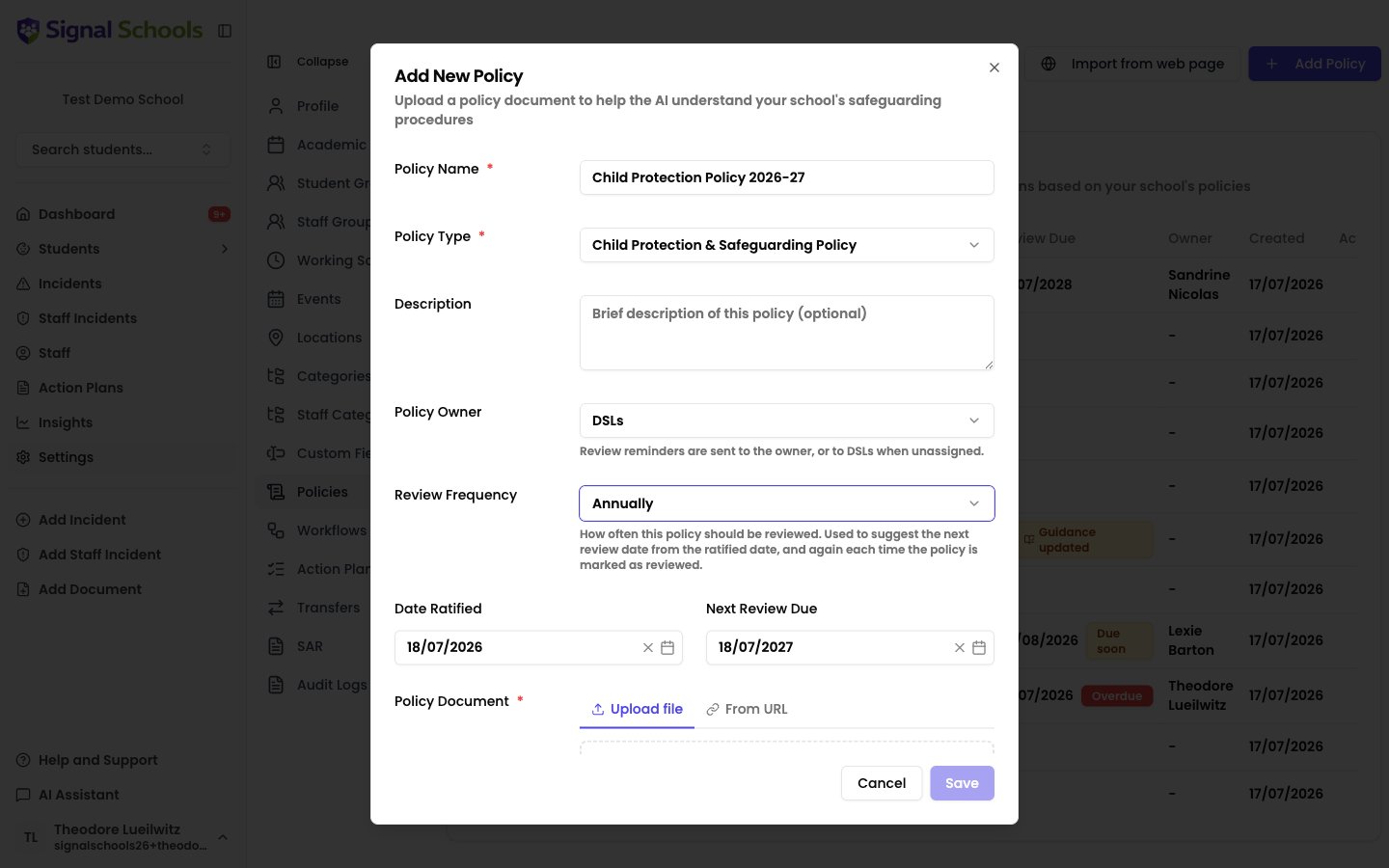 ### Save
Click **Save** to add the policy. Signal processes the document so the AI can use it for matching against future incidents.
## Import from web page
If your policies are already published on your school website, you can add several at once with **Import from web page**. Instead of uploading files one by one, Signal scrapes a web page you point it at and finds the policy PDFs linked from it.
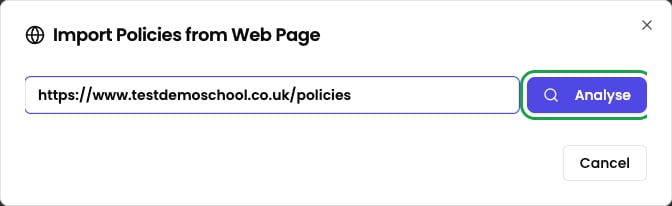
### Click Import from web page
On the Policies settings page, click the **Import from web page** button.
### Enter the web page address
Provide the address of the page that links to your policy documents — for example, your school's policies page.
### Review and import
Signal finds the policy PDFs on that page. Review the results and import the ones you want to add.
This is especially useful when first setting up Signal or when updating your full policy suite at the start of a new academic year.
### Save
Click **Save** to add the policy. Signal processes the document so the AI can use it for matching against future incidents.
## Import from web page
If your policies are already published on your school website, you can add several at once with **Import from web page**. Instead of uploading files one by one, Signal scrapes a web page you point it at and finds the policy PDFs linked from it.
### Click Import from web page
On the Policies settings page, click the **Import from web page** button.
### Enter the web page address
Provide the address of the page that links to your policy documents — for example, your school's policies page.
### Review and import
Signal finds the policy PDFs on that page. Review the results and import the ones you want to add.
This is especially useful when first setting up Signal or when updating your full policy suite at the start of a new academic year.
 ## Replacing a policy document
When a policy is updated — for example, after an annual review — you can replace the document with a new version.
### Open the actions menu
Go to **Settings > Policies**. On the row for the policy you want to update, open the **⋯** actions menu and choose **Edit**.
### Upload the new version
In the **Upload New Version** field, add the new version of the file.
### Save
Click **Save**. Signal re-processes the new document so the AI matches against the current version.
Clicking a policy's name in the list downloads the document — it does not open the edit form. Use the **⋯** actions menu to edit a policy.
Replacing a policy document does not affect any incidents that were previously matched to it. Past incidents retain their original policy references.
## Policy Types and when to use each
Choosing the right **Policy Type** helps Signal organise your policy library and improves the accuracy of AI matching.
Your combined child protection and safeguarding policy and managing allegations procedures. Referenced for concerns involving abuse, neglect, or significant harm, and checked against Keeping Children Safe in Education and Working Together to Safeguard Children in AI reviews.
Staff codes of conduct and low-level concerns procedures. Relevant when incidents involve staff conduct, and checked against the staff conduct expectations in Keeping Children Safe in Education.
Recruitment, vetting, and checking procedures. Checked against the safer recruitment requirements in Keeping Children Safe in Education.
Procedures for children who go missing from education. Checked against the Children Missing Education statutory guidance.
Allergy safety and allergen management procedures. Checked against the Allergy Safety in Schools statutory guidance.
Policies covering behaviour management, exclusions, rewards, and sanctions. Relevant when incidents involve behavioural concerns, and checked against Behaviour in Schools and the Suspension and Permanent Exclusion guidance.
Attendance policies. Relevant when incidents involve persistent or unexplained absence, and checked against Working Together to Improve School Attendance.
Anti-bullying policies and peer-on-peer abuse guidance. Matched to incidents involving bullying, harassment, or intimidation.
Online safety, acceptable use, filtering, and monitoring policies. Matched to incidents involving online concerns, social media, or technology misuse.
SEND policies, accessibility plans, and SEND information reports. Relevant when incidents involve students with special educational needs and disabilities, and checked against the SEND Code of Practice.
Inclusion, equality, and diversity policies. Matched when incidents involve discrimination, accessibility, or equalities-related concerns, and checked against the Equality Act 2010 advice for schools.
Any policy that does not fit the types above. Use this for specialist or cross-cutting policies that cover unique areas. Policies of this type cannot be AI-reviewed, as no government guidance is mapped to them.
## Supported file formats
Signal supports these document formats only:
* PDF (.pdf)
* Microsoft Word (.doc, .docx)
**Keep your policies up to date.** Replace documents whenever a policy is revised. The AI matches against the current version, so outdated documents may lead to outdated guidance being shown to staff.
**Upload all relevant school policies.** The more policies Signal has access to, the better it can match the right guidance to each incident. Include your core safeguarding policy, behaviour policy, online safety policy, and any specialist policies your school uses.
## Replacing a policy document
When a policy is updated — for example, after an annual review — you can replace the document with a new version.
### Open the actions menu
Go to **Settings > Policies**. On the row for the policy you want to update, open the **⋯** actions menu and choose **Edit**.
### Upload the new version
In the **Upload New Version** field, add the new version of the file.
### Save
Click **Save**. Signal re-processes the new document so the AI matches against the current version.
Clicking a policy's name in the list downloads the document — it does not open the edit form. Use the **⋯** actions menu to edit a policy.
Replacing a policy document does not affect any incidents that were previously matched to it. Past incidents retain their original policy references.
## Policy Types and when to use each
Choosing the right **Policy Type** helps Signal organise your policy library and improves the accuracy of AI matching.
Your combined child protection and safeguarding policy and managing allegations procedures. Referenced for concerns involving abuse, neglect, or significant harm, and checked against Keeping Children Safe in Education and Working Together to Safeguard Children in AI reviews.
Staff codes of conduct and low-level concerns procedures. Relevant when incidents involve staff conduct, and checked against the staff conduct expectations in Keeping Children Safe in Education.
Recruitment, vetting, and checking procedures. Checked against the safer recruitment requirements in Keeping Children Safe in Education.
Procedures for children who go missing from education. Checked against the Children Missing Education statutory guidance.
Allergy safety and allergen management procedures. Checked against the Allergy Safety in Schools statutory guidance.
Policies covering behaviour management, exclusions, rewards, and sanctions. Relevant when incidents involve behavioural concerns, and checked against Behaviour in Schools and the Suspension and Permanent Exclusion guidance.
Attendance policies. Relevant when incidents involve persistent or unexplained absence, and checked against Working Together to Improve School Attendance.
Anti-bullying policies and peer-on-peer abuse guidance. Matched to incidents involving bullying, harassment, or intimidation.
Online safety, acceptable use, filtering, and monitoring policies. Matched to incidents involving online concerns, social media, or technology misuse.
SEND policies, accessibility plans, and SEND information reports. Relevant when incidents involve students with special educational needs and disabilities, and checked against the SEND Code of Practice.
Inclusion, equality, and diversity policies. Matched when incidents involve discrimination, accessibility, or equalities-related concerns, and checked against the Equality Act 2010 advice for schools.
Any policy that does not fit the types above. Use this for specialist or cross-cutting policies that cover unique areas. Policies of this type cannot be AI-reviewed, as no government guidance is mapped to them.
## Supported file formats
Signal supports these document formats only:
* PDF (.pdf)
* Microsoft Word (.doc, .docx)
**Keep your policies up to date.** Replace documents whenever a policy is revised. The AI matches against the current version, so outdated documents may lead to outdated guidance being shown to staff.
**Upload all relevant school policies.** The more policies Signal has access to, the better it can match the right guidance to each incident. Include your core safeguarding policy, behaviour policy, online safety policy, and any specialist policies your school uses.