> ## Documentation Index
> Fetch the complete documentation index at: https://signalschools.co.uk/docs/llms.txt
> Use this file to discover all available pages before exploring further.
# Recording & Managing Staff Incidents
> Step-by-step guide to creating, viewing, editing, and commenting on staff incidents in Signal.
Creating and managing staff incidents requires the **Owner**, **DSL**, or **Deputy DSL** role.
This guide walks you through the full process of recording a staff incident — from creating the initial record through to adding comments and managing the incident over time.
## Creating a staff incident
Click **Add Staff Incident** from the quick action in the sidebar, or navigate to **Staff Incidents** and select the **Add Staff Incident** button.
Choose the primary staff member or members the concern is about. At least one main staff member is required.
If other staff members are connected to the concern but are not the primary subject, add them as linked staff.
If any students are connected to the concern, link them to the incident.
Enter the date and time the concern arose. This may differ from the date you are recording the incident.
Describe the concern in the rich text editor. You can use **@mentions** to tag relevant colleagues — staff who are named in the incident are automatically excluded from the mention list to protect confidentiality.
Choose who should be notified about this incident. Only staff with the Owner, DSL, or Deputy DSL role will appear as options.
Upload any supporting files — photos, letters, reports, or other evidence.
Click **Next**. Signal's AI analyses the description and suggests appropriate categories.
Review the AI-suggested categories and select the ones that apply. Choose the location where the incident occurred.
Click **Save** to create the completed incident record.
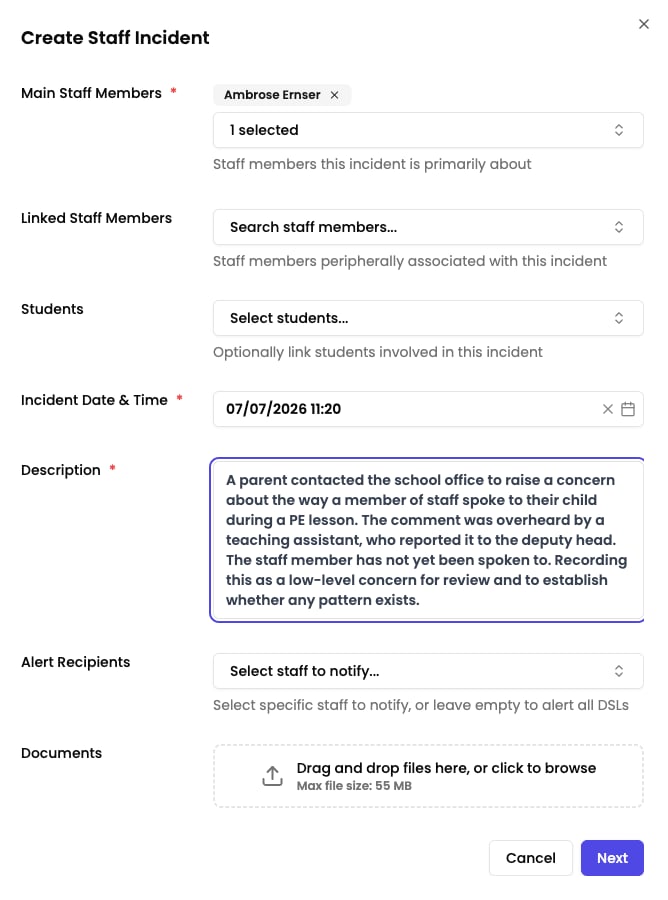 When writing the description, include as much factual detail as possible — what was observed or reported, when, where, and by whom. Avoid speculation or opinion. This creates a clear, professional record.
## Viewing and filtering staff incidents
The staff incidents list shows all incidents you have access to. Remember that any incidents naming you are automatically hidden due to [self-exclusion](/docs/staff-incidents/overview).
You can filter the list by:
* **Date range** — focus on a specific time period
* **Categories** — show only incidents of a particular type
* **Locations** — filter by where the incident occurred
* **Staff members** — find incidents involving a specific person
When writing the description, include as much factual detail as possible — what was observed or reported, when, where, and by whom. Avoid speculation or opinion. This creates a clear, professional record.
## Viewing and filtering staff incidents
The staff incidents list shows all incidents you have access to. Remember that any incidents naming you are automatically hidden due to [self-exclusion](/docs/staff-incidents/overview).
You can filter the list by:
* **Date range** — focus on a specific time period
* **Categories** — show only incidents of a particular type
* **Locations** — filter by where the incident occurred
* **Staff members** — find incidents involving a specific person
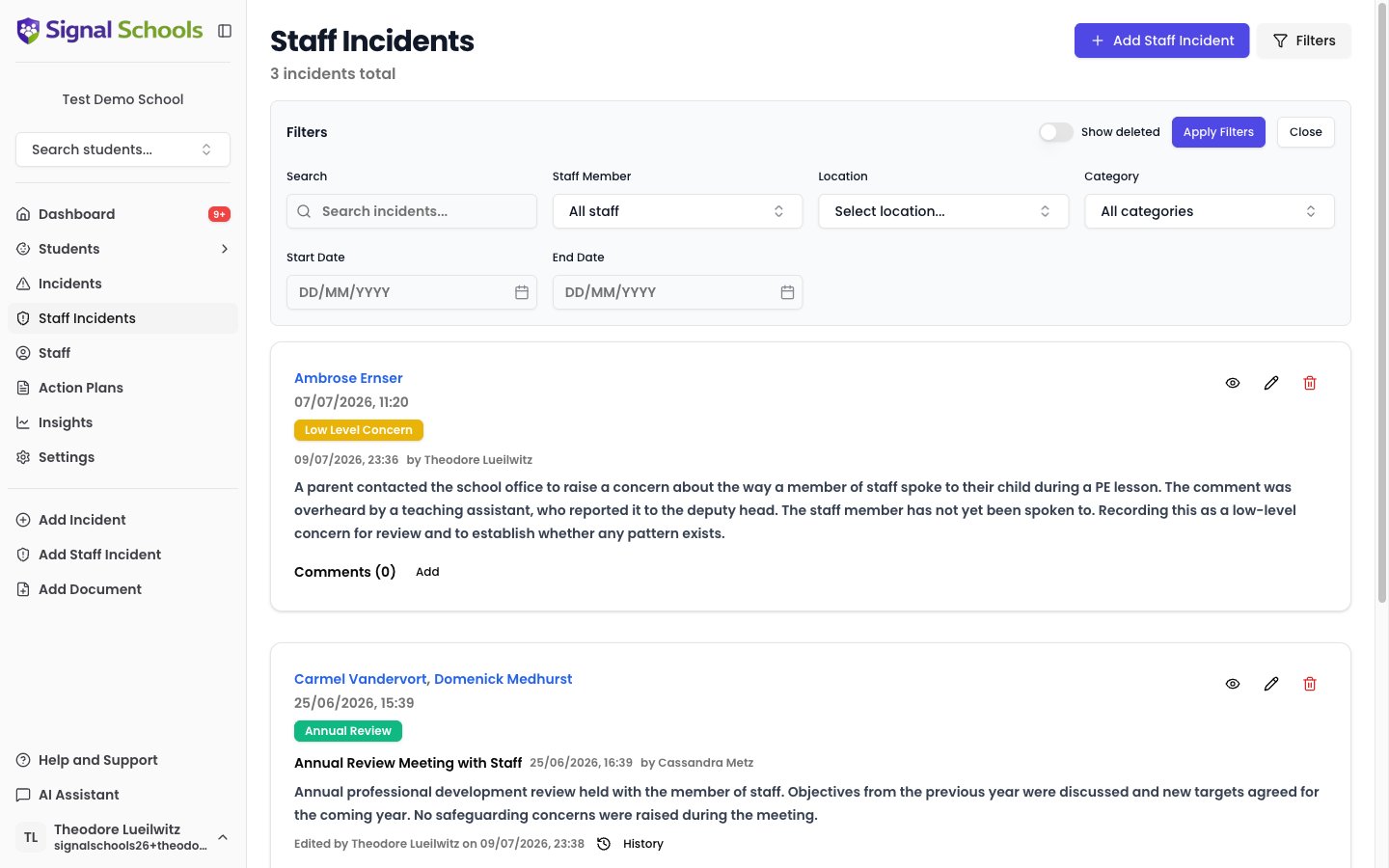 Filters can be combined. For example, you can view all "Allegations" incidents from the last term that occurred on the school premises.
## Editing a staff incident
You can edit a staff incident after it has been created to add information, correct details, or update categories.
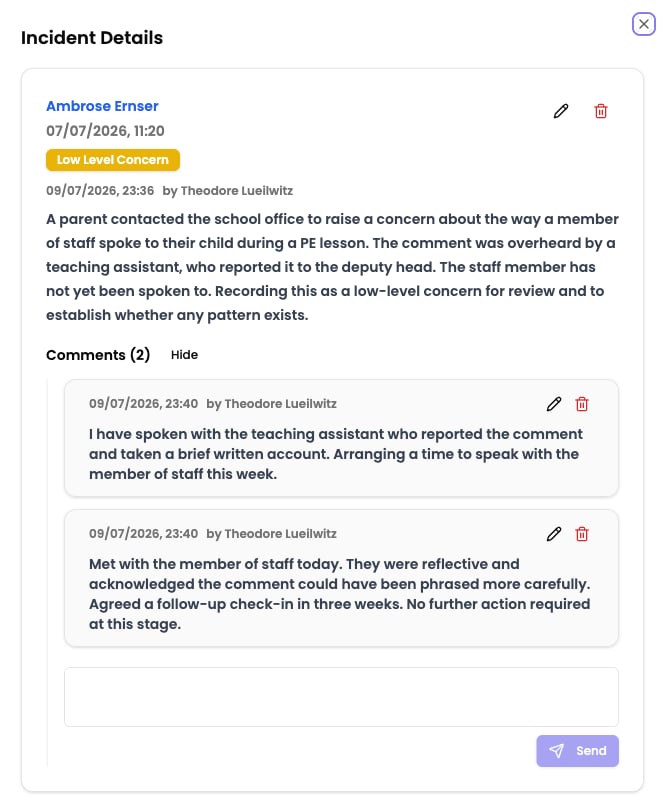
Click an incident in the staff incidents list to open it. Staff incidents open in a side sheet titled "Incident Details" rather than a full page.
On desktop, click the pencil icon (its tooltip reads "Edit Incident"). On mobile, open the menu and choose **Edit**.
Update any fields as needed — description, categories, location, linked staff, or linked students.
Click **Save** to apply your changes.
All changes to staff incidents are recorded in the audit log. This ensures accountability and provides a clear trail of who changed what and when.
## Comments and collaboration
Comments allow Owners, DSLs, and Deputy DSLs to share updates, discuss next steps, and build a documented trail of actions taken on a staff incident.
### Adding a comment
Navigate to the staff incident you want to comment on.
Comments are in a collapsible section within the incident side sheet. Use the **Show** / **Hide** / **Add** toggle to expand it.
Type your comment in the text field. You can @mention other Owners, DSLs, or Deputy DSLs to bring the incident to their attention.
Click **Send** to post your comment.
### Deleting a comment
You can delete a comment if you are the person who created it, or if you hold a privileged role (DSL, Deputy DSL, or Owner).
Filters can be combined. For example, you can view all "Allegations" incidents from the last term that occurred on the school premises.
## Editing a staff incident
You can edit a staff incident after it has been created to add information, correct details, or update categories.
Click an incident in the staff incidents list to open it. Staff incidents open in a side sheet titled "Incident Details" rather than a full page.
On desktop, click the pencil icon (its tooltip reads "Edit Incident"). On mobile, open the menu and choose **Edit**.
Update any fields as needed — description, categories, location, linked staff, or linked students.
Click **Save** to apply your changes.
All changes to staff incidents are recorded in the audit log. This ensures accountability and provides a clear trail of who changed what and when.
## Comments and collaboration
Comments allow Owners, DSLs, and Deputy DSLs to share updates, discuss next steps, and build a documented trail of actions taken on a staff incident.
### Adding a comment
Navigate to the staff incident you want to comment on.
Comments are in a collapsible section within the incident side sheet. Use the **Show** / **Hide** / **Add** toggle to expand it.
Type your comment in the text field. You can @mention other Owners, DSLs, or Deputy DSLs to bring the incident to their attention.
Click **Send** to post your comment.
### Deleting a comment
You can delete a comment if you are the person who created it, or if you hold a privileged role (DSL, Deputy DSL, or Owner).
 ## Key differences from student incidents
Staff incidents work similarly to student incidents in many ways, but there are some important differences:
Staff incidents do not include an agencies field. External organisations involved in staff matters are typically referenced in the description or comments instead.
Unlike student incidents, staff incidents do not display an AI recommendations panel. AI is used to suggest categories during creation, but ongoing recommendations are not shown.
Student incidents are visible to staff with the Contributor role and above. Staff incidents are visible only to Owners, DSLs, and Deputy DSLs, and self-exclusion applies.
## Key differences from student incidents
Staff incidents work similarly to student incidents in many ways, but there are some important differences:
Staff incidents do not include an agencies field. External organisations involved in staff matters are typically referenced in the description or comments instead.
Unlike student incidents, staff incidents do not display an AI recommendations panel. AI is used to suggest categories during creation, but ongoing recommendations are not shown.
Student incidents are visible to staff with the Contributor role and above. Staff incidents are visible only to Owners, DSLs, and Deputy DSLs, and self-exclusion applies.