> ## Documentation Index
> Fetch the complete documentation index at: https://signalschools.co.uk/docs/llms.txt
> Use this file to discover all available pages before exploring further.
# Staff Incident Categories
> Set up and manage the categories used to classify staff incidents, separately from student incident categories.
Managing staff incident categories requires the **DSL** or **Owner** role.
Staff incidents use their own set of categories, completely separate from student incident categories. This allows you to tailor the staff category list to the types of concerns that typically arise with staff members.
## Why separate categories?
Student and staff safeguarding concerns are fundamentally different in nature. Student categories focus on types of harm or need (such as Physical, Emotional, or Neglect), while staff categories focus on professional conduct and organisational concerns. Keeping them separate ensures each list is relevant and manageable.
## Accessing staff categories
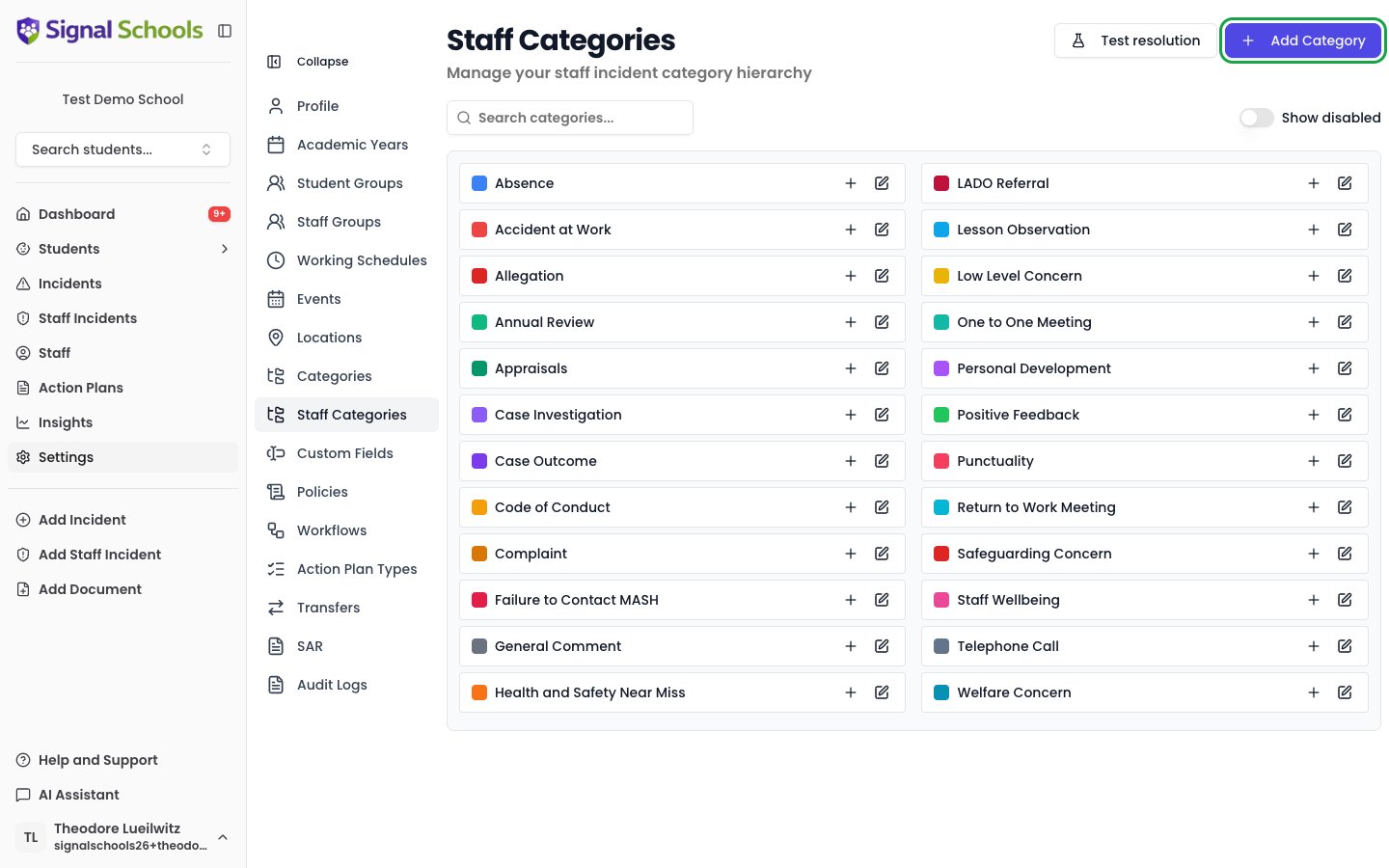
Go to **Settings > Staff Categories** to view and manage your staff incident categories.
 ## Adding a category
Navigate to **Settings > Staff Categories**.
Select the **Add Category** button.
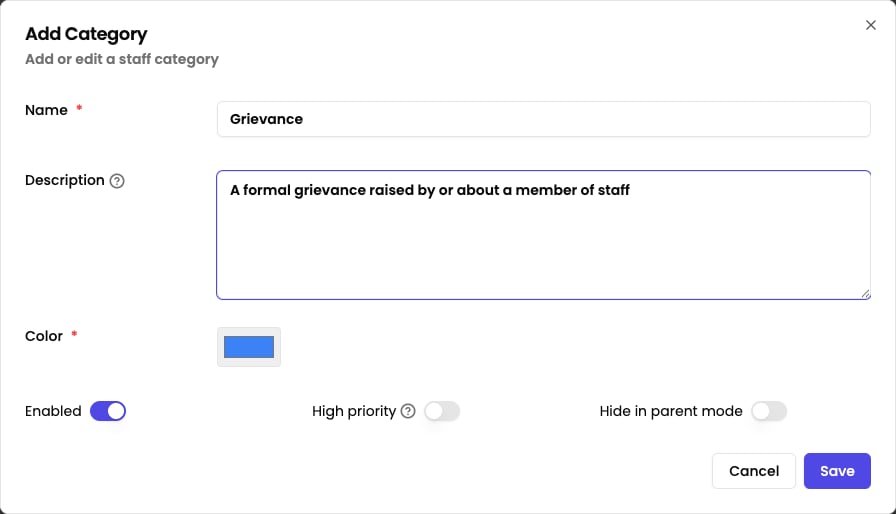
Provide the following:
* **Name** — a clear, descriptive name that your DSL team will recognise
* **Colour** — a colour to help visually distinguish this category in lists and charts
* **Enabled** — toggle whether the category is available for selection when recording staff incidents. Disabling a category hides it from new incidents without affecting existing records.
* **High priority** — toggle to mark the category as high priority. Incidents with a high priority category bypass working schedules for alerts, ensuring staff are notified immediately.
* **Hide in parent mode** — toggle to hide this category from the parent-facing view
Click **Save** to add the category. It is immediately available when creating or editing staff incidents.
## Adding a category
Navigate to **Settings > Staff Categories**.
Select the **Add Category** button.
Provide the following:
* **Name** — a clear, descriptive name that your DSL team will recognise
* **Colour** — a colour to help visually distinguish this category in lists and charts
* **Enabled** — toggle whether the category is available for selection when recording staff incidents. Disabling a category hides it from new incidents without affecting existing records.
* **High priority** — toggle to mark the category as high priority. Incidents with a high priority category bypass working schedules for alerts, ensuring staff are notified immediately.
* **Hide in parent mode** — toggle to hide this category from the parent-facing view
Click **Save** to add the category. It is immediately available when creating or editing staff incidents.
 ## Editing and managing categories
To edit an existing category, click the **Edit** (pencil) icon on its row and update the name, colour, or toggles. Clicking the row itself does not open the editor. Changes apply to all future incidents and are reflected on existing incidents that use the category.
To find a category quickly, use the search box. The **Show disabled** toggle reveals categories you have disabled, and the **Test resolution** button lets you check how a description would be classified against your categories.
A delete (trash) icon appears on a category's row only after the category has been disabled.
### Custom fields
You can configure custom fields that appear on staff incident forms based on categories. Custom fields are managed separately from categories — see [Custom Fields](/docs/incidents/custom-fields) for details.
Renaming a category updates it across all staff incidents that reference it. The historical record remains intact — the audit log shows what the category was called at the time each incident was created.
## Suggested categories
Here are some common staff incident categories to consider as a starting point. Every school is different, so adapt this list to match your needs:
* **Conduct** — general concerns about a staff member's professional conduct
* **Allegations** — formal allegations of harm or misconduct
* **Performance** — safeguarding-related performance concerns
* **Professional Boundaries** — concerns about appropriate boundaries with students
* **Communication** — inappropriate or concerning communication
* **Attendance** — persistent absence or unexplained patterns
* **Substance Misuse** — concerns related to alcohol or drug use
* **Online Behaviour** — inappropriate online activity or social media use
Keep your staff categories focused and distinct. Having too many overlapping categories makes it harder to classify incidents consistently. Aim for a manageable list that covers the main types of concern your school encounters.
## Related pages
Understand how staff incidents work, including restricted access and self-exclusion.
Learn how to create, edit, and manage staff incidents.
## Editing and managing categories
To edit an existing category, click the **Edit** (pencil) icon on its row and update the name, colour, or toggles. Clicking the row itself does not open the editor. Changes apply to all future incidents and are reflected on existing incidents that use the category.
To find a category quickly, use the search box. The **Show disabled** toggle reveals categories you have disabled, and the **Test resolution** button lets you check how a description would be classified against your categories.
A delete (trash) icon appears on a category's row only after the category has been disabled.
### Custom fields
You can configure custom fields that appear on staff incident forms based on categories. Custom fields are managed separately from categories — see [Custom Fields](/docs/incidents/custom-fields) for details.
Renaming a category updates it across all staff incidents that reference it. The historical record remains intact — the audit log shows what the category was called at the time each incident was created.
## Suggested categories
Here are some common staff incident categories to consider as a starting point. Every school is different, so adapt this list to match your needs:
* **Conduct** — general concerns about a staff member's professional conduct
* **Allegations** — formal allegations of harm or misconduct
* **Performance** — safeguarding-related performance concerns
* **Professional Boundaries** — concerns about appropriate boundaries with students
* **Communication** — inappropriate or concerning communication
* **Attendance** — persistent absence or unexplained patterns
* **Substance Misuse** — concerns related to alcohol or drug use
* **Online Behaviour** — inappropriate online activity or social media use
Keep your staff categories focused and distinct. Having too many overlapping categories makes it harder to classify incidents consistently. Aim for a manageable list that covers the main types of concern your school encounters.
## Related pages
Understand how staff incidents work, including restricted access and self-exclusion.
Learn how to create, edit, and manage staff incidents.