> ## Documentation Index
> Fetch the complete documentation index at: https://signalschools.co.uk/docs/llms.txt
> Use this file to discover all available pages before exploring further.
# Managing Staff Members
> Add, invite, edit, and remove staff members in your school's Signal account.
Adding, editing, and removing staff requires the **Owner**, **DSL**, or **Deputy DSL** role. A **School Admin** can view the staff list but cannot make changes. If you do not see the staff management options, check your role with your school's Signal administrator.
## Adding a new staff member
Select **Staff** from the sidebar. Staff is a top-level item — it is not under Settings.
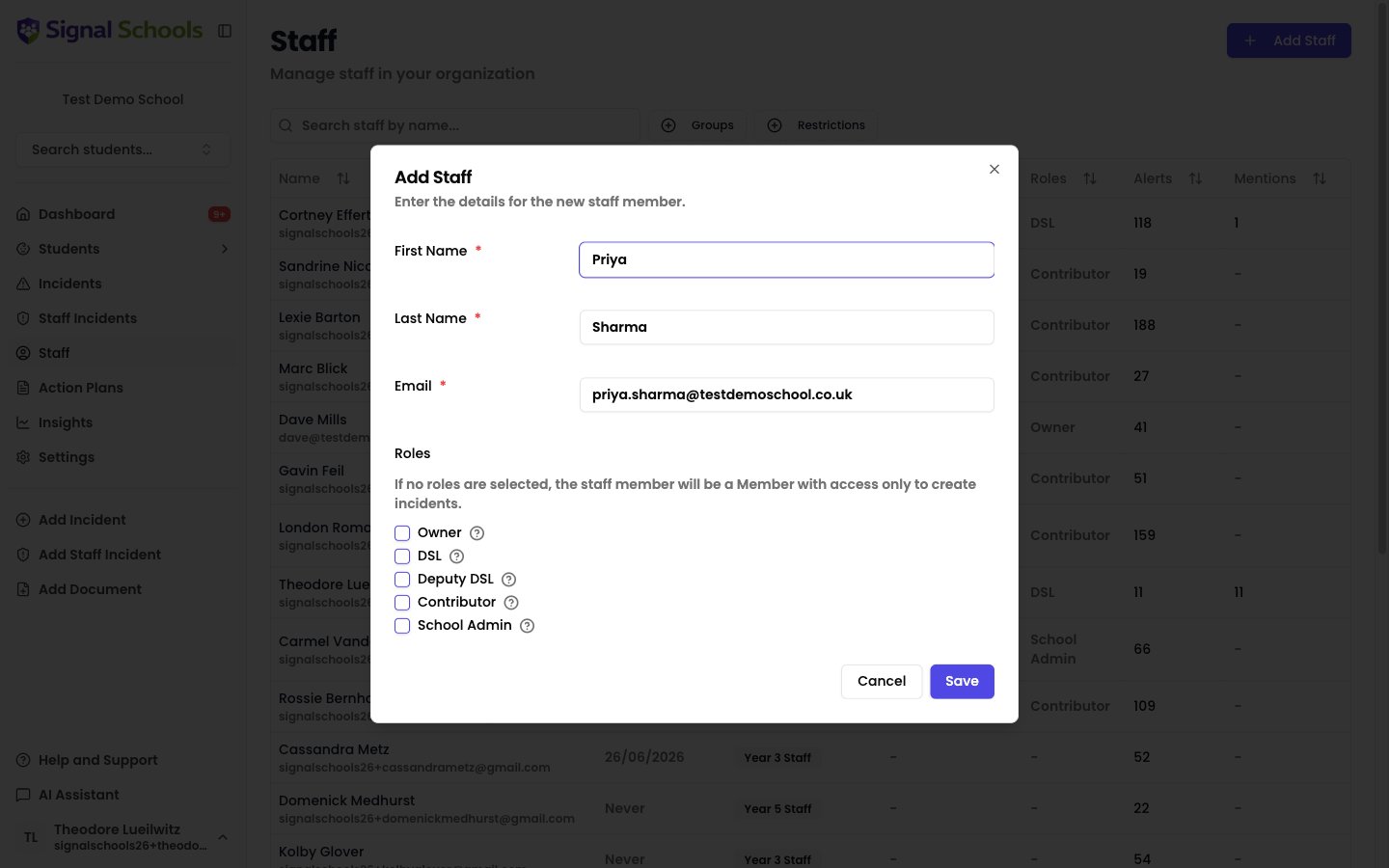
Select the **Add Staff** button at the top of the staff list.
Fill in the staff member's name and email address. Choose the appropriate [role](/docs/staff/overview) from the dropdown.
Click **Save** to add the staff member to your school's account.
 ## Inviting staff via email
After adding a staff member, you can send them an email invitation. The invitation contains a link that lets them set up their account and register a passkey for secure, passwordless login.
Staff do not need to be invited immediately. You can add them to the system first and send the invitation later when they are ready to start using Signal.
## Viewing the staff list
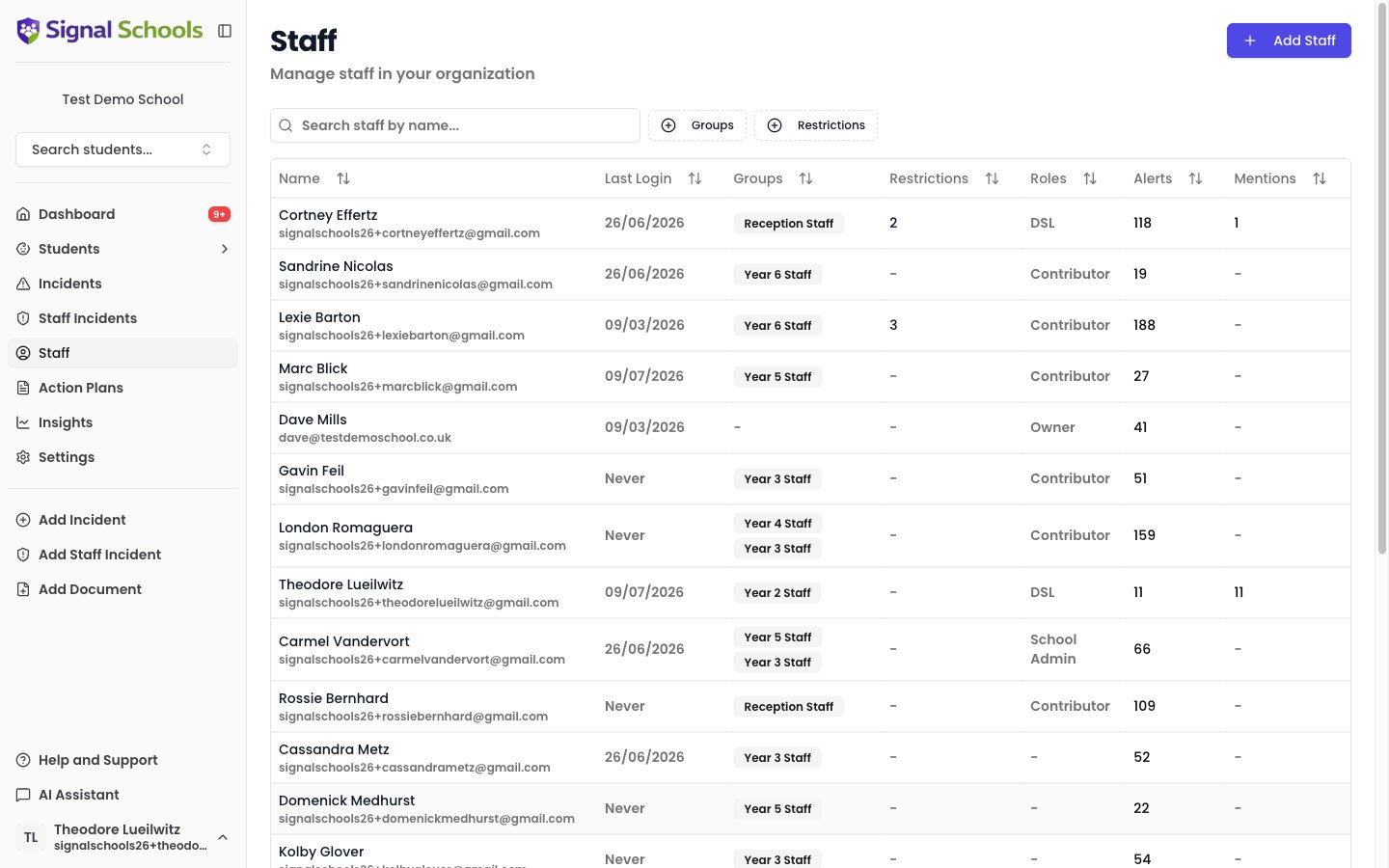
The staff list shows all staff members in your school's Signal account. You can:
* **Search** by name or email to find a specific person quickly.
* **Filter by Staff Group** to see members of a particular group (for example, the Safeguarding Team).
## Inviting staff via email
After adding a staff member, you can send them an email invitation. The invitation contains a link that lets them set up their account and register a passkey for secure, passwordless login.
Staff do not need to be invited immediately. You can add them to the system first and send the invitation later when they are ready to start using Signal.
## Viewing the staff list
The staff list shows all staff members in your school's Signal account. You can:
* **Search** by name or email to find a specific person quickly.
* **Filter by Staff Group** to see members of a particular group (for example, the Safeguarding Team).
 ## Editing staff details
To update a staff member's information or change their role:
Use the search bar or scroll through the staff list to locate the person.
Click the **Edit** button for the staff member. For staff members synced from your MIS, this button is labelled **Edit Roles**. This opens the "Edit Staff" dialog.
Update their name, email, or role as needed.
Click **Save** to apply the changes.
Changing a staff member's role takes effect immediately. If you downgrade someone from DSL to Contributor, they will lose access to staff incidents and settings straight away.
## Staff profile page
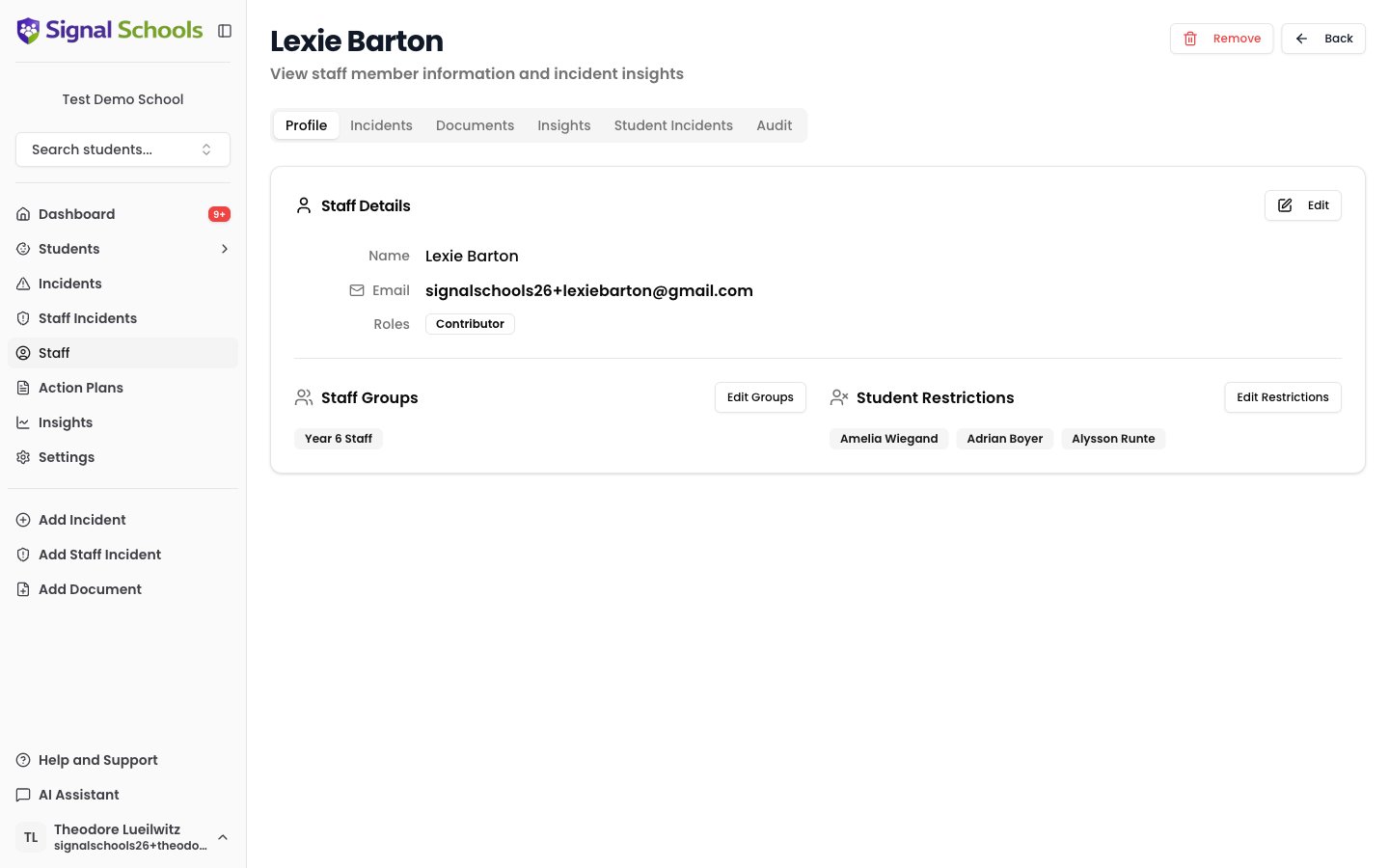
Each staff member has a detail page with the following tabs: Profile, Incidents, Documents, Insights, Student Incidents, and Audit.
The Profile tab shows:
* Their name, email address, and roles
* The **Staff Groups** they belong to
* Their **Student Restrictions**
## Editing staff details
To update a staff member's information or change their role:
Use the search bar or scroll through the staff list to locate the person.
Click the **Edit** button for the staff member. For staff members synced from your MIS, this button is labelled **Edit Roles**. This opens the "Edit Staff" dialog.
Update their name, email, or role as needed.
Click **Save** to apply the changes.
Changing a staff member's role takes effect immediately. If you downgrade someone from DSL to Contributor, they will lose access to staff incidents and settings straight away.
## Staff profile page
Each staff member has a detail page with the following tabs: Profile, Incidents, Documents, Insights, Student Incidents, and Audit.
The Profile tab shows:
* Their name, email address, and roles
* The **Staff Groups** they belong to
* Their **Student Restrictions**
 ## Removing a staff member
When a staff member leaves your school or no longer needs access, you can remove them. This is a permanent removal from your school's account, not a soft deactivation. Historical activity (such as incidents they created or comments they made) is preserved.
Navigate to the staff member's profile page.
Click **Remove**, then confirm the action in the "Remove Staff from School" dialog.
Removing a staff member does not delete any data. Their name still appears on incidents and comments they contributed to, maintaining your audit trail.
## Related pages
Understand what each role can see and do.
Organise staff into groups for access control and alert routing.
## Removing a staff member
When a staff member leaves your school or no longer needs access, you can remove them. This is a permanent removal from your school's account, not a soft deactivation. Historical activity (such as incidents they created or comments they made) is preserved.
Navigate to the staff member's profile page.
Click **Remove**, then confirm the action in the "Remove Staff from School" dialog.
Removing a staff member does not delete any data. Their name still appears on incidents and comments they contributed to, maintaining your audit trail.
## Related pages
Understand what each role can see and do.
Organise staff into groups for access control and alert routing.