> ## Documentation Index
> Fetch the complete documentation index at: https://signalschools.co.uk/docs/llms.txt
> Use this file to discover all available pages before exploring further.
# Staff Groups
> Create and manage Staff Groups to control access and route alert notifications to the right people.
Staff Groups let you organise staff members into meaningful teams. They serve two main purposes in Signal:
1. **Access control** — restrict which incidents or students a group of staff can see.
2. **Alert routing** — direct alert notifications to specific groups so the right people are informed.
## Common examples
Here are some Staff Groups schools typically set up:
The DSL and Deputy DSLs responsible for managing safeguarding concerns.
Heads of year who need visibility of incidents involving students in their year group.
Senior leaders who need oversight of safeguarding activity across the school.
Other examples include Pastoral Team, SEN Team, and Attendance Officers — whatever groupings make sense for your school.
## Creating a Staff Group
Creating and managing Staff Groups requires the **Owner**, **DSL**, or **Deputy DSL** role.
Navigate to **Settings** and select **Staff Groups** from the sidebar.
Select the **Add Group** button in the top-right corner.
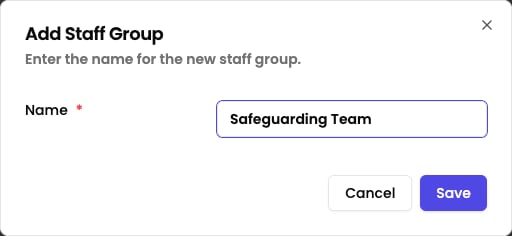
Enter a clear, descriptive name for the group (for example, "Pastoral Team" or "Year 7 Leads").
Click **Save** to create the group.
 ## Adding and removing members
Once you have created a Staff Group, you can manage who belongs to it:
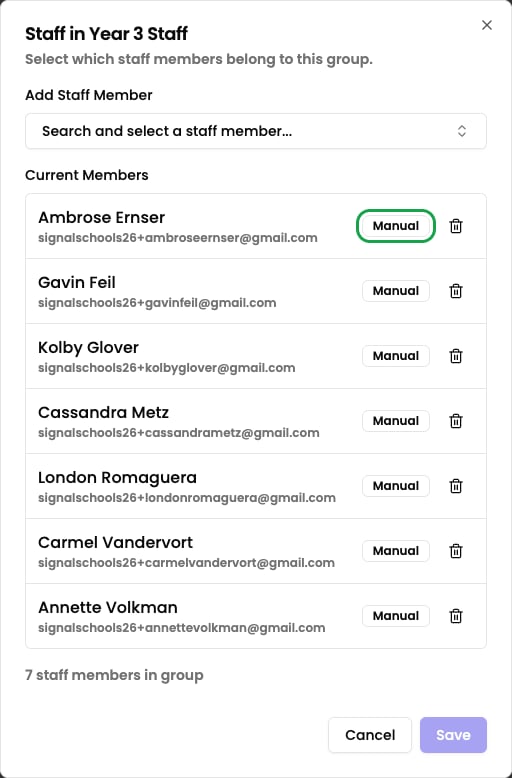
On the Staff Groups settings page, click the **Manage staff members** icon next to the group you want to edit.
Use the search box to find a staff member by name. Selecting them from the list stages them as a pending addition — they are only added to the group when you save.
Click the remove button next to any member in the list to remove them from the group.
Click **Save** to apply your changes.
Each member in the list is labelled either **Manual** (added by you) or **MIS managed** (synced from your MIS). MIS-managed members cannot be removed manually — changes to those memberships must be made in your MIS.
A staff member can belong to multiple Staff Groups. For example, a Head of Year might be in both the "Year Group Leads" group and the "Pastoral Team" group.
## Adding and removing members
Once you have created a Staff Group, you can manage who belongs to it:
On the Staff Groups settings page, click the **Manage staff members** icon next to the group you want to edit.
Use the search box to find a staff member by name. Selecting them from the list stages them as a pending addition — they are only added to the group when you save.
Click the remove button next to any member in the list to remove them from the group.
Click **Save** to apply your changes.
Each member in the list is labelled either **Manual** (added by you) or **MIS managed** (synced from your MIS). MIS-managed members cannot be removed manually — changes to those memberships must be made in your MIS.
A staff member can belong to multiple Staff Groups. For example, a Head of Year might be in both the "Year Group Leads" group and the "Pastoral Team" group.
 ## Archiving a Staff Group
Archiving a group hides it from active lists without permanently removing it. This is useful when a group is no longer in use but you want to keep it available to restore later.
Navigate to **Settings** → **Staff Groups**.
Click the **Archive** icon next to the group you want to archive.
Confirm the action in the prompt. The group will no longer appear in active lists.
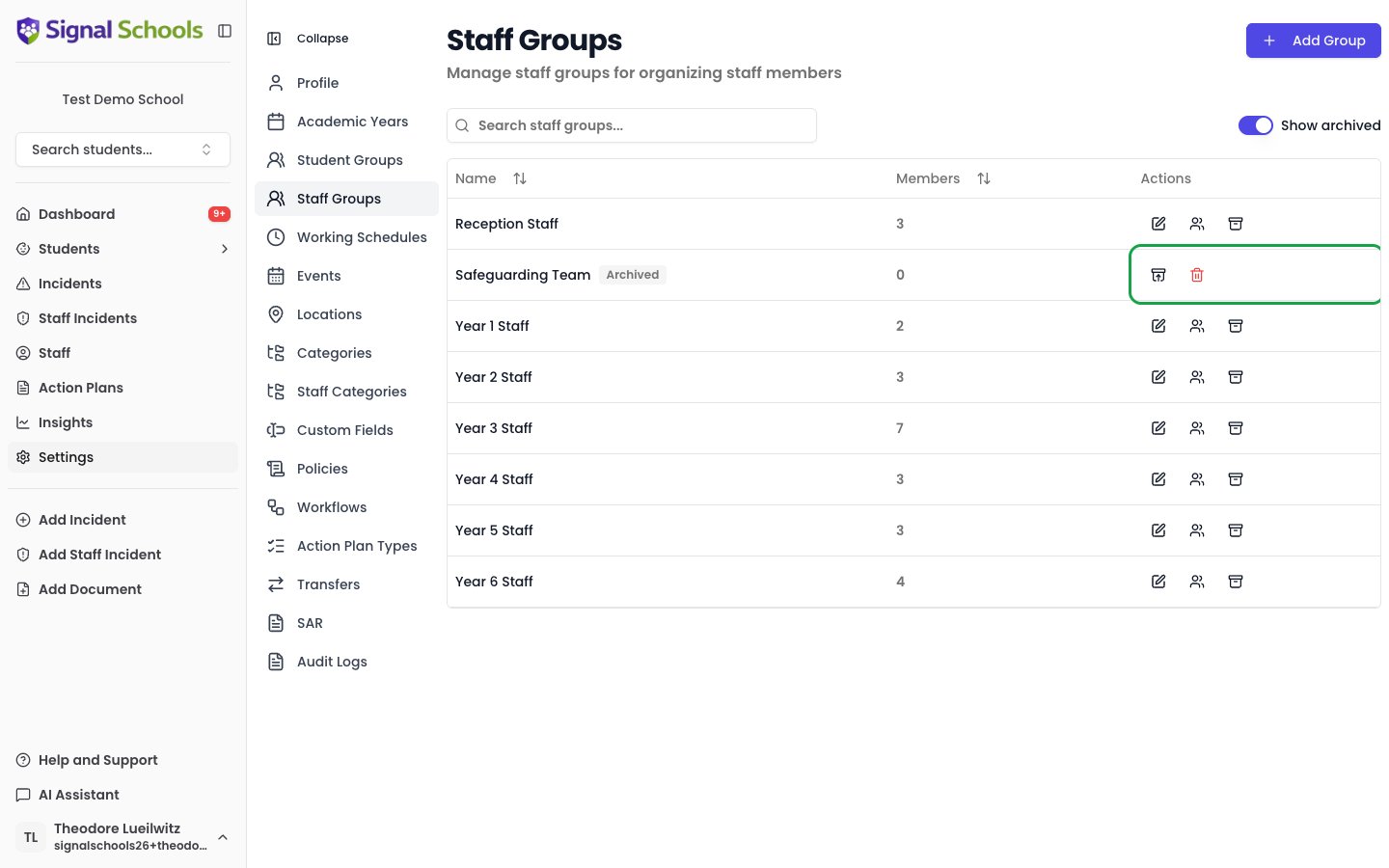
To see archived groups, enable the **Show archived** toggle on the Staff Groups settings page.
To restore an archived group, click the **Unarchive** icon next to it.
## Archiving a Staff Group
Archiving a group hides it from active lists without permanently removing it. This is useful when a group is no longer in use but you want to keep it available to restore later.
Navigate to **Settings** → **Staff Groups**.
Click the **Archive** icon next to the group you want to archive.
Confirm the action in the prompt. The group will no longer appear in active lists.
To see archived groups, enable the **Show archived** toggle on the Staff Groups settings page.
To restore an archived group, click the **Unarchive** icon next to it.
 ## Permanently deleting a Staff Group
Permanent deletion cannot be undone. The group and all its manual memberships will be removed.
A group must be archived before it can be permanently deleted.
Follow the steps above to archive the group first.
Enable the **Show archived** toggle to make the archived group visible.
Click the **Delete** icon next to the archived group and confirm.
## MIS-synced Staff Groups
Some Staff Groups may be synced from your MIS and are marked with a sync indicator. Their memberships are managed automatically by Signal and cannot be changed manually. Any changes to synced group memberships should be made in your MIS, and Signal will reflect them at the next sync.
MIS-synced groups can be archived if you no longer need them in Signal, but their memberships will continue to be updated by the MIS sync while they remain active.
## Using Staff Groups for alert routing
Staff Groups are particularly powerful when combined with [workflows](/docs/workflows/overview). When you create a workflow, you can choose a Staff Group as the recipient for an Alert Users action. Every member of that group will receive the alert when a matching incident is logged.
For example, you might create a rule that says:
> "Alert the **Pastoral Team** whenever a student incident is logged in the **Attendance** category."
This ensures the right people are notified without you having to select individuals one by one. If someone joins or leaves the group, the alert routing updates automatically.
### Groups named after a class or year group
Signal can alert **the class staff for whichever class a student is in**, without you naming the group on the workflow. This lets a single workflow cover every class in the school.
For this to work, each class needs a Staff Group named after it, with **Staff** on the end:
| Class or year group | Staff Group name |
| ------------------- | ---------------- |
| Class 7A | **7A Staff** |
| Class RB | **RB Staff** |
| Year 7 | **Year 7 Staff** |
The name must match exactly. If you connect your MIS, these groups are usually created for you. Otherwise, create them here and add the relevant teachers.
If a class has no matching Staff Group, no class staff are alerted for students in that class. Other recipients on the workflow are unaffected.
See [Alerts](/docs/workflows/alerts) for how to switch this on.
## Using Staff Groups for access control
Staff Groups can also restrict visibility. When configuring [incident visibility](/docs/incidents/recording-incidents) or [student restrictions](/docs/students/overview), you can grant or limit access based on Staff Group membership.
This is useful for sensitive cases. For example, you might restrict a particular student's records so that only members of the "Safeguarding Team" group can view them.
## Related pages
Understand the role system that works alongside Staff Groups.
Set up workflows that route alerts to Staff Groups.
Add, edit, and remove staff in your school.
## Permanently deleting a Staff Group
Permanent deletion cannot be undone. The group and all its manual memberships will be removed.
A group must be archived before it can be permanently deleted.
Follow the steps above to archive the group first.
Enable the **Show archived** toggle to make the archived group visible.
Click the **Delete** icon next to the archived group and confirm.
## MIS-synced Staff Groups
Some Staff Groups may be synced from your MIS and are marked with a sync indicator. Their memberships are managed automatically by Signal and cannot be changed manually. Any changes to synced group memberships should be made in your MIS, and Signal will reflect them at the next sync.
MIS-synced groups can be archived if you no longer need them in Signal, but their memberships will continue to be updated by the MIS sync while they remain active.
## Using Staff Groups for alert routing
Staff Groups are particularly powerful when combined with [workflows](/docs/workflows/overview). When you create a workflow, you can choose a Staff Group as the recipient for an Alert Users action. Every member of that group will receive the alert when a matching incident is logged.
For example, you might create a rule that says:
> "Alert the **Pastoral Team** whenever a student incident is logged in the **Attendance** category."
This ensures the right people are notified without you having to select individuals one by one. If someone joins or leaves the group, the alert routing updates automatically.
### Groups named after a class or year group
Signal can alert **the class staff for whichever class a student is in**, without you naming the group on the workflow. This lets a single workflow cover every class in the school.
For this to work, each class needs a Staff Group named after it, with **Staff** on the end:
| Class or year group | Staff Group name |
| ------------------- | ---------------- |
| Class 7A | **7A Staff** |
| Class RB | **RB Staff** |
| Year 7 | **Year 7 Staff** |
The name must match exactly. If you connect your MIS, these groups are usually created for you. Otherwise, create them here and add the relevant teachers.
If a class has no matching Staff Group, no class staff are alerted for students in that class. Other recipients on the workflow are unaffected.
See [Alerts](/docs/workflows/alerts) for how to switch this on.
## Using Staff Groups for access control
Staff Groups can also restrict visibility. When configuring [incident visibility](/docs/incidents/recording-incidents) or [student restrictions](/docs/students/overview), you can grant or limit access based on Staff Group membership.
This is useful for sensitive cases. For example, you might restrict a particular student's records so that only members of the "Safeguarding Team" group can view them.
## Related pages
Understand the role system that works alongside Staff Groups.
Set up workflows that route alerts to Staff Groups.
Add, edit, and remove staff in your school.