> ## Documentation Index
> Fetch the complete documentation index at: https://signalschools.co.uk/docs/llms.txt
> Use this file to discover all available pages before exploring further.
# Class Notes
> Leave a short, practical note for a child's class team — what to watch for, what to expect — without sharing the safeguarding record behind it.
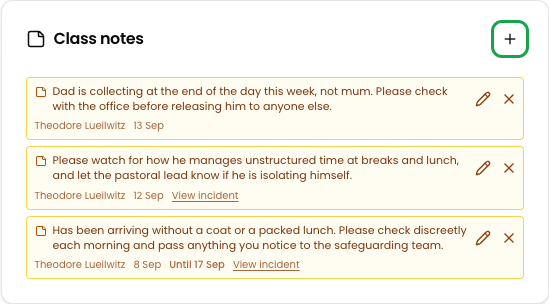
A class note is a short instruction about one child, written for the people who teach them. "Monitor for spare clothes tomorrow." "Watch for withdrawal at break." "Dad is collecting this week, not mum."
Notes are the answer to a problem every DSL knows: you have recorded something the class team must not read, but they still need to act on it. A note tells them what to do, in words you chose, without opening the record behind it.
Writing and reading class notes requires the **Contributor** role or above. You can act on a child's notes if you are on that child's class team, or if you are a DSL, Deputy DSL or Owner.
## What makes a note different
A note is **something to know**, not something to do. It never appears in your To Do lane and there is nothing to tick off.
* An **incident** is the record of what happened. A note is an instruction drawn from it.
* A **comment** is a conversation, visible only to staff who can open that incident. A note is visible to the class team whether or not they can.
* A **reminder** is a task with a due date and an owner. A note has neither.
A class note is read by the whole class team, including staff who cannot see the incident it came from. Write the instruction, not the reason — "monitor for spare clothes", not the circumstances that made it necessary.
There is no AI involved in class notes at any point. Every note is written by a person who knew who would read it — that is exactly what makes it safe to show the class team.
## Writing a note
There are two ways in, and both create the same thing.
### From the child's profile
Go to **Students**, open the child, and stay on the **Profile** tab. The **Class notes** card is in the right-hand column.
Click **+** in the card header. The composer opens in place, so you can still read the profile while you write.
In **Note**, say what the class team should watch for. The placeholder asks the question directly: *"What should the class team watch for?"*
Use **Show until** to set the last day the note is shown. The note is still visible **on** that day.
Leave it blank and the note runs until somebody dismisses it.
Click **Add note**. The class team is emailed straight away.
 ### While writing an incident
If the note comes out of something you are already recording, you do not need to leave the incident.
Type **/** in the incident description or a comment, choose **Class note**, and write the instruction — for example, `/note monitor for spare clothes tomorrow`. Press **Enter** and Signal reads the date out of your words, showing it in brackets.
The note is created when you save the incident. If the incident names only one child, the note is attached to them automatically. If it names several, Signal asks **"Which child is this note about?"** beneath the editor and will not save until you answer.
A note written from an incident carries a **View incident** link for colleagues who are allowed to open it. Staff who are not see the note without the link.
See [Reminders](/docs/reminders/overview) for the other slash command, **/reminder**.
## Where notes appear
Every note ever written about the child, under **Class notes** — live notes first, then **Dismissed** and **Ended** beneath.
The **class notes** chip opens all live notes for the classes you teach. Your class band lists the ones for the class you have selected.
A child with live notes carries a small amber **1 note** chip on their card. Hover to read them, click to act on them.
The class team is emailed when a note is written, and the count appears in the [daily digest](/docs/notifications/daily-digest).
Class notes do not appear on the child's **Timeline** tab — the timeline records what happened, and a note is an instruction about what to do next.
## Ending a note
A note stops being shown in one of two ways.
* **It reaches its end date.** The note moves to **Ended**. To bring it back, edit it and clear or extend the date.
* **Somebody dismisses it.** The note moves to **Dismissed**, and anyone who can read it can **Restore** it.
Dismissing is not personal — it hides the note for everyone, including colleagues who have not seen it yet. Signal asks you to confirm: *"This hides the note for everyone, including staff who have not seen it yet. Anyone can restore it afterwards."*
Notes are never deleted. Dismissed and ended notes stay readable on the child's profile, with who wrote them and who dismissed them, because "was anyone told to watch this child?" is a question that has to be answerable months later.
## Editing
Anyone who can read a note can edit its wording or its end date. A note is a shared instruction, so the person who spots a mistake is usually the right person to fix it — and a colleague who has left the school cannot correct their own.
You cannot move a note to a different child. Doing so would silently move it between class teams; write a new note instead.
Every write, edit, dismissal and restore is recorded in the [audit log](/docs/more-features/audit-logs).
## When a child changes class
Notes follow the child. When a child moves to a new form or a new academic year, their live notes go with them and the new class team inherits them.
That is why every note shows its author and date — so an instruction written last term can be read in context, and retired if it no longer applies.
## Who can see a note
Reading a note follows the same rule as writing one: the child's class team, or a DSL, Deputy DSL or Owner. The author always keeps sight of their own notes.
A [student restriction](/docs/workflows/student-restrictions) hides that child's notes completely, and it binds privileged staff too. If you are restricted from a child, you see none of their notes regardless of your role.
## Turning the emails off
Class note emails are on by default for everyone. To stop them, go to **Settings > Notifications** and switch off **Class notes** — *"When someone writes a class note about a child in a class you teach."*
The note still appears on your dashboard and on the child's profile; only the email stops.
## Tips
**Say what to do, not why.** The class team may not be able to see the incident behind the note, and the note is not the place to summarise it. "Monitor for spare clothes" is enough.
**Use an end date for anything time-bound.** A note about who is collecting a child this week should stop showing on Friday. Notes without an end date stay until somebody actively dismisses them, and a board of stale instructions stops being read.
**Write it while you record the incident.** Typing `/note` in the description means the instruction reaches the class team the moment you save, rather than waiting for you to remember afterwards.
### While writing an incident
If the note comes out of something you are already recording, you do not need to leave the incident.
Type **/** in the incident description or a comment, choose **Class note**, and write the instruction — for example, `/note monitor for spare clothes tomorrow`. Press **Enter** and Signal reads the date out of your words, showing it in brackets.
The note is created when you save the incident. If the incident names only one child, the note is attached to them automatically. If it names several, Signal asks **"Which child is this note about?"** beneath the editor and will not save until you answer.
A note written from an incident carries a **View incident** link for colleagues who are allowed to open it. Staff who are not see the note without the link.
See [Reminders](/docs/reminders/overview) for the other slash command, **/reminder**.
## Where notes appear
Every note ever written about the child, under **Class notes** — live notes first, then **Dismissed** and **Ended** beneath.
The **class notes** chip opens all live notes for the classes you teach. Your class band lists the ones for the class you have selected.
A child with live notes carries a small amber **1 note** chip on their card. Hover to read them, click to act on them.
The class team is emailed when a note is written, and the count appears in the [daily digest](/docs/notifications/daily-digest).
Class notes do not appear on the child's **Timeline** tab — the timeline records what happened, and a note is an instruction about what to do next.
## Ending a note
A note stops being shown in one of two ways.
* **It reaches its end date.** The note moves to **Ended**. To bring it back, edit it and clear or extend the date.
* **Somebody dismisses it.** The note moves to **Dismissed**, and anyone who can read it can **Restore** it.
Dismissing is not personal — it hides the note for everyone, including colleagues who have not seen it yet. Signal asks you to confirm: *"This hides the note for everyone, including staff who have not seen it yet. Anyone can restore it afterwards."*
Notes are never deleted. Dismissed and ended notes stay readable on the child's profile, with who wrote them and who dismissed them, because "was anyone told to watch this child?" is a question that has to be answerable months later.
## Editing
Anyone who can read a note can edit its wording or its end date. A note is a shared instruction, so the person who spots a mistake is usually the right person to fix it — and a colleague who has left the school cannot correct their own.
You cannot move a note to a different child. Doing so would silently move it between class teams; write a new note instead.
Every write, edit, dismissal and restore is recorded in the [audit log](/docs/more-features/audit-logs).
## When a child changes class
Notes follow the child. When a child moves to a new form or a new academic year, their live notes go with them and the new class team inherits them.
That is why every note shows its author and date — so an instruction written last term can be read in context, and retired if it no longer applies.
## Who can see a note
Reading a note follows the same rule as writing one: the child's class team, or a DSL, Deputy DSL or Owner. The author always keeps sight of their own notes.
A [student restriction](/docs/workflows/student-restrictions) hides that child's notes completely, and it binds privileged staff too. If you are restricted from a child, you see none of their notes regardless of your role.
## Turning the emails off
Class note emails are on by default for everyone. To stop them, go to **Settings > Notifications** and switch off **Class notes** — *"When someone writes a class note about a child in a class you teach."*
The note still appears on your dashboard and on the child's profile; only the email stops.
## Tips
**Say what to do, not why.** The class team may not be able to see the incident behind the note, and the note is not the place to summarise it. "Monitor for spare clothes" is enough.
**Use an end date for anything time-bound.** A note about who is collecting a child this week should stop showing on Friday. Notes without an end date stay until somebody actively dismisses them, and a board of stale instructions stops being read.
**Write it while you record the incident.** Typing `/note` in the description means the instruction reaches the class team the moment you save, rather than waiting for you to remember afterwards.