> ## Documentation Index
> Fetch the complete documentation index at: https://signalschools.co.uk/docs/llms.txt
> Use this file to discover all available pages before exploring further.
# Student Records
> Student profiles are the central place for safeguarding information. Learn how student records work in Signal.
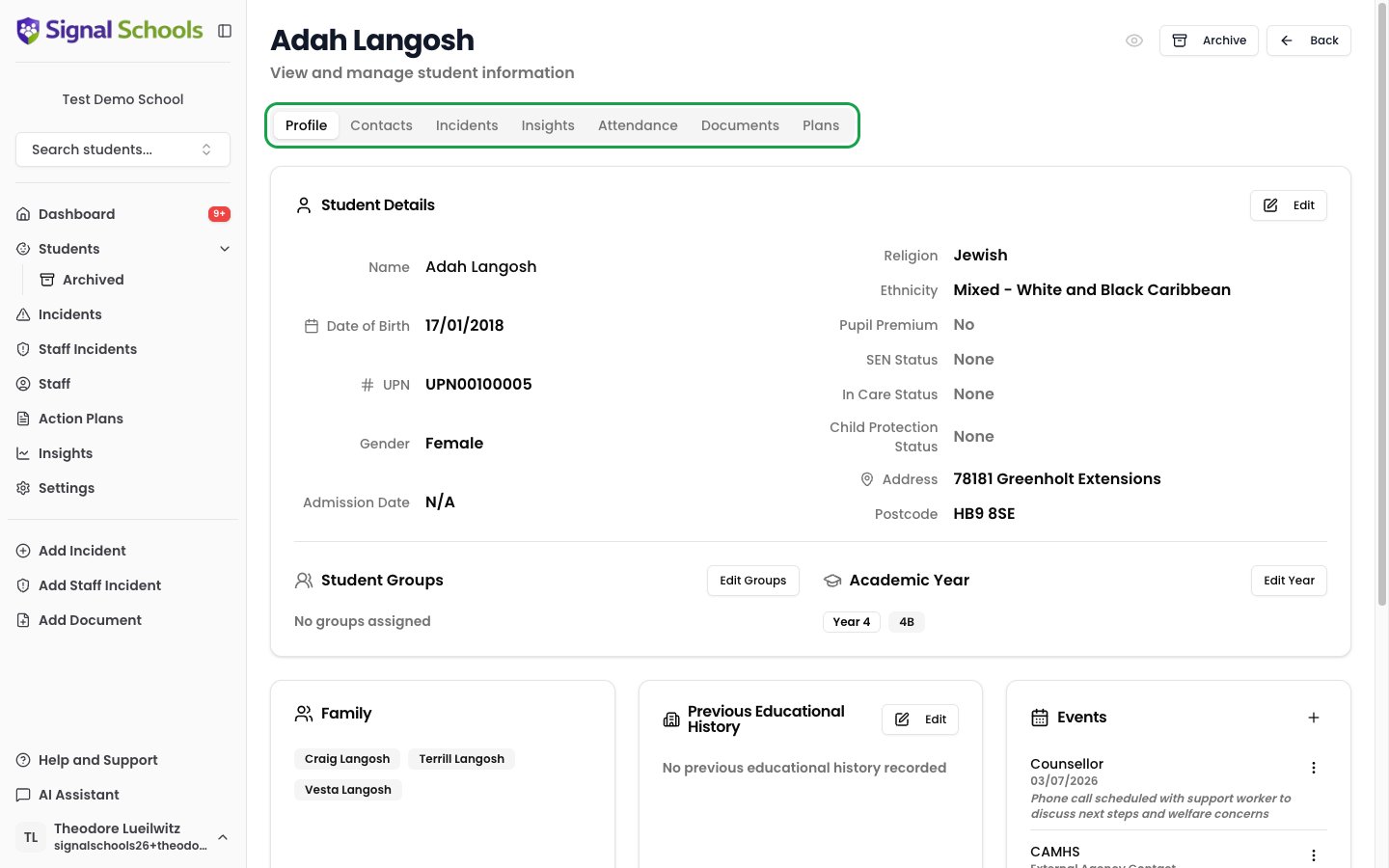
Every student in your school has a profile in Signal. This profile is the central place to see everything related to that child — their personal details, incidents, documents, groups, contacts, and more.
 ## What a student profile contains
Each student record includes:
* **Personal details** — name, date of birth, and unique identifiers
* **Demographic information** — ethnicity, language, and other relevant details
* **Year group and class** — where the student sits in your school's academic structure
* **SEN status** — whether the student has Special Educational Needs
* **Pupil Premium status** — whether the student receives Pupil Premium funding
* **MIS sync status** — if connected to Arbor, whether the record is synced automatically
The student profile page brings together all safeguarding activity for that child in one place, including their [incidents](/docs/incidents/overview), [documents](/docs/documents/overview), [action plans](/docs/action-plans/overview), and [contacts](#contacts-and-guardians).
## Contacts and guardians
Parents, carers, and other guardians are linked to student records. Each contact includes:
* Name and relationship to the student (for example, Mother, Father, Guardian)
* Phone number and email address
* Whether they are a primary contact
Contacts can be synced automatically from your MIS or added manually. Having up-to-date contact information in Signal means it is always available when you need it during a safeguarding concern.
## Year groups and classes
Year groups represent your school's academic structure — from Reception through to Year 13. Each year group contains one or more classes (also called forms), such as 7A, 7B, or 8Red.
Students are assigned to both a year group and a class. This structure is used for filtering throughout Signal — in incident lists, insights, alert rules, and student searches.
Year groups and classes can be synced from your MIS (Arbor) or created and managed manually in **Settings > Academic Years**, using the **Add Year** and **Add Class** buttons.
## Student status
Students can be either **active** or **archived**:
Students currently at your school. They appear in all lists, searches, and reports by default.
Students who have left the school. Archiving preserves the full safeguarding history while removing the student from active lists. Archived records remain available for transfers or subject access requests.
Archiving a student does not delete any data. Their incidents, documents, and full history are preserved and can still be viewed in the archived students section.
## How students get into Signal
There are two ways to add students to your Signal account:
Add students one at a time by entering their details directly. This is useful for small numbers of students or when you need to add someone quickly.
If your school uses Arbor, Signal can sync student data automatically. Names, dates of birth, year groups, classes, contacts, and attendance data are all kept up to date without manual effort. Set up the integration in **Settings > Integrations**.
## Next steps
Step-by-step instructions for adding students manually or via MIS sync.
Organise students into groups for filtering, alerts, and reporting.
Explore a student's full safeguarding timeline.
## What a student profile contains
Each student record includes:
* **Personal details** — name, date of birth, and unique identifiers
* **Demographic information** — ethnicity, language, and other relevant details
* **Year group and class** — where the student sits in your school's academic structure
* **SEN status** — whether the student has Special Educational Needs
* **Pupil Premium status** — whether the student receives Pupil Premium funding
* **MIS sync status** — if connected to Arbor, whether the record is synced automatically
The student profile page brings together all safeguarding activity for that child in one place, including their [incidents](/docs/incidents/overview), [documents](/docs/documents/overview), [action plans](/docs/action-plans/overview), and [contacts](#contacts-and-guardians).
## Contacts and guardians
Parents, carers, and other guardians are linked to student records. Each contact includes:
* Name and relationship to the student (for example, Mother, Father, Guardian)
* Phone number and email address
* Whether they are a primary contact
Contacts can be synced automatically from your MIS or added manually. Having up-to-date contact information in Signal means it is always available when you need it during a safeguarding concern.
## Year groups and classes
Year groups represent your school's academic structure — from Reception through to Year 13. Each year group contains one or more classes (also called forms), such as 7A, 7B, or 8Red.
Students are assigned to both a year group and a class. This structure is used for filtering throughout Signal — in incident lists, insights, alert rules, and student searches.
Year groups and classes can be synced from your MIS (Arbor) or created and managed manually in **Settings > Academic Years**, using the **Add Year** and **Add Class** buttons.
## Student status
Students can be either **active** or **archived**:
Students currently at your school. They appear in all lists, searches, and reports by default.
Students who have left the school. Archiving preserves the full safeguarding history while removing the student from active lists. Archived records remain available for transfers or subject access requests.
Archiving a student does not delete any data. Their incidents, documents, and full history are preserved and can still be viewed in the archived students section.
## How students get into Signal
There are two ways to add students to your Signal account:
Add students one at a time by entering their details directly. This is useful for small numbers of students or when you need to add someone quickly.
If your school uses Arbor, Signal can sync student data automatically. Names, dates of birth, year groups, classes, contacts, and attendance data are all kept up to date without manual effort. Set up the integration in **Settings > Integrations**.
## Next steps
Step-by-step instructions for adding students manually or via MIS sync.
Organise students into groups for filtering, alerts, and reporting.
Explore a student's full safeguarding timeline.