> ## Documentation Index
> Fetch the complete documentation index at: https://signalschools.co.uk/docs/llms.txt
> Use this file to discover all available pages before exploring further.
# Student Groups
> Organise students into meaningful groups for filtering, alerts, reporting, and access control.
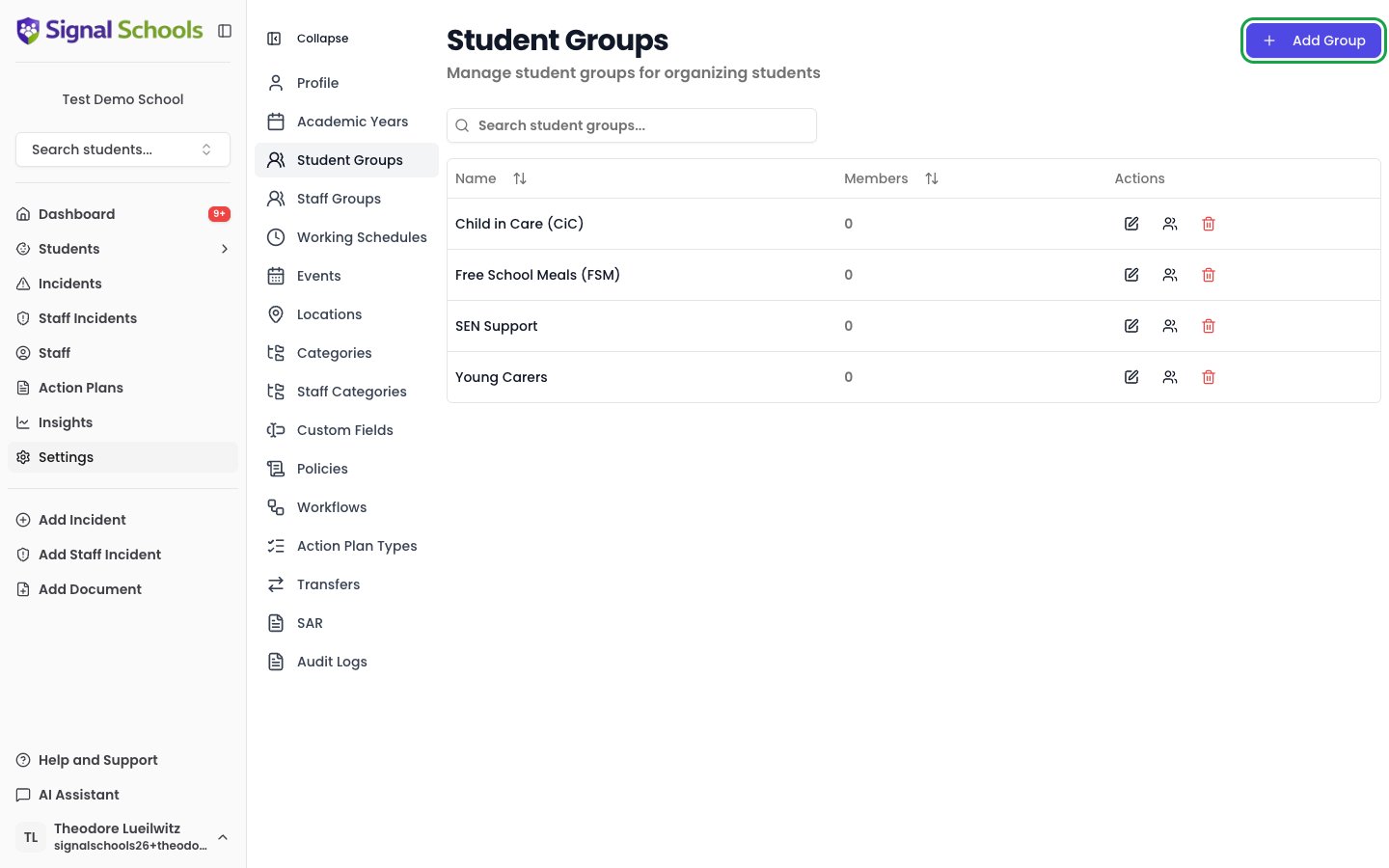
Student groups let you organise students into meaningful collections. Groups are used throughout Signal — in alert rules, insights filtering, reporting, and access control — making them a powerful way to manage safeguarding across your school.
 ## Types of groups
You can create any groups that make sense for your school. Common examples include:
Children in Care (CiC), Child Protection Plan, Child in Need, and other vulnerable cohorts.
SEN (Special Educational Needs), EAL (English as an Additional Language), FSM (Free School Meals), and Pupil Premium.
Year groups, houses, intervention groups, or any custom grouping your school needs.
## Creating a group
Navigate to **Settings > Student Groups**.
Select the **Add Group** button.
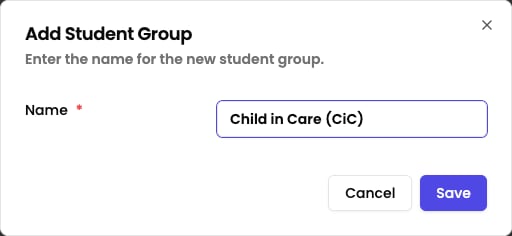
Give the group a **name** (for example, "Children in Care") and an optional **description** to explain its purpose.
Click **Save** to create the group.
## Types of groups
You can create any groups that make sense for your school. Common examples include:
Children in Care (CiC), Child Protection Plan, Child in Need, and other vulnerable cohorts.
SEN (Special Educational Needs), EAL (English as an Additional Language), FSM (Free School Meals), and Pupil Premium.
Year groups, houses, intervention groups, or any custom grouping your school needs.
## Creating a group
Navigate to **Settings > Student Groups**.
Select the **Add Group** button.
Give the group a **name** (for example, "Children in Care") and an optional **description** to explain its purpose.
Click **Save** to create the group.
 ## Adding students to a group
Once a group exists, you can add students to it individually.
Navigate to **Settings > Student Groups** and find the group you want to manage in the list.
Click the **Manage students** icon button on the group's row. A dialog opens with a student search.
Search for and select the students you want to include in the group.
Click **Save**. The selected students are now members of the group.
## Where groups are used
Student groups appear throughout Signal, making them a core organisational tool:
* **Alert rules** — trigger alerts when an incident is logged for a student in a specific group. For example, alert all DSLs when an incident involves a Child in Care.
* **Insights filtering** — filter charts and reports by group to analyse safeguarding trends for specific cohorts.
* **Reporting** — include group membership in exported data for governor reports, Ofsted inspections, or local authority returns.
* **Access control** — restrict which staff can view students in certain groups, ensuring sensitive records are only accessible to authorised staff.
## Managing group membership over time
As your school changes throughout the year, you may need to update group membership.
You can add or remove students from a group at any time by opening the group and editing its membership. Changes take effect immediately.
If a group is no longer relevant (for example, a time-limited intervention group), you can remove it. Historical data that referenced the group is not affected.
## Adding students to a group
Once a group exists, you can add students to it individually.
Navigate to **Settings > Student Groups** and find the group you want to manage in the list.
Click the **Manage students** icon button on the group's row. A dialog opens with a student search.
Search for and select the students you want to include in the group.
Click **Save**. The selected students are now members of the group.
## Where groups are used
Student groups appear throughout Signal, making them a core organisational tool:
* **Alert rules** — trigger alerts when an incident is logged for a student in a specific group. For example, alert all DSLs when an incident involves a Child in Care.
* **Insights filtering** — filter charts and reports by group to analyse safeguarding trends for specific cohorts.
* **Reporting** — include group membership in exported data for governor reports, Ofsted inspections, or local authority returns.
* **Access control** — restrict which staff can view students in certain groups, ensuring sensitive records are only accessible to authorised staff.
## Managing group membership over time
As your school changes throughout the year, you may need to update group membership.
You can add or remove students from a group at any time by opening the group and editing its membership. Changes take effect immediately.
If a group is no longer relevant (for example, a time-limited intervention group), you can remove it. Historical data that referenced the group is not affected.