> ## Documentation Index
> Fetch the complete documentation index at: https://signalschools.co.uk/docs/llms.txt
> Use this file to discover all available pages before exploring further.
# Student Overview
> A card for every child in a class or year group, showing their incident history, open events, plans and follow-ups at a glance.
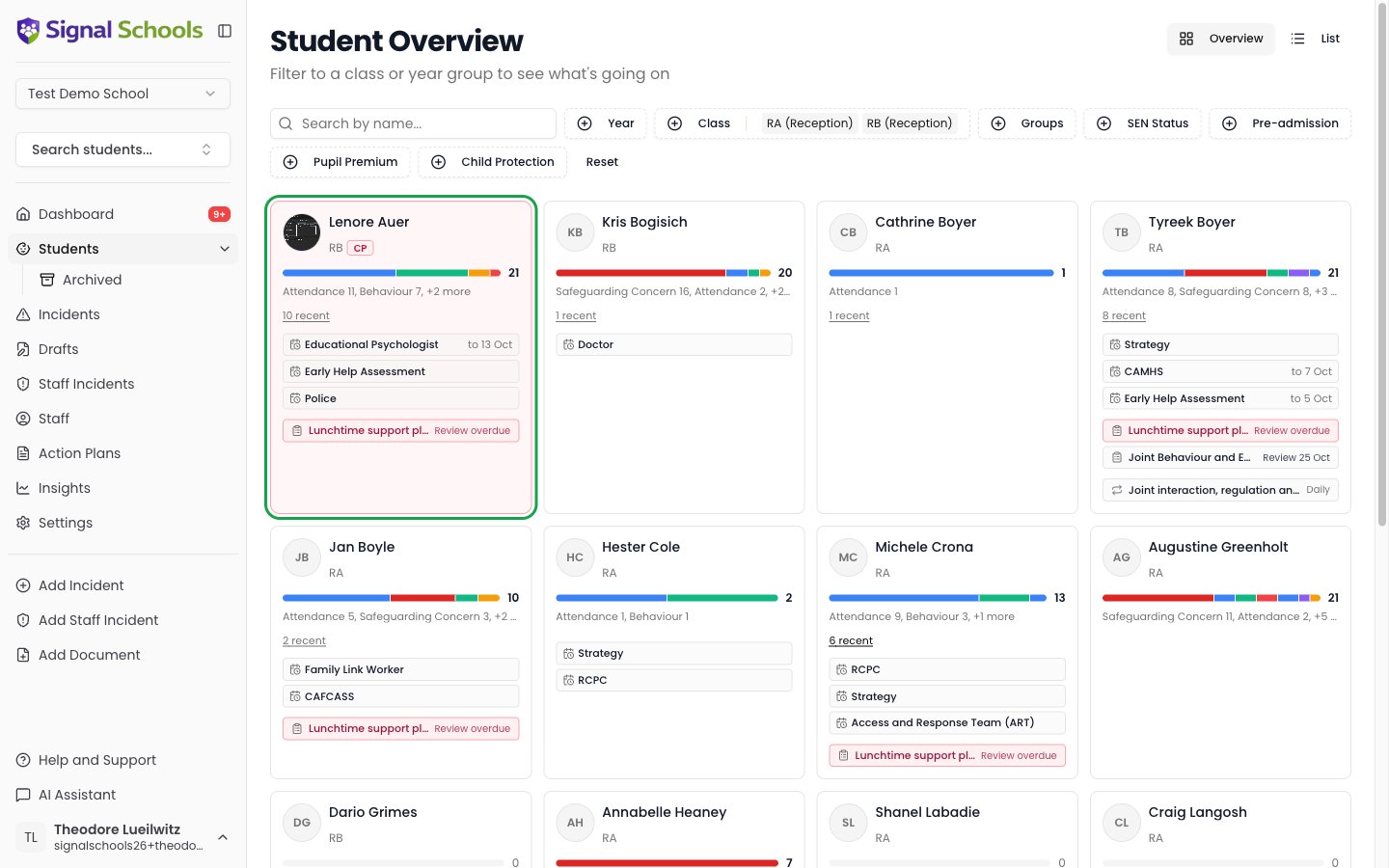
The student overview is the class-at-a-glance view. Filter to a class or a year group and every child appears as a card carrying their incident history, anything currently open, and anything you still owe them — so you can see who needs attention without opening a single profile.
It is the view for meeting a new class in September, for a five-minute check before a team meeting, and for the moment somebody asks "how is 8Red doing?"
The student overview requires the **Contributor** role or above. Reporters and School Admins do not see it, because their incident access would make every count on the page understate what is really there.
 ## Getting there
Go to **Students** in the sidebar. The **Overview** and **List** buttons sit at the top right:
The card grid described on this page. Built for scanning a class and spotting who needs you.
The roster — one row per child, sortable, with the details you need when you are looking for a specific pupil. See [Student records](/docs/students/overview).
Signal remembers which of the two you used last and opens there next time.
## Reading a card
Every child gets a card of the same height, whether or not anything is happening. That is deliberate — a quiet card stays quiet, which is exactly what makes a busy one stand out.
### The name line
The child's photo and name open their profile. Beneath sits their class, followed by their status badges — **Pupil Premium**, **SEN**, and **in care** where they apply.
A child on a **child protection plan** gets more than a badge: the whole card turns pink. It is the one status that should change how a card reads at a distance, because it is the thing a DSL scanning a class must not miss.
Child protection status is only shown to Owners, DSLs and Deputy DSLs, exactly as it is on the roster and the profile. Other staff see the card without it.
### The history strip
The coloured bar is the child's incident history over the **last twelve months**. Each band is a category, coloured with your school's own category colours, and its length is that category's share of the total. The number on the right is the total.
Hover a band to read the category and its count. Click one to open just those incidents.
Beneath the bar, the two most frequent categories are named in words — "Behaviour 4, Peer on peer 2, +1 more" — so the strip can be read without hovering anything.
Colour is the category and length is the count, so the strip reads without a legend once you have seen two or three children. A child with a long band of one colour has a pattern; a child with many short bands has had a scattered year. Those need different conversations.
The strip and the **recent** count beside it cover **different windows** and must never be read as one number. The strip is twelve months of history; **recent** is the last thirty days. A child can have a heavy strip and no recent activity at all — and that child is often the one whose situation is already being handled.
### What is open now
Below the strip, a card lists only things that are genuinely outstanding:
An amber bell with a count when the child has live [class notes](/docs/students/class-notes). Hover to read them, click to act on them.
[Events](/docs/events/overview) that have not finished — a suspension, a social care referral, an early help assessment. Each is **named** rather than counted, because a suspension and a referral ask different things of you, and shows its end date where it has one.
Open [action plans](/docs/action-plans/overview) with their review date, and any [monitors](/docs/action-plans/monitors) still running. Click through to the plan.
Outstanding [reminders](/docs/reminders/overview) with their full wording, overdue ones in red. Tick one off without leaving the page.
A card shows a row only when there is something in it, so a child with nothing going on shows their name, class, badges and an empty rail.
Reminders are listed with their complete action, not just a count, so the common case — reading it and ticking it off — never requires opening the child's profile.
## Filtering to a class
The filters along the top are the same ones the roster list uses, and Signal remembers them between visits:
* **Academic year** and **Class** — the usual way in. Pick one class and the page becomes that class.
* **Groups** — any [student group](/docs/students/student-groups) you have set up.
* **SEN**, **Pupil Premium**, and **Child protection** — narrow to a cohort you are reviewing.
* **Search by name** — for finding one child quickly.
**Reset** clears everything back to the whole school. Where a cohort runs past one page, use **Previous** and **Next** beneath the grid; the total is shown alongside.
**Filter to one class before you read anything.** The page works across the whole school, but its value is in comparison — twenty-eight children side by side, where the two or three who need you are obvious. A whole-school grid is just a long list.
## What you can and cannot see
The overview respects the same visibility rules as the rest of Signal, applied to each part of a card separately:
* **Incidents** — the history strip and the recent count show only incidents you are allowed to see. If an incident is hidden from you by a [workflow exclusion or a per-incident setting](/docs/incidents/managing-visibility), it is not counted.
* **Open events** — the *fact* of an event is shown even where you cannot open the incident behind it. A suspension or a referral happened, and staff need to know it is running.
* **Reminders** — you see your own, and DSL-level staff also see reminders nobody has been assigned.
A [student restriction](/docs/workflows/student-restrictions) removes the child from this page entirely, and it binds privileged staff too. If you are restricted from a child, they do not appear in the grid regardless of your role.
## Tips
A new class is twenty-eight names you do not know yet. Filter to it, and the strips tell you within a minute which children have a history and roughly what shape it takes — without reading a single incident.
Filter to the year group you are discussing. Open events and plans are listed by name, so you can walk into the meeting knowing who is on a plan, who is suspended, and what is due.
If you have follow-ups spread across a class, the grid is quicker than the dashboard: every one is shown in full, under the child it belongs to, and completing it takes one click.
The overview is for comparison. When you already know which child you want, the [roster list](/docs/students/overview) and its search will get you there in fewer clicks.
## Getting there
Go to **Students** in the sidebar. The **Overview** and **List** buttons sit at the top right:
The card grid described on this page. Built for scanning a class and spotting who needs you.
The roster — one row per child, sortable, with the details you need when you are looking for a specific pupil. See [Student records](/docs/students/overview).
Signal remembers which of the two you used last and opens there next time.
## Reading a card
Every child gets a card of the same height, whether or not anything is happening. That is deliberate — a quiet card stays quiet, which is exactly what makes a busy one stand out.
### The name line
The child's photo and name open their profile. Beneath sits their class, followed by their status badges — **Pupil Premium**, **SEN**, and **in care** where they apply.
A child on a **child protection plan** gets more than a badge: the whole card turns pink. It is the one status that should change how a card reads at a distance, because it is the thing a DSL scanning a class must not miss.
Child protection status is only shown to Owners, DSLs and Deputy DSLs, exactly as it is on the roster and the profile. Other staff see the card without it.
### The history strip
The coloured bar is the child's incident history over the **last twelve months**. Each band is a category, coloured with your school's own category colours, and its length is that category's share of the total. The number on the right is the total.
Hover a band to read the category and its count. Click one to open just those incidents.
Beneath the bar, the two most frequent categories are named in words — "Behaviour 4, Peer on peer 2, +1 more" — so the strip can be read without hovering anything.
Colour is the category and length is the count, so the strip reads without a legend once you have seen two or three children. A child with a long band of one colour has a pattern; a child with many short bands has had a scattered year. Those need different conversations.
The strip and the **recent** count beside it cover **different windows** and must never be read as one number. The strip is twelve months of history; **recent** is the last thirty days. A child can have a heavy strip and no recent activity at all — and that child is often the one whose situation is already being handled.
### What is open now
Below the strip, a card lists only things that are genuinely outstanding:
An amber bell with a count when the child has live [class notes](/docs/students/class-notes). Hover to read them, click to act on them.
[Events](/docs/events/overview) that have not finished — a suspension, a social care referral, an early help assessment. Each is **named** rather than counted, because a suspension and a referral ask different things of you, and shows its end date where it has one.
Open [action plans](/docs/action-plans/overview) with their review date, and any [monitors](/docs/action-plans/monitors) still running. Click through to the plan.
Outstanding [reminders](/docs/reminders/overview) with their full wording, overdue ones in red. Tick one off without leaving the page.
A card shows a row only when there is something in it, so a child with nothing going on shows their name, class, badges and an empty rail.
Reminders are listed with their complete action, not just a count, so the common case — reading it and ticking it off — never requires opening the child's profile.
## Filtering to a class
The filters along the top are the same ones the roster list uses, and Signal remembers them between visits:
* **Academic year** and **Class** — the usual way in. Pick one class and the page becomes that class.
* **Groups** — any [student group](/docs/students/student-groups) you have set up.
* **SEN**, **Pupil Premium**, and **Child protection** — narrow to a cohort you are reviewing.
* **Search by name** — for finding one child quickly.
**Reset** clears everything back to the whole school. Where a cohort runs past one page, use **Previous** and **Next** beneath the grid; the total is shown alongside.
**Filter to one class before you read anything.** The page works across the whole school, but its value is in comparison — twenty-eight children side by side, where the two or three who need you are obvious. A whole-school grid is just a long list.
## What you can and cannot see
The overview respects the same visibility rules as the rest of Signal, applied to each part of a card separately:
* **Incidents** — the history strip and the recent count show only incidents you are allowed to see. If an incident is hidden from you by a [workflow exclusion or a per-incident setting](/docs/incidents/managing-visibility), it is not counted.
* **Open events** — the *fact* of an event is shown even where you cannot open the incident behind it. A suspension or a referral happened, and staff need to know it is running.
* **Reminders** — you see your own, and DSL-level staff also see reminders nobody has been assigned.
A [student restriction](/docs/workflows/student-restrictions) removes the child from this page entirely, and it binds privileged staff too. If you are restricted from a child, they do not appear in the grid regardless of your role.
## Tips
A new class is twenty-eight names you do not know yet. Filter to it, and the strips tell you within a minute which children have a history and roughly what shape it takes — without reading a single incident.
Filter to the year group you are discussing. Open events and plans are listed by name, so you can walk into the meeting knowing who is on a plan, who is suspended, and what is due.
If you have follow-ups spread across a class, the grid is quicker than the dashboard: every one is shown in full, under the child it belongs to, and completing it takes one click.
The overview is for comparison. When you already know which child you want, the [roster list](/docs/students/overview) and its search will get you there in fewer clicks.