> ## Documentation Index
> Fetch the complete documentation index at: https://signalschools.co.uk/docs/llms.txt
> Use this file to discover all available pages before exploring further.
# Working Schedules
> Control when email alert notifications are delivered to staff by setting up working schedules. Prevent staff from being disturbed outside school hours.
Working schedules control when email alert notifications are delivered. They ensure staff are not disturbed outside school hours — if an incident is logged during an evening, weekend, or holiday, email notifications are held and delivered at the start of the next working period.
You need the **Owner**, **DSL**, or **Deputy DSL** role to manage working schedules. School Admins cannot manage them.
## What working schedules control
Working schedules apply specifically to **email alert notifications**. They do not affect:
* **Dashboard alerts** — alerts always appear on the dashboard immediately, regardless of the schedule
* **Incident creation** — incidents can be recorded at any time
The schedule only governs when the email is sent, not when the alert is generated. If a staff member logs into Signal outside their working schedule, they still see new alerts on their dashboard.
## How deferred delivery works
When an incident triggers an alert outside a staff member's working schedule, the email notification is deferred. It is held until the next time the schedule is active — typically the start of the next school day.
For example, if a concern is logged at 8pm on a Tuesday and the staff member's schedule runs from 8am to 5pm on weekdays, the email notification is delivered at 8am on Wednesday.
This prevents staff from receiving safeguarding emails during evenings, weekends, or school holidays, while still ensuring nothing is missed when they return.
## Setting up a schedule
### Go to Settings
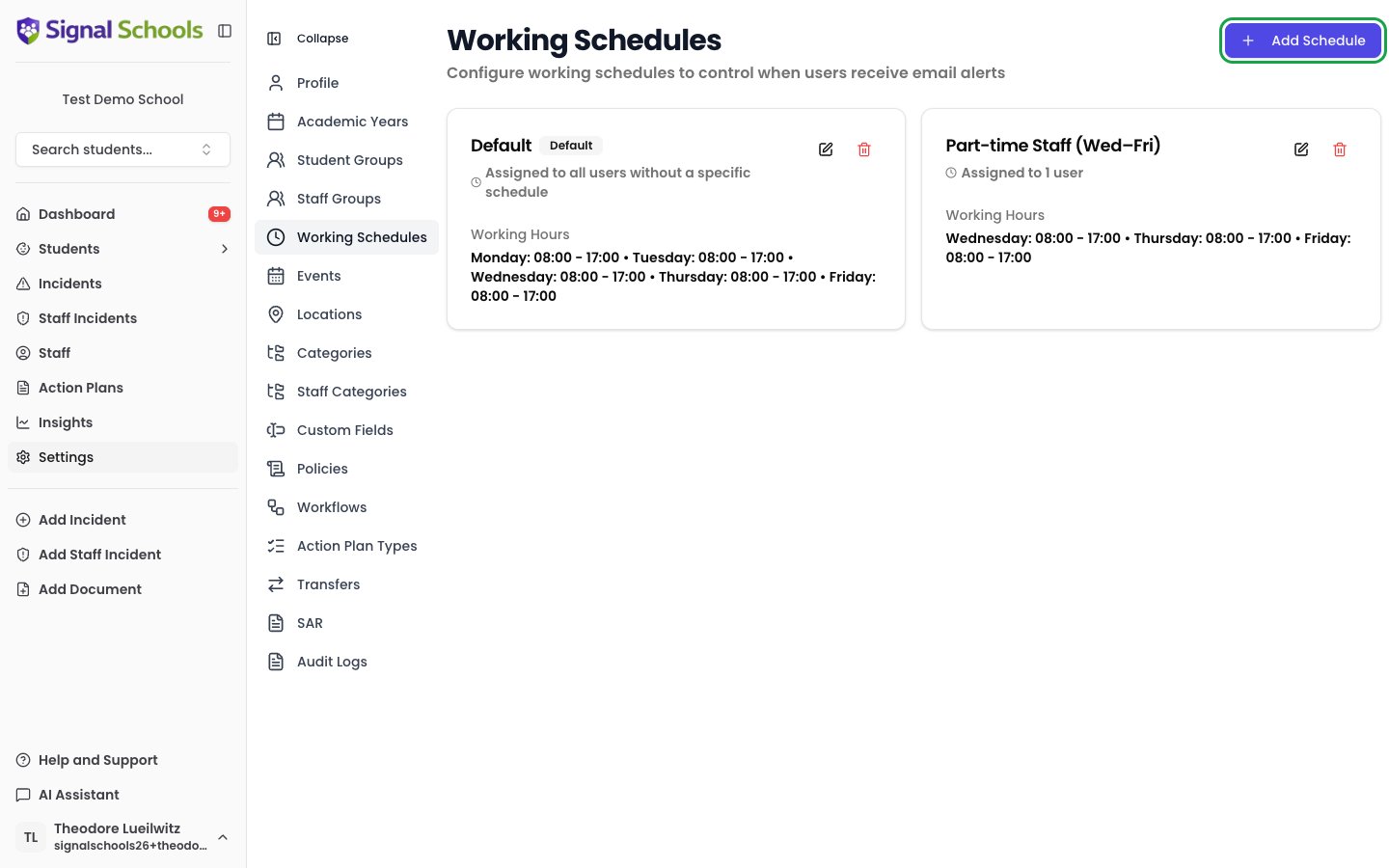
Open **Settings** from the sidebar and select **Working Schedules**.
 ### Create a new schedule
Click **Add Schedule** and give it a clear name — for example, "Standard School Hours" or "Term Time Only".
### Define working days
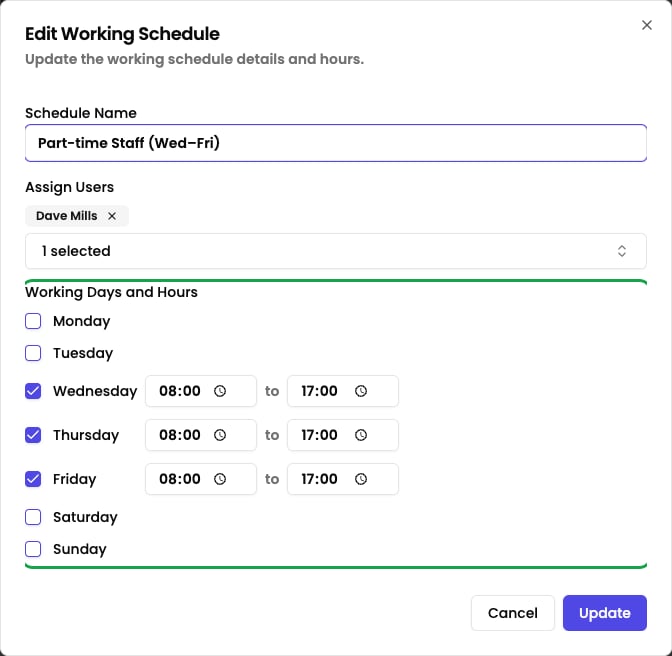
Select which days of the week are working days. For most schools, this is Monday to Friday.
### Set working hours
For each working day, set the start and end time. For example, 7:30am to 5:30pm.
### Create a new schedule
Click **Add Schedule** and give it a clear name — for example, "Standard School Hours" or "Term Time Only".
### Define working days
Select which days of the week are working days. For most schools, this is Monday to Friday.
### Set working hours
For each working day, set the start and end time. For example, 7:30am to 5:30pm.
 ### Assign staff
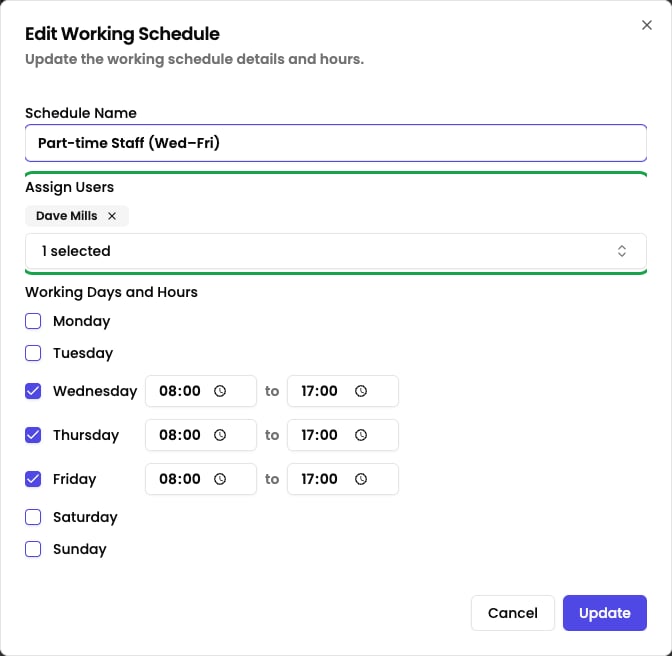
Use the **Assign Users** multi-select to choose the staff members the schedule applies to, or enable the **Default schedule** toggle to apply it to everyone without another schedule.
### Create
Click **Create** to save the new schedule.
## Assigning schedules to staff
You assign staff to a schedule from inside the Working Schedule dialog, not from a staff member's profile. Open a schedule and either:
* Use the **Assign Users** multi-select to choose the staff members it applies to, or
* Enable the **Default schedule** toggle to apply it to everyone who does not have another schedule assigned
Click **Update** to save your changes. All future email alert notifications for the assigned staff then follow the schedule's delivery rules.
### Assign staff
Use the **Assign Users** multi-select to choose the staff members the schedule applies to, or enable the **Default schedule** toggle to apply it to everyone without another schedule.
### Create
Click **Create** to save the new schedule.
## Assigning schedules to staff
You assign staff to a schedule from inside the Working Schedule dialog, not from a staff member's profile. Open a schedule and either:
* Use the **Assign Users** multi-select to choose the staff members it applies to, or
* Enable the **Default schedule** toggle to apply it to everyone who does not have another schedule assigned
Click **Update** to save your changes. All future email alert notifications for the assigned staff then follow the schedule's delivery rules.
 ## Tips
**Set schedules that match actual school hours.** Include a buffer either side of the school day to account for early arrivals and late departures. A schedule of 7:30am to 5:30pm covers most scenarios.
**Consider different schedules for different roles.** Senior leaders and DSLs may have broader working hours than classroom teachers. You can create multiple schedules and assign each to the appropriate staff.
**Review schedules at the start of each term.** If your school hours change or if staff responsibilities shift, update the schedules to reflect the current reality.
Working schedules are about staff wellbeing. Safeguarding concerns that arise outside school hours are still recorded and alerted on the dashboard immediately — the schedule only defers the email notification so staff are not disturbed at home.
## Tips
**Set schedules that match actual school hours.** Include a buffer either side of the school day to account for early arrivals and late departures. A schedule of 7:30am to 5:30pm covers most scenarios.
**Consider different schedules for different roles.** Senior leaders and DSLs may have broader working hours than classroom teachers. You can create multiple schedules and assign each to the appropriate staff.
**Review schedules at the start of each term.** If your school hours change or if staff responsibilities shift, update the schedules to reflect the current reality.
Working schedules are about staff wellbeing. Safeguarding concerns that arise outside school hours are still recorded and alerted on the dashboard immediately — the schedule only defers the email notification so staff are not disturbed at home.