Workflow Automation
Set the rule once. Signal does the rest.
Rules that route the right concern to the right people
Build a rule from the criteria that matter — category, location, student group, SEN or Pupil Premium status — then choose what happens. Alert your safeguarding leads, alert a child's class or year group staff, or notify named colleagues. Recipients are worked out when the incident is recorded, so class moves and staffing changes are picked up automatically.
- Trigger on student incidents, staff incidents, or events being added
- Alert DSLs, class and year group staff, staff groups, or named users
- A setup wizard builds class and year group alerting for your whole school
- Alerts land on the dashboard immediately, and by email
- Coverage check tells you which classes have no staff group yet

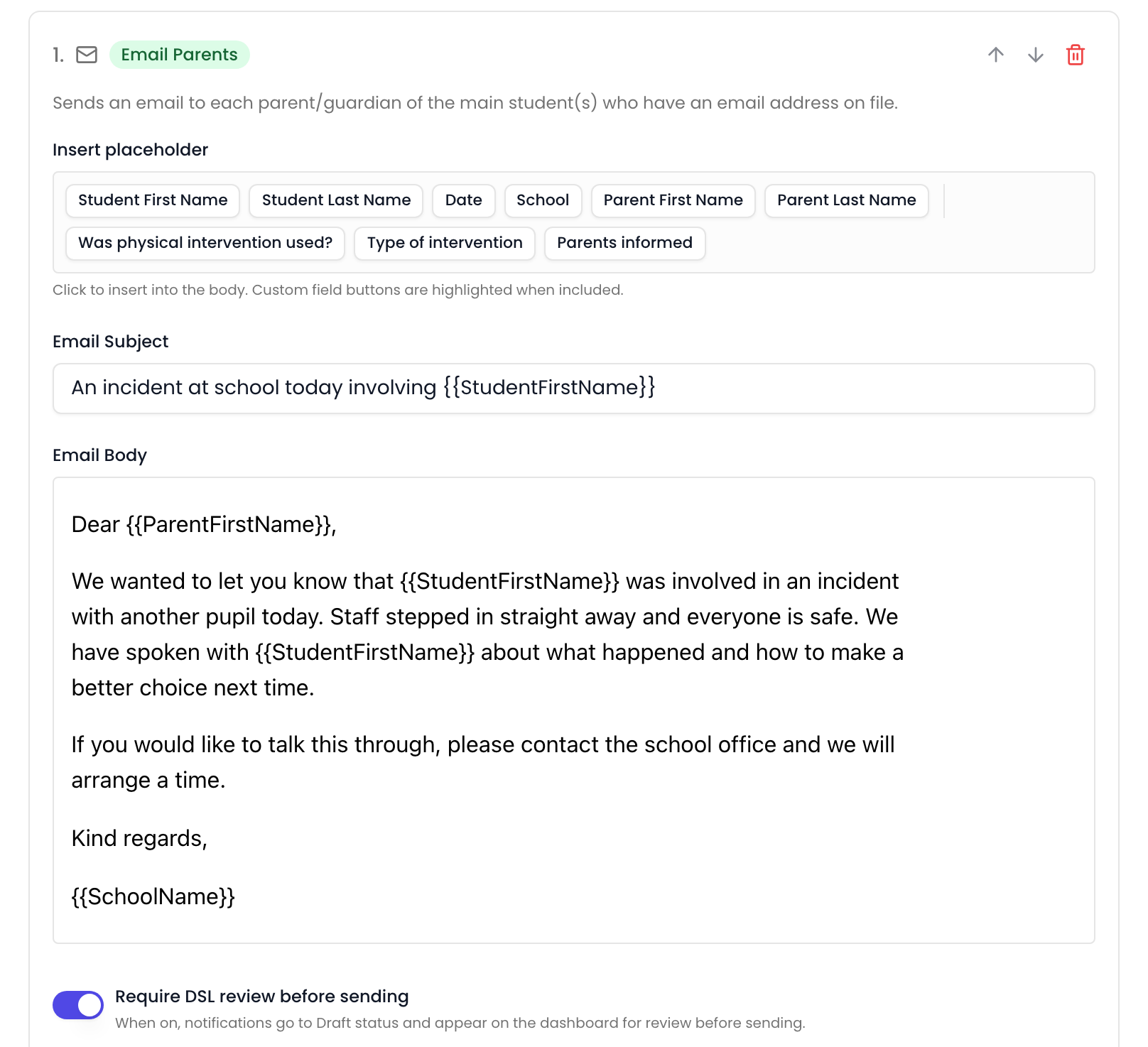
Parent emails — prompt and consistent
Notify parents automatically when an incident meets your criteria, using templates with placeholders. Turn on DSL review to hold sensitive messages as drafts for a senior leader to approve first.
- Templates with placeholders for the child, the date and your school
- Optional DSL review holds every message as a draft until approved
- Drafts grouped by incident on the dashboard for a quick check
- Include your own custom field values in the message body
- Only generated for students with parent or guardian contacts on file

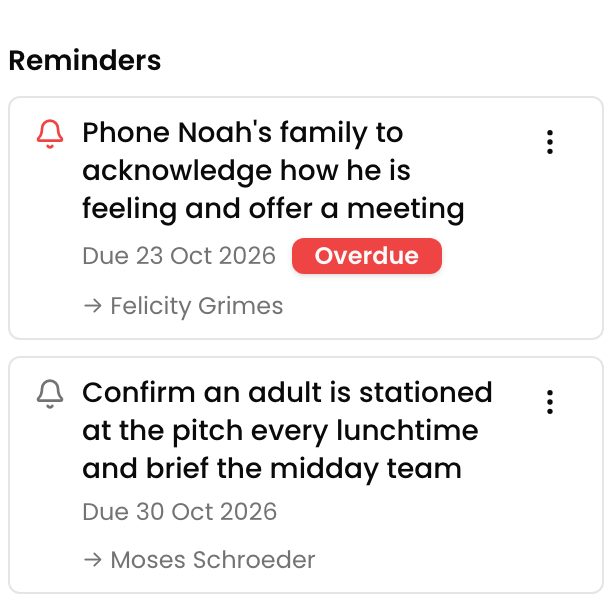
Follow-ups that schedule themselves
Add a reminder action to a rule and every matching incident gets its own follow-up — described in your words, due a set number of days later, and assigned to your safeguarding team or the person who recorded it. It behaves exactly like a reminder someone added by hand.
- Due a chosen number of days after the incident or the event
- Assigned to your DSLs or to the incident creator
- Overdue items flagged on the dashboard and in the daily digest
- Sits in the incident's reminders alongside anything added manually
Keep the most sensitive cases tightly held
Some categories need a smaller circle by default. An exclusion rule hides matching incidents from the staff it names — and because the rule is checked every time a record is opened, it covers incidents you recorded last year as well as the one logged this morning. Excluded staff see no sign the record exists.
- Applies to matching incidents past and future, including imported records
- Lifts automatically if an incident stops matching, and reapplies if it matches again
- Restrict to DSL staff only, or name staff groups and individuals
- Need one person brought in? Mention them — visibility follows the mention, and removing it revokes access
- DSLs, Deputy DSLs and Owners always retain full visibility

Working schedules that respect the evening
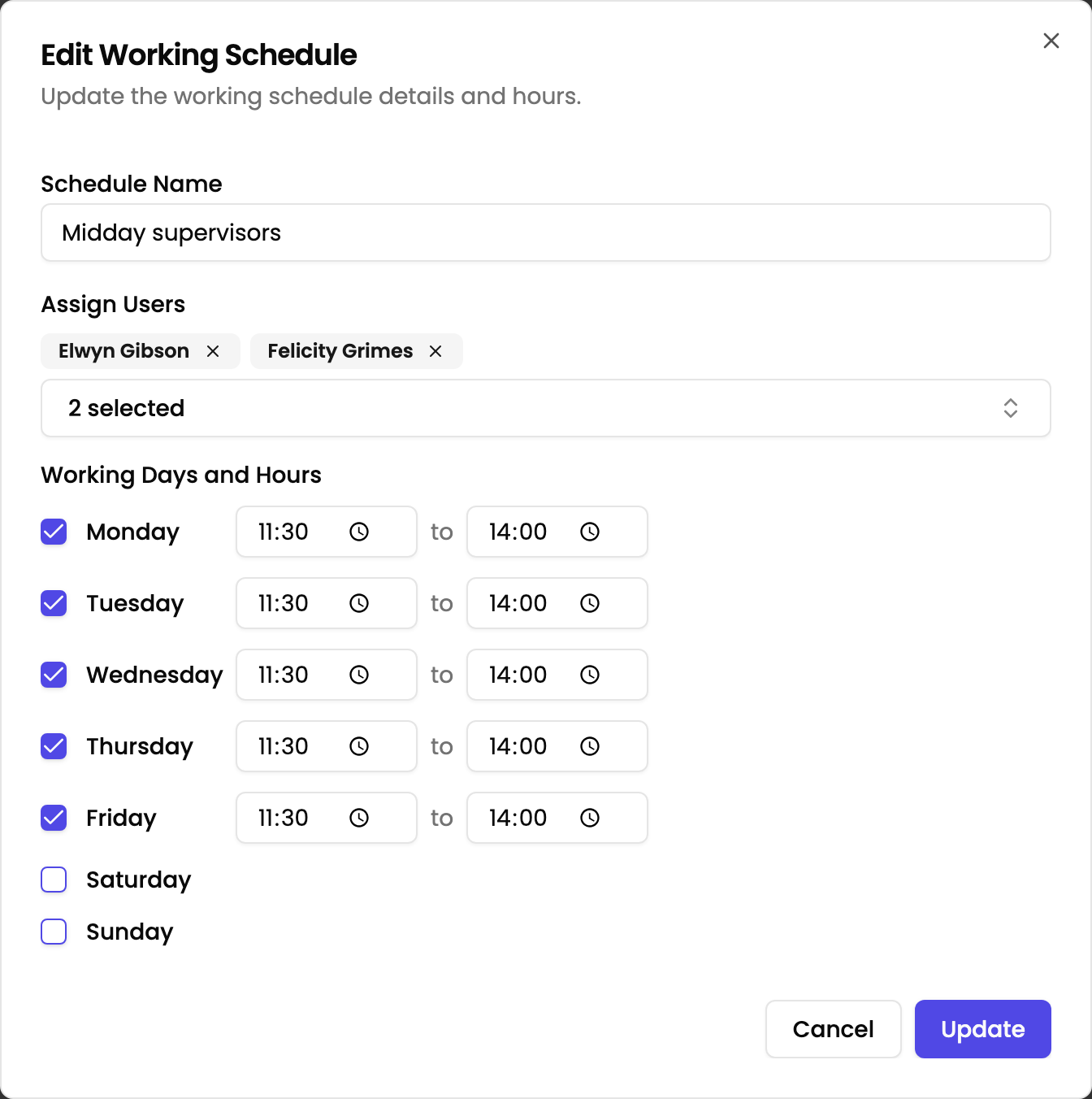
Set the days and hours your staff actually work, and Signal holds email alerts raised outside them until the next working morning. A concern logged at eight on a Tuesday evening reaches the inbox at eight on Wednesday, not at midnight.
- Set working days and start and end times for each one
- Assign staff to a schedule, or set a default covering everyone else
- Dashboard alerts still appear immediately — only the email waits
- Incidents can be recorded at any time, schedule or not
How a workflow comes together
Every rule is a trigger, some optional criteria, and one or more actions.
Pick a trigger
A student incident, a staff incident, or an event being added to an existing incident.
Narrow it with criteria
Category, location, student group, form, academic year, SEN or Pupil Premium. Leave it empty to match everything.
Choose who hears about it
Your safeguarding leads, the child's class or year group staff, a staff group, or named colleagues.
Add what happens next
Email parents, create a follow-up reminder, or restrict who can see the record. Combine as many as you need.
Common questions
- What can trigger a workflow?
- A new student incident, a new staff incident, or an event being added to an incident. You can narrow any trigger with criteria such as category, location, student group, academic year, form, SEN status or Pupil Premium status.
- What can a workflow do?
- Five actions: alert your safeguarding leads, alert chosen staff, email parents, create a follow-up reminder, and apply visibility exclusions. A single workflow can combine several of them.
- Do workflows apply to incidents recorded before I set the rule up?
- Alerts, emails and reminders take effect for new incidents from the point you enable the rule. Visibility exclusions are the exception — they apply to matching incidents past and future, including records imported from a previous system, and lift automatically if an incident stops matching.
- How does Signal know which staff teach a particular class?
- Signal matches the student's class or year group to a Staff Group named after it with 'Staff' on the end — Class 7A to '7A Staff', Year 7 to 'Year 7 Staff'. Recipients are worked out when the incident is recorded, so class moves and staffing changes are picked up automatically. If a class has no matching staff group, no class staff are alerted for students in that class.
- Will parents be emailed automatically without anyone checking?
- Only if you choose that. Turning on DSL review holds every message as a draft on the dashboard for a senior leader to read, edit and approve before it goes anywhere. Emails are only generated for students who have parent or guardian contacts on file.
- Will staff be emailed at midnight?
- No, if you set a working schedule. Emails raised outside working hours are held and delivered at the start of the next working period. Dashboard alerts always appear immediately — the schedule only governs when the email is sent.
See it for yourself
Start a free demo with a fully populated school. No booking, no sales call.
Closed AINever used for trainingProcessed in the UKNot shared with OpenAI