
Managing categories requires Deputy DSL or above, or the School Admin role.
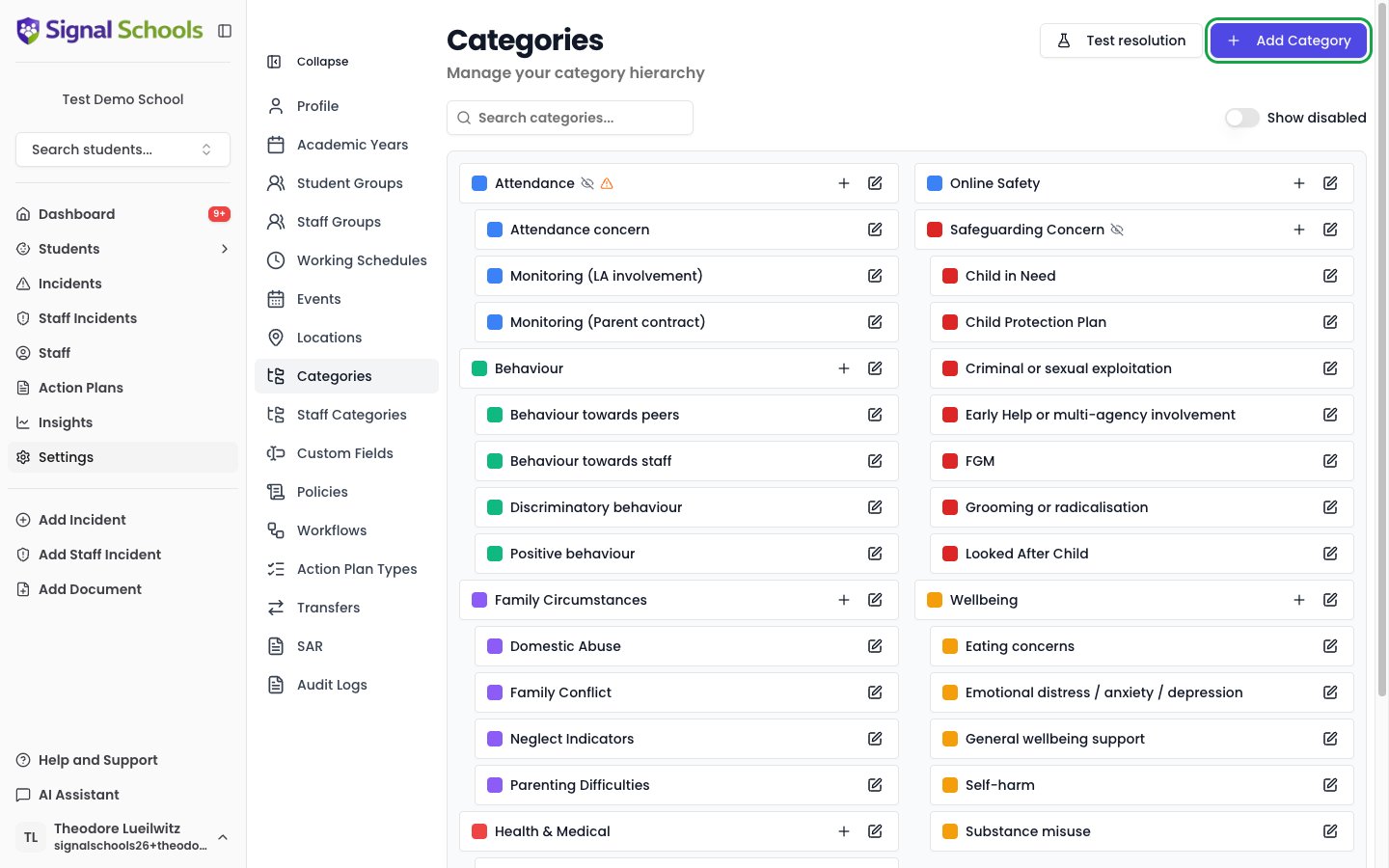
Student and staff categories
Student incidents and staff incidents have separate category sets, managed in different places. The Categories settings page covers student incident categories only. Staff incident categories are managed under the separate Staff Categories item in the sidebar. For example, your student incident categories might include Neglect and Online Safety, while staff incident categories might include Conduct and Allegation.Managing categories
Go to Settings > Categories to view and manage your categories.Adding a new category
1
Open category settings
Navigate to Settings > Categories.
2
Click Add Category
Click the Add Category button to open the creation form.
3
Enter the category details
Provide the following:
- Name — a clear, concise label for the category (e.g. “Physical”, “Emotional Abuse”, “Online Safety”)
- Description — an optional description to help staff understand what the category covers
- Colour — a colour to help visually distinguish this category in lists and charts
- Enabled/Disabled — toggle whether the category is available for selection when recording incidents. Disabling a category hides it from new incidents without affecting existing records.
- High priority — toggle to mark the category as high priority. Incidents with a high priority category bypass working schedules for alerts, ensuring staff are notified immediately regardless of the time.
- Requires sub-category — available on top-level categories only. Turn it on when the category is too broad on its own: staff who choose it must then pick one of its sub-categories before they can save the incident.
- Hide in parent mode — toggle to hide this category from the parent-facing view
4
Save
Click Save to create the category. It is now available for staff to select when recording incidents.