
What data is synced
When connected, Signal automatically syncs the following data:Differences between providers
Most data is the same whichever provider you use, but there are a few gaps worth knowing about:- Student photos are synced from Arbor and Wonde, but not from Bromcom.
- Pre-admission students — children accepted but not yet on roll — are synced from Wonde only.
- Attendance is synced by all three. Wonde omits codes that mean no mark was expected, such as days the school was closed.
Provider-specific data processing
For DPIA and due-diligence detail by provider, see:Connecting to Bromcom
Ensure Signal has access in Bromcom
Go to integration settings
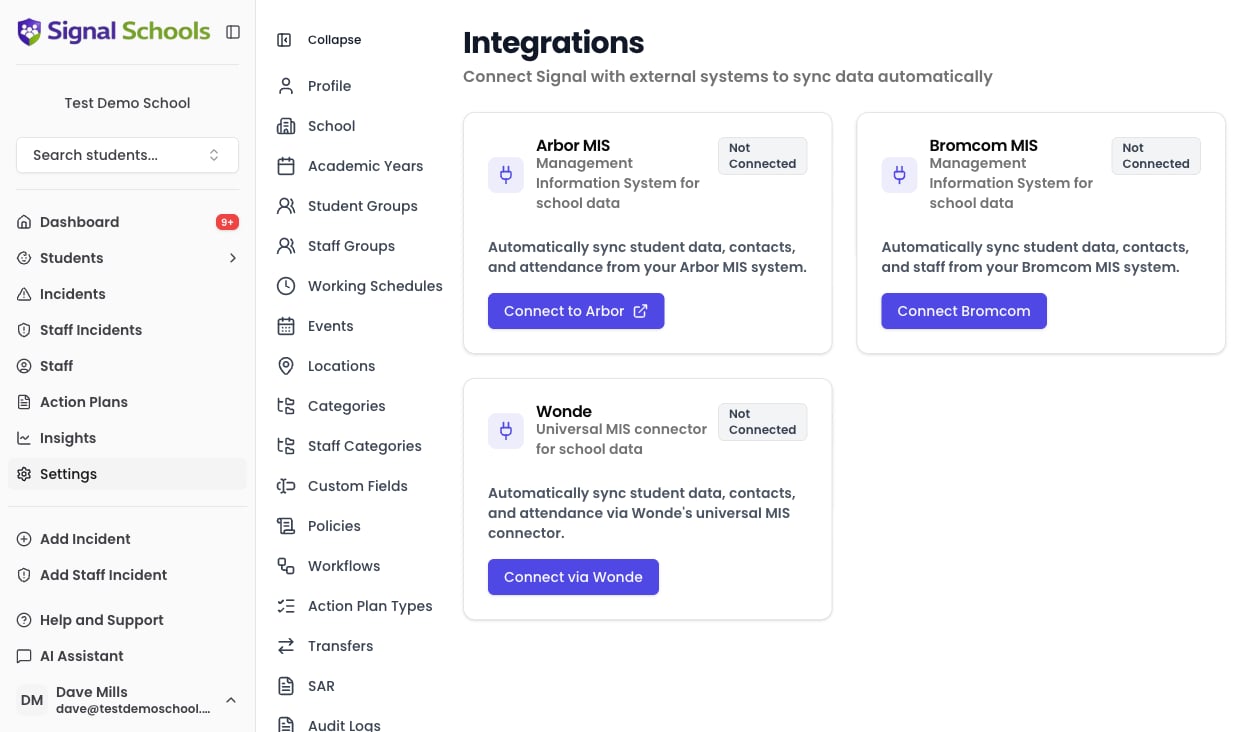
Click Connect Bromcom
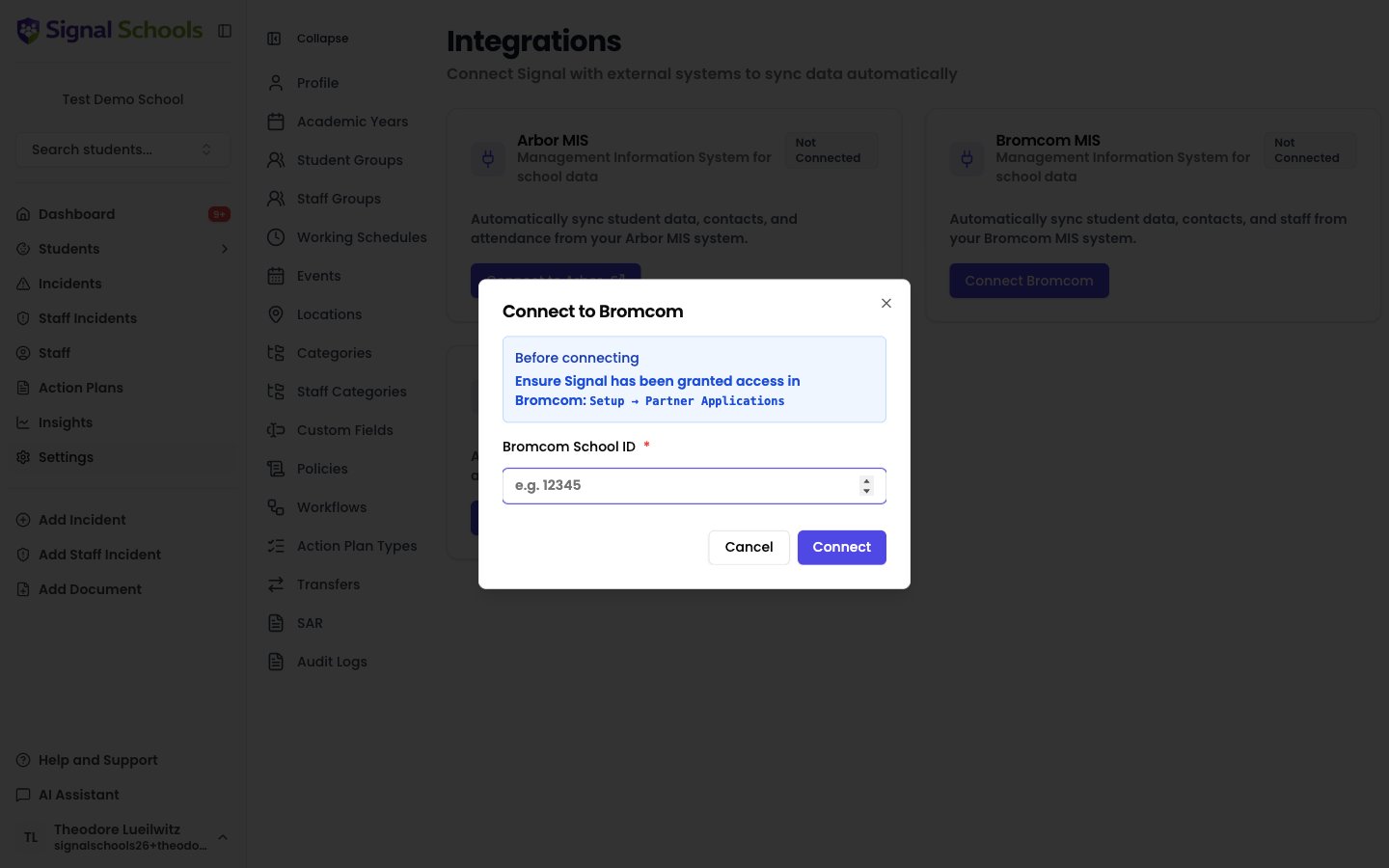
Enter your School ID
Click Connect
Wait for the first sync
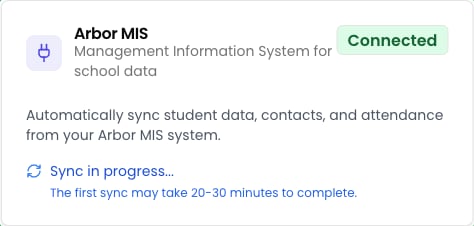
Review your data
Connecting to Arbor
Go to integration settings
Connect to Arbor
Authorise Signal in Arbor
Return to Signal
Wait for the first sync
Review your data
Connecting via Wonde
Wonde is a data integration platform that connects to many different MIS providers. If your school uses Wonde, you can connect Signal through Wonde instead of connecting directly to your MIS.Go to integration settings
Check your school's URN is on record
Click Connect via Wonde
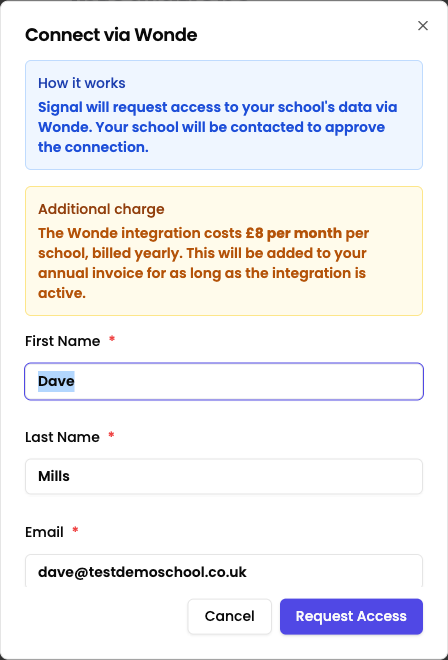
Enter your details
Accept the terms and conditions
Submit the request
Approve access in Wonde
Wait for the first sync
Review your data
Automatic syncing
Once connected, Signal runs a full sync with your MIS overnight, Monday to Friday. This ensures that new students, leavers, class changes, and updated contact details are reflected in Signal without any action from you. Attendance is synced twice each day to keep records current. A further catch-up sync runs at the weekend to reconcile any gaps.Disconnecting your MIS
Go to Settings → Integrations and click the disconnect button next to your MIS connection — Disconnect Arbor, Disconnect Bromcom, or Disconnect Wonde, depending on your provider. Disconnecting stops future syncs but does not delete data already imported into Signal. Your existing student, staff, and attendance records remain intact.Importing from your previous safeguarding supplier
If your school is connected to Arbor, you can import historical data from your previous safeguarding system (such as CPOMS). The import option appears on the Settings → Integrations page once your first Arbor sync has completed successfully.Troubleshooting
The Bromcom connection failed
The Bromcom connection failed
- Confirm that Signal has been granted access in Bromcom under Setup → Partner Applications.
- Double-check that you have entered the correct School ID.
- Ensure your email address matches a staff member in the Bromcom school.
- If you are a super admin, the staff email check is bypassed — contact support if you still encounter issues.
The Arbor connection failed
The Arbor connection failed
- Confirm with your IT team or Arbor administrator that your school’s Arbor account is set up to allow third-party integrations.
- Check that your school’s network does not block outbound connections to Arbor’s servers.
- Try disconnecting and re-authorising the connection from Settings → Integrations.
Students or staff are missing after a sync
Students or staff are missing after a sync
- Verify that the missing records exist and are active in your MIS. Signal only syncs active students and staff.
- If a student has recently enrolled, they may not appear until the next overnight sync.
- Check that the student’s year group and class are correctly assigned in your MIS.
Contact details are not appearing
Contact details are not appearing
- Contacts are synced from your MIS along with their relationship to each student. Make sure the contact records are complete in your MIS (name, relationship, and at least one phone number or email).
- If the contacts were recently added, they will appear after the next overnight sync.
Attendance data is not showing
Attendance data is not showing
- Attendance data is used by Signal’s AI features for pattern analysis. It may take a sync cycle for new attendance data to appear.
- Confirm that attendance is being recorded in your MIS for the relevant time period.
The Wonde connection is stuck on Pending
The Wonde connection is stuck on Pending
- Access requests must be approved by your school’s Wonde administrator in the Wonde portal.
- Contact your IT team or Wonde account holder to check the status of the request.
- If the request was declined, the card says so — contact Wonde support to find out why, rather than resubmitting.
I want to switch MIS provider
I want to switch MIS provider
- Contact support@signalschools.com. Switching providers is not self-service.
- Disconnecting your current MIS on its own is not enough — the connection still occupies your school’s single MIS slot, so the other providers stay unavailable until support removes it.
- Once it has been removed, you can connect the new provider as normal.
I want to disconnect the integration
I want to disconnect the integration
- Go to Settings → Integrations and click the disconnect button next to your MIS connection — Disconnect Arbor, Disconnect Bromcom, or Disconnect Wonde, depending on your provider.
- Disconnecting stops future syncs but does not delete data already imported into Signal. Your existing student, staff, and attendance records remain intact.
- Only Bromcom can be reconnected by your school afterwards. For Arbor and Wonde, contact support@signalschools.com to re-enable the connection or have it fully removed.