
This is one of three ways to control who can see safeguarding records. For an overview of all three — student restrictions, workflow exclusions, and per-incident visibility — and how to choose between them, see Managing incident visibility.
Why use restrictions
Some safeguarding concerns — such as allegations against staff, cases involving staff family members, or highly sensitive disclosures — need tighter access control than the default. Rather than relying on someone to manually restrict an incident after it is recorded, you can set up a workflow to do it automatically. This ensures that sensitive incidents are protected from the moment they are created — and existing incidents that match the rule are protected too, without any delay or human error.How restrictions work
When an incident matches a workflow with an Apply Exclusions action:- Signal identifies the staff members or Staff Groups configured on the action
- Those staff are excluded from viewing the incident
- The restriction takes effect immediately — excluded staff cannot see the incident in lists, on student profiles, or through search
- Creating or enabling a workflow immediately restricts every existing incident that matches it, including incidents imported from a previous system
- Disabling or deleting a workflow immediately restores visibility of those incidents
- If an incident’s categories change so it no longer matches the workflow, the restriction lifts automatically — and reapplies if it matches again
DSLs, Deputy DSLs, and Owners always keep full visibility — workflow restrictions never apply to them.
Configuring the Apply Exclusions action
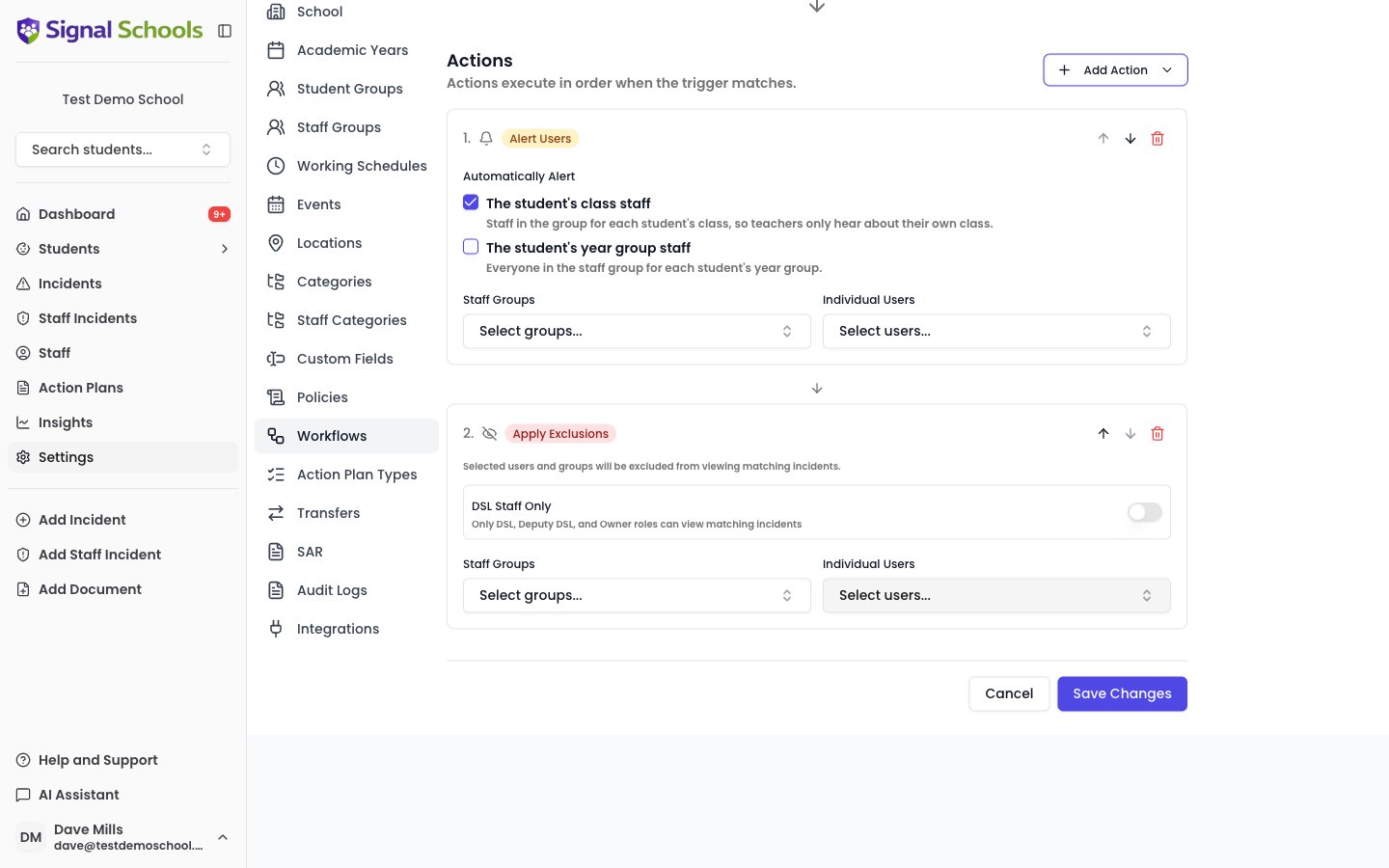
When adding an Apply Exclusions action to a workflow, you can choose:- DSL Staff Only — hide matching incidents from everyone except DSLs, Deputy DSLs, and Owners. This is the recommended setup for keeping safeguarding concerns visible to safeguarding leads only, without having to maintain a Staff Group of everyone else
- Staff Groups — exclude everyone in one or more Staff Groups
- Individual Users — exclude individual staff members from viewing
Example use cases
- Sensitive disclosures — restrict incidents in a “Sensitive” category so only the DSL and Head Teacher can see them
- Staff-related concerns — when a student incident involves a staff member’s family, restrict viewing to senior leadership
- Controlled information sharing — limit who sees incidents involving students in specific vulnerability groups
Tightening a single incident further
Sometimes one incident needs to be held more tightly than the workflow rules alone provide. Open the incident’s Manage Visibility settings to add manual exclusions:- The settings show what the workflow rules currently apply to this incident, read-only — edit the workflow itself to change those
- Add the DSL Staff Only switch, Staff Groups, or individual staff as needed
- The manual exclusions combine with the workflow rules — anyone hidden by either stays hidden
If an excluded member of staff needs access to one specific incident — for example, a pastoral lead who is directly involved in the case — @mention them in the incident description or a comment. That opens up the single incident to them without changing the workflow or the incident’s visibility settings. Removing the mention again (editing it out of the description or comment) takes that access away.