
Two of these controls never hide a record from a safeguarding lead: staff with the DSL, Deputy DSL, or Owner role always see incidents that others have been excluded from. A student restriction is the exception — it is absolute and applies to every role, including DSLs and Owners.
The three controls at a glance
Student restrictions
Stop one staff member seeing everything about a particular child — profile, incidents, documents, and alerts. Set on the staff member’s page.
Workflow exclusions
Automatically hide every incident that matches a rule (for example, a whole category) from chosen staff or Staff Groups. Set once, applies school-wide.
Per-incident visibility
Restrict a single incident by hand — tighten who can see just that one record, on top of any workflow rules.
These controls hide records — excluded staff see no sign the record exists, so confidentiality is protected. They are separate from staff roles, which govern what a person can do across the whole platform. See Staff & permissions for roles.
1. Student restrictions
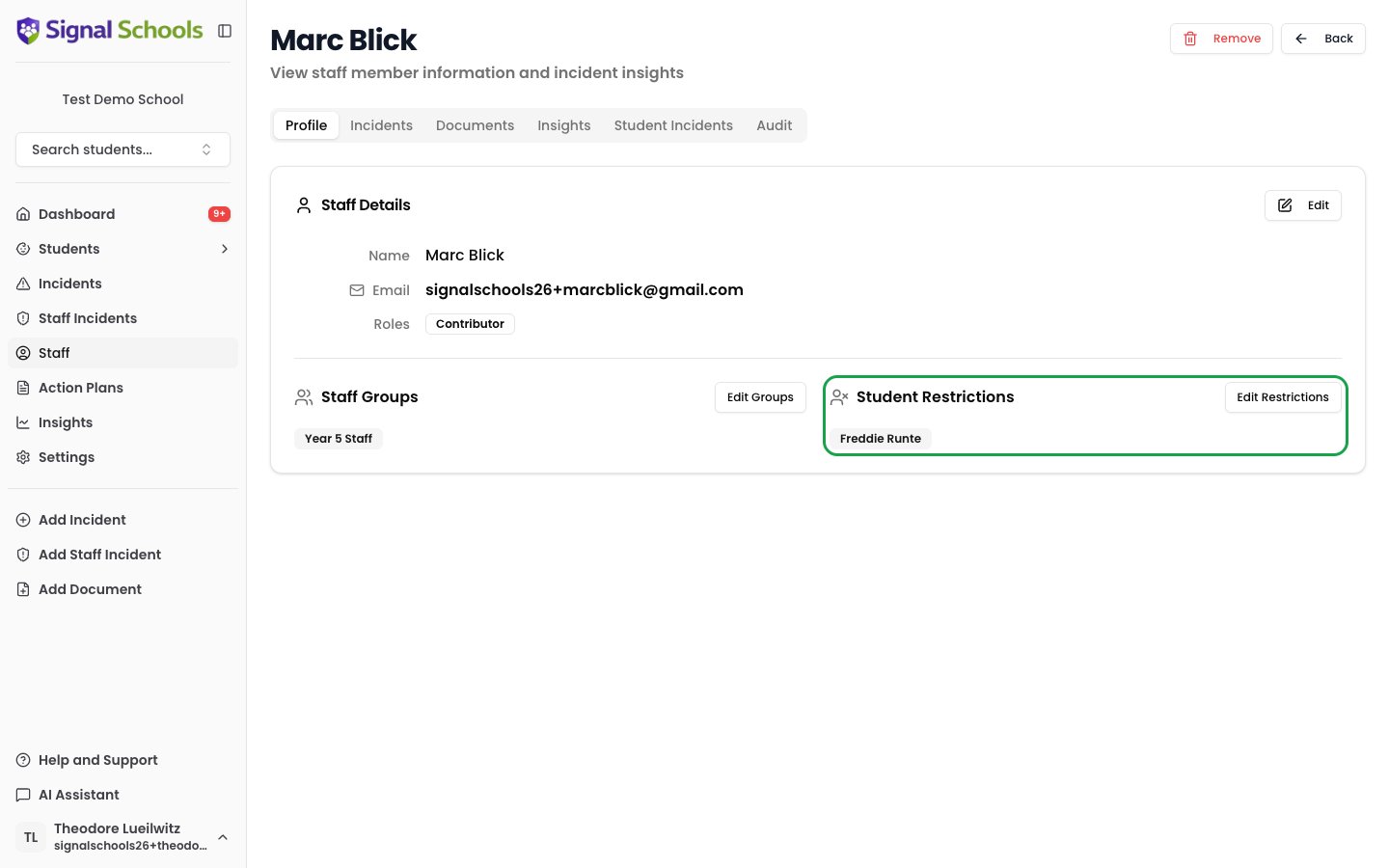
Student restrictions stop one individual staff member from seeing anything about a particular child. When you restrict a staff member from a student, that child’s profile, incidents, and documents all disappear for that person, and they stop receiving alerts about them. This is the right control when the sensitivity is tied to a person, not to the nature of a case. The classic example is a member of staff who is a relative of a child at the school — a parent, sibling, aunt, or uncle who works there. They should not be able to read that child’s safeguarding history through Signal, regardless of what the concerns are about.Applying or managing student restrictions requires Deputy DSL or above.
1
Open the staff member
Select Staff from the sidebar and open the member of staff you want to restrict.
2
Find the Student Restrictions section
Scroll to the Student Restrictions section on their page.
3
Choose the students
Click Edit Restrictions and select the students this staff member should not be able to see. You can restrict them from more than one child.
4
Save
Save your changes. The restriction takes effect immediately — those students vanish from that staff member’s view straight away.
2. Workflow exclusions
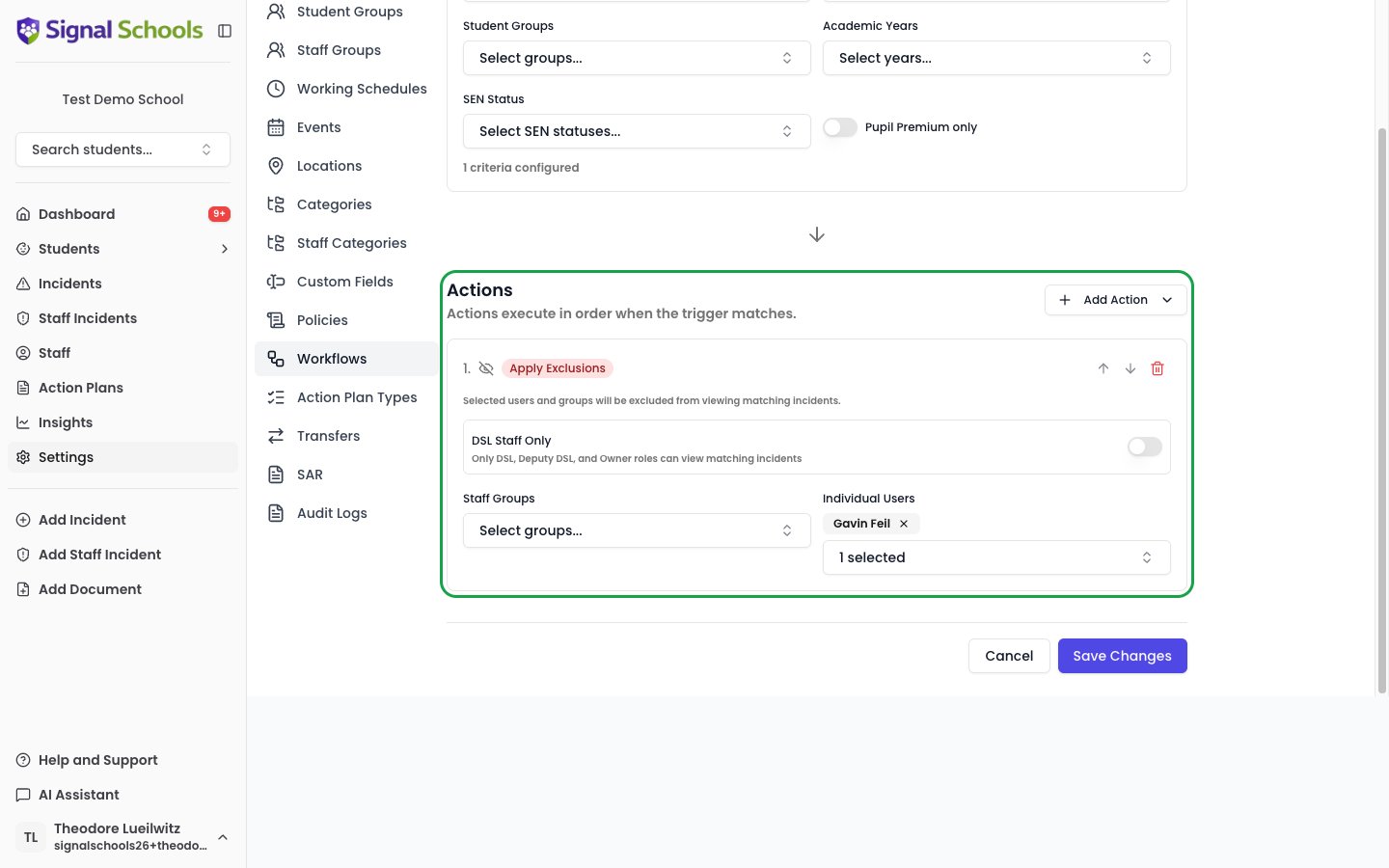
A workflow watches for incidents that match criteria you define — a category, a location, a Staff Group, and so on. An Apply Exclusions action on a workflow automatically hides every matching incident from the staff you choose. Set the rule once, and it protects both existing and future incidents without anyone having to remember. This is the right control when the sensitivity is tied to the type of concern rather than a single record. For example, you might decide that every incident in a “Sensitive” category should only ever be visible to safeguarding leads.Workflows and their Apply Exclusions action are managed by staff with the DSL role or above.
How workflow exclusions behave
When an incident matches a workflow with an Apply Exclusions action:- Signal identifies the staff members or Staff Groups configured on the action.
- Those staff are excluded — the incident disappears from their lists, the student’s profile, and search.
- Excluded staff see no indication the incident exists, protecting the case’s confidentiality.
Events are the deliberate exception. A suspension or a referral is a fact the school acts and reports on, so the event itself stays visible even when the incident behind it is hidden from you — you see the event type and its dates, but the incident title and the event notes are withheld, so the account of what happened stays confidential. The same applies to rolled-up counts, which would otherwise give a different answer depending on who asked.Everything else follows the normal rules: an excluded incident will not appear in a list, cannot be opened or searched, and is left out of a breakdown by student. A student restriction is stronger still — it hides the child’s events too. See Events.
- Creating or enabling a workflow immediately restricts every existing incident that matches it, including ones imported from a previous system.
- Disabling or deleting the workflow immediately restores visibility.
- If an incident’s categories change so it no longer matches, the restriction lifts automatically — and reapplies if it matches again.
Setting up an Apply Exclusions action
When you add an Apply Exclusions action to a workflow, choose one of:- DSL Staff Only — hide matching incidents from everyone except DSLs, Deputy DSLs, and Owners. The simplest way to keep concerns visible to safeguarding leads only, without maintaining a Staff Group of everyone else.
- Staff Groups — exclude everyone in one or more Staff Groups.
- Individual Users — exclude named staff members.
3. Per-incident visibility
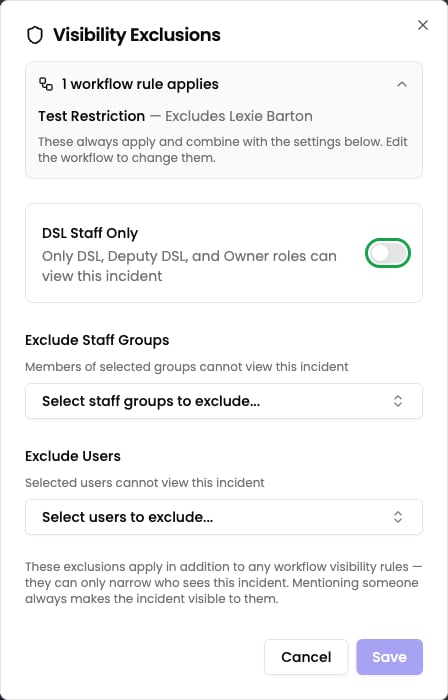
Sometimes a single incident needs to be held more tightly than everything around it. Manage Visibility on the incident lets you add manual exclusions to that one record, on top of whatever the workflow rules already apply.Setting or changing an incident’s visibility requires Deputy DSL or above.
- DSL Staff Only — only DSLs, Deputy DSLs, and Owners can see the incident. All other staff are excluded.
- Exclude Staff Groups — choose entire Staff Groups to exclude.
- Exclude Users — choose individual staff members who should not see it.
Seeing who has been told
Manage Visibility opens the Incident Visibility dialog, which has two tabs. Who is hidden holds the exclusion settings above. Who was told lists everyone who has been notified about the incident, and whether they have opened it yet. Each row shows how the person was notified — Alerted by a workflow rule or a new comment, or Mentioned — along with the date, and either Opened or Not opened. A count at the top summarises how many notifications are still unopened.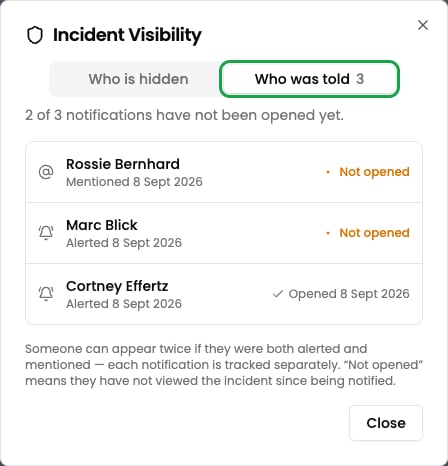
Someone can appear twice if they were both alerted and @mentioned. These are separate notifications, each with its own read state, so they are listed separately.
How per-incident visibility works with workflows
If your school uses workflow exclusions, Manage Visibility shows what the workflow rules currently apply to this incident — read-only, so you can see exactly who is excluded today. To change those, edit the workflow itself. Your manual settings combine with the workflow rules: anyone hidden by either stays hidden. Manual exclusions can only ever narrow who sees an incident, never widen it — there is no way to exempt one incident from a workflow rule. Use Clear all to remove the manual settings again; the workflow rules are unaffected. If a member of staff you are excluding is already @mentioned on the incident, Signal warns you: a mention keeps the incident visible to that person regardless of exclusions. Remove the mention from the description or comment to take their access away.How the three controls combine
You can use all three together. When Signal works out whether a member of staff can see a record, every applicable control is respected:- A student restriction hides everything about that child from the restricted staff member — this always wins for that person.
- A workflow exclusion hides matching incidents from the staff it names — always, on every matching incident.
- A per-incident setting adds to the workflow rules for that one incident: anyone hidden by either stays hidden.
- An @mention opens that one incident to the mentioned person despite any exclusion — though never past a student restriction.
- Safeguarding leads (DSL, Deputy DSL, Owner) cannot be excluded from an individual incident, by either a workflow rule or a per-incident setting. A student restriction does bind them, so it is the one control that can hide a record from a DSL.
- Staff with the Reporter role start from a much narrower view — only what they recorded or were @mentioned in — and these controls narrow it further. Marking a Reporter’s own report DSL only, or excluding them from it, removes it from their view entirely. That is often the right call for a sensitive disclosure; just be aware the person who filed it will no longer be able to look it up.
Staff incidents — concerns or allegations about a member of staff — sit outside these controls. They are visible only to Owners, DSLs, and Deputy DSLs, and a staff member named in one is automatically prevented from seeing it, even if they are a DSL. See Staff incidents.
Related pages
Apply exclusions on a workflow
The full guide to setting up automatic, rule-based visibility.
Recording incidents
Set an incident’s visibility as you record it.
Managing incidents
Edit visibility and other details on an existing incident.
Staff & permissions
How roles govern what each member of staff can do.