
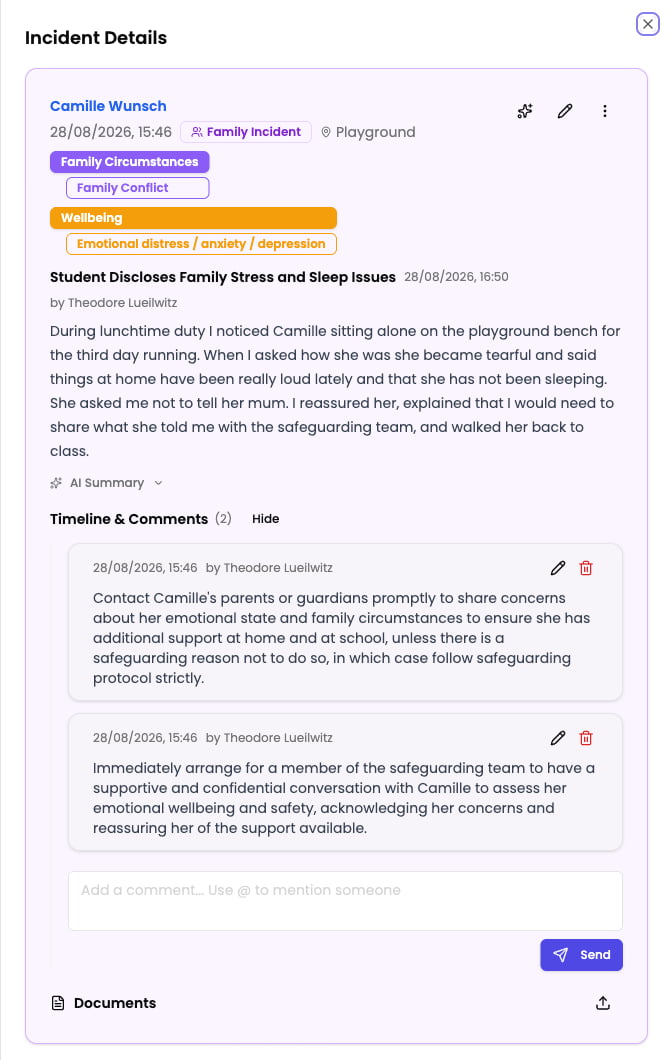
Comments
Comments let you add information to an incident after it has been created. You might use comments to:- Share an update on the situation
- Record the outcome of a conversation with a parent or agency
- Note actions taken since the incident was logged
- Ask a colleague for their input or observations
- Document decisions made about the case
Adding a comment
Open the incident and scroll to the comments section. Type your comment in the text field and click Send. Your comment appears immediately, timestamped and attributed to you. Comments support rich text formatting, so you can use bold, italics, and bullet points to structure your notes clearly.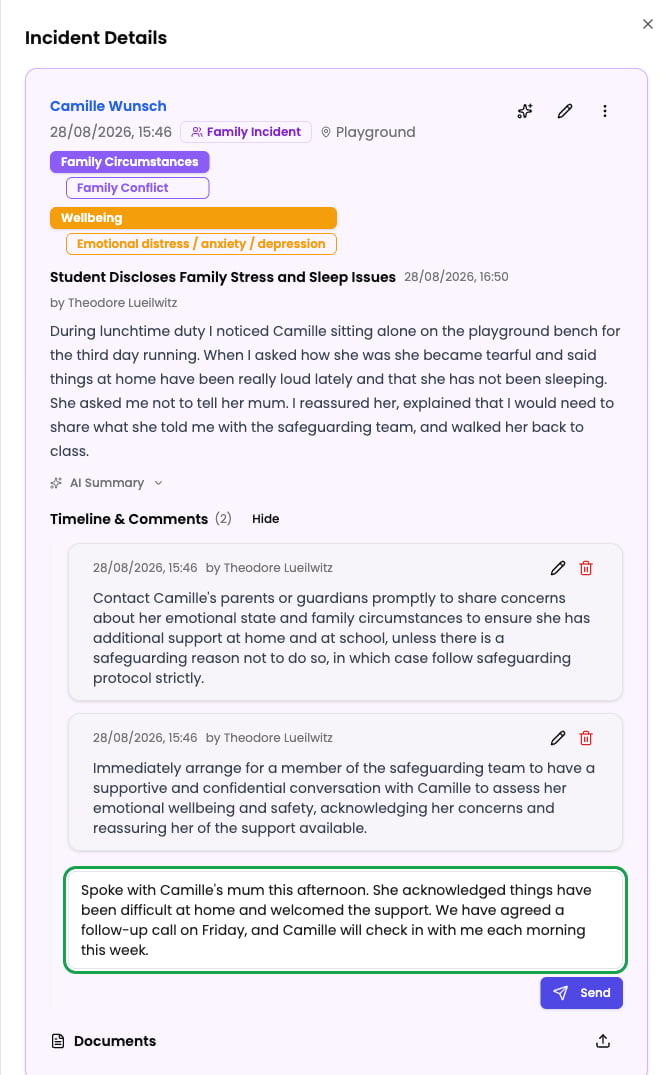
The audit trail
Every comment is permanently recorded with the name of the person who wrote it and the date and time. This creates a clear, chronological trail of communication on each incident — essential for accountability and any future reviews or inspections.Editing comments
You can edit your own comments after posting them. A privileged user — anyone with the Owner, DSL, or Deputy DSL role — can edit any comment on an incident. Click the edit icon next to a comment to modify it.Deleting comments
The person who wrote a comment can delete it. A privileged user — anyone with the Owner, DSL, or Deputy DSL role — can also delete any comment on an incident.Deleted comments are removed from the incident. If you need to correct information, consider adding a new comment with the correction rather than deleting the original, so the full context is preserved.
Who gets notified about a new comment
When someone adds a comment to an incident, Signal notifies everyone already involved — so a conversation cannot move on without the people responsible for the case knowing. Who hears about it, and how, depends on how they became involved:
Staff alerted by a workflow rule are notified inside Signal and in their daily summary, but are not emailed for each comment. On a busy incident that would mean an email for every update, so the alert in Signal is used instead.
Emails are not repeated while you already have an unread alert for that incident. You receive one email, then no further emails until you have opened the incident again. This prevents a flurry of comments filling your inbox.
@Mentions
When you need to bring a specific colleague’s attention to an incident or comment, use an @mention. Type@ followed by their name, and select them from the dropdown that appears.
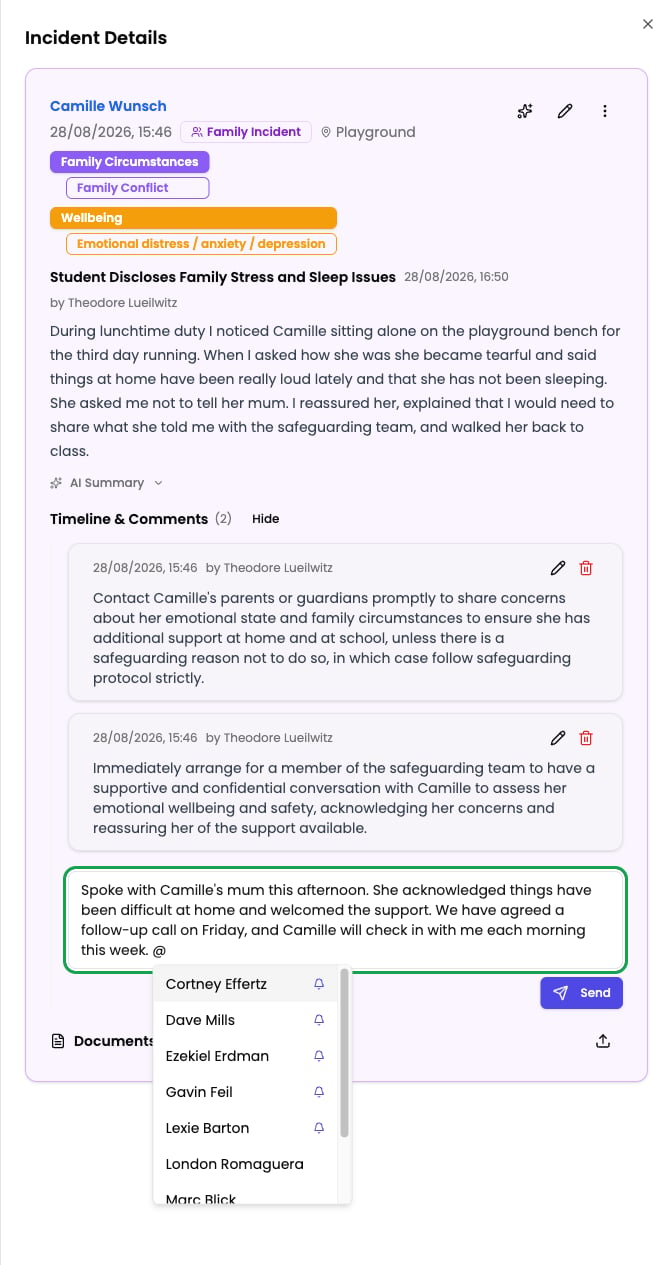
What happens when you mention someone
When you @mention a colleague:- Your comment or description is saved with the mention highlighted.
- The mentioned colleague sees a notification in the My Mentions section of their dashboard.
- They can click the notification to go directly to the incident and see your comment.
Where mentions work
You can @mention colleagues in two places:- Incident descriptions — when creating or editing an incident
- Comments — when adding a comment to an existing incident
Viewing your mentions
All your unread mentions appear in the My Mentions section of your dashboard. Each mention shows which incident it relates to and who mentioned you. Click through to see the full context. For staff incidents, mentions appear in the Staff Mentions section, visible only to DSLs and Deputy DSLs.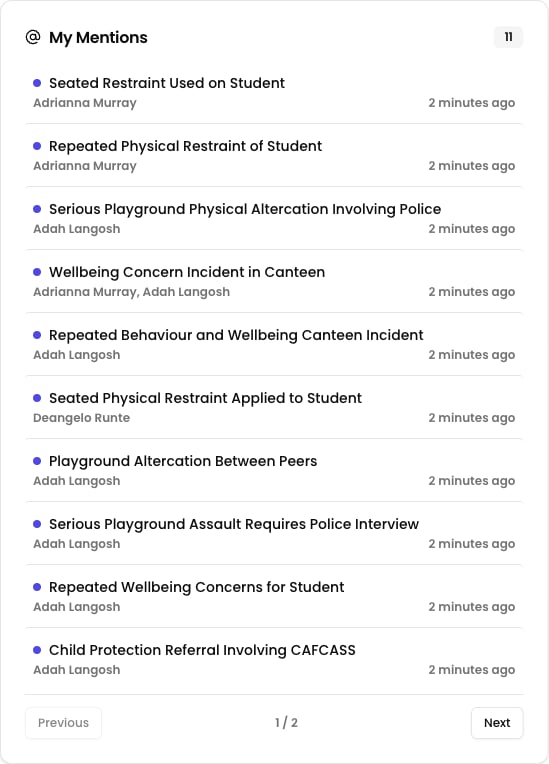
Best practices for collaboration
Collaboration features are designed to keep all safeguarding communication in one place — on the incident itself. This is better for accountability and record-keeping than using email, messaging apps, or verbal conversations that are not captured in the safeguarding record.