Overview

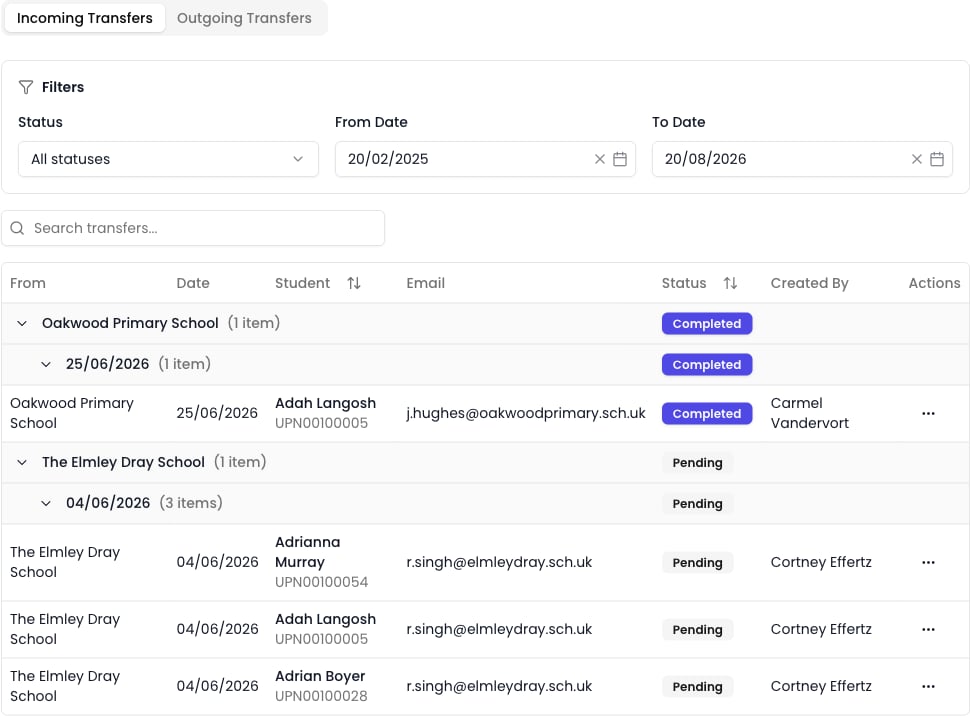
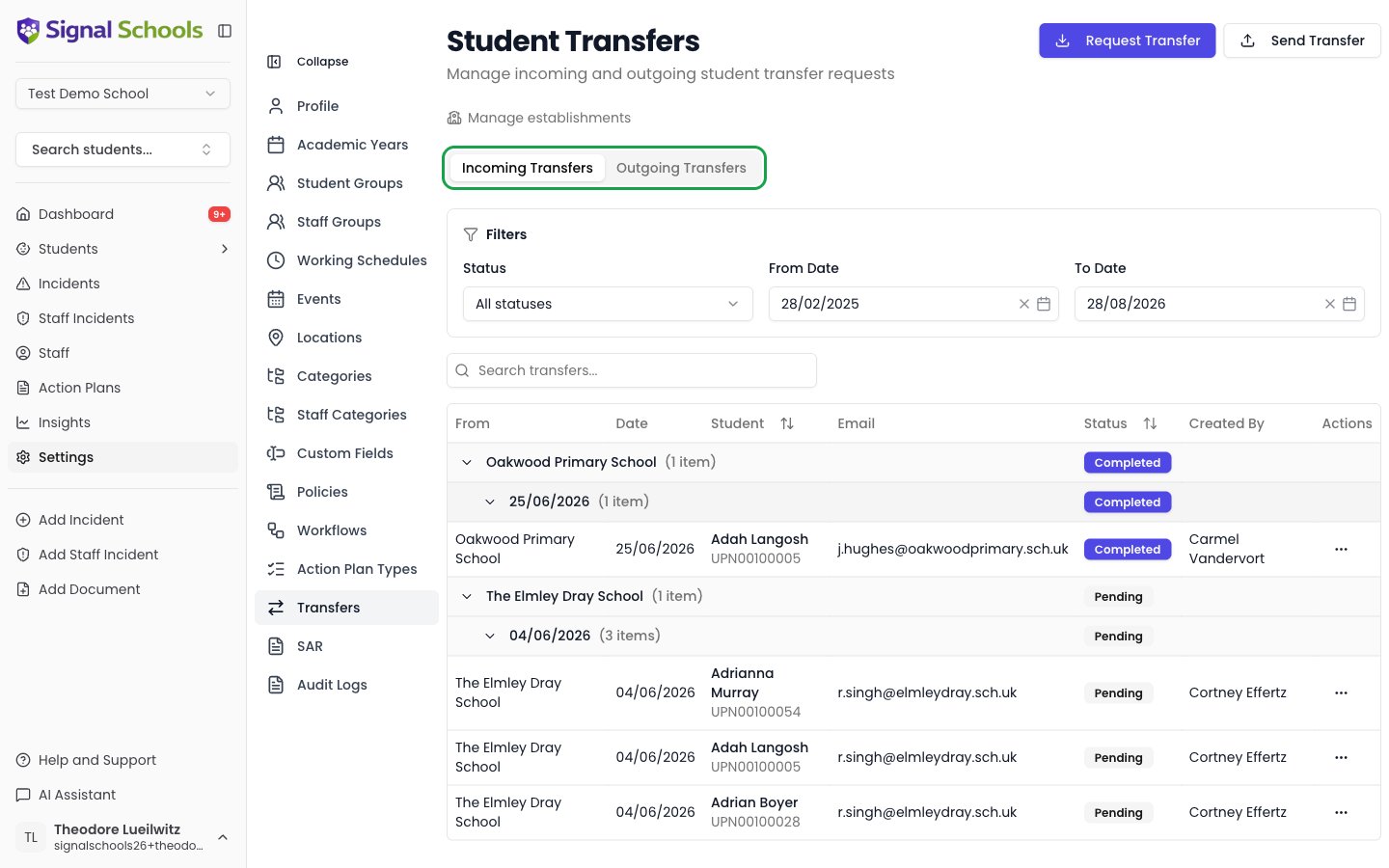
The Transfers dashboard gives you complete visibility of all incoming and outgoing student transfers. You can track status, review pending transfers, and maintain a complete audit trail of safeguarding information shared with other schools.
All transfer activity is automatically logged and auditable to meet regulatory requirements.

Accessing Transfers

Navigate to Transfers in the main menu to see:
Students joining your school:
  • Pending review
  • Awaiting acceptance
  • Recently accepted
  • Declined transfers
Quick actions:
  • Review transfer details
  • Accept or decline
  • Request additional information
  • Integrate student records

Managing Incoming Transfers

Reviewing New Transfers

When a new transfer arrives, you’ll receive notifications via:
  • 📧 Email to DSL and deputy DSL
  • 🔔 In-app notification badge
  • 📱 Push notification (if enabled)
1

Open Transfer

Click notification or go to Transfers > Incoming > Pending Review
2

Review Student Information

See student demographics, current situation, and context from sending school
3

Review Safeguarding History

Access all incidents, actions, alerts, and supporting documents
4

Check Agency Involvement

View current agency contacts and support in place
5

Read Contextual Notes

Review guidance and recommendations from sending DSL
6

Make Decision

Accept, decline, or request additional information

Transfer Details View

Basic information:
  • Full name and preferred name
  • Date of birth and year group
  • UPN (Unique Pupil Number)
  • Current school and leaving date
  • Reason for move (if provided)
At-a-glance indicators:
  • 🚨 Urgent transfer flag
  • ⚠️ Active child protection plan
  • 🏥 Medical needs
  • 📋 SEND status
  • 👁️ Looked After Child status
Quick statistics:
  • Total number of incidents included
  • Date range of incidents
  • Number of active alerts
  • Open actions requiring follow-up
  • Agency involvement count
Risk indicators:
  • Current risk level (from sending school)
  • Active protection measures
  • Triggers and vulnerabilities
  • Immediate concerns
The summary gives you quick overview - expand each section for detailed information.
Chronological view of all incidents:For each incident:
  • Date and category
  • Severity level
  • Full description
  • Staff involved (anonymized for external schools)
  • Actions taken
  • Outcome and status
  • File attachments
Timeline features:
  • Filter by category, date range, or severity
  • Expand/collapse individual incidents
  • View relationship map (linked incidents)
  • Export timeline as PDF
Active support and interventions:
  • Open actions requiring follow-up
  • Recently completed actions (context)
  • Recommended actions from sending school
  • Action owners and deadlines
  • Progress notes
What to do:
  • Review which actions you’ll continue
  • Identify actions that need reassignment
  • Note actions that may need modification for your school
  • Flag actions requiring immediate attention
Current alerts and risk assessments:
  • Alert type and severity
  • Trigger conditions
  • Response procedures
  • Staff to notify
  • Review dates
Important alerts to note:
  • 🚨 Child protection plans
  • 🏥 Medical emergencies
  • 🚫 Contact restrictions
  • ⚠️ Behavioral triggers
  • 📞 Emergency procedures
Review alerts carefully before student starts. Ensure all staff who need to know are informed of critical alerts.
External professionals involved:For each agency:
  • Agency name and type
  • Contact person and details
  • Case reference number
  • Level and type of involvement
  • Next scheduled review/meeting
  • Key information for continuity
Common agencies:
  • Social Services
  • CAMHS
  • Educational Psychology
  • Early Help
  • Police (safeguarding teams)
  • Youth Offending Team
  • Health services
Parent/carer information:
  • Names and relationships
  • Contact details (phone, email, address)
  • Parental responsibility indicators
  • Emergency contacts
  • Communication preferences
  • Any contact restrictions or considerations
Important notes:
  • Who can collect student
  • Court orders or restrictions
  • Preferred communication methods
  • Languages spoken
  • Cultural or religious considerations
Guidance from sending school:
  • Current situation summary
  • Background and history
  • Support strategies that work
  • Student’s strengths and interests
  • Triggers or challenges
  • Transition recommendations
  • Upcoming reviews or meetings
These notes provide invaluable context. Print or save for transition meeting with your pastoral team.

Accepting a Transfer

1

Review Complete Transfer

Ensure you’ve reviewed all sections thoroughly
2

Click Accept Transfer

Button appears at top of transfer details
3

Add Acceptance Notes

Document why you’re accepting and any follow-up actions planned
4

Assign Staff

Assign DSL or pastoral staff to support student
5

Confirm Acceptance

Click Confirm to accept transfer
6

Records Integrated

All information automatically integrates into your Signal system
What happens:
  • ✅ Student record created in your school
  • ✅ All incidents imported to student timeline
  • ✅ Active alerts activated in your system
  • ✅ Actions assigned to designated staff
  • ✅ Sending school notified of acceptance
  • ✅ Audit trail created
Accepted transfers create a complete student record. You can continue to add new incidents and manage the student like any other in your system.

Declining a Transfer

Valid reasons to decline:
  • ❌ Wrong student (not enrolled at your school)
  • ❌ Incorrect receiving school
  • ❌ Student not starting as expected
  • ❌ Insufficient information to accept safely
  • ❌ Duplicate transfer received
How to decline:
1

Click Decline Transfer

Button at top of transfer details
2

Select Decline Reason

Choose from common reasons or write custom explanation
3

Provide Details

Explain clearly so sending school can take appropriate action
4

Suggest Next Steps

If applicable, indicate what’s needed to proceed
5

Confirm Decline

Sending school is immediately notified
Example decline messages:
Transfer Declined - Wrong Student

We do not have a student by this name enrolled at our school.

Please check:
- Student name and date of birth
- Correct receiving school
- Enrollment confirmation

If you believe this student is enrolled with us, please
contact our admissions office: [contact details]
Transfer Declined - Insufficient Information

We cannot safely accept this transfer without additional
information regarding:

1. Current Child Protection Plan details
2. Contact information for social worker
3. Student's current medication and dosage
4. Emergency contact verification

Please provide this information and resend the transfer.
We're happy to accept once we have complete information
to ensure student's safety and wellbeing.
Declining a transfer doesn’t prevent you from accepting a revised version. The sending school can address your concerns and resend.

Requesting Additional Information

Without declining the transfer:
1

Click Request Information

Option appears when reviewing transfer
2

Specify What You Need

Be clear and specific about information gaps
3

Set Priority

Mark as urgent if needed before accepting
4

Send Request

Sending school receives notification
5

Transfer Remains Open

You can continue reviewing while awaiting response
Example request:
Additional Information Needed

Thank you for this comprehensive transfer. To ensure we
can provide appropriate support from day one, please
provide:

Required before acceptance:
- Copy of current risk assessment (mentioned in notes)
- Confirmation of next social services review date

Helpful but not essential:
- Details of successful de-escalation strategies
- Contact for current mentor/trusted adult

Timeline: We'd appreciate this information by [date] as
student is due to start on [date].

Managing Outgoing Transfers

Tracking Sent Transfers

View all transfers you’ve sent to other schools:
Track each transfer through stages:
  • Sent (🕐 Pending): Notification sent, awaiting initial review
  • Viewed (👁️): Receiving DSL has opened the transfer
  • Under Review (🔍): Being reviewed by receiving school
  • Accepted (✅): Transfer accepted and integrated
  • Declined (❌): Transfer declined (with reason)
  • Expired (⏰): Access link expired (external schools only)
Status indicators:
  • 🟢 Green: Accepted, all good
  • 🟡 Yellow: In progress, no action needed
  • 🟠 Orange: Needs attention (not reviewed, expiring soon)
  • 🔴 Red: Issue (declined, expired)

Following Up on Transfers

If receiving school hasn’t viewed transfer:
1

Wait 24 Hours

Allow reasonable time for DSL to check emails
2

Check Email Delivery

Verify email was delivered (not bounced)
3

Resend Notification

Click “Resend Notification” on the transfer
4

Direct Contact

Phone or email receiving DSL directly after 48 hours
5

Verify Contact Details

Ensure DSL email address is current and monitored
For urgent transfers:
  • Don’t wait - phone immediately after sending
  • Ensure receiving DSL is aware and has access
  • Follow up within hours, not days
  • Escalate to senior leadership if no response
Address the decline reason:
1

Read Decline Reason

Understand why transfer was declined
2

Assess Validity

Determine if decline reason is correct
3

Take Corrective Action

Address the issues raised
4

Contact Receiving School

Discuss if needed before resending
5

Resend Updated Transfer

Create new transfer addressing concerns
Common decline reasons and solutions:
Decline ReasonSolution
Wrong studentVerify enrollment, check student names, contact admissions
Insufficient informationProvide requested details and resend
Student not enrolledConfirm with parents/carers and admissions
Duplicate transferCheck if already accepted, avoid resending
Missing attachmentsUpload missing files and resend

Adding Updates to Sent Transfers

Add information after sending:
1

Open Sent Transfer

Find in Outgoing Transfers list
2

Click Add Update

Button in transfer actions menu
3

Choose Update Type

  • Additional notes
  • New file attachment
  • Agency update
  • Status change
4

Enter Information

Provide the update details
5

Notify Receiving School

They receive notification of update
When to add updates:
  • New information comes to light after sending
  • Agency contacts change
  • Student’s circumstances change before starting
  • Additional documentation becomes available
Example update:
Update: 20/01/2025

Additional information regarding student's transfer:

- CP review held yesterday - plan remains in place
- Social worker contact has changed:
  New SW: Jane Smith, jane.smith@la.gov.uk
- Next CP review scheduled for 15/03/2025
- Student completed transition visit this week, went well

Attached:
- Updated CP plan following review

Canceling a Transfer

If student is no longer moving:
1

Open Transfer

Find in Outgoing Transfers
2

Click Cancel Transfer

Option in actions menu
3

Provide Reason

Explain why transfer is being canceled
4

Confirm Cancellation

Transfer is immediately canceled
5

Receiving School Notified

DSL receives notification and explanation
Valid cancellation reasons:
  • Student no longer moving schools
  • Parents changed their mind
  • Move postponed to later date
  • Wrong student transferred by mistake
  • Sending to different school instead
Example cancellation:
Transfer Canceled

Student's family has decided to remain at our school and
will not be transferring to your school as previously
planned.

Please disregard this transfer. We apologize for any
inconvenience.

If circumstances change and the student does move to your
school in future, we will send an updated transfer.
Once a transfer is accepted, it cannot be canceled. You can only add updates or notes explaining the change in circumstances.

Transfer Analytics and Reporting

Dashboard Insights

Overview statistics:
  • Total transfers (incoming/outgoing) this academic year
  • Transfers this month
  • Average acceptance time
  • Pending transfers requiring action
  • Most common sending/receiving schools
Trends:
  • Transfer volume by month
  • Seasonal patterns (e.g., summer transition peak)
  • Change vs. previous year
  • Acceptance vs. decline rates

Exporting Transfer Data

Export single transfer as:
  • PDF: Complete transfer package for printing or archiving
  • Word: Editable format for reports or sharing
  • JSON: Structured data for systems integration
What’s included:
  • Full student information
  • All incidents and timeline
  • Active alerts and risk assessments
  • Actions and agency contacts
  • File attachments (embedded or linked)
  • Audit trail of transfer activity
Use cases:
  • Printing for transition meetings
  • Archiving to student file
  • Sharing with external agencies (with consent)
  • Evidence for governance
Export multiple transfers as:
  • CSV: Spreadsheet of all transfers with key fields
  • Excel: Formatted workbook with multiple sheets
  • PDF Report: Summary document with statistics
Customizable fields:
  • Student name and details
  • Sending/receiving school
  • Transfer dates
  • Status and outcome
  • Number of incidents
  • Acceptance time
  • User who created/accepted
Filter options:
  • Date range
  • Status (accepted, pending, declined)
  • Direction (incoming, outgoing)
  • Specific schools
  • Student year groups
  • Urgency level
Pre-built reports:
  • Monthly Transfer Summary: Activity and statistics
  • Year-End Transition Report: Annual transfer overview
  • Compliance Report: Audit trail and response times
  • School Partnership Report: Transfer activity by establishment
Schedule automatic delivery:
  • Daily digest of new transfers
  • Weekly summary of pending transfers
  • Monthly analytics report
  • Termly governance report
Recipients:
  • DSL and deputy DSL
  • Senior leadership team
  • Safeguarding governor
  • Local authority (if required)

Best Practices

Review Promptly

Review incoming transfers within 24 hours - students may be starting soon

Communicate Clearly

When declining or requesting information, be specific and professional

Follow Up on Outgoing

If urgent transfer not viewed within hours, phone receiving DSL directly

Document Thoroughly

Add acceptance notes to explain decisions and planned actions

Maintain Audit Trail

System logs everything, but add contextual notes for future reference

Monitor Deadlines

Track student start dates and ensure transfers accepted before arrival

Troubleshooting

Receiving school viewing but not accepting:Actions:
  1. Contact receiving DSL directly
  2. Ask if they need additional information
  3. Offer to discuss by phone
  4. Check student start date - may not be urgent for them
  5. Escalate to senior leadership if approaching start date
Some schools review early but don’t accept until closer to start date. If start date is weeks away, this may be normal.
Email notification received but transfer not in system:Check:
  1. Transfers > All Transfers (not just Pending)
  2. May have been auto-accepted if you have that setting
  3. Another DSL may have already reviewed/accepted
  4. Filter settings may be hiding it
  5. Check your role permissions
Solution:
  • Use search function to find student by name
  • Check transfer history/audit log
  • Contact support if genuinely missing
Declined by mistake:You cannot un-decline, but you can:
  1. Contact sending school immediately
  2. Explain the error in decline reason or follow-up message
  3. Ask them to resend the transfer
  4. Accept the resent transfer promptly
Prevent future mistakes:
  • Read decline confirmation carefully
  • Enable “Confirm before decline” setting
  • Only users with DSL role can decline
Two student records for same student:Cause: Student already existed in your system (manually added or from MIS)Solution:
  1. Go to Students > Manage Students
  2. Find both records for the student
  3. Click “Merge Students” action
  4. Select which record to keep as primary
  5. Confirm merge - all data consolidated
Prevent:
  • Search for student before accepting transfer
  • If found, use “Merge with existing” option when accepting

Next Steps

External Users Guide

Help non-Signal schools send transfers to you

CPOMS Integration

One-click transfers from CPOMS using Chrome extension