
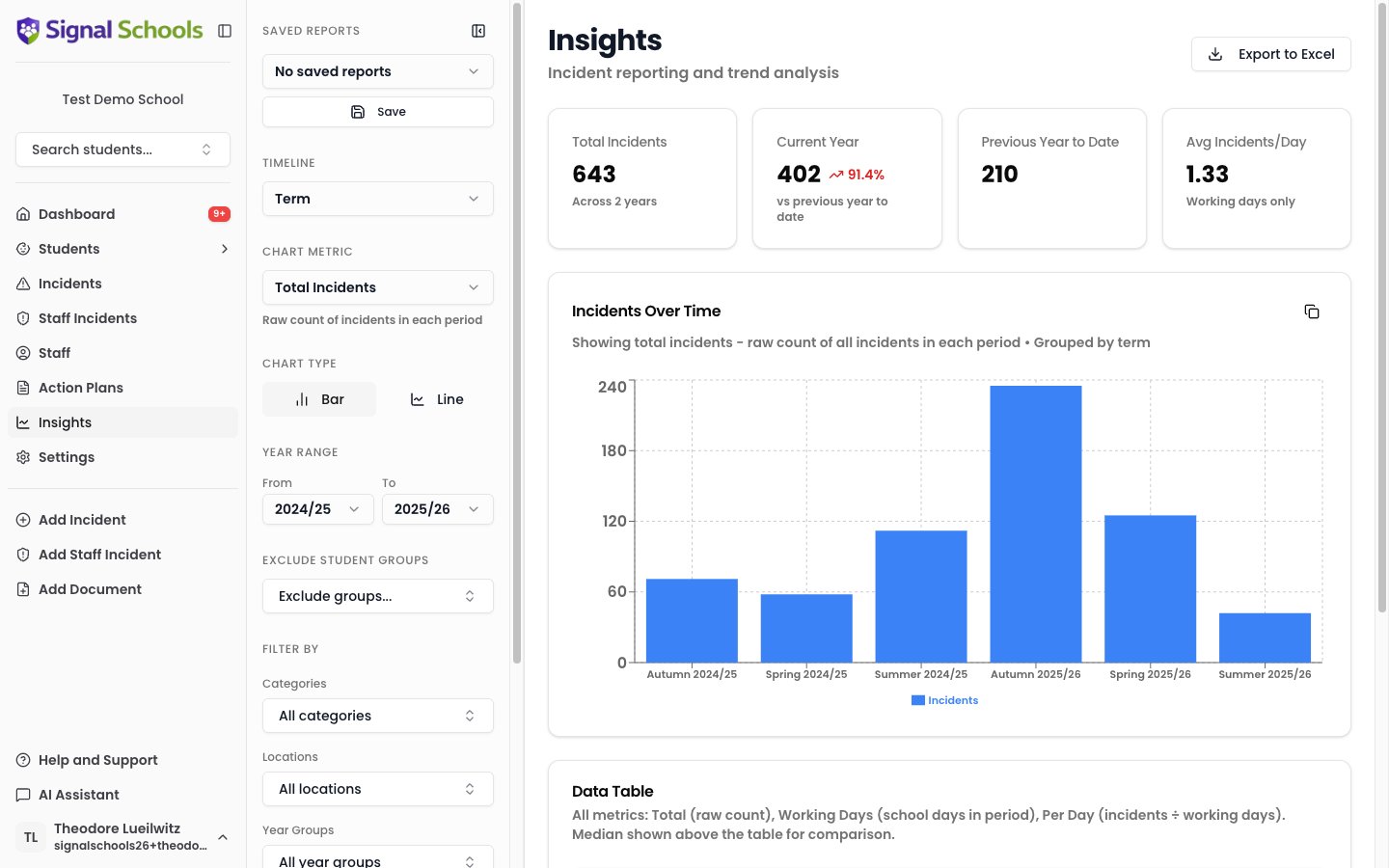
What you can analyse
Insights lets you explore your safeguarding data from multiple angles:- Incident trends over time — see how the volume and types of incidents change week by week, term by term, or year by year.
- By category — understand which types of concern are most common and how they are changing.
- By location — identify whether certain locations (playground, corridors, off-site) see more incidents.
- By year group — compare incident patterns across year groups, and set aside student groups you do not want counted.
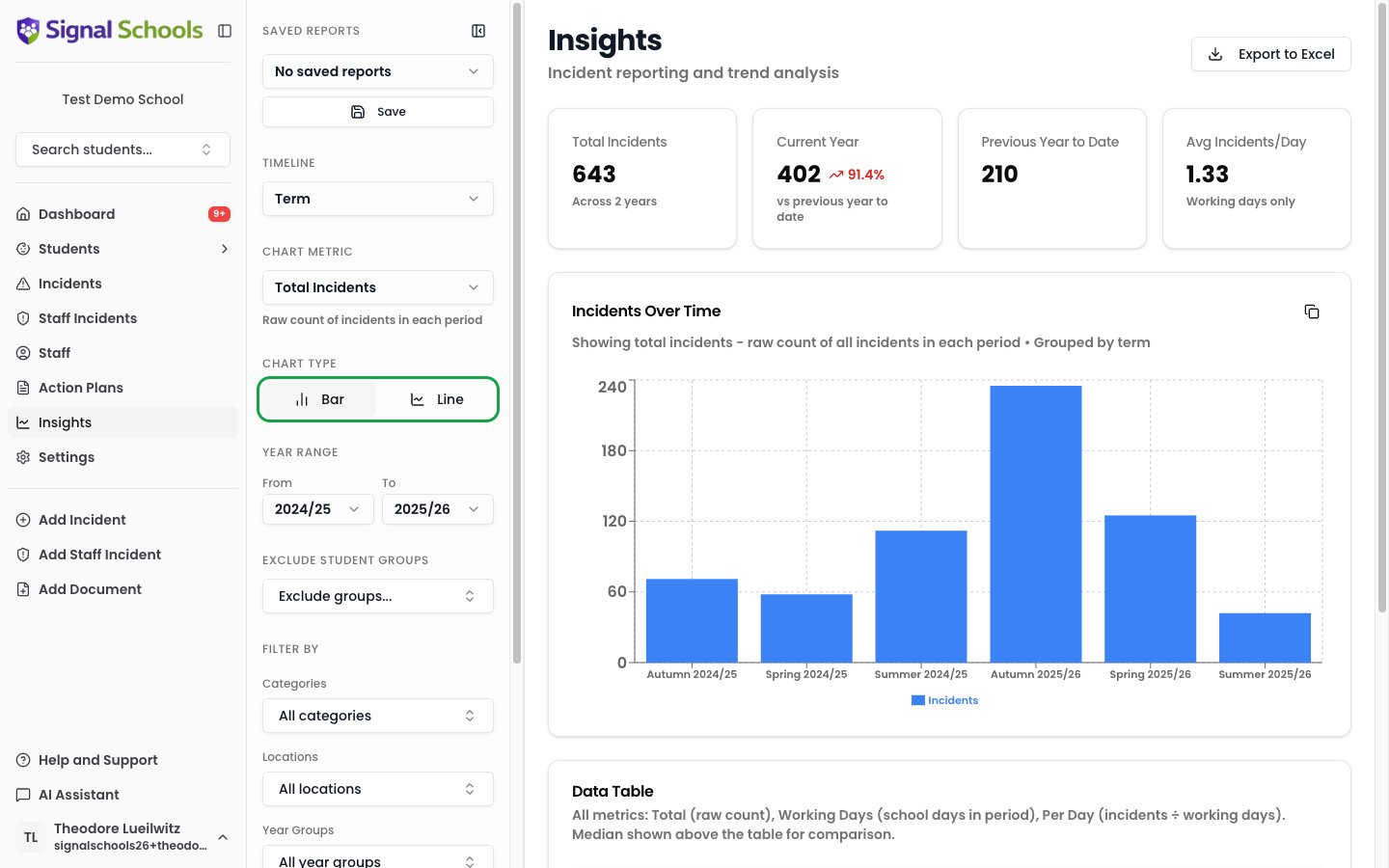
Chart types
Signal offers two chart types, so you can view your data in the way that makes most sense:- Bar charts — compare values side by side, ideal for seeing category breakdowns or comparing time periods. When viewing grouped data, toggle between stacked and grouped layouts to see proportions or direct comparisons.
- Line charts — track trends over time, showing how numbers rise and fall across weeks or terms. Enable stacking on a line chart to display filled area visualisations, useful for seeing volume and proportions over time.
Interacting with charts
Drill-down
Click on any data point in a chart to see the list of incidents behind it. This lets you move from a high-level trend directly to the individual records involved, so you can investigate further or take action.Stacked vs grouped
When your data is broken down by a grouping (such as category or year group), toggle between stacked and grouped views:- Stacked — bars or areas are layered on top of each other, showing the total and each group’s contribution.
- Grouped — bars are placed side by side, making it easier to compare individual groups directly.
Historical analysis
Once you have applied a Year Group or Class filter, a historical analysis toggle appears. It lets you compare data across two different time perspectives:- Cohort — follow the same group of students over time, regardless of which year group they move into.
- Class/Year snapshot — compare the same year group across different time periods, even though the students in that group change each year.
Filtering your data
Use filters to narrow your data down to exactly what you need:- Year Range — choose which academic years to include, using the From and To year pickers.
- Timeline — choose how the data is broken up across that range: Year, Term, Month, or Week.
- Categories — focus on specific types of concern.
- Locations — filter by where incidents occurred.
- Exclude Student Groups — leave out students in one or more groups, such as a group you do not want reflected in the figures. This control only removes groups; there is no way to narrow a report down to a single student group.
- Year groups — focus on particular year groups or compare across the school.
Day-to-day awareness
Insights helps you stay on top of emerging patterns as part of your regular safeguarding practice:- Spot increases in particular types of concern before they become trends.
- Identify students or groups that may need additional support.
- Monitor whether interventions and action plans are having an effect.
Formal reporting
When you need to produce reports for external audiences, Insights gives you the data you need:- Ofsted inspections — demonstrate your school’s safeguarding picture with clear, data-backed visualisations.
- Governor reports — present termly safeguarding summaries with professional charts.
- Local authority returns — pull together the data required for statutory reporting.
Creating Reports
Learn how to export data, save report configurations, and share charts.