
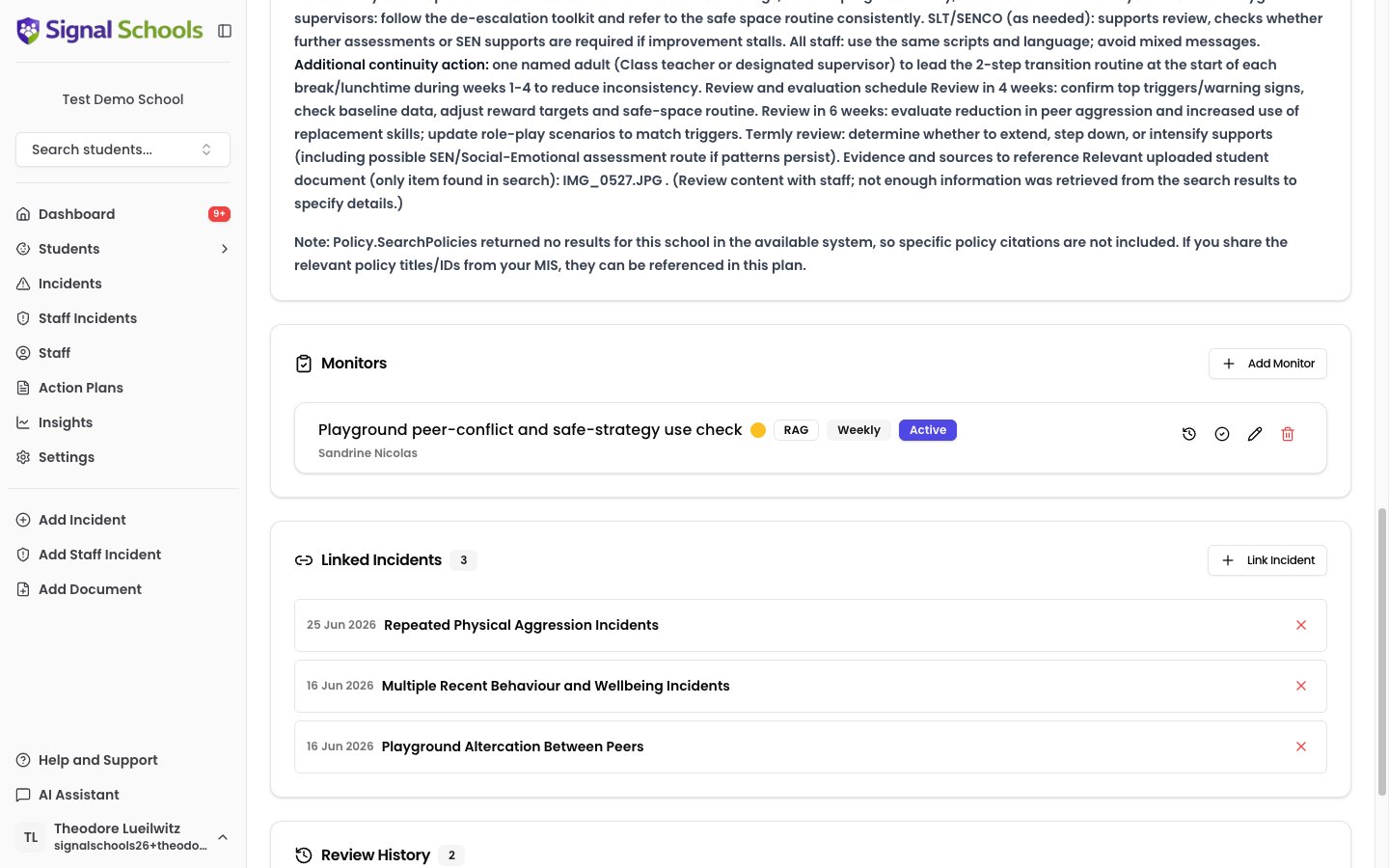
What monitors are
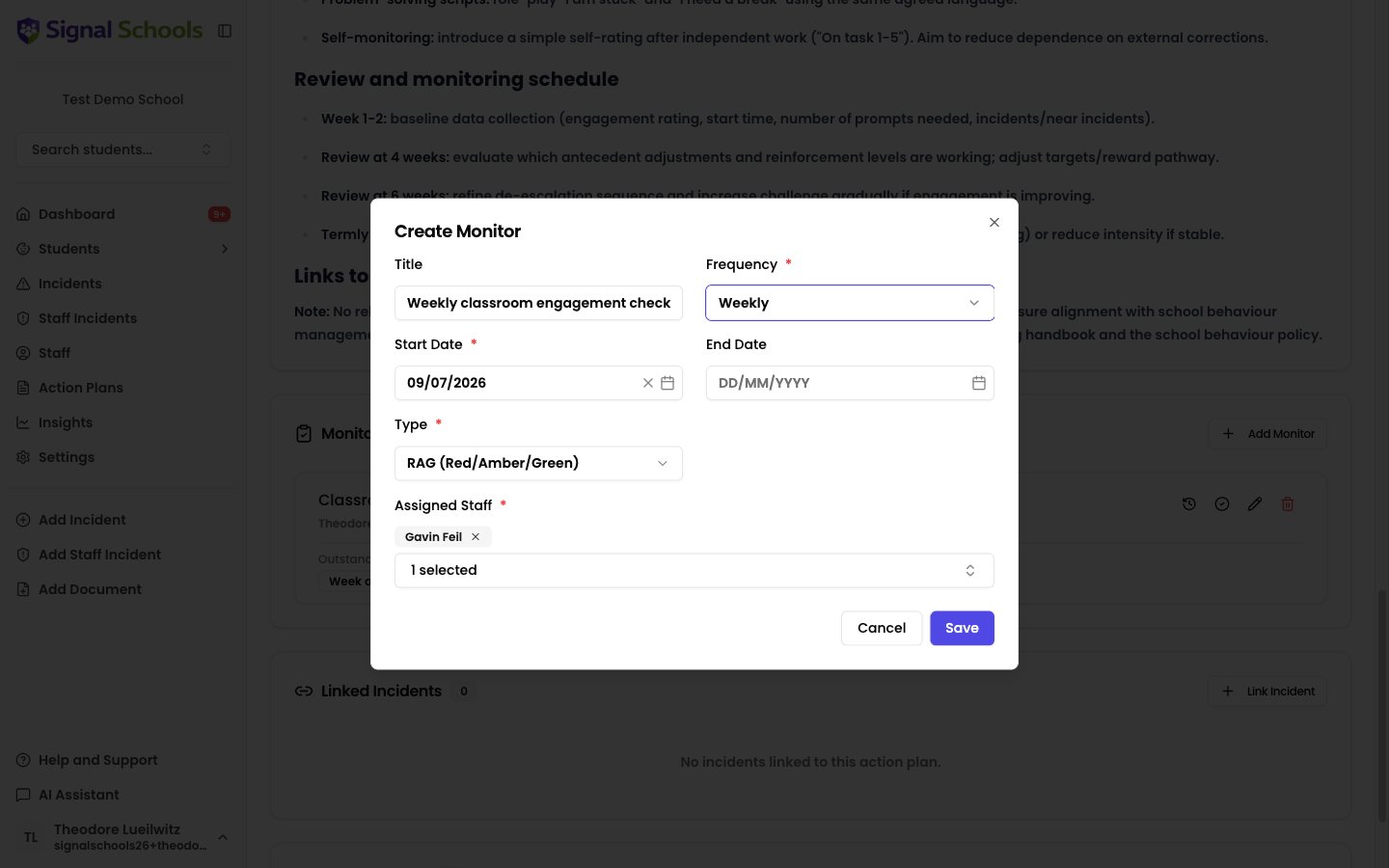
A monitor is a repeating task assigned to one or more staff members. At regular intervals, the assigned staff record a check-in — noting the student’s progress, any concerns, and suggested next steps. This creates a detailed log of how the student is responding to the intervention. Each monitor has:- A title — a short name describing what is being monitored, such as “Morning settling” or “Lesson engagement”. This is required
- Assigned Staff — the people responsible for carrying out the check-ins. You can assign more than one person
- A frequency — how often check-ins should happen: Hourly, Daily, or Weekly
- A start date — the day the monitor begins generating check-ins. This is required
- Start Hour and End Hour — for hourly monitors only, the hours of the school day between which check-ins are generated
- A type — either RAG (Red/Amber/Green rating) or Scale (a numeric rating within configurable bounds)
- An end date — an optional date when the monitor will automatically stop generating check-ins
- A parent action plan — every monitor belongs to an action plan
- Applies to — on a joint plan only, whether the monitor covers all the students or one named child
Setting up a monitor
1
Open the action plan
Navigate to the action plan you want to add a monitor to and open its detail page.
2
Go to the Monitors section
Scroll to the Monitors section of the action plan.
3
Click Add Monitor
Click Add Monitor to create a new check-in schedule.
4
Give the monitor a title
Enter a Title describing what is being monitored — for example, “Morning settling” or “Lesson engagement”. A title is required, and it is what staff see on their dashboard when a check-in is due.
5
Choose who it applies to (joint plans only)
If the plan covers more than one student, an Applies to dropdown appears. Choose All students for a shared check-in, or pick one child to track something that concerns only them.On a single-student plan this dropdown is not shown — there is nothing to choose.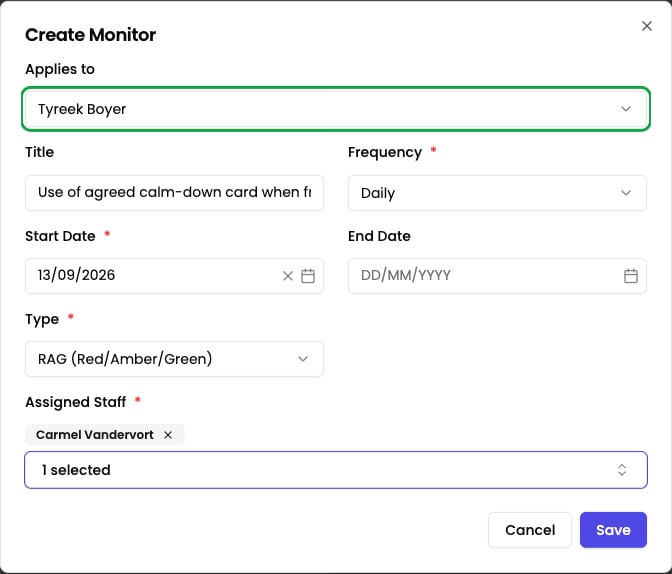
6
Assign the staff
In Assigned Staff, choose the people who will be responsible for carrying out the check-ins. You can select more than one, which is useful when several colleagues share the student’s day or when you need cover during absence. Choose staff who have regular contact with the student.
7
Set the frequency
Choose how often check-ins should happen — Hourly, Daily, or Weekly. The frequency should reflect the level of oversight the student needs — more frequent for higher-concern cases, less frequent for stable situations.
8
Set the start date
Choose the Start Date — the day the monitor begins generating check-ins. This is required.If you chose an Hourly frequency, also set a Start Hour and End Hour. These define the window of the school day in which hourly check-ins are generated, so staff are not asked to check in overnight or outside lesson time.
9
Choose the monitor type
Select the type of check-in:
- RAG — each check-in records a Red, Amber, or Green rating, giving a quick visual indicator of how the student is doing.
- Scale — each check-in records a numeric value within configurable upper and lower bounds that you set when creating the monitor (for example, 1–10).
10
Set an end date (optional)
You can set an end date for the monitor. When the end date is reached, the monitor stops generating check-ins automatically. If you do not set an end date, the monitor continues until you complete it manually or the action plan is completed.
11
Save
Click Save to activate the monitor. Everyone in Assigned Staff will see pending check-ins on their dashboard.
Monitors on a joint plan
A joint plan covers two or more students, and its monitors can work either way:- All students — one shared check-in for the plan as a whole. Use this when what you are tracking is the thing between them: “Are they managing break times without conflict?”
- One named student — a check-in about that child only. Use this when each child has their own target: one is working on walking away, the other on asking for help.
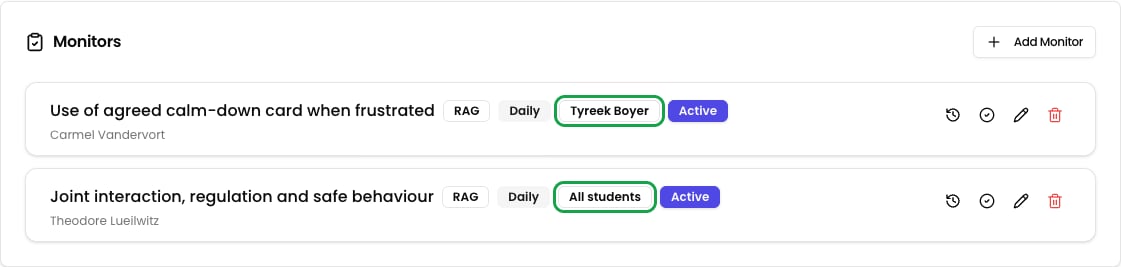
A shared monitor appears on every student’s profile. A monitor targeted at one child appears only on theirs.
Recording a check-in
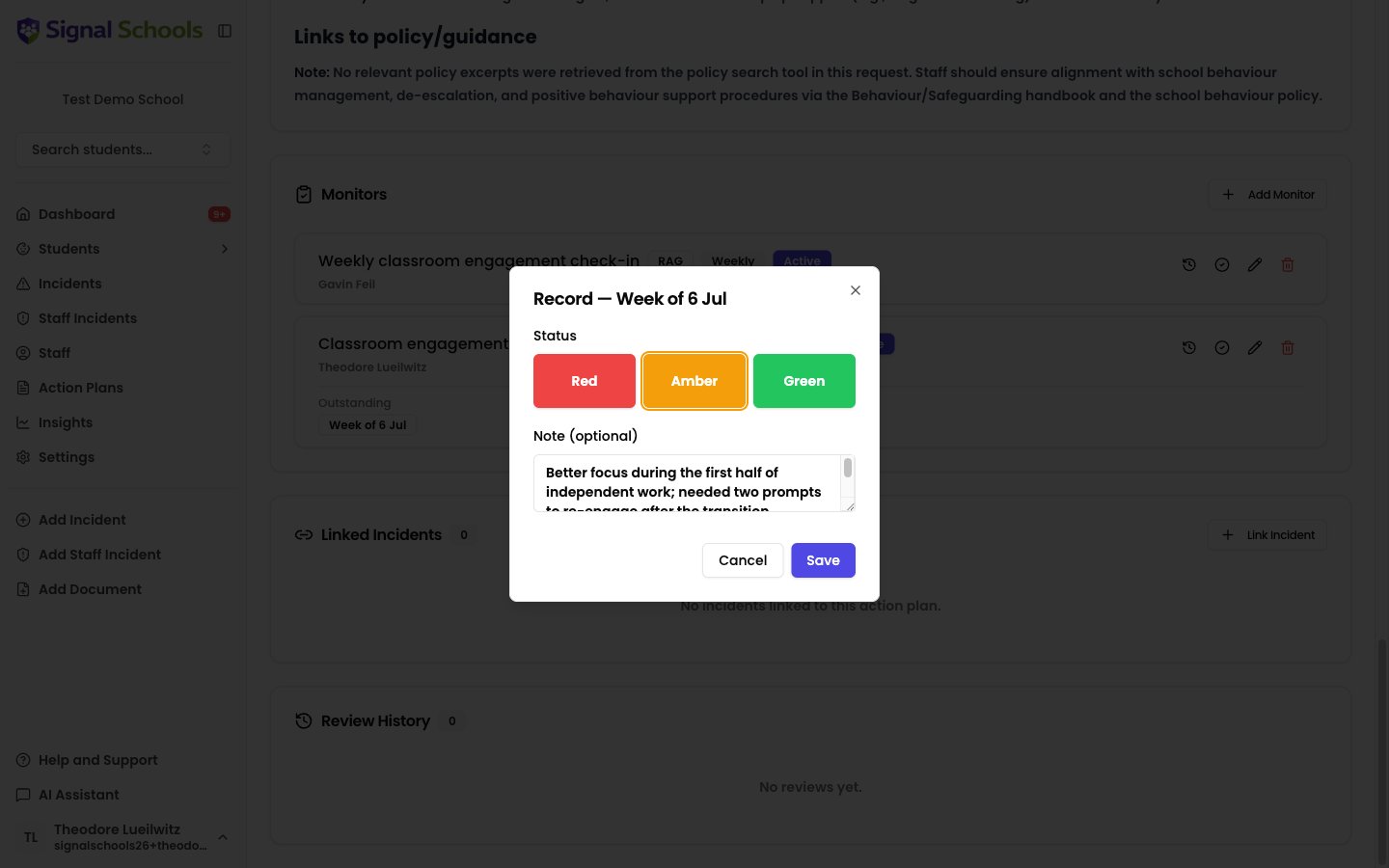
When a check-in is due, any of the assigned staff can record the observation:- RAG monitors — select Red (significant concern), Amber (some concern), or Green (positive progress).
- Scale monitors — enter a numeric value within the bounds you set when creating the monitor (for example, 1–10).
- Note (optional) — add a short note to provide context for the rating, such as what happened or what you observed.
Monitors on your dashboard
When a check-in is due, it appears on your dashboard under Monitors. This section shows all monitors assigned to you that need attention, so you can stay on top of your check-in schedule without having to remember dates manually.