
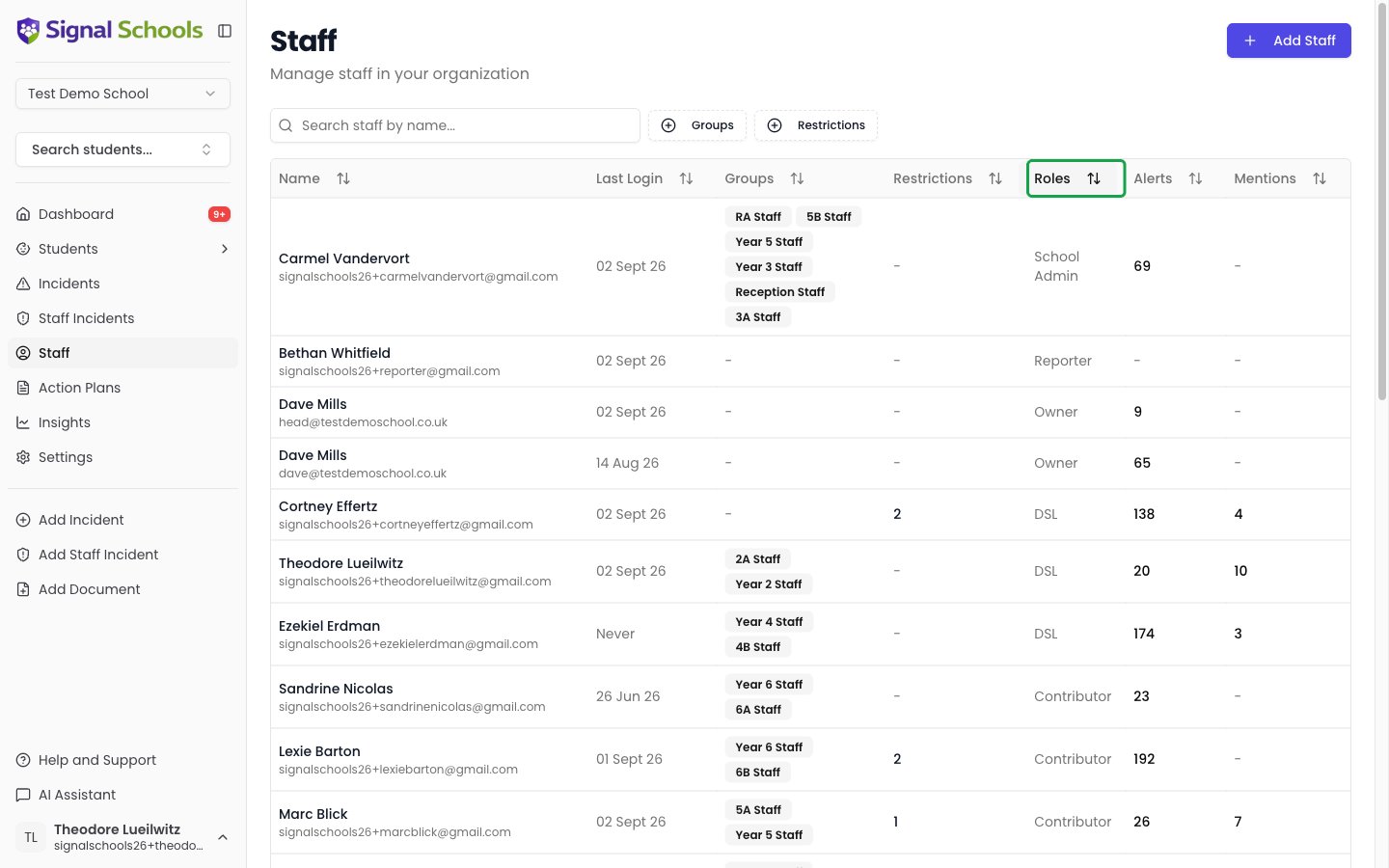
Role overview
How much of the school’s record each role sees
Incident visibility narrows in four steps:- Deputy DSL and above — every incident. Only a student restriction can hold them back.
- Contributor — every incident, unless a restriction or a visibility exclusion applies.
- Reporter — only the incidents they recorded themselves or were @mentioned in.
- Member — can record a concern, but reads nothing back.
Owner, DSL and Deputy DSL are the privileged safeguarding roles, and each includes everything below it. School Admin and Contributor are parallel branches rather than rungs on a ladder: a School Admin manages settings but gets none of a Contributor’s incident access, and a Contributor records incidents but cannot reach settings. Neither contains the other — if someone needs both, give them both roles.
Anyone can record a concern. Recording an incident is deliberately open to every member of staff, whatever their role, so nobody is ever blocked from reporting something. Reading incidents back is the part your role controls.
How roles affect what you see
Your role determines which items appear in the sidebar, which dashboard sections are visible, and what actions you can take.Owner, DSL, and Deputy DSL
Owner, DSL, and Deputy DSL
You see the full sidebar, including staff incidents, all settings pages, and staff management. Your dashboard shows both student and staff mentions, alerts, drafts, upcoming reviews, and pending monitors.
School Admin
School Admin
Your sidebar shows Home, Students (including Archived), and Settings. In Settings you can manage Academic Years, Student Groups, Staff Groups, and Transfers, and you can add and edit students and staff.You cannot open any incident — the Incidents section is not in your sidebar, and incidents you record yourself disappear from your view once saved. Insights and the AI Assistant are also unavailable.
Contributor
Contributor
You can view and record student incidents, add comments and @mentions, record events and reminders, manage action plans, save reports, use the AI Assistant, and see Insights. You can edit and delete the things you created.You cannot reach Settings, set visibility exclusions, delete other people’s records, or see staff incidents.
Reporter
Reporter
Your sidebar shows Dashboard, Incidents, Add Incident and Add Staff Incident. The Incidents list holds only the concerns you recorded or were @mentioned in, so there is no filter panel — the list is already yours alone.You can open those incidents, read them in full, and add comments. Student names appear as plain text rather than links, because student profiles are not available to you.You cannot see Students, Staff, Staff Incidents, Action Plans, Insights, the AI Assistant or Settings.
Member
Member
You can sign in and record a concern, but you cannot read any incident afterwards — including ones you recorded. Your sidebar shows little more than Add Incident.Member is assigned automatically when someone is added without a role. It is a holding state, not a permanent one — give the person a real role when they need to use Signal. If they should keep sight of what they report, Reporter is usually what you want.
What a Reporter can and cannot keep sight of
A Reporter’s view is built from two things: the concerns they recorded themselves, and the ones they were @mentioned in. Two consequences are worth knowing before you assign the role. A Reporter can lose sight of their own report. If you mark their incident DSL only, or exclude them from it directly or through a Staff Group, it disappears from their list. That is intended — a report about a colleague’s own child should not stay visible to the person who filed it. Because of this, a Reporter’s recording journey ends on an explicit Report Submitted confirmation (“Your report has been sent to the safeguarding team”) rather than the brief pop-up other roles see, so they know it saved even if it then vanishes. An @mention lets a Reporter in. Mentioning a Reporter in an incident gives them access to it, overriding any exclusion. Removing their name from the description takes that access away again. A student restriction still overrides a mention — restrictions bind every role.Reporters do not appear in the Alert Users picker when you build a workflow, and they never receive the daily digest. Alerting someone about an incident they cannot open would go nowhere, so Signal leaves them out. They do still get alerts and mention notifications for incidents that are genuinely theirs.
Staff incidents require a privileged role
Anyone can still record a staff incident — the Add Staff Incident button is available to every member of staff, so a concern about a colleague can always be raised. But once saved it is invisible to everyone below Deputy DSL, including the person who reported it. Additionally, Signal enforces self-exclusion on staff incidents. If you are named in a staff incident, you are automatically prevented from viewing it — even if you hold the DSL role.Next steps
Managing Staff Members
Learn how to add, invite, edit, and remove staff.
Staff Groups
Organise staff into groups for alert routing and visibility exclusions.