
Adding, editing, and removing staff requires Deputy DSL or above. School Admins can manage staff too, but have no Staff link in the sidebar — reach the page at /app/staff directly. If you do not see the staff management options, check your role with your school’s Signal administrator.
Adding a new staff member
1
Open staff management
Select Staff from the sidebar. Staff is a top-level item — it is not under Settings.
2
Click Add Staff
Select the Add Staff button at the top of the staff list.
3
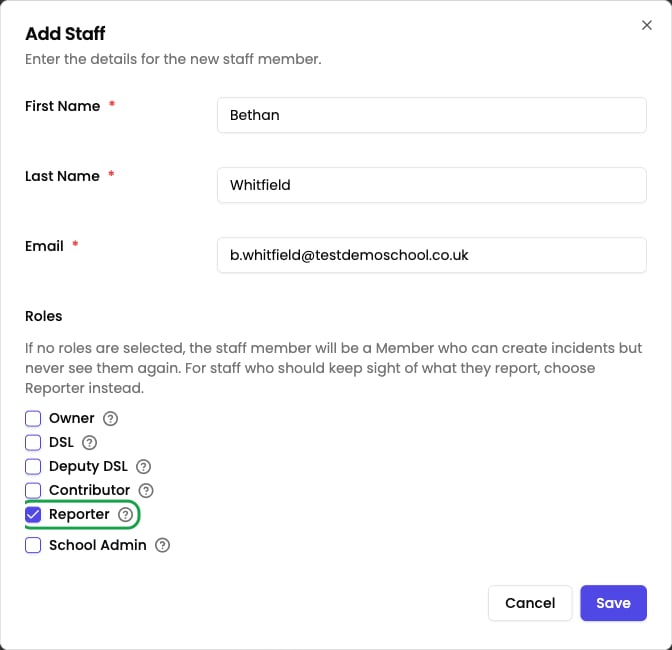
Enter their details
Fill in the staff member’s name and email address, then tick the roles they need. You can tick more than one — a School Admin who also records concerns needs Contributor alongside School Admin.If you leave every role unticked, the person is added as a Member: they can sign in and record a concern, but cannot read any incident. For staff who should keep sight of what they report — lunchtime supervisors, teaching assistants, site staff — tick Reporter instead.
4
Save
Click Save to add the staff member to your school’s account.
Inviting staff via email
After adding a staff member, you can send them an email invitation. The invitation contains a link that lets them set up their account and register a passkey for secure, passwordless login.Viewing the staff list
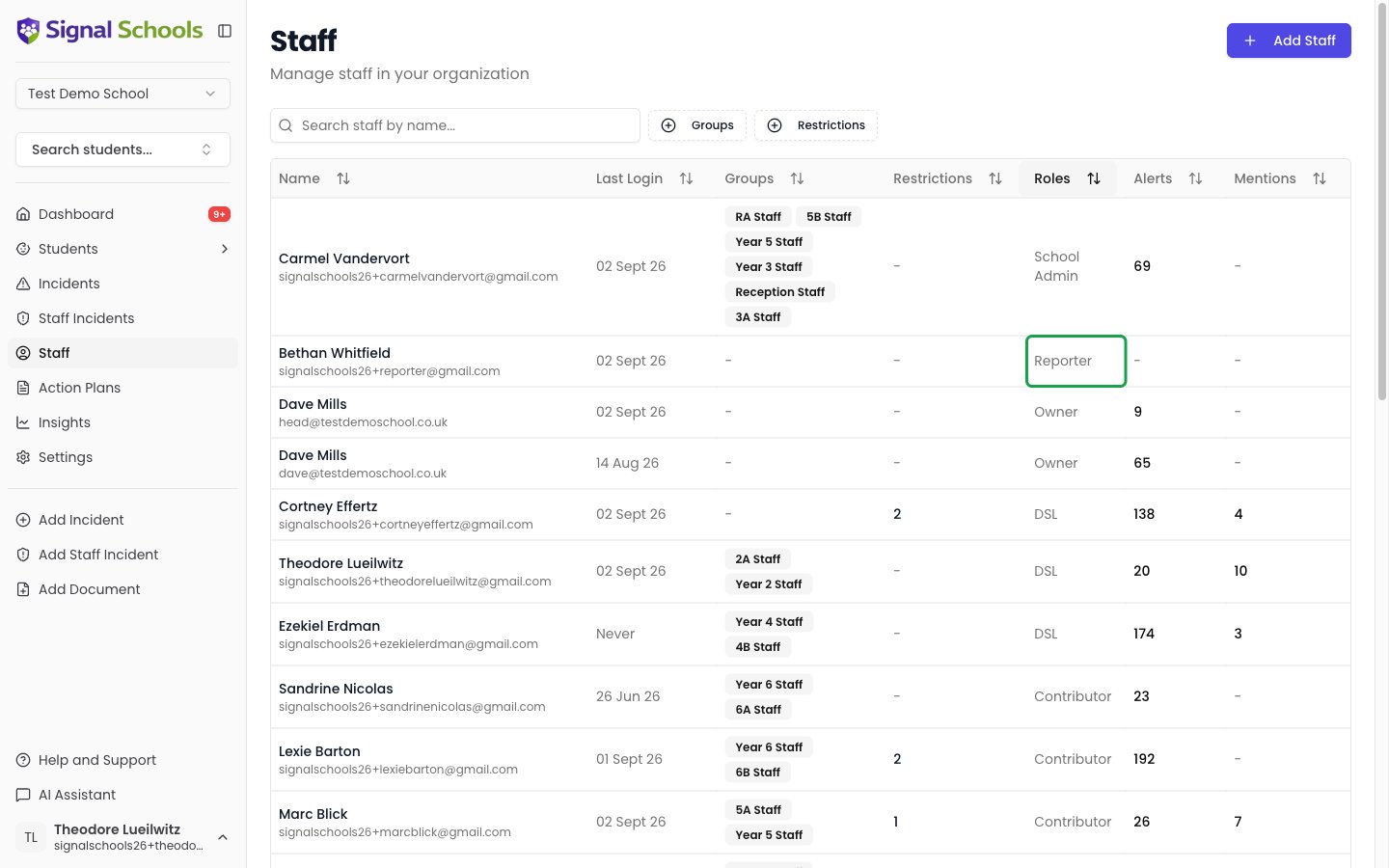
The staff list shows all staff members in your school’s Signal account. You can:- Search by name or email to find a specific person quickly.
- Filter by Staff Group to see members of a particular group (for example, the Safeguarding Team).
Editing staff details
To update a staff member’s information or change their role:1
Find the staff member
Use the search bar or scroll through the staff list to locate the person.
2
Open the edit dialog
Click the Edit button for the staff member. For staff members synced from your MIS, this button is labelled Edit Roles. This opens the “Edit Staff” dialog.
3
Make your changes
Update their name, email, or role as needed.
4
Save
Click Save to apply the changes.
Staff profile page
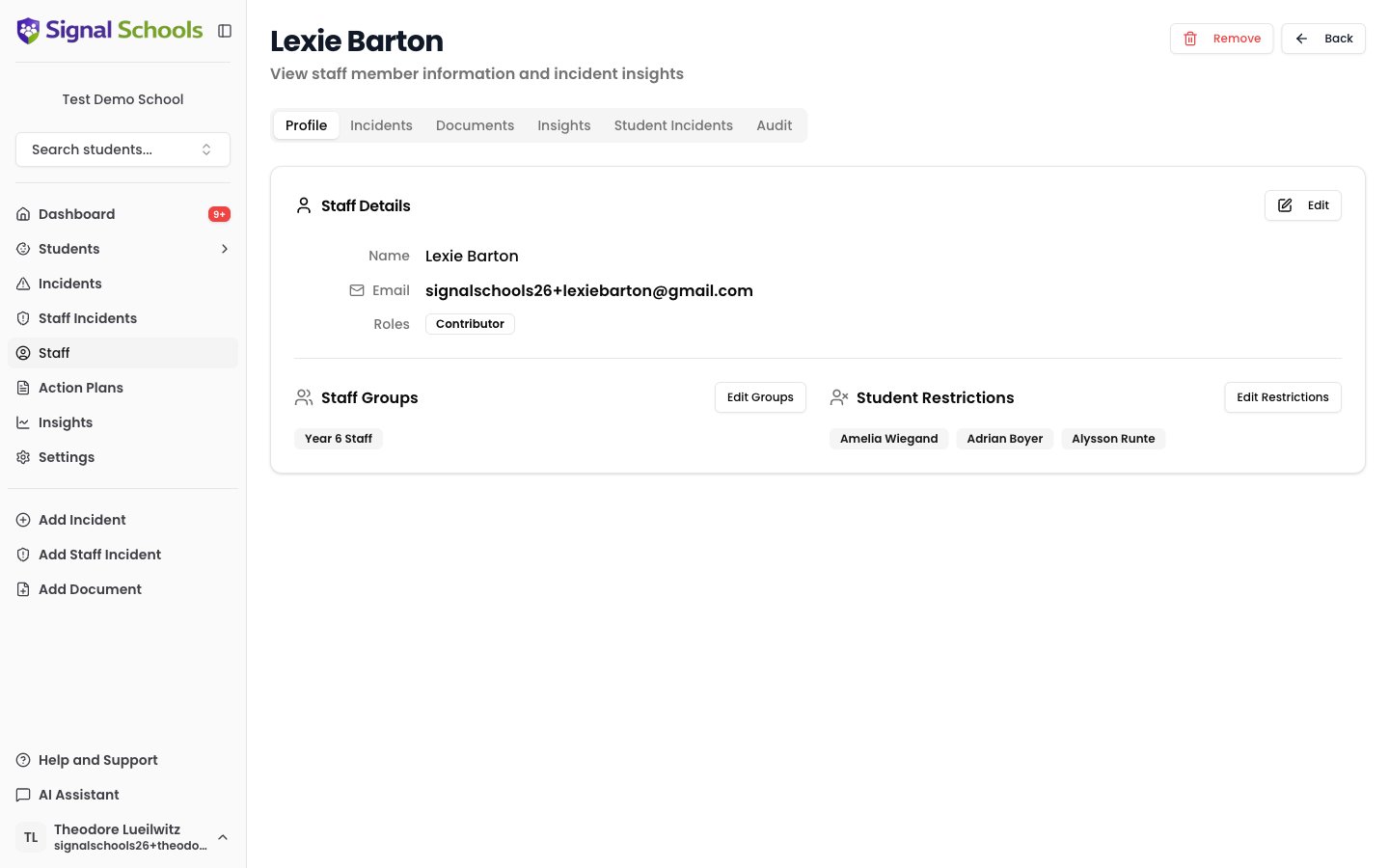
Each staff member has a detail page with the following tabs: Profile, Incidents, Documents, Insights, Student Incidents, and Audit. The Profile tab shows:- Their name, email address, and roles
- The Staff Groups they belong to
- Their Student Restrictions
Removing a staff member
When a staff member leaves your school or no longer needs access, you can remove them. They are removed from your school in Signal and no longer have access to it. Historical activity (such as incidents they created or comments they made) is preserved.1
Open their profile
Navigate to the staff member’s profile page.
2
Remove
Click Remove, then confirm the action in the “Remove Staff from School” dialog.
Removing a staff member does not delete any data. Their name still appears on incidents and comments they contributed to, maintaining your audit trail.
Related pages
Roles & Permissions
Understand what each role can see and do.
Staff Groups
Organise staff into groups for alert routing and visibility exclusions.