
The AI Assistant is available to staff with the Contributor role or above. The assistant only ever answers from the records you can already see: incidents hidden from you are hidden from it too, and a pupil you are restricted from cannot be asked about at all.Audit and Ofsted modes are leadership tools and remain limited to Deputy DSL or above. See The three modes.
Accessing the AI Assistant
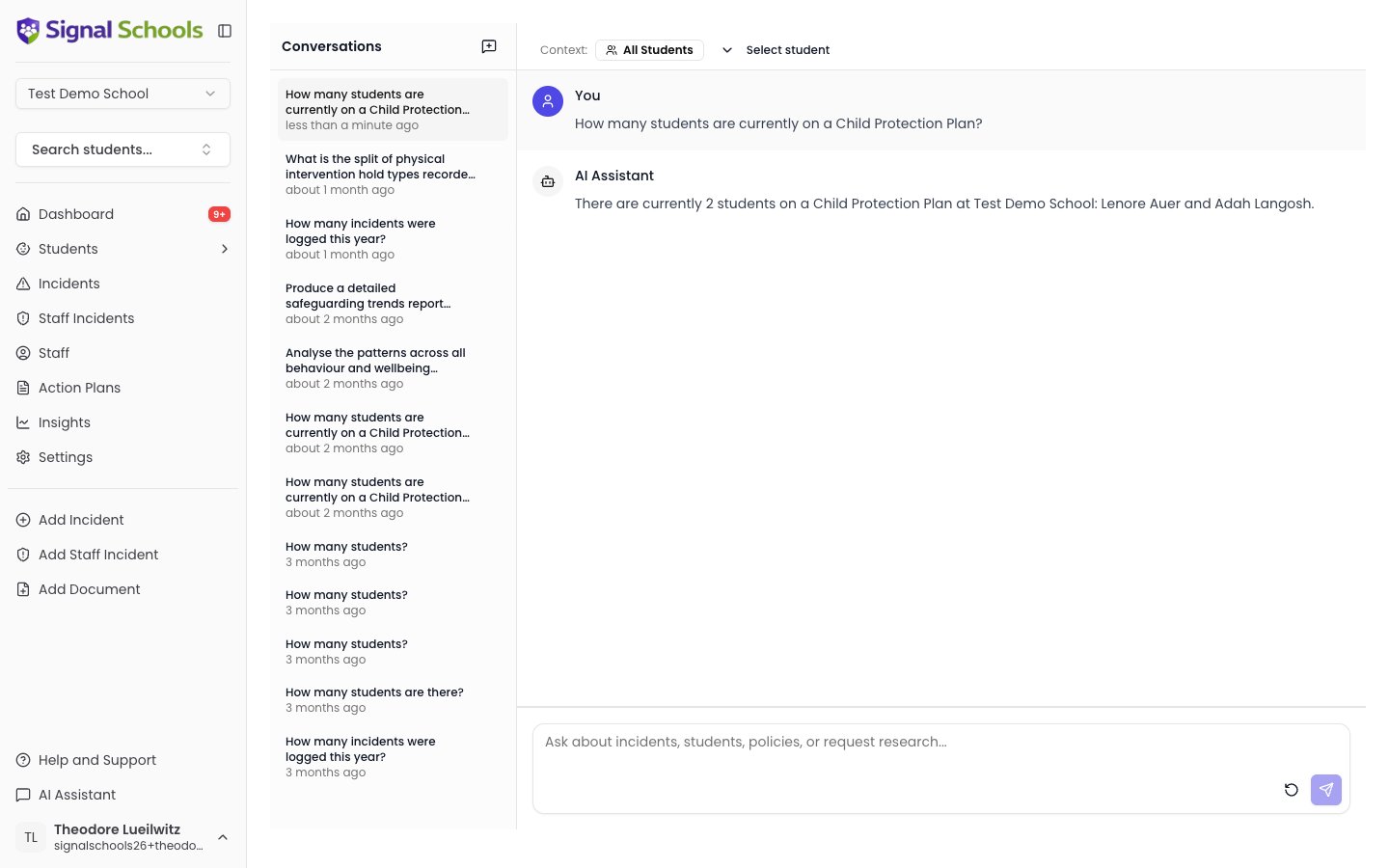
Click the AI Assistant button in the sidebar footer to open the chat. The assistant opens as a dedicated view where you can type your questions and see responses in real time.The three modes
Beneath the message box are three buttons — Chat, Audit, and Ofsted. They all draw on the same safeguarding records, but they are built for different jobs: Chat answers the question you type, while Audit and Ofsted work through a whole list of questions and produce a report you can export.Chat
Ask your own questions in plain English, one at a time. Available to Contributor and above.
Audit
Upload your local authority’s questionnaire and Signal answers it from your records. Deputy DSL and above.
Ofsted
Generate an inspection-readiness report from a question set that ships with Signal. Deputy DSL and above.
Staff with the Contributor role see the assistant in Chat mode only — the mode buttons are not shown to them, because Audit and Ofsted are leadership workflows.
Chat mode
The default. You type a question and get an answer, and you can keep asking follow-ups — this is the mode described in Simple queries and Deep research below. It is also the only mode where you can scope the assistant to one pupil.Audit mode
Local authorities ask schools to complete a safeguarding audit each year — commonly a Section 175 return. Audit mode does the data-gathering part of that for you.1
Upload the questionnaire
Select Audit, then upload the questionnaire your local authority sent you as a PDF. Signal reads it and pulls out the individual questions.
2
Check what Signal can answer
Before you start, Signal tells you how many of the extracted questions it can actually answer. Each question is sorted into one of three kinds:
- Data questions — answered from your incident, pupil, and attendance records.
- Policy questions — answered from the safeguarding policies you have uploaded, so tick-box questions such as “does your policy cover X?” are checked against the real document.
- Everything else — questions about governance, staff training records, or safer recruitment that Signal does not hold. These are greyed out and left for you to answer yourself.
3
Run the audit
Signal works through the answerable questions one at a time. Answers appear in a table as they complete, so you can start reading before the run finishes. An audit always covers the current academic year.
4
Review each answer
Expand any row to see the evidence behind the answer — the figures Signal used and where they came from. Check every answer before you rely on it. You are the one signing the return.
5
Redo anything that looks wrong
If an answer has misread the question, click Redo on that row and add a short note telling Signal what to do differently. It answers that one question again, leaving the rest of the table alone.
6
Export to PDF
Once you are happy with the table, click Export PDF to save the reviewed answers, ready to work into your return.
Ofsted mode
Ofsted mode produces a safeguarding readiness report — the same exercise as an audit, but you do not upload anything. What an inspector looks for is the same at every school, so Signal ships with its own curated question set, drawn from the Ofsted school inspection toolkit. You choose an academic year, press the button, and review the report. The report is organised into the sections an inspection conversation tends to follow:- Safeguarding culture and reporting — how many concerns were recorded, how they break down by category, which staff are recording them, where in the school they happen, and how quickly they are written up after the event.
- Child-on-child abuse — concerns recorded under child-on-child abuse, bullying, and prejudice-related categories, and whether the children involved have a plan or a monitor in place.
- Children who need extra help — how many children on SEN support, with an EHC plan, on pupil premium, with a child protection or child in need status, or looked-after have had a concern recorded, each alongside the number on roll.
- Attendance — whole-school attendance, and attendance for the groups an inspector asks about.
- Suspensions and exclusions — recorded as events on incidents.
- Multi-agency working — referrals and meetings with outside agencies.
- Policies and statutory guidance — checks against the policies you have uploaded.
The report is deliberately narrow. It only covers ground Signal holds real records for. Staff training, the single central record, safer recruitment checks, governance, and LADO outcomes live outside Signal, so no question is asked about them — better a shorter report where every line is evidenced than a longer one padded with guesses. Those areas remain yours to evidence separately.
Simple queries
For straightforward questions, the assistant looks up your school’s data and responds instantly. Example questions:- “How many incidents were logged last term?”
- “Which students have more than 5 incidents this year?”
- “Show me all incidents in the Physical category from January”
- “How many incidents involved social services this academic year?”
Questions like the last one also search inside attached documents. Involvement from an outside agency — a LADO referral, a social care letter, a police notification — is often only recorded as the letter the school received, never typed into the incident itself. The assistant reads those attachments as well as the incident text, and tells you when an answer came from a file so you can open it and check. See Document Analysis.
Deep research
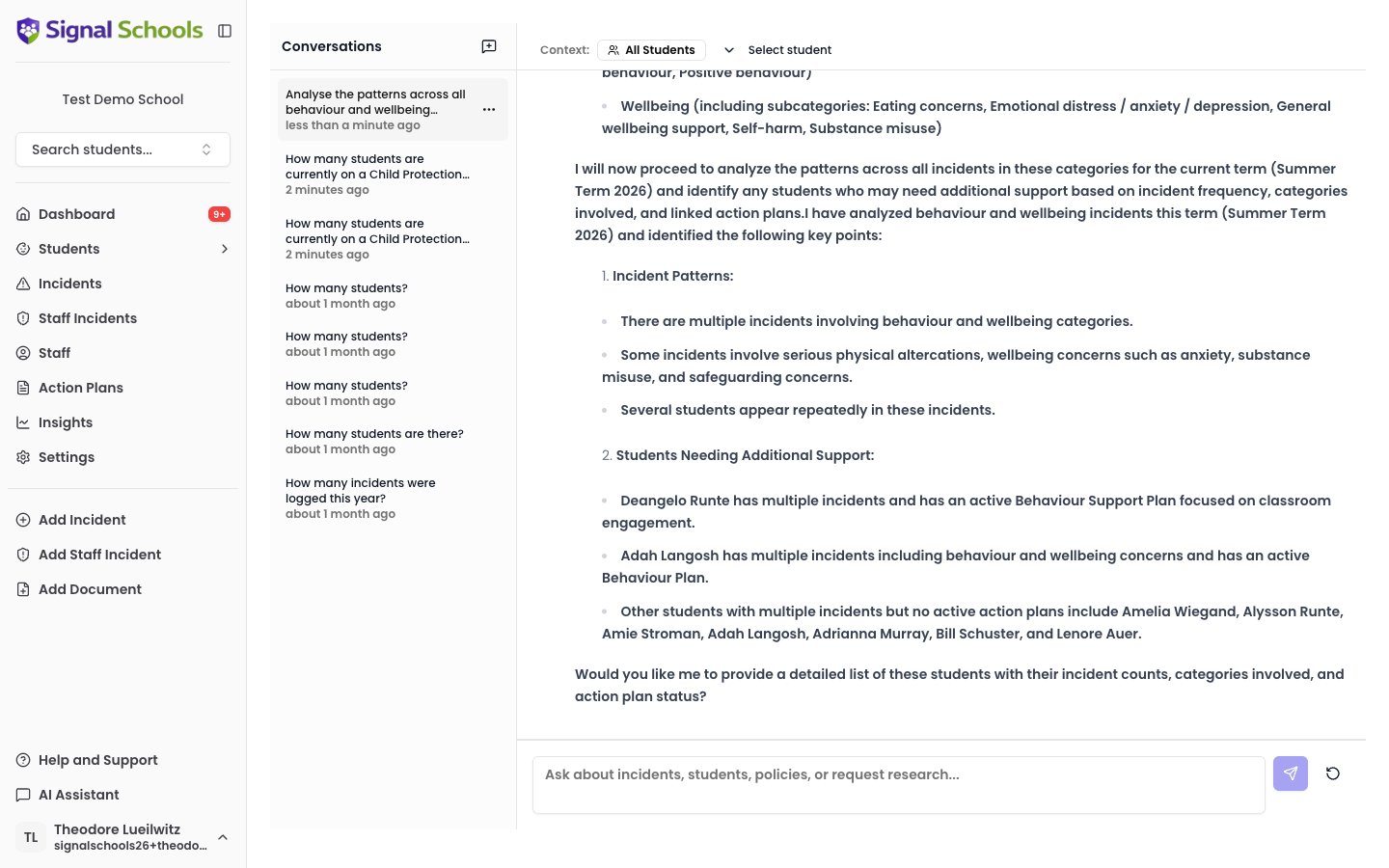
For complex questions that require analysis across multiple data sources, the assistant conducts a multi-step research process. Example questions:- “What patterns do you see across Year 7 incidents this term compared to last term?”
- “Analyse the relationship between attendance and safeguarding incidents for students in the SEN group”
- “Produce a summary of all concerns involving the Jones family over the past two years”
- Gathers data across incidents, attendance records, policies, and action plans.
- Analyses the information, looking for patterns, trends, and connections.
- Produces a detailed report with findings and relevant context.
Student scoping
You can focus the AI Assistant on a specific student to ask questions about that child’s history and situation. When student scoping is active, all your questions are answered in the context of that student’s records. This is ideal for:- Preparing for a meeting about a specific child
- Reviewing a student’s safeguarding timeline
- Understanding the full picture before making a referral
Conversation history
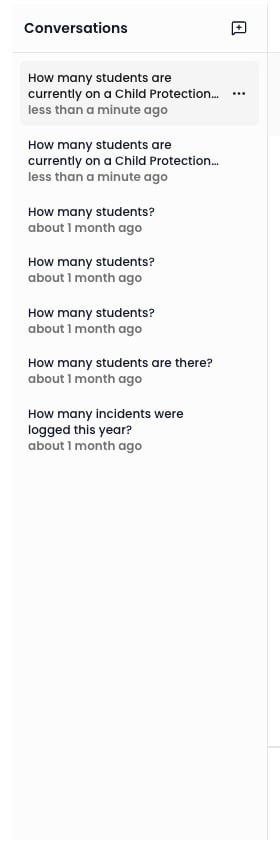
Your conversations with the AI Assistant are saved automatically. You can return to previous conversations to revisit findings, continue a line of enquiry, or reference earlier research.- Starting a new conversation — click the new conversation button to begin a fresh session.
- Continuing an existing one — select a previous conversation from your history to pick up where you left off.
Tips for getting the best results
Be specific in your questions
Be specific in your questions
Instead of “Tell me about incidents,” try “How many Neglect incidents were logged for Year 3 students this term?” The more specific your question, the more precise the answer.
Use student scoping for individual reviews
Use student scoping for individual reviews
When preparing for a meeting or case review about a specific student, turn on student scoping. This focuses every response on that child’s records and gives you a more targeted analysis.
Ask follow-up questions
Ask follow-up questions
The assistant remembers the context of your conversation. You can ask follow-up questions to dig deeper into the data — “Break that down by category” or “Which of those students also have an active action plan?”
Use deep research for complex analysis
Use deep research for complex analysis
If you need a report for governors, Ofsted preparation, or a multi-factor analysis, frame your question to ask for a detailed breakdown. The assistant will gather data from across the platform and produce a comprehensive response.
The AI Assistant can only access data within your school’s account. It cannot see records from other schools or access information outside Signal.