Overview

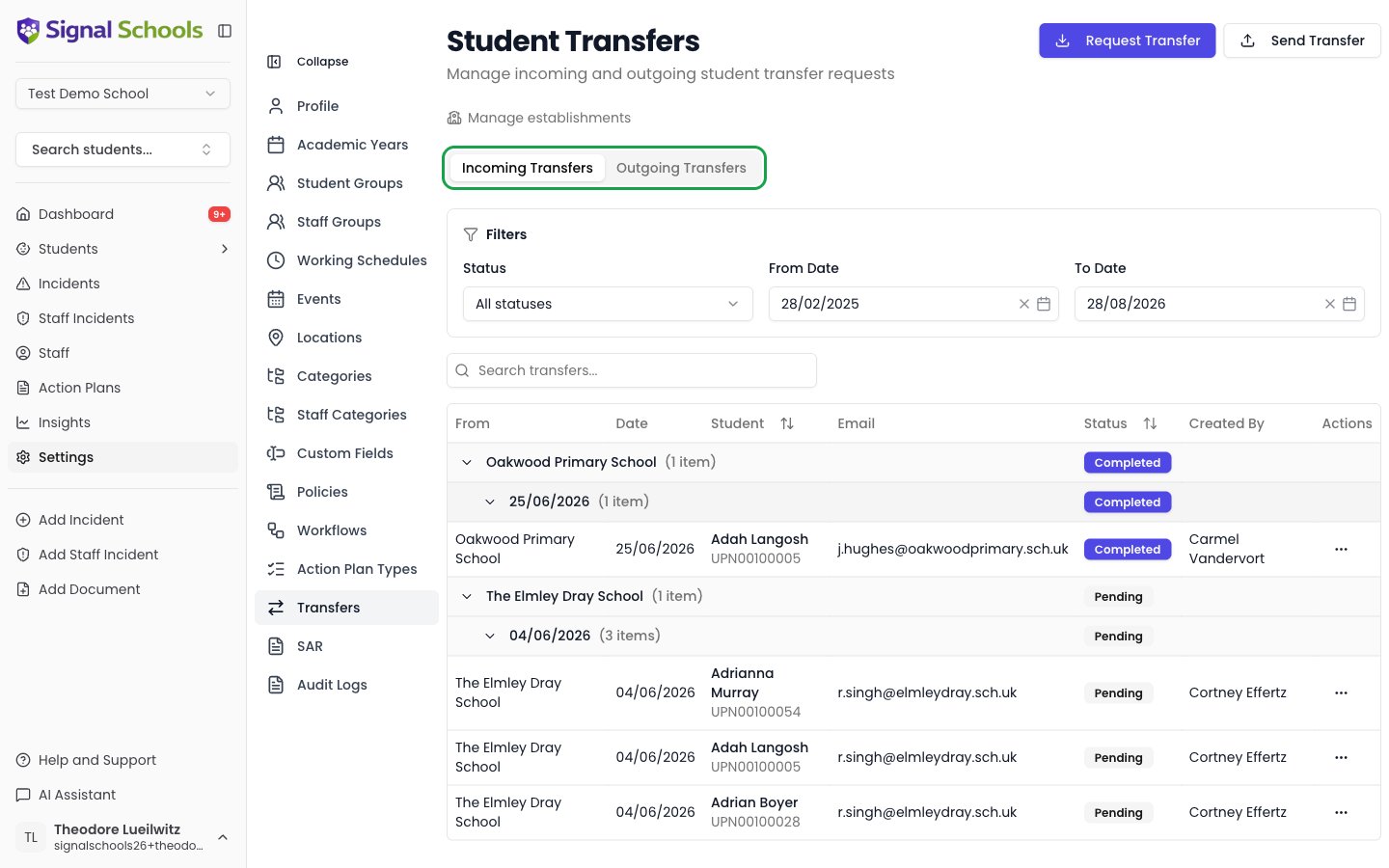
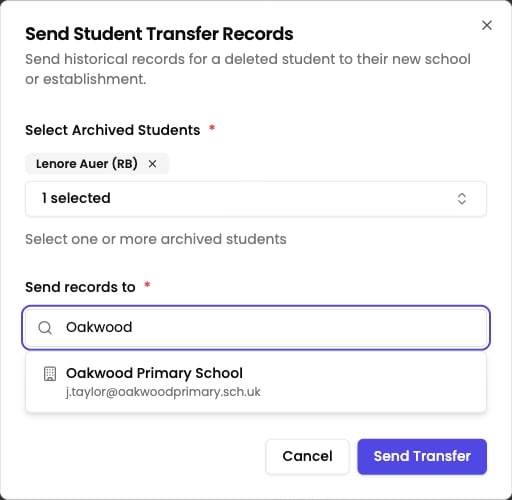
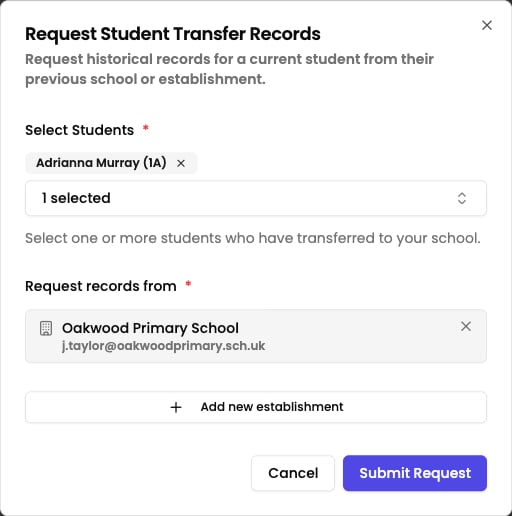
Creating a transfer allows you to securely share a student’s safeguarding history when they move to a new school. Signal ensures that critical information follows the student while maintaining data protection and security.
Only transfer information that is necessary and proportionate for the receiving school to continue appropriate safeguarding support.

Before You Start

  • Confirm with parents/carers and receiving school
  • Check departure date
  • Verify receiving school details
  • Ensure establishment is in your system (Setup Establishments)
  • Verify DSL contact details are current
  • Check if they use Signal or need external access
  • Review student’s full safeguarding history
  • Identify what information is relevant
  • Prepare contextual notes for receiving school
  • Gather any recent updates not yet recorded
  • Verify you have permission to create transfers (DSL or SLT role)
  • If student has complex needs, consult with relevant agencies
  • For child protection cases, liaise with local authority

Creating a Transfer

1

Navigate to Transfers

Go to Transfers in the main navigation, then click + Create Transfer
2

Select Student

Search for and select the student who is leaving
3

Choose Receiving Establishment

Select the school the student is moving to from your establishments list
4

Select What to Transfer

Choose which incidents, actions, alerts, and documents to include
5

Add Context

Provide notes and guidance for the receiving DSL
6

Review and Send

Review the transfer summary, then send to the receiving school

Transfer Details

Student Selection

How to find the student:
  • Type student name in search box
  • Search by student ID or year group
  • Use filters to narrow down results
Student Information displayed:
  • Full name and preferred name
  • Date of birth
  • Year group
  • Current active alerts (if any)
  • Number of incidents on record
Can’t find the student? They may be archived. Check your student filters or use the “Include archived students” option.

Receiving Establishment

Choose a saved establishment:
  • Select from dropdown of your configured establishments
  • Recently used establishments appear at the top
  • Search by establishment name or URN
Information displayed:
  • Establishment name and type
  • DSL contact name and email
  • Whether they use Signal
  • Last transfer date (if applicable)

What to Include

Incidents

Preset filters:
  • All incidents (entire history)
  • Current academic year (recommended default)
  • Last 12 months
  • Active concerns only (incidents with ongoing actions/alerts)
  • Custom date range
For most transfers, “Current academic year” + “Active concerns” is appropriate. Include older history only if relevant to ongoing safeguarding needs.
For each incident, you’ll see:
  • Date and category
  • Severity level
  • Brief description (first 100 characters)
  • Associated actions (open/closed)
  • File attachments
  • Whether it’s linked to other students (family incidents)
Checkboxes allow you to:
  • ☑️ Include specific incidents
  • ☐ Exclude incidents not relevant to new school
  • ⚠️ Flag critical incidents for immediate attention
Include incidents that:
  • ✅ Relate to ongoing safeguarding concerns
  • ✅ Involve agency support still in place
  • ✅ Indicate patterns of behavior
  • ✅ Help receiving school provide appropriate support
  • ✅ Are required for child protection planning
Consider excluding:
  • ❌ One-off minor incidents fully resolved
  • ❌ Very old incidents with no current relevance
  • ❌ Incidents that may stigmatize without adding value
  • ❌ Unsubstantiated allegations
When incident involves siblings:If you select a family incident (linked to siblings), you’ll see:
  • “This incident involves 2 other students”
  • Names of linked students
  • Option to include full context
Options:
  • Transfer incident with full sibling context
  • Transfer with sibling names redacted
  • Include separate incidents for each sibling
Consider data protection - only include sibling information if necessary for safeguarding the transferring student.

Actions

Automatically included:
  • All open actions related to transferred incidents
  • Recently completed actions (last 30 days)
For each action:
  • ☑️ Include action details
  • ☑️ Include completion status
  • ☑️ Include staff assigned (anonymized for external schools)
  • ☑️ Include action outcomes and notes
Why transfer actions?
  • Receiving school can continue support plans
  • Avoid duplicating work already completed
  • Provide context for ongoing interventions
  • Show what approaches have/haven’t worked

Alerts

Alert types that transfer:
Automatically included:
  • Risk assessments
  • Medical alerts
  • Behavioral triggers
  • Attendance concerns
  • Contact restrictions
What transfers:
  • Alert type and severity
  • Trigger conditions
  • Response procedures
  • Start date and review dates
  • Staff to notify
Active alerts are crucial for student safety. All active alerts are included by default - carefully consider before excluding.

Documents and Attachments

Automatically included:
  • Files attached to transferred incidents
  • Current support plans
  • Risk assessments
  • Agency correspondence
  • Signed consent forms
File types supported:
  • PDFs, Word documents
  • Images (JPG, PNG)
  • Spreadsheets
  • Text files
Size limits:
  • Maximum 55MB per file
You can exclude individual files:
1

Review File List

See all files that would be included
2

Deselect Unnecessary Files

Uncheck files not needed by receiving school
3

Flag Sensitive Content

Mark files that require additional security
Consider excluding:
  • Internal staff notes not relevant to student support
  • Duplicate documents
  • Very large files (send separately if needed)
  • Files with information beyond safeguarding scope

Student Context

Automatically included:
  • Student name (legal and preferred)
  • Date of birth
  • Gender
  • Year group
  • UPN (Unique Pupil Number)
  • NHS number (if recorded)
Parent/Carer contacts:
  • Names
  • Relationship to student
  • Contact details (phone, email)
  • Emergency contacts
  • Parental responsibility indicators
Additional information:
  • Languages spoken at home
  • Religious/cultural considerations
  • Medical needs summary
  • SEND status and support
  • Looked After Child (LAC) status
  • Child Protection Plan status
This information helps receiving school provide appropriate pastoral support from day one.

Agency Involvement

Agencies that may be included:
  • Social Services (including social worker details)
  • CAMHS (Child and Adolescent Mental Health)
  • Education Welfare
  • Police (if ongoing safeguarding involvement)
  • Early Help services
  • Youth Offending Team
  • Domestic abuse services
  • Substance misuse services
For each agency:
  • Agency name and type
  • Contact person and details
  • Case reference number
  • Level of involvement
  • Current status (active/closed)
  • Next review date
Ensure agency involvement information is current before transferring. Contact agencies to inform them of the student’s move.

Adding Context for Receiving School

Transfer Notes

Provide concise overview:Recommended structure:
Current Situation:
- Brief summary of current safeguarding status
- Any immediate concerns or risks

Background:
- Key historical context
- Significant incidents or patterns

Support in Place:
- Current interventions
- What's working well
- Challenges faced

Recommendations:
- Suggested actions for receiving school
- Key contacts to maintain
- Upcoming reviews or appointments
Example:
Current Situation:
Student has Child Protection Plan (Category: Neglect)
reviewed monthly by Social Services. Home situation
has stabilized with support from Early Help.

Background:
Concerns raised in Year 3 regarding hygiene and
nutrition. Family engaged well with school support
and external services since.

Support in Place:
- Weekly check-ins with pastoral lead
- Free school meals and breakfast club
- Laundry service access
- Family support worker (Sarah Jones)

Recommendations:
- Continue weekly check-ins
- Maintain breakfast club access
- Contact social worker to transfer case (details below)
- Next CP review: 15th March

Transitions and Continuity

Information to help receiving school:
  • Current support timetable: When student receives support (e.g., weekly counseling session)
  • Key relationships: Staff student has trusted bond with
  • Successful strategies: What’s working well
  • Upcoming events: Scheduled meetings, reviews, appointments
  • Resources: Materials or approaches that help the student
Example:
Transition Support:

Student has built strong relationship with Mrs. Smith
(Pastoral Lead). Suggest designated trusted adult at
new school.

Currently receives:
- 1:1 mentoring (Tuesdays, 11am)
- Small group social skills (Thursdays, lunchtime)
- Access to calm space when needed (green card system)

Works well with:
- Clear visual schedules
- Advance warning of changes
- Positive reinforcement
- Time to process emotions

Student is anxious about move but excited about fresh
start. Would benefit from pre-visit to new school if
possible.

Review and Send

Transfer Summary

Before sending, you’ll see a complete summary:
Review shows:
  • ✅ Student name and details
  • ✅ Receiving establishment and DSL
  • ✅ Number of incidents, actions, alerts
  • ✅ Number of files and total size
  • ✅ Date range of information
  • ✅ Agency contacts included
  • ✅ Your contextual notes
Check carefully:
  • All information is accurate
  • Nothing sensitive excluded by accident
  • Nothing unnecessary included
  • DSL contact details are correct

Sending the Transfer

1

Final Review

Check the transfer summary one last time
2

Click Send Transfer

Click the Send Transfer button
3

Confirmation

You’ll see confirmation that transfer has been sent
4

Notification Sent

Receiving DSL receives email notification with secure link
5

Track Status

Monitor transfer status in Transfers > Outgoing
What happens next:
  1. Immediate: Receiving DSL gets email notification
  2. 24 hours: Reminder sent if not yet viewed
  3. 48 hours: You’re notified if transfer hasn’t been reviewed
  4. 7 days: Final reminder before access expires (external users)

After Sending

Tracking Transfer Status

Transfer statuses:
  • Sent: Transfer created and notification sent
  • Viewed: Receiving DSL has opened the transfer
  • Under Review: Receiving DSL is reviewing the information
  • Accepted: Transfer accepted and records integrated
  • Declined: Transfer declined (with reason)
  • Expired: Access link expired (external users only)

Updating a Transfer

Once sent, you cannot edit the transfer content.However, you can:
  • Add supplementary notes (appear as updates)
  • Upload additional files
  • Extend expiry date (external users)
  • Resend notification
  • Cancel transfer (if not yet accepted)
To add information after sending:
1

Go to Transfer

Find the transfer in Transfers > Outgoing
2

Add Update

Click “Add Update” or “Upload File”
3

Notification

Receiving DSL is notified of the update
Example update:
Update: 15/01/2025

Additional information regarding student's move:

- Social worker has confirmed they will transfer case
- Student has completed transition visit to new school
- Family have confirmed start date of 29/01/2025
- Student excited about fresh start and new opportunities

Please contact if you need any further information.

Common Scenarios

For multiple students moving to same secondary school:
1

Create Transfer List

Identify all Year 6 students moving to specific secondary school
2

Use Bulk Transfer Feature

Transfers > Create Bulk Transfer
3

Select Students

Choose all students transferring to same school
4

Apply Consistent Settings

Set standard date range and scope for all transfers
5

Individual Customization

Customize each transfer’s notes and urgent flags as needed
6

Send All at Once

Send all transfers together during transition period
Timing recommendation:
  • Send during summer term (May/June)
  • Allows receiving school time to prepare
  • Students can have transition visits
  • Support plans can be in place for September
Coordinate with receiving school’s DSL about preferred timing for bulk transfers during transition period.
Student needs immediate move:
  1. Flag as Urgent: Check “Urgent Transfer” box
  2. Minimal Delay: Include essential information only
  3. Phone Contact: Call receiving DSL before sending
  4. Follow Up: Send comprehensive information within 7 days
  5. Agency Notification: Inform all involved agencies immediately
Urgent transfer notes should include:
  • Reason for urgent move
  • Immediate safety concerns
  • Current protection measures
  • Emergency contacts
  • Required immediate actions
For child protection emergencies, follow your local authority protocols and inform social services of the move.
Collaborative move to prevent exclusion:Additional considerations:
  • Include behavior support plan
  • Highlight successful strategies
  • Note what hasn’t worked
  • Clarify support agreement between schools
  • Include review dates and success criteria
Recommended notes structure:
Managed Move Agreement:

Duration: 12 weeks (review on [date])

Reasons for move:
- [Brief explanation]

Support agreed:
- [List support from sending school]
- [List support from receiving school]
- [Role of local authority/other agencies]

Success criteria:
- [What successful integration looks like]

Review process:
- Weekly phone contact between DSLs
- 6-week review meeting
- Final review at 12 weeks

Return protocol (if needed):
- [Process if managed move doesn't work]
Transfer back from AP/PRU to mainstream:Include:
  • Progress made during AP placement
  • Support strategies that worked
  • Any ongoing concerns
  • Reintegration recommendations
  • Support needed for successful return
Coordinate with:
  • AP/PRU staff for handover meeting
  • Parent/carers for transition planning
  • Student for their views on return
  • Any involved agencies

Best Practices

Be Timely

Send transfers as soon as you know student is leaving - don’t wait until last day

Be Proportionate

Include relevant information, but don’t overwhelm with unnecessary historical details

Be Clear

Write contextual notes clearly - imagine you’re the receiving DSL with no prior knowledge

Be Professional

Focus on facts and observations, avoid subjective judgments about family or student

Be Secure

Never send safeguarding information via regular email - always use Signal’s secure transfer

Be Responsive

Respond promptly if receiving school requests additional information

Troubleshooting

Check:
  1. Transfer shows as “Sent” in your outgoing transfers
  2. Email address is correct in establishment settings
  3. Email hasn’t gone to spam/junk folder
  4. DSL’s email account is active
Solution:
  • Resend notification from transfer page
  • Ask DSL to whitelist Signal email addresses
  • Send test email directly to verify delivery
  • As backup, provide direct portal link
Issue: Some incidents not appearing in selection listPossible causes:
  • Incidents are archived
  • Date filter is too restrictive
  • Incidents lack required permissions
  • Incidents involve other students (family incidents)
Solution:
  • Adjust date range filters
  • Check “Include archived incidents”
  • Review incident permissions
  • For family incidents, include as linked records
Common issues:
  • File size exceeds 55MB limit
  • Unsupported file type
  • Filename contains special characters
Solutions:
  • Compress large PDF files
  • Convert images to lower resolution
  • Split very large transfers into multiple sends
  • Rename files to remove special characters
  • Use supported formats: PDF, DOC, DOCX, JPG, PNG, XLS, XLSX, TXT
Receiving DSL has declined the transferCheck:
  • View decline reason provided by receiving DSL
  • Common reasons:
    • Wrong student (similar name confusion)
    • Student not enrolled at their school
    • Requested additional information
    • Technical issue with transfer content
Next steps:
  1. Read decline reason carefully
  2. Contact receiving DSL to clarify
  3. Create new transfer with requested changes
  4. Verify student enrollment at receiving school

Next Steps

Managing Transfers

Track incoming and outgoing transfer status

External Users Guide

Help non-Signal schools send transfers to you