
Two types of incident
Signal supports two types of incident, each designed for different safeguarding scenarios.Student Incidents
Concerns about a child or young person. Visible to all staff with at least the Contributor role, subject to any restrictions or visibility exclusions. This is the most common type of incident.
Staff Incidents
Concerns or allegations involving a staff member. Access is restricted to Owners, DSLs, and Deputy DSLs only, with automatic self-exclusion for named staff. See the Staff Incidents section for full details.
What an incident captures
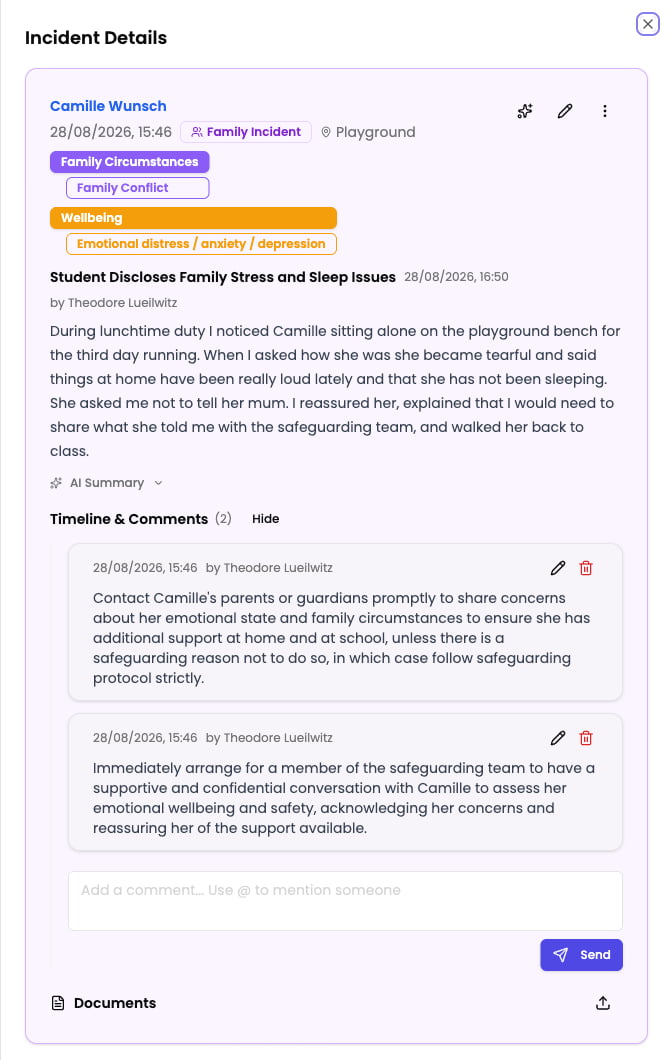
Each incident records the following information:- Description — a detailed account of what happened, in the staff member’s own words. The description supports rich text formatting and @mentions to tag colleagues.
- Date and time — when the concern arose or was observed.
- Categories — the type of concern, such as Physical, Emotional, Neglect, Online Safety, or Behaviour. Categories are configured by your school.
- Location — where the incident happened. Locations are configured in settings.
- Linked students — the main student the concern is about, plus any additional students involved (siblings, witnesses, or other children connected to the event).
- Events — the significant actions and outcomes that follow, such as a suspension, a meeting, or contact with an outside agency. These are added over the life of the case. See Events.
- Documents — file attachments such as photos, letters, reports, or other evidence.
- Custom fields — additional data fields that appear based on the categories, student groups, or student properties. These are configured separately in Settings > Custom Fields.
- Family incident — whether the concern is about the household rather than the child alone. See Family incidents below.
Recording contact with external agencies
Contact with an outside organisation — social services, the police, CAMHS, or an early help team — is recorded against the incident as an Event, using the External Agency Contact event type. This keeps a dated record of who was contacted and what came of it, alongside every other significant step in the case. See Events for how to record one.Documents and evidence
You can attach files to any incident to support the concern. Common attachments include photographs, scanned letters, medical reports, and screenshots. Documents are stored securely and linked to the incident record.Visibility exclusions
Only staff with the Owner, DSL, or Deputy DSL role can set visibility exclusions.
AI analysis on submission
When you submit an incident, Signal’s AI analyses the description and suggests:- Categories — the types of concern that best match what you described
- Location — where the incident likely took place
- Events — the significant actions or milestones the description points to, such as a referral or a call home
- Family incident — whether the record concerns the household rather than one child
Recommendations are separate, and optional
Recommendations — suggested next steps, relevant policies, and areas to follow up — are not produced by the analysis on submission. They are generated only when you ask for them — by clicking Run Analysis on the review step while creating the incident, or Create Short Term Actions on the incident afterwards. You can edit or delete each recommendation before keeping it. Recommendations you keep are saved onto the incident as comments, so they sit in the record alongside everything else the team has added. If you never run the analysis, nothing is generated and the incident saves exactly as you wrote it.Family incidents
Some concerns are about the household rather than the child — domestic abuse, a carer’s illness or imprisonment, housing problems, bereavement, parental separation, or social care involvement with the family. Signal records these as family incidents. The AI sets the Family Incident toggle when it analyses your description, and you confirm or correct it on the review step before saving. You can also change it later by editing the incident. Marking an incident as a family incident has two effects:- It appears on the record of every sibling at your school, so anyone reviewing that child sees the full picture of what is happening at home. Siblings are worked out automatically from shared parent contacts.
- Alerts for those siblings also fire, so the concern reaches the staff around them — not only the staff around the child you recorded it against. Student restrictions still apply, so a staff member restricted from a sibling is not alerted about them.
Incident lifecycle
An incident follows a straightforward path from creation to ongoing management:- A staff member records the concern — either by creating an incident directly or by sending an email to the school’s Signal address.
- Signal’s AI analyses the description and suggests categories, location, events, and whether it is a family incident.
- The staff member reviews the suggestions, selects categories, and saves the incident. They can optionally click Run Analysis first to generate recommendations, or do so later with Create Short Term Actions.
- Workflows are checked automatically. If the incident matches any workflows, alerts are sent to the relevant staff.
- The incident appears on the student’s timeline and in the incident list.
- Staff can add comments, @mention colleagues, and attach further documents as the situation develops.
- The incident forms part of the student’s ongoing safeguarding record, feeding into insights, action plans, and the AI Assistant.
Learn more
Recording an Incident
Step-by-step guide to creating a new student incident.
Reporting via Email
How staff can flag concerns by email without logging in.
Collaboration & Communication
Comments, @mentions, and coordinating safeguarding responses.
Managing Incidents
Search, filter, edit, and manage your incident records.
Setting Up Categories
Configure the concern types your school uses to classify incidents.
Setting Up Locations
Define the places where incidents can occur.