
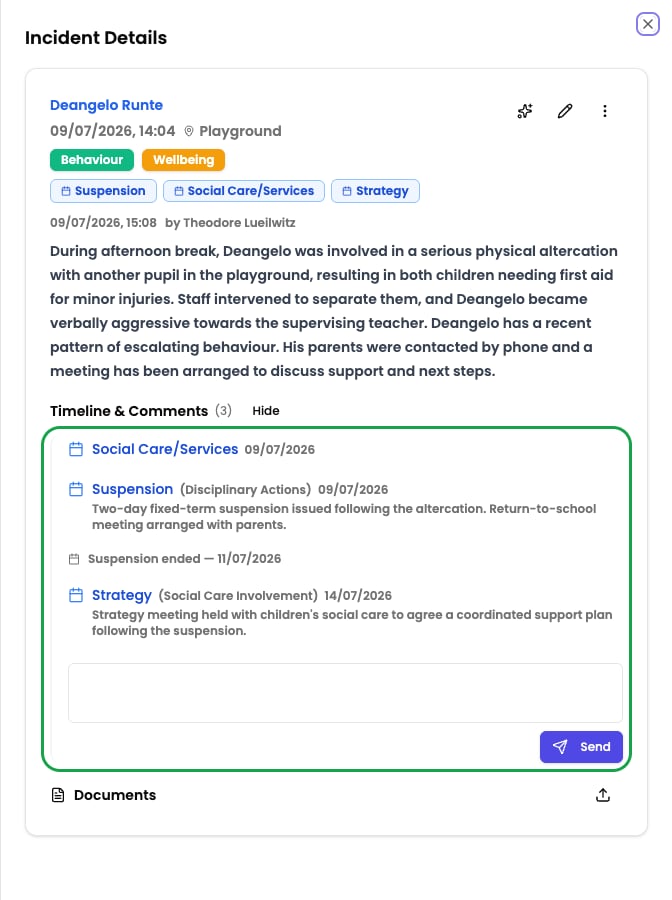
Events vs categories
Events and categories are easy to confuse, but they answer different questions — and they work together.- Categories describe the incident itself — what kind of concern this is, such as Physical, Neglect, or Online Safety. You apply them once, when the incident is recorded.
- Events describe the consequences and outcomes — what was done, and what happened next as a result. A suspension, a strategy meeting, a police referral. You add them over the life of a case, as things unfold.
Why use events
Recording outcomes as structured events — instead of leaving them in comments — gives you four things categories and free text cannot:- Time-specific history — every event has its own start date (and an optional end date for anything spanning a period, such as a fixed-term exclusion), so you can see exactly when each meeting, action, or agency contact happened. Events appear as dated markers on the incident timeline, in order.
- The full picture for a child — events are linked to the children they cover, not just one incident. When you open any incident for a child, you also see events recorded on their other incidents, so you can make decisions with everything that has happened in front of you.
- Filterable analysis — because events are structured and dated, you can filter and count incidents by event type in Insights — for example, how many suspensions were recorded this term, or how often a particular agency has been involved.
- Richer AI context — events tell the AI what was done about a concern, not just what the concern was. That lets it reason about your response — for example, what happened after a suspension, or whether a referral was followed up.
Event counts are the same figure for everyone. A suspension or a referral is a fact the school acts and reports on, so rolled-up counts include events recorded on incidents you cannot open — otherwise the same question would return a different answer depending on who asked it. Where that happens the incident title and the event notes are withheld, so the account of what happened stays confidential.A student restriction is different: it hides the child entirely, so their events are excluded from your counts altogether.
How events are organised
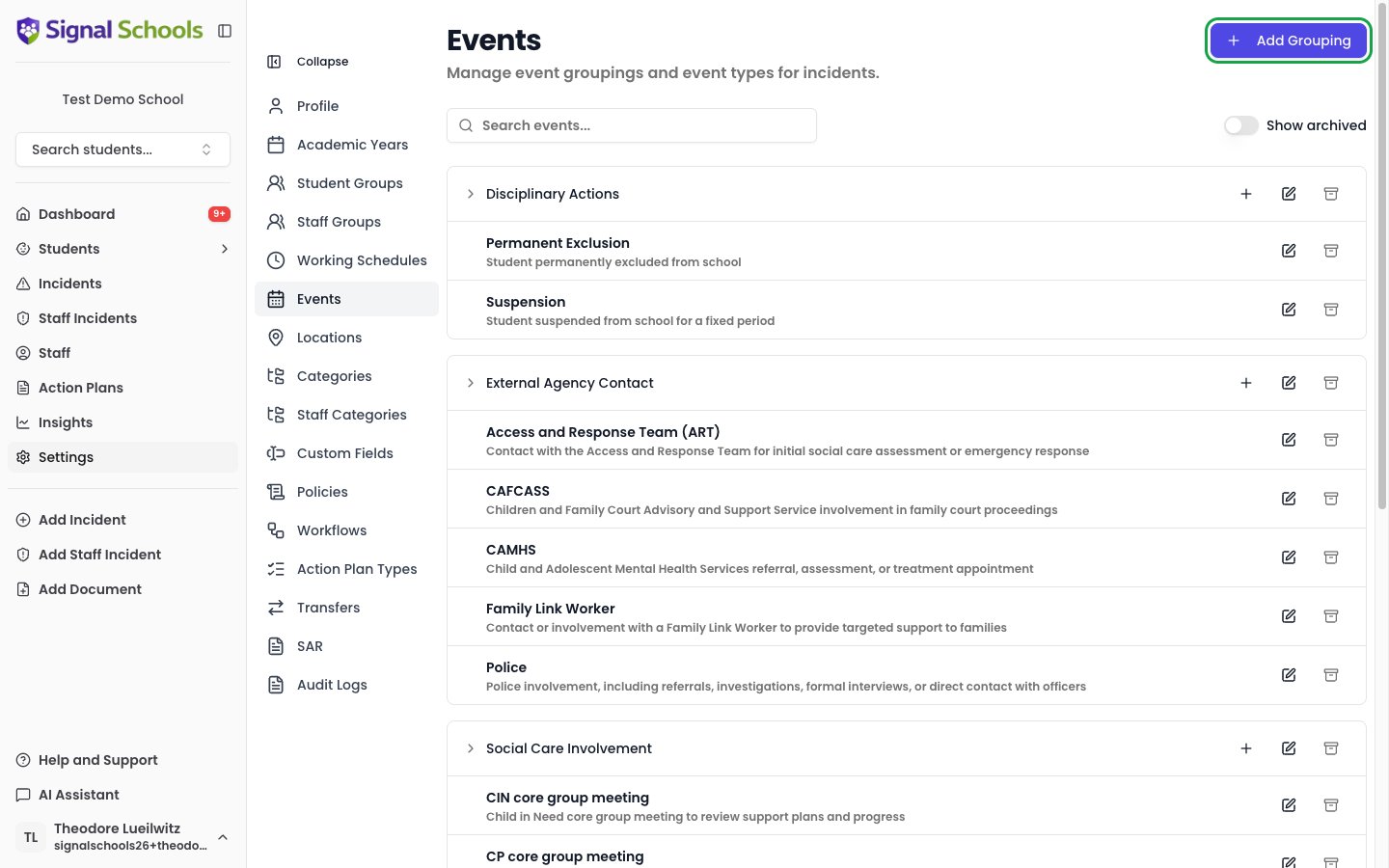
Events are built from two configurable building blocks:- Event groupings — broad categories such as Social Care Involvement, Disciplinary Actions, or External Agency Contact.
- Event types — the specific event within a grouping, such as CP core group meeting, Suspension, or Police.
One event, several children
Some things happen once and cover several children: a single referral to social care naming two siblings is one referral, and one multi-agency meeting about a family is one meeting. Other things happen once per child: each suspended pupil serves their own suspension, with their own dates. Each event type carries a Can cover several children setting that says which kind it is:- On (the default) — one event record can name several children. Use this for referrals, meetings, and agency contact.
- Off — each child gets their own record. When you select several children, Signal creates a separate event for each, so each can carry its own dates.
This is what keeps your reporting honest. “How many suspensions were recorded?” counts events, so a suspension covering two children counts twice. “How many children were suspended?” counts children. Both are correct, and they legitimately differ when one event covers siblings.
Where events appear
On the incident timeline
Events show as start and end markers, interleaved chronologically with comments on the incident.
On the student's other incidents
Events recorded on one incident surface on the student’s other incidents, giving cross-incident context.
In Insights
Filter and count incidents by event type to analyse trends across your school.
In workflows
Adding an event can trigger a workflow — for example, alerting the DSL when an exclusion is recorded.
Learn more
Recording events
Add, edit, and remove events on an incident or while recording one.
Setting up event types
Configure the event groupings and types available to your school.