
Authentication methods
Passkeys (primary)
Passkeys are the recommended way to log in. They use a technology called WebAuthn to verify your identity through your device’s built-in security — such as a fingerprint sensor, facial recognition, or device PIN. When you log in with a passkey, your device proves who you are without sending a password over the internet. This makes passkeys both more convenient and more secure than traditional passwords.Email OTP (fallback)
If you do not have a passkey — for example, on a shared computer, a device without biometric support, or simply because you have not set one up — Signal sends a six-digit code to your registered email address instead. The code is valid for a short time and can only be used once. If you have a passkey but cannot use it at that moment, click Sign in with email code instead on the login screen.First-time login
1
Open Signal
Navigate to your school’s Signal URL in your web browser.
2
Enter your email address
Type the email address your school administrator registered you with and click Continue.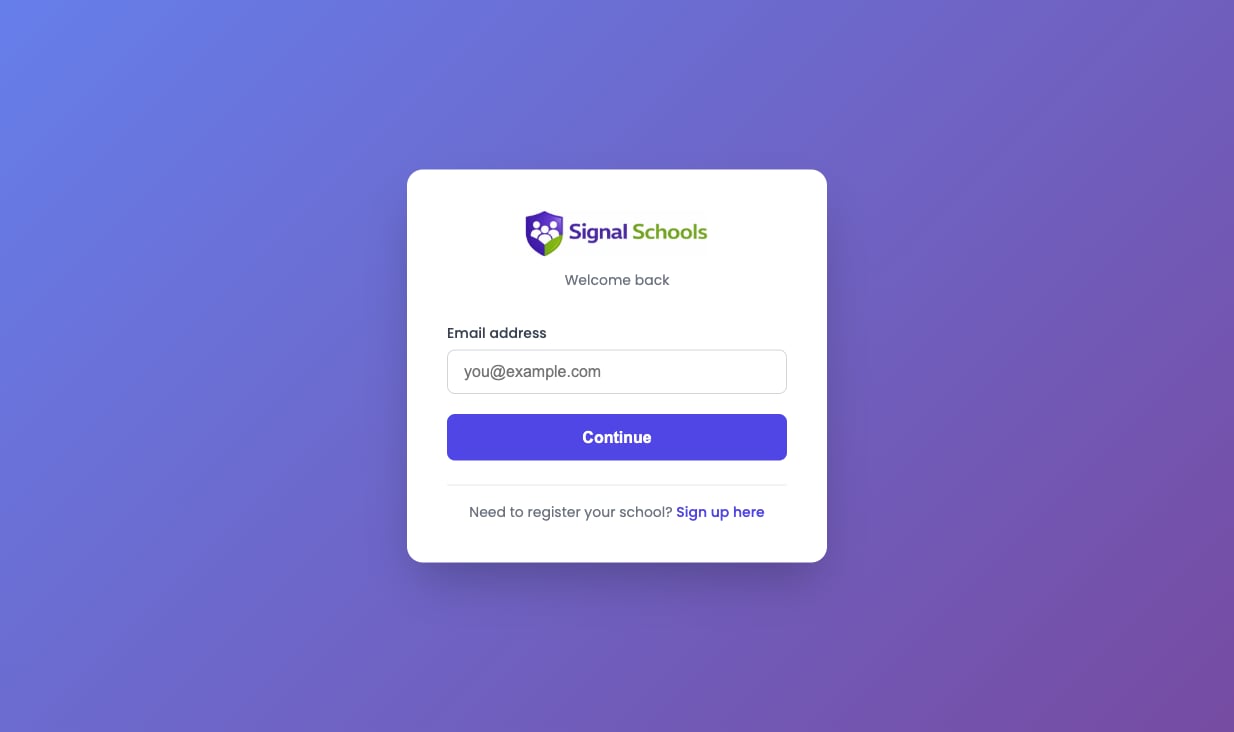
3
Enter the code emailed to you
Signal checks whether you already have a passkey. The first time you log in you will not, so Signal emails you a 6-digit code. Enter that code to sign in.
4
Choose whether to create a passkey
Once your code is accepted, Signal offers to create a passkey on this device. Follow your browser’s instructions to register your fingerprint, face, or device PIN — or click Maybe later to skip it.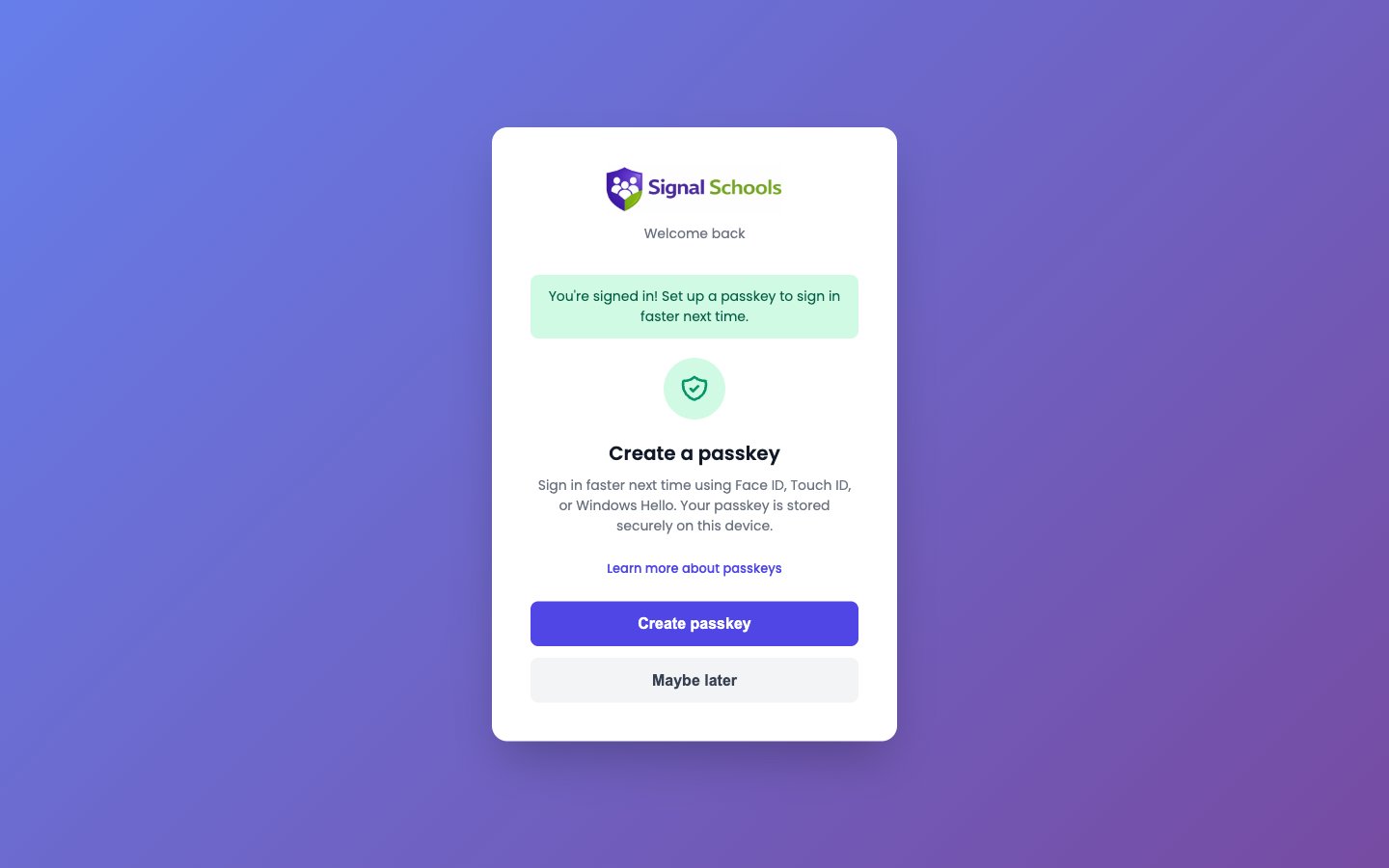
5
You're in
You are logged in and taken to your dashboard. If you created a passkey, future logins on this device only require a quick biometric scan or PIN entry.
Creating a passkey is optional. You can skip it with Maybe later and carry on signing in with an emailed code each time, then set up a passkey whenever it suits you.
Logging in with a passkey
1
Open Signal
Navigate to your school’s Signal URL.
2
Enter your email address
Type your registered email and click Continue.
3
Authenticate with your device
Your browser will prompt you to verify your identity using your registered passkey — typically a fingerprint, face scan, or device PIN. Confirm to log in.
Logging in with an email code
1
Open Signal
Navigate to your school’s Signal URL.
2
Enter your email address
Type your registered email and click Continue.
3
Enter the code
If you do not have a passkey, Signal emails you a six-digit code automatically. Check your inbox and enter the code on the login screen to complete your login.If you do have a passkey but cannot use it right now, click Sign in with email code instead to have a code sent to you.
Managing passkeys
You can register passkeys on multiple devices so you can log in from your laptop, tablet, and phone.Adding a new device
1
Log in on your new device
Open Signal on the device you want to add, enter your email address, and sign in using the six-digit code Signal emails you.
2
Register a passkey
After your code is accepted, Signal offers to set up a passkey on this device. Follow the browser’s instructions to register it, or click Maybe later if you would rather not.
3
Done
If you registered a passkey, your new device is set up and you can log in with a quick biometric scan or PIN in future.
Setting up your device for passkeys
Passkeys rely on your device’s built-in security. If your computer’s biometrics or PIN are not yet set up, Signal cannot create a passkey — so it is worth checking this before you start.Windows
Passkeys on Windows require Windows Hello to be enabled. Open Settings > Accounts > Sign-in options, then set up one of:- Facial recognition (Windows Hello Face) — requires a compatible camera.
- Fingerprint recognition (Windows Hello Fingerprint) — requires a fingerprint reader.
- PIN (Windows Hello PIN) — available on all Windows devices, so this is the fallback if your device has no camera or fingerprint reader.
Microsoft’s step-by-step guide: Learn about Windows Hello and set it up.
macOS
Passkeys on a Mac use Touch ID where available, or your system password. To set up Touch ID, open System Settings > Touch ID & Password, click Add Fingerprint, and follow the on-screen instructions. If your Mac has no Touch ID sensor — older models, or an external keyboard without one — you can still create a passkey and confirm it with your system password.Apple’s step-by-step guide: Use Touch ID on Mac.
If your device cannot use passkeys at all
If your IT provider is unable to enable Windows Hello, you do not have to go without. You have two options:- Carry on with email codes. Signing in with a six-digit emailed code works indefinitely — a passkey is a convenience, not a requirement.
- Use a passkey on your phone. Register a passkey on your phone, then when you log in on your computer choose the option to use a phone or tablet and scan the QR code your browser displays. Your phone confirms the login with its fingerprint or face scan. This needs your phone to hand each time you sign in.
Troubleshooting
Signal will not let me create a passkey
Signal will not let me create a passkey
- On Windows, check that Windows Hello is set up under Settings > Accounts > Sign-in options. If the options are greyed out, your IT provider needs to enable it — see Setting up your device for passkeys.
- On a Mac, check that Touch ID is set up, or confirm the passkey with your system password instead.
- Make sure your browser is up to date. Passkeys need a recent version of Chrome, Safari, Edge, or Firefox.
- You can always click Maybe later and keep signing in with an emailed code.
My passkey is not working
My passkey is not working
- Make sure you are using the same browser you registered your passkey with.
- Check that your device’s biometric sensor (fingerprint reader or camera) is working correctly.
- Try restarting your browser and attempting to log in again.
- If the problem persists, click Sign in with email code instead, log in with the emailed code, and re-register your passkey.
I did not receive my one-time code
I did not receive my one-time code
- Check your spam or junk folder.
- Make sure you are entering the same email address your school registered you with.
- One-time codes expire after a few minutes. If yours has expired, request a new one.
- Contact your school’s DSL or Signal administrator if the problem continues.
I am using a mobile device
I am using a mobile device
- Signal works in your mobile browser — there is no separate app to install.
- Passkeys on mobile devices typically use your phone’s face recognition or fingerprint sensor.
- If you are switching from a computer to a phone for the first time, log in with an email code and then register a passkey on your phone.
I have a new device and cannot log in
I have a new device and cannot log in
- Use the email one-time code option to log in on your new device.
- Once logged in, you can register a new passkey for that device.
- Your old device’s passkey will continue to work unless you remove it.
I need to remove or rename a passkey
I need to remove or rename a passkey
Click your name at the bottom of the sidebar and choose My Account. Every passkey you have registered is listed there, and you can rename or delete each one. Renaming is useful when you have several — “Work laptop”, “iPhone” — so you can tell them apart.Delete a passkey if you lose the device or no longer use it. You can always sign in with an emailed code and register a new one.