
Settings is available to Deputy DSL or above, and to School Admins. School Admins see a smaller set of pages — Academic Years, Student Groups, Staff Groups, and Transfers. The School and Integrations pages are Owner only. If you cannot see what you need, ask your school’s Signal administrator.
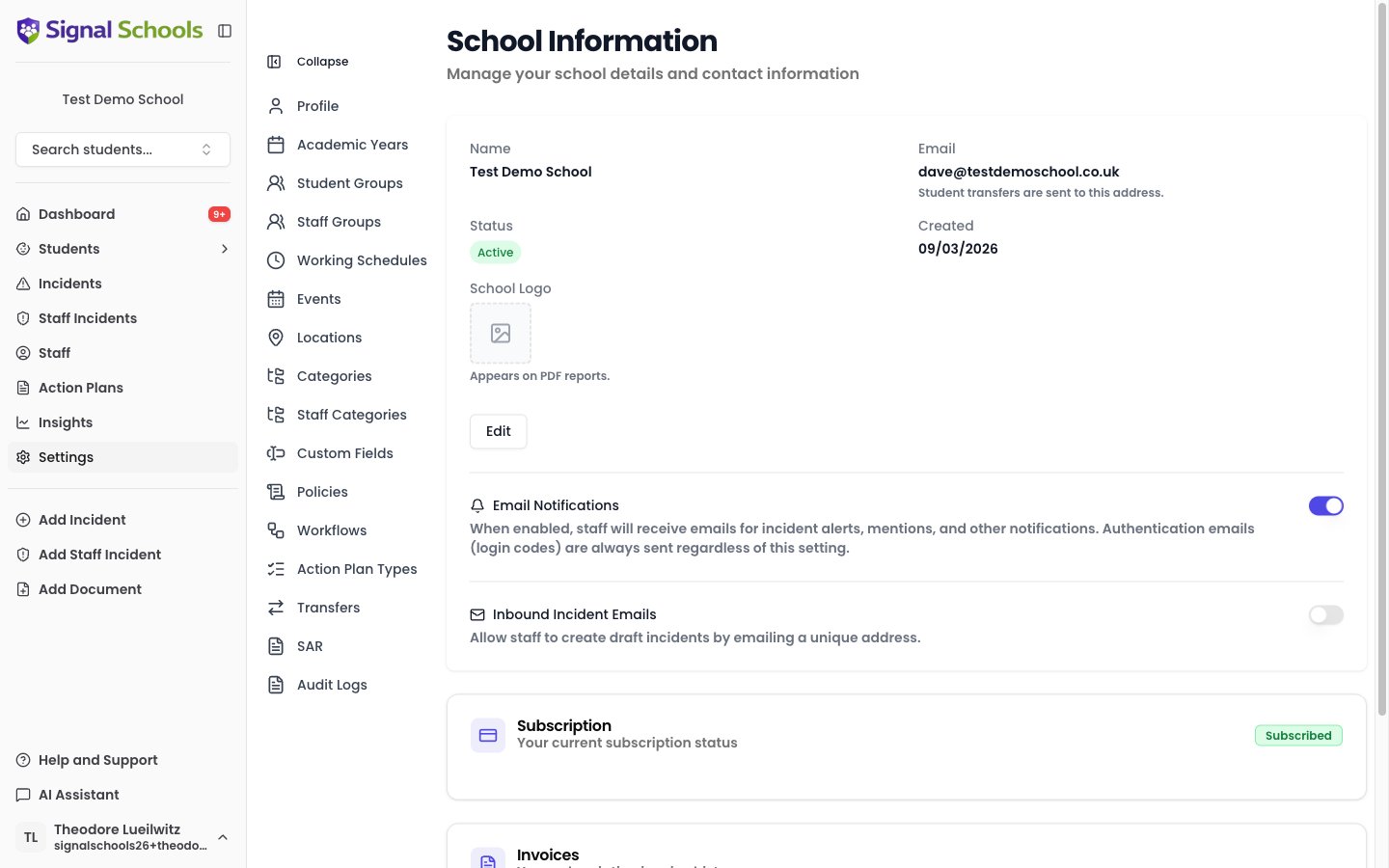
Setup checklist
1
Set up year groups and classes
Year groups define your school’s academic structure — Reception through to Year 13. Each year group contains one or more classes (such as 7A, 7B, or 8Red).Students are assigned to a year group and class, and these are used for filtering throughout Signal — in incident lists, insights, alert rules, and student searches.Go to Settings > Academic Years and use Add Year and Add Class to create your year groups and add classes to each one.
2
Add incident categories
Categories are how you classify safeguarding concerns. Common examples include Physical, Emotional, Neglect, Sexual, Online Safety, Attendance, and Behaviour.Student incidents and staff incidents have separate category sets, so you can tailor each one independently.Go to Settings > Categories to create your categories. For more detail, see Setting up categories.
3
Configure locations
Locations represent the places where incidents might occur — classrooms, playgrounds, corridors, off-site locations, and so on.Go to Settings > Locations to add your school’s locations. For more detail, see Setting up locations.
4
Record external agency involvement
External agency involvement — social services, police, CAMHS, CAFCASS, and others — is captured as Events rather than a separate agency list. Use the External Agency Contact event grouping and types to record when an outside organisation is involved with a student.Go to Settings > Events to review and customise your event groupings and types. For more detail, see Events overview.
5
Invite staff and assign roles
Add your colleagues to Signal and give each person the roles they need. A member of staff can hold more than one role:
Go to Staff in the sidebar to invite team members and assign roles. For more detail, see Managing staff.
6
Upload safeguarding policies
Upload your school’s safeguarding policy documents so that Signal’s AI can automatically match relevant policies to incidents.Go to Settings > Policies to upload your documents. For more detail, see Adding policies.
7
Set up class and year group alerts
Before building workflows by hand, set up your everyday alerting. Go to Settings > Workflows — if you have not configured any alerting yet, you are offered a Set up class and year group alerts panel.The wizard asks who should hear about incidents and creates the workflows for you. Most schools choose class staff for their own class, plus a head of year who sees everything for their year group.This relies on each class having a Staff Group named after it (such as “7A Staff”). The wizard tells you how many of your classes have one before you commit. For more detail, see Alerts.
8
Set up workflows
Workflows automatically take action when incidents matching certain criteria are logged — alerting staff, emailing parents, or restricting visibility. For example, you might set up a workflow to alert all DSLs whenever a Physical incident is recorded for a student in the Children in Care group.Go to Settings > Workflows to create your first workflow. For more detail, see Workflows.
9
Set up MIS integration (optional)
Signal connects to Arbor, Bromcom, and Wonde. Connecting your MIS automatically syncs student, staff, contact, and attendance data, which saves significant manual data entry.Go to Settings > Integrations to connect your MIS. For a detailed walkthrough, see MIS Integration.
Tips for getting started quickly
- Start with categories and staff. These are the minimum requirements for recording incidents. You can add locations, events, and policies later.
- Connect your MIS early. If you use Arbor, Bromcom, or Wonde, setting up the integration first will automatically populate your year groups, classes, students, and staff.
- Create a few alert rules. Even basic rules (such as alerting DSLs on all incidents) ensure nothing is missed from day one.
- Upload your core policies. Start with your main safeguarding policy and child protection policy. You can add more over time.
- Invite a small group first. Consider onboarding your safeguarding team before rolling out to all staff, so you can answer questions and refine your setup.