
How parent emails work
When an incident matches a workflow with an Email Parents action:- Signal identifies the main students on the incident
- For each student, it finds the parent or guardian contacts who have an email address on file
- An email is created using the template you configured on the action
- The email is either held as a draft for review, or moves straight to the sending queue — depending on your configuration
Configuring the Email Parents action
When adding an Email Parents action to a workflow, you configure:- Email Subject — the email subject line (supports placeholders)
- Email Body — the email content (supports placeholders and custom fields)
- Require DSL review before sending — a switch that controls whether notifications need DSL approval before sending
- Included custom fields — which custom field values to include in the email, added from the Insert placeholder bar
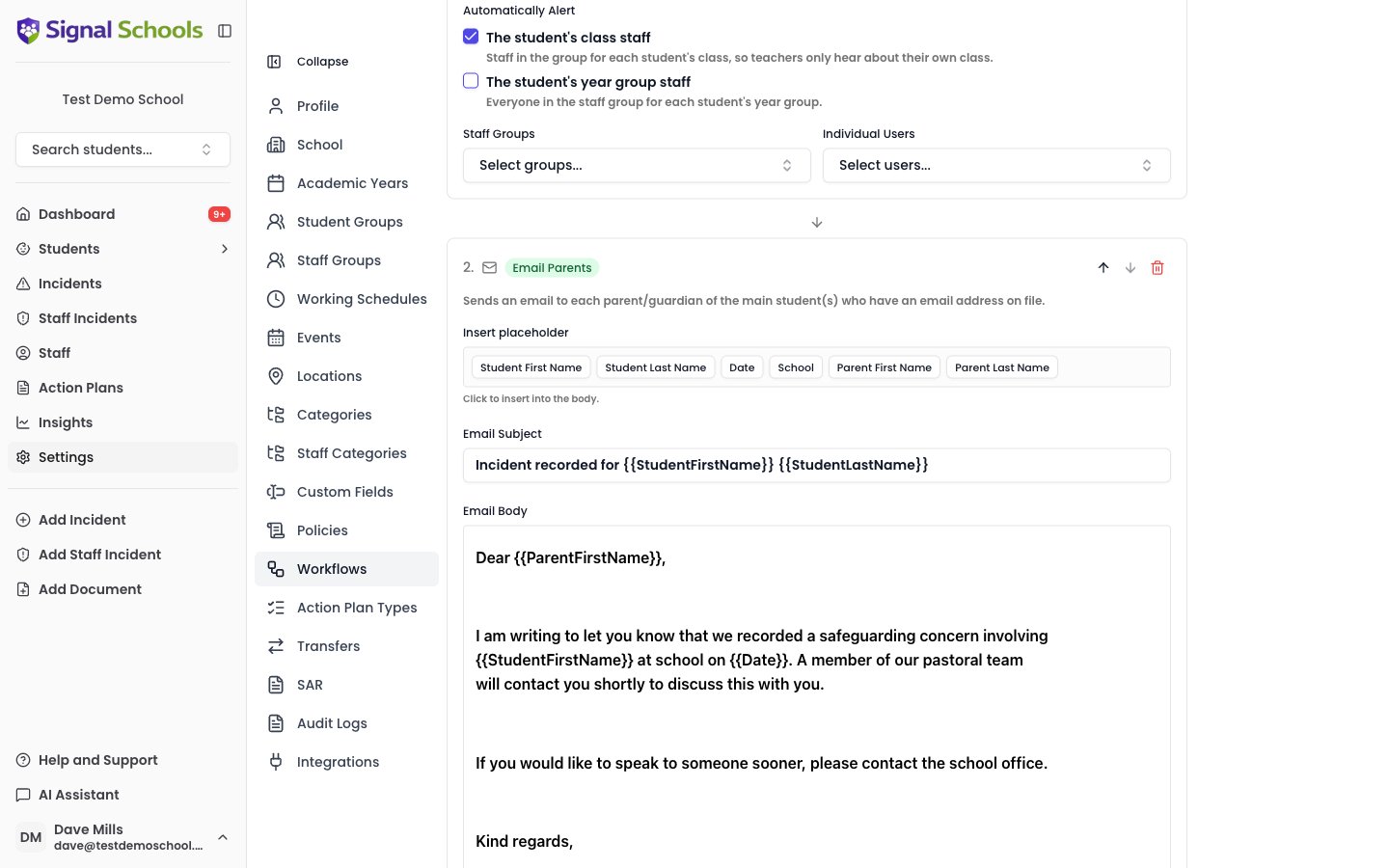
Template placeholders
Use placeholders in your email subject and body to automatically insert details for each recipient. Signal replaces these when the email is generated.Custom fields in emails
If your school uses custom fields on incidents, you can choose which fields to include with the Included custom fields option. Included fields appear in the Insert placeholder bar in the email editor, so you can drop their values into the template. This is useful for sharing specific structured information — such as the outcome of a meeting or a next step — without exposing the full incident record.Reviewing draft notifications
When Require DSL review before sending is enabled, parent notifications are created as drafts rather than being sent immediately. This gives senior staff the opportunity to check the content before it reaches parents. Draft notifications appear on the Dashboard under Parent Notifications, grouped by incident. From there, you can:- View each notification grouped by student, showing the recipient, subject, and email body
- Edit the email subject and body before sending
- Send individual notifications to move them to the sending queue
- Delete a notification if it should not be sent
Automatic sending
When Require DSL review before sending is disabled, notifications go straight to the sending queue and are delivered automatically within a few minutes. No manual intervention is needed.Parent emails are only created for parent or guardian contacts who have an email address on file. If a student has no contacts, or none of their contacts has an email address, no notification is generated for that student.