
Adding and editing students requires Deputy DSL or above, or the School Admin role. If you do not see these options, check your role with your school’s Signal administrator.
Two ways to add students
Manual Entry
Add students one at a time using the form. Best for individual additions or corrections.
MIS Sync
Automatically sync students from Arbor, Bromcom, or Wonde. The easiest option if your school uses a supported MIS.
Adding a student manually
1
Open the student list
Navigate to Students from the sidebar.
2
Click Add Student
Select the Add Student button at the top of the student list.
3
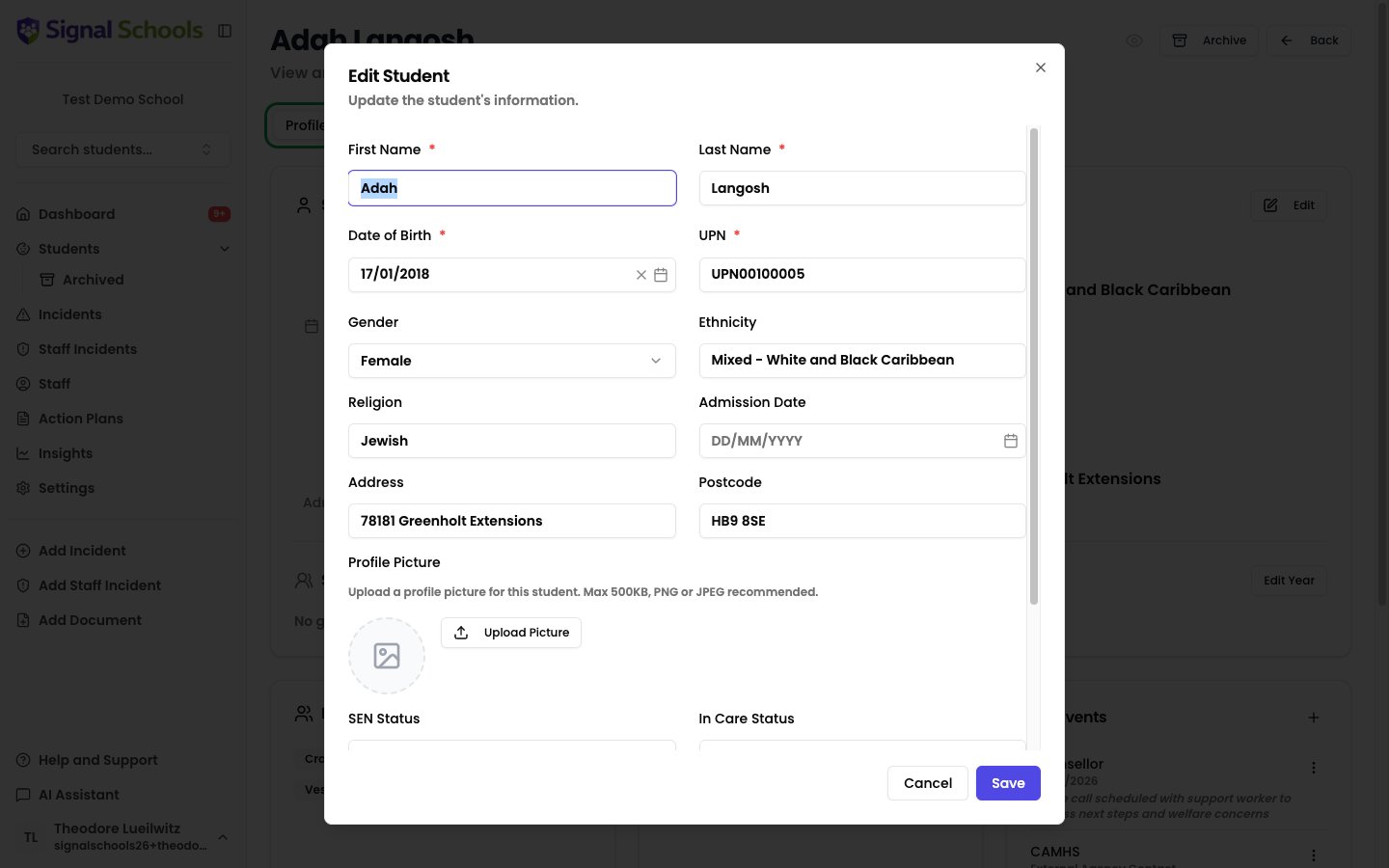
Enter the student's details
Fill in the required fields:
- First name and last name
- Date of birth
- UPN (Unique Pupil Number)
- Academic Year and class
- Gender
- Ethnicity
- Religion
- Admission date
- Address and postcode
- SEN status (whether the student has Special Educational Needs)
- Pupil Premium (whether the student is eligible for Pupil Premium)
- In care status (fostered, children’s home, adopted, or other care arrangements)
- Pre-admission flag (if the student has not yet started at your school)
- Profile picture (optional)
4
Save
Click Save to create the student record.
Adding contacts and guardians
Once a student record exists, you can add their parents, carers, or other guardians.1
Open the student's profile
Navigate to the student’s profile page by clicking their name in the student list.
2
Go to the Contacts section
Select the Contacts tab on the student’s profile.
3
Click Add Contact
Select Add Contact and enter the guardian’s details — name, relationship to the student, phone number, and email address.
4
Save
Click Save to link the contact to the student.
MIS sync
Signal syncs with Arbor, Bromcom, and Wonde. If your school uses any of these, students can be synced automatically. This is the easiest way to keep your student list up to date — names, dates of birth, UPNs, academic years, classes, and contact details are all imported and kept in sync on a regular schedule. To set up MIS sync, see MIS Integration.When MIS sync is active, changes made in your MIS are reflected in Signal automatically. You can still edit student details manually in Signal, but synced fields will be overwritten on the next sync.
Editing student details
1
Find the student
Use the search bar on the Students page, or browse the student list.
2
Open their profile
Click on the student’s name to open their profile page.
3
Edit their details
Update any fields as needed — personal details, year group, class, SEN status, or Pupil Premium eligibility.
4
Save
Click Save to apply your changes.
Archiving students
When a student leaves your school, you can archive their record rather than deleting it. Archiving removes the student from active lists while preserving their full safeguarding history — all incidents, documents, comments, and action plans remain intact. Archived records are still available for transfers to other schools or subject access requests.1
Open the student's profile
Navigate to the student you want to archive.
2
Archive the student
Click Archive, then confirm in the Archive Student dialog. You are taken to the archived students list, where the pupil now appears with the date they were archived.
Archiving is also what makes a pupil eligible for a records transfer.
Restoring an archived student
If you archive someone by mistake, you can put them back — provided your school is not connected to an MIS.1
Open the archived list
Go to Students → Archived.
2
Restore the pupil
Click Restore on their row and confirm. They return to your active student list immediately.
The Restore button does not appear when an MIS is connected. Your MIS owns the student roll in that case, so a pupil put back by hand would simply be archived again on the next sync. Mark them as on-roll in your MIS instead, and the change flows through automatically.
Students synced from your MIS cannot be archived in Signal. The Archive button does not appear on their profile. Mark the pupil as having left in your MIS instead, and the change flows through on the next sync. Only students added manually in Signal can be archived here.
When should I archive a student?
When should I archive a student?
Archive a student when they have left your school permanently — for example, when they transfer to another school, finish their final year, or are permanently excluded. Do not archive students who are temporarily absent.
Can I still view archived students?
Can I still view archived students?
Yes. Archived students are listed under Students → Archived in the sidebar, showing each pupil’s name, date of birth, UPN, and the date they were archived. Their full history is preserved and remains available for transfers and subject access requests.
Viewing archived students
Archived students are not shown in your active student list. To find them, open Students → Archived from the sidebar. From there you can search for or browse to any archived student and open their profile to view their full safeguarding history.Archiving a student does not delete their record — all previous incidents, documents, and action plans remain linked and can still be viewed under Students → Archived.