
You need the Owner, DSL, or Deputy DSL role to manage working schedules. School Admins cannot manage them.
What working schedules control
Working schedules apply specifically to email alert notifications. They do not affect:- Dashboard alerts — alerts always appear on the dashboard immediately, regardless of the schedule
- Incident creation — incidents can be recorded at any time
- High priority categories — see Urgent concerns always send immediately below
Urgent concerns always send immediately
Working schedules never hold back the most serious concerns. If an incident carries a category your school has marked as high priority, its email notifications are sent straight away — at any hour, on any day — instead of waiting for the next working period. These emails are also marked [HIGH PRIORITY] in the subject line so they stand out in a busy inbox.How deferred delivery works
When an incident triggers an alert outside a staff member’s working schedule, the email notification is deferred. It is held until the next time the schedule is active — typically the start of the next school day. For example, if a concern is logged at 8pm on a Tuesday and the staff member’s schedule runs from 8am to 5pm on weekdays, the email notification is delivered at 8am on Wednesday. This prevents staff from receiving safeguarding emails during evenings, weekends, or school holidays, while still ensuring nothing is missed when they return.Setting up a schedule
1
Go to Settings
Open Settings from the sidebar and select Working Schedules.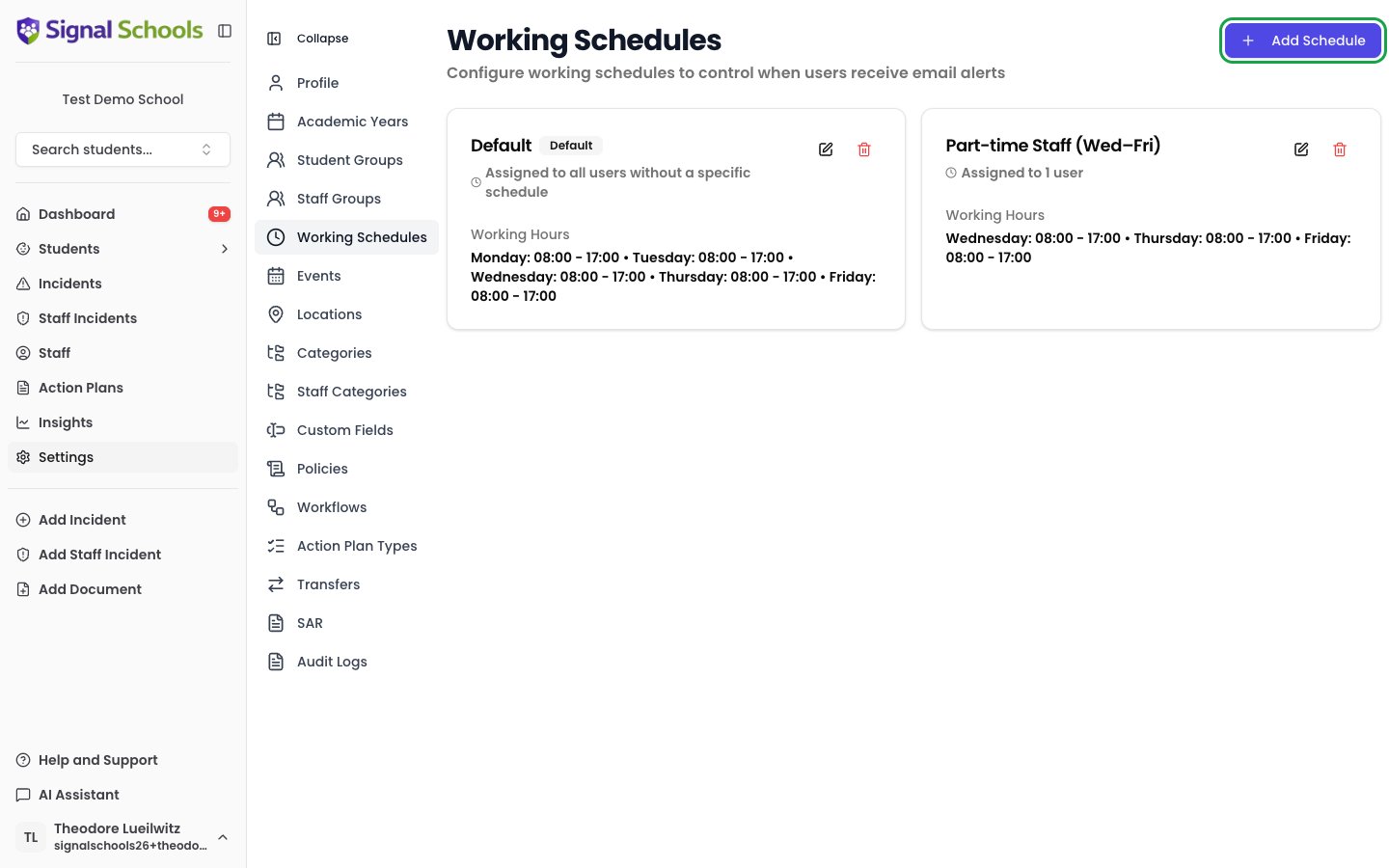
2
Create a new schedule
Click Add Schedule and give it a clear name — for example, “Standard School Hours” or “Term Time Only”.
3
Define working days
Select which days of the week are working days. For most schools, this is Monday to Friday.
4
Set working hours
For each working day, set the start and end time. For example, 7:30am to 5:30pm.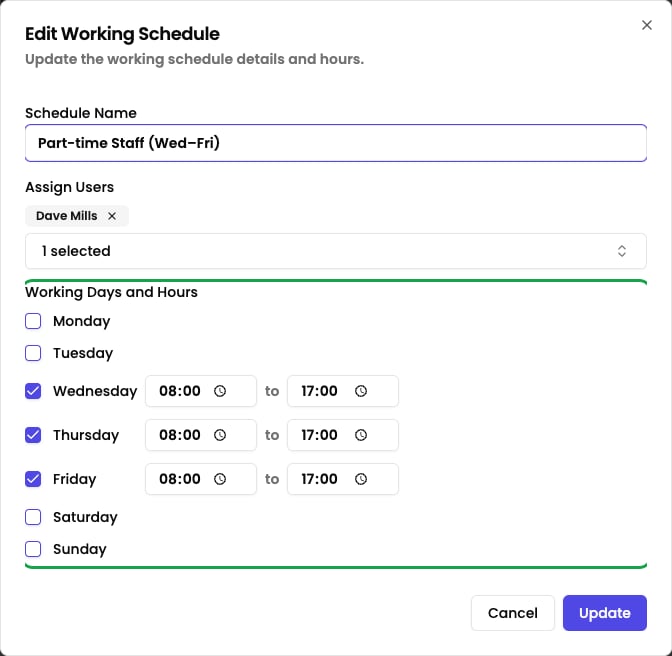
5
Assign staff
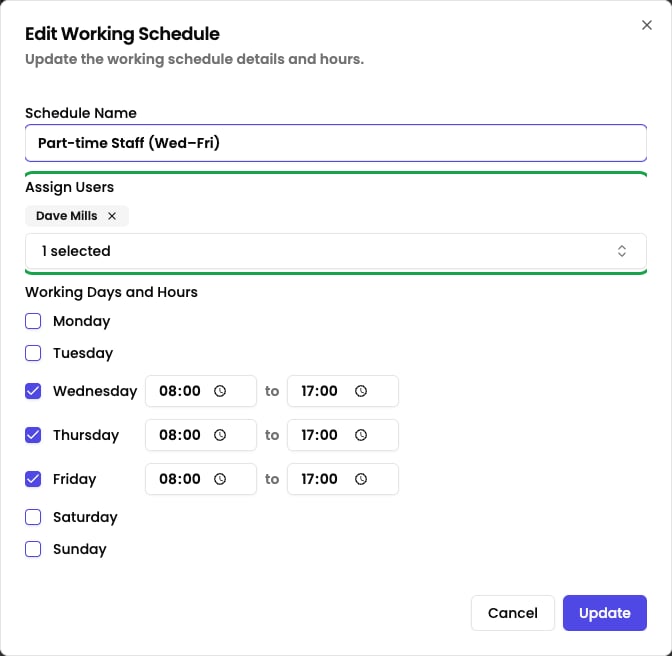
Use the Assign Users multi-select to choose the staff members the schedule applies to, or enable the Default schedule toggle to apply it to everyone without another schedule.
6
Create
Click Create to save the new schedule.
Assigning schedules to staff
You assign staff to a schedule from inside the Working Schedule dialog, not from a staff member’s profile. Open a schedule and either:- Use the Assign Users multi-select to choose the staff members it applies to, or
- Enable the Default schedule toggle to apply it to everyone who does not have another schedule assigned
Tips
Working schedules are about staff wellbeing. Safeguarding concerns that arise outside school hours are still recorded and alerted on the dashboard immediately — the schedule only defers the email notification so staff are not disturbed at home.