
You need the DSL, Deputy DSL, School Admin, or Owner role to add, edit, or remove policies.
Adding a single policy
1
Go to Settings
Open Settings from the sidebar and select Policies.
2
Click Add Policy
Click the Add Policy button to open the policy form.
3
Enter the policy title
Give the policy a clear, descriptive title — for example, “Child Protection Policy 2025-26” or “Anti-Bullying Policy”.
4
Choose a Policy Type
Select the Policy Type that best fits this policy:
- Child Protection & Safeguarding Policy — combined child protection and safeguarding procedures, managing allegations
- Staff Behaviour Policy / Code of Conduct — staff conduct, low-level concerns
- Safer Recruitment Policy — recruitment, vetting and checking procedures
- Children Missing Education Policy — children missing education
- Allergy Safety Policy — allergy safety and allergen management
- Behaviour Management Policy — behaviour, exclusions, rewards and sanctions
- Attendance Policy — attendance
- Anti-Bullying Policy — anti-bullying, peer-on-peer abuse guidance
- Online Safety Policy — online safety, acceptable use, filtering and monitoring
- SEND Policy — SEND, accessibility plan, SEND information report
- Inclusion Policy — inclusion, equality and diversity
- Other Policy — any policy that does not fit the types above
5
Set the review details
These fields keep the policy on a review schedule — see Review Dates & Reminders for how they are used:
- Policy Owner — the staff member responsible for keeping this policy up to date. Review reminders go to the owner; leave it as DSLs to send reminders to your safeguarding leads instead.
- Review Frequency — how often the policy should be reviewed: Annually, Every 2 years, or Every 3 years.
- Date Ratified — when the current version was approved.
- Next Review Due — when the next review is due. Signal suggests this automatically from the ratified date and review frequency, and you can adjust it.
6
Upload the document
Under the Policy Document field, drag and drop the policy file onto the upload area, or click the area to browse for it. Only Word (.doc, .docx) and PDF documents are supported.
7
Save
Click Save to add the policy. Signal processes the document so the AI can use it for matching against future incidents.
Import from web page
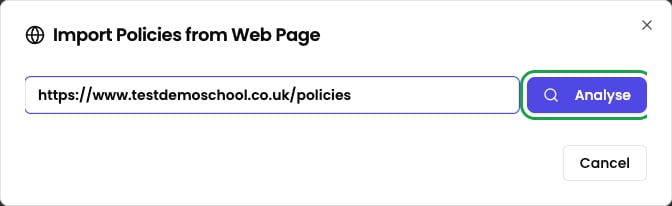
If your policies are already published on your school website, you can add several at once with Import from web page. Instead of uploading files one by one, Signal scrapes a web page you point it at and finds the policy PDFs linked from it.1
Click Import from web page
On the Policies settings page, click the Import from web page button.
2
Enter the web page address
Provide the address of the page that links to your policy documents — for example, your school’s policies page.
3
Review and import
Signal finds the policy PDFs on that page. Review the results and import the ones you want to add.
Replacing a policy document
When a policy is updated — for example, after an annual review — you can replace the document with a new version.1
Open the actions menu
Go to Settings > Policies. On the row for the policy you want to update, open the ⋯ actions menu and choose Edit.
2
Upload the new version
In the Upload New Version field, add the new version of the file.
3
Save
Click Save. Signal re-processes the new document so the AI matches against the current version.
Replacing a policy document does not affect any incidents that were previously matched to it. Past incidents retain their original policy references.
Policy Types and when to use each
Choosing the right Policy Type helps Signal organise your policy library and improves the accuracy of AI matching.Child Protection & Safeguarding Policy
Child Protection & Safeguarding Policy
Your combined child protection and safeguarding policy and managing allegations procedures. Referenced for concerns involving abuse, neglect, or significant harm, and checked against Keeping Children Safe in Education and Working Together to Safeguard Children in AI reviews.
Staff Behaviour Policy / Code of Conduct
Staff Behaviour Policy / Code of Conduct
Staff codes of conduct and low-level concerns procedures. Relevant when incidents involve staff conduct, and checked against the staff conduct expectations in Keeping Children Safe in Education.
Safer Recruitment Policy
Safer Recruitment Policy
Recruitment, vetting, and checking procedures. Checked against the safer recruitment requirements in Keeping Children Safe in Education.
Children Missing Education Policy
Children Missing Education Policy
Procedures for children who go missing from education. Checked against the Children Missing Education statutory guidance.
Allergy Safety Policy
Allergy Safety Policy
Allergy safety and allergen management procedures. Checked against the Allergy Safety in Schools statutory guidance.
Behaviour Management Policy
Behaviour Management Policy
Policies covering behaviour management, exclusions, rewards, and sanctions. Relevant when incidents involve behavioural concerns, and checked against Behaviour in Schools and the Suspension and Permanent Exclusion guidance.
Attendance Policy
Attendance Policy
Attendance policies. Relevant when incidents involve persistent or unexplained absence, and checked against Working Together to Improve School Attendance.
Anti-Bullying Policy
Anti-Bullying Policy
Anti-bullying policies and peer-on-peer abuse guidance. Matched to incidents involving bullying, harassment, or intimidation.
Online Safety Policy
Online Safety Policy
Online safety, acceptable use, filtering, and monitoring policies. Matched to incidents involving online concerns, social media, or technology misuse.
SEND Policy
SEND Policy
SEND policies, accessibility plans, and SEND information reports. Relevant when incidents involve students with special educational needs and disabilities, and checked against the SEND Code of Practice.
Inclusion Policy
Inclusion Policy
Inclusion, equality, and diversity policies. Matched when incidents involve discrimination, accessibility, or equalities-related concerns, and checked against the Equality Act 2010 advice for schools.
Other Policy
Other Policy
Any policy that does not fit the types above. Use this for specialist or cross-cutting policies that cover unique areas. Policies of this type cannot be AI-reviewed, as no government guidance is mapped to them.
Supported file formats
Signal supports these document formats only:- PDF (.pdf)
- Microsoft Word (.doc, .docx)