
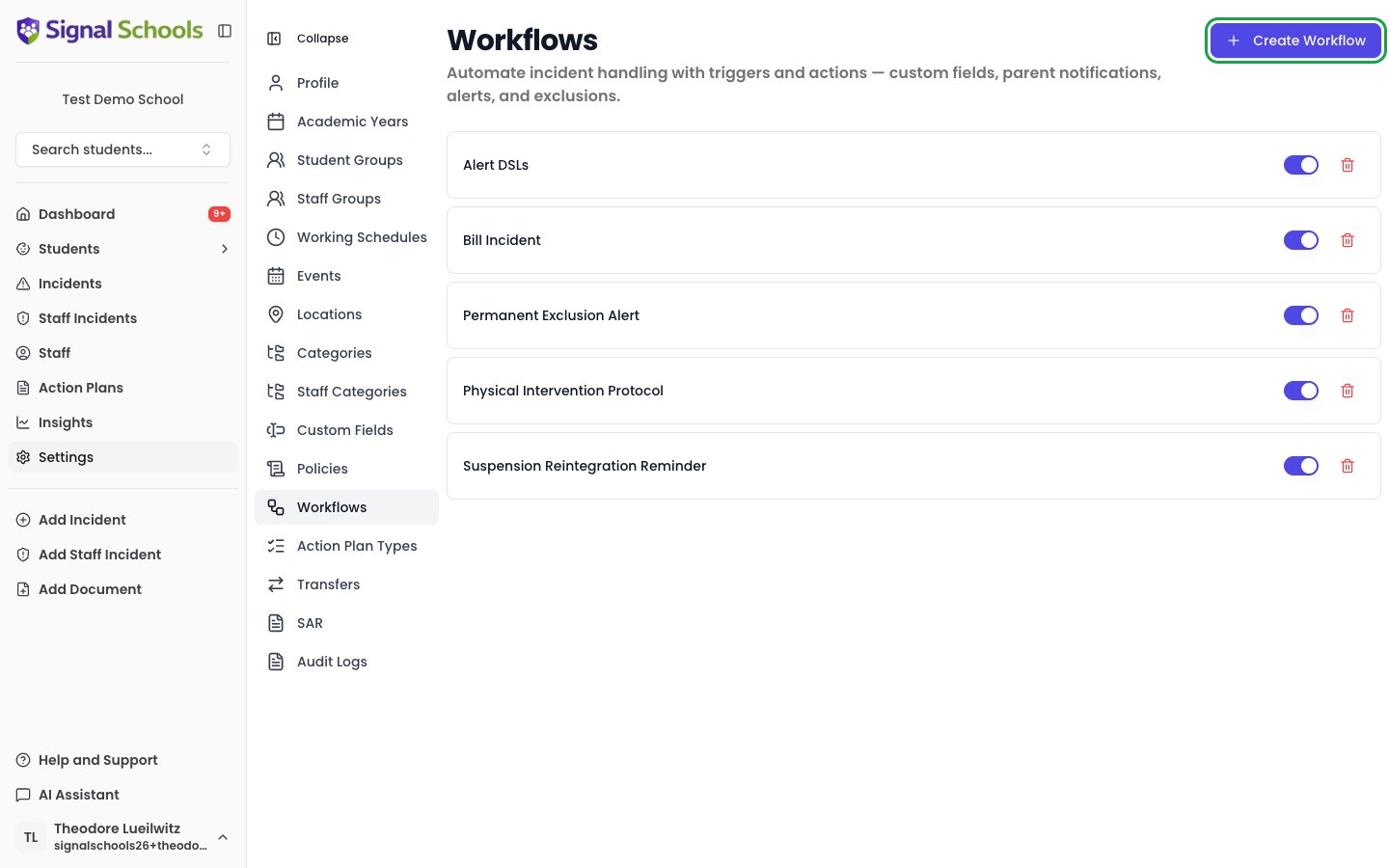
You need to be a Deputy DSL or above to create, edit, or delete workflows.
How workflows work
Each workflow has two parts:- Trigger — the condition that determines when the workflow fires
- Actions — what happens when the trigger matches
Trigger
Each workflow has a single Trigger. You pick one of three trigger types:- Student Incident — the workflow fires when a student incident is created
- Staff Incident — the workflow fires when a staff incident is created
- Incident Event — the workflow fires when an event is added to an incident
- Include linked students — whether criteria should also match students linked to the incident (not just the main students)
- Criteria — optional conditions that narrow when the trigger fires
Trigger criteria
Within a single trigger, criteria work together to precisely target the incidents you care about:- Criteria of the same type are combined with OR — e.g. category “Physical” OR “Emotional”
- Criteria of different types are combined with AND — e.g. category “Physical” AND student group “Year 7”
- No criteria means the trigger matches all incidents of the specified type
On an Incident Event trigger, Event Types are the only criteria you can set. On the other two trigger types, student-specific criteria (student groups, SEN status, pupil premium, academic year) are only evaluated for student incidents.
Actions
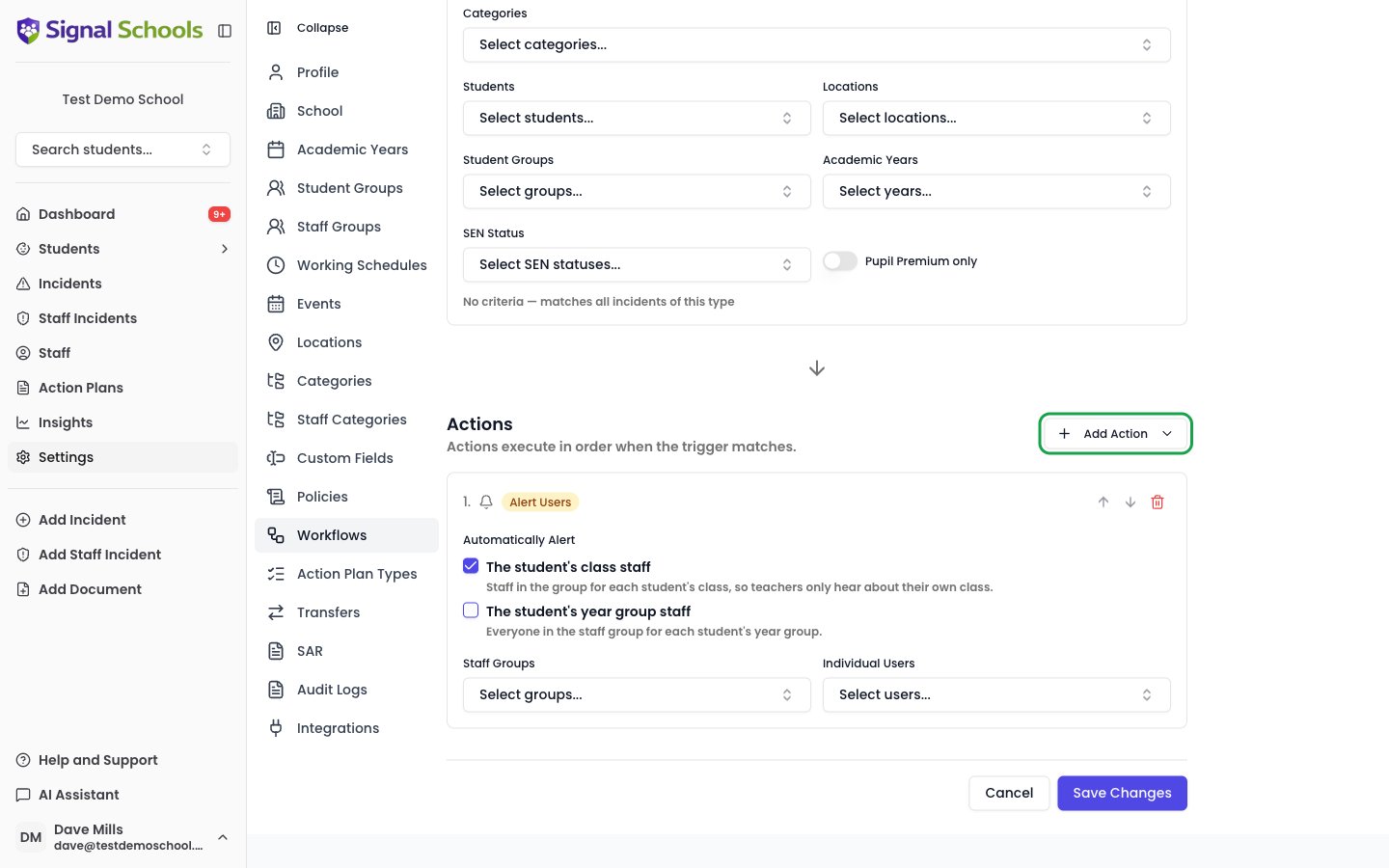
- Student Incident — all five actions below
- Staff Incident — Alert DSLs, Alert Users, and Apply Exclusions only. Staff incidents have no parent emails and no reminders
- Incident Event — every action except Apply Exclusions
Email Parents
Automatically draft or send parent notification emails with customisable templates.
Alert DSLs
Notify all staff with the Owner, DSL, or Deputy DSL role when an incident is logged.
Alert Users
Notify specific staff members or Staff Groups when an incident is logged.
Apply Exclusions
Restrict which staff can view the incident to protect sensitive cases.
Create Reminder
Add a follow-up reminder to the incident, due a set number of days later.
Creating a workflow
1
Go to Settings
Open Settings from the sidebar and select Workflows.
2
Click Create Workflow
Click the Create Workflow button.
3
Name the workflow
Give the workflow a clear name that describes its purpose — for example, “Physical Incident — Alert and Notify Parents”.
4
Set the trigger
In the Trigger section, choose one of Student Incident, Staff Incident, or Incident Event, then configure:
- Optionally enable Include linked students
- Add criteria to narrow when the trigger fires, or leave empty to match all incidents of that type
5
Add actions
Open the Add Action dropdown and add one or more actions. The dropdown only offers the actions your trigger type supports: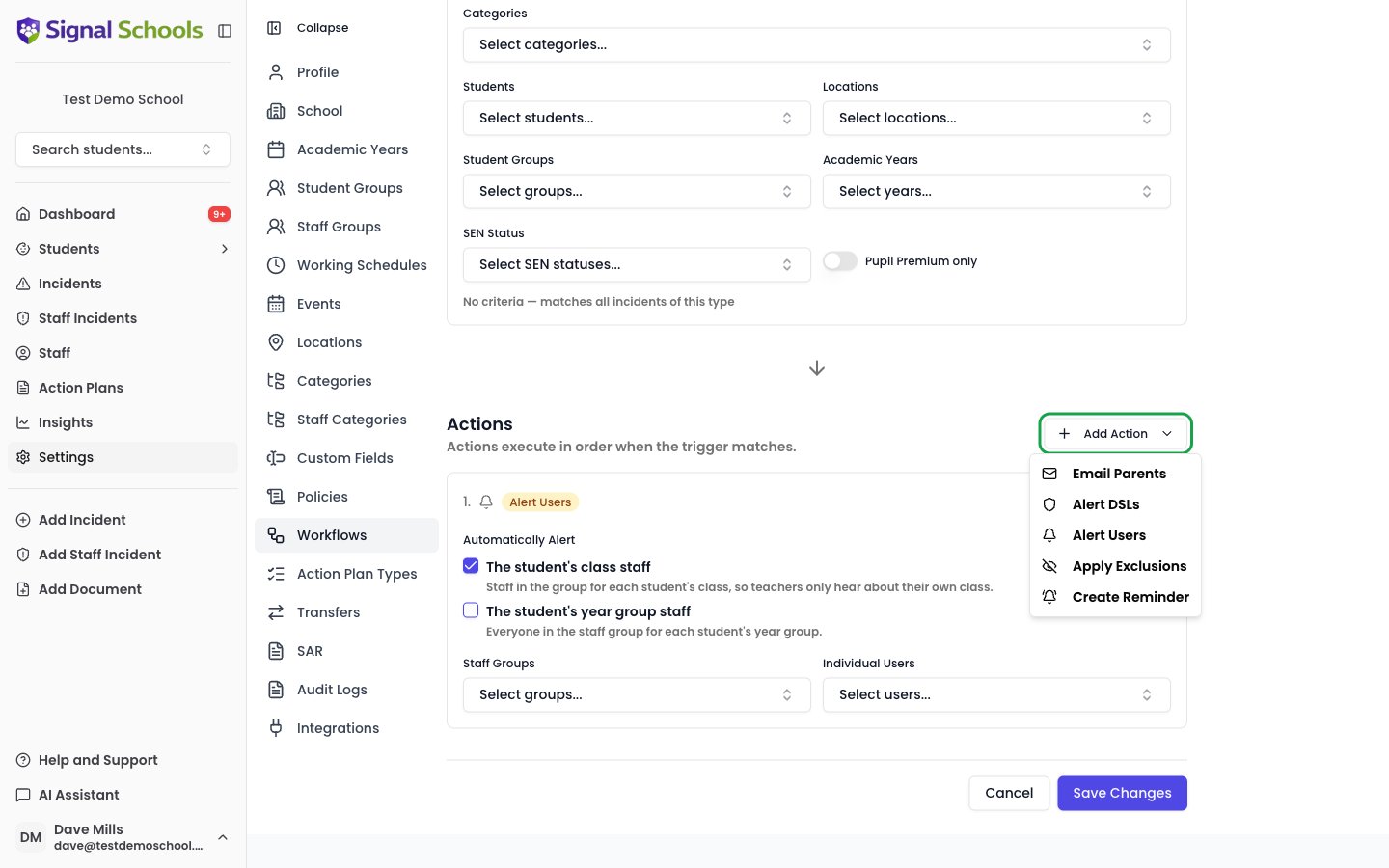
- Email Parents — write your email subject and body using placeholders, choose whether review is required
- Alert DSLs — alert all staff with the Owner, DSL, or Deputy DSL role
- Alert Users — select specific staff members or Staff Groups to alert
- Apply Exclusions — restrict viewing to DSL staff only, or select specific staff or Staff Groups to exclude
- Create Reminder — set a description, how many days until it is due, and who it is assigned to
6
Create the workflow
Click Create Workflow to activate it. Alerts, emails, and reminders take effect for new incidents from this point on. Apply Exclusions restrictions also apply to existing incidents that match the trigger.
Managing workflows
Enabling and disabling
Each workflow has an Enabled toggle on its detail page. Disabling a workflow stops it from running without deleting it. Re-enable it at any time to resume automated processing. The Enabled toggle on the workflow list only shows a reminder to use the detail page — open the workflow to change whether it is enabled.Editing
Click on any workflow from the list to open it for editing. Changes to the trigger, actions, or configuration take effect immediately for new incidents. Click Save Changes to apply your edits.Deleting
On the Workflows list, click the trash icon on a workflow’s row to permanently remove it. Any notifications or restrictions already created by the workflow are not affected.Learn more
Alerts
How staff alerts work, where they appear, and how to manage them.
Parent Emails
Template placeholders, custom fields, and the review process for parent notifications.
Apply Exclusions
Automatically restrict incident visibility for sensitive cases — applies to existing incidents as well as new ones.
Create Reminder
Automatically add follow-up reminders when an incident matches.