
Managing staff incident categories requires Deputy DSL or above, or the School Admin role.
Why separate categories?
Student and staff safeguarding concerns are fundamentally different in nature. Student categories focus on types of harm or need (such as Physical, Emotional, or Neglect), while staff categories focus on professional conduct and organisational concerns. Keeping them separate ensures each list is relevant and manageable.Accessing staff categories
Go to Settings > Staff Categories to view and manage your staff incident categories.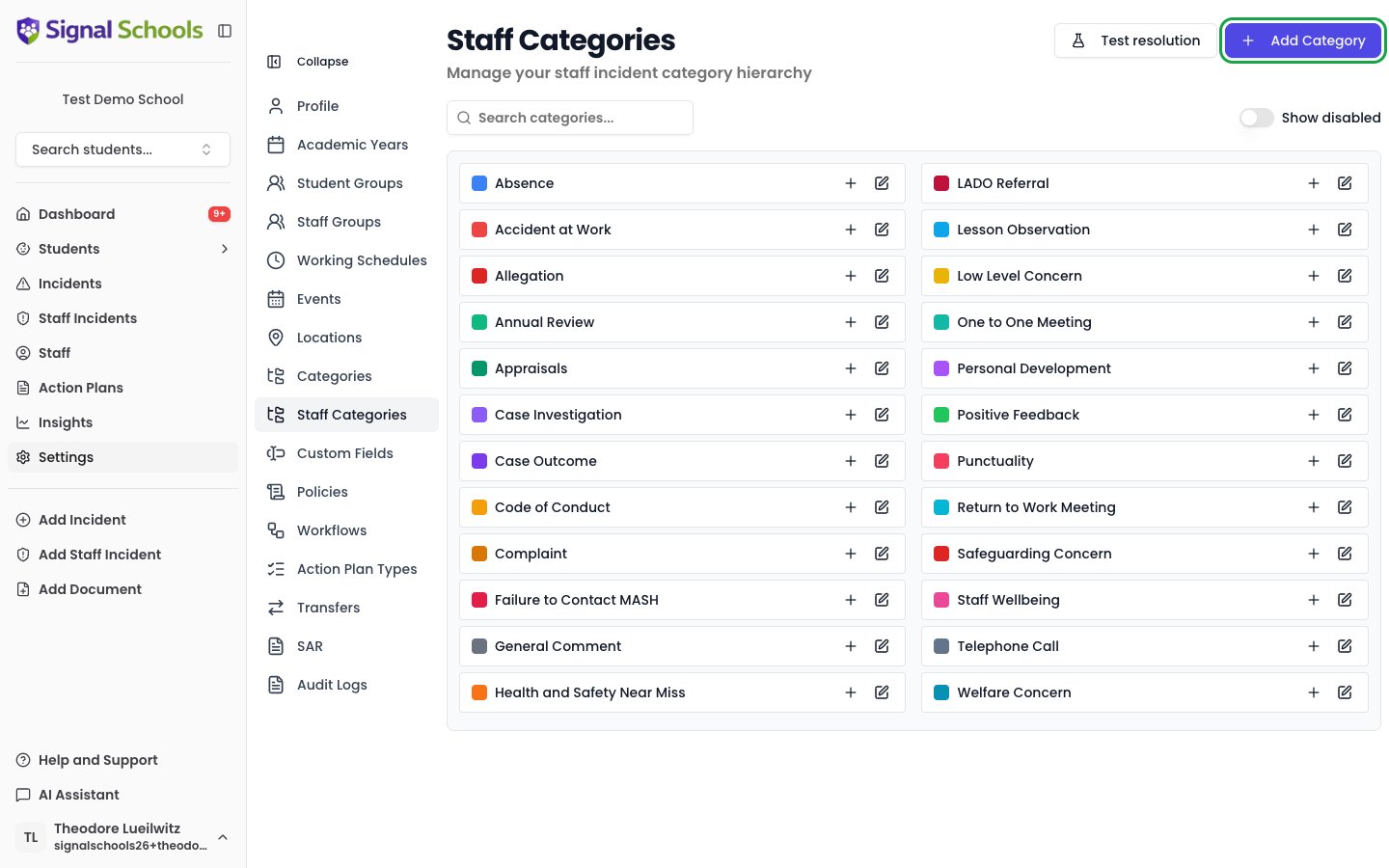
Adding a category
1
Open staff categories
Navigate to Settings > Staff Categories.
2
Click Add Category
Select the Add Category button.
3
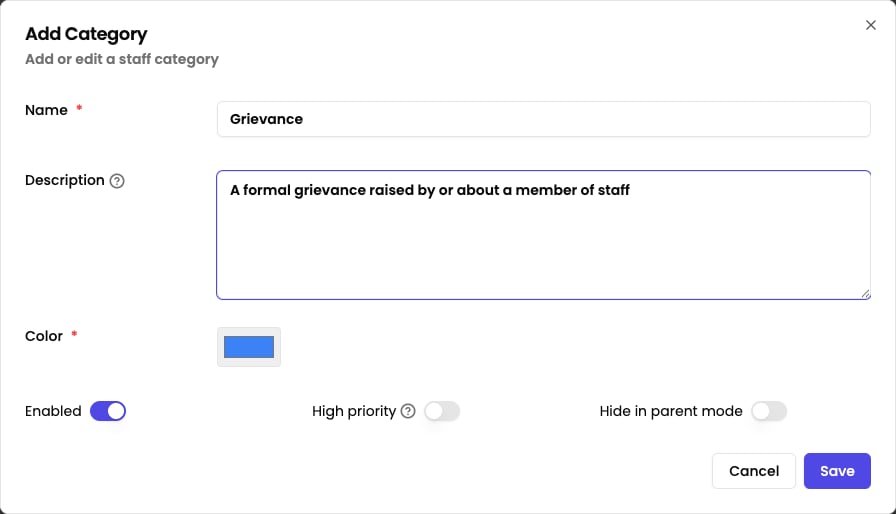
Enter the category details
Provide the following:
- Name — a clear, descriptive name that your DSL team will recognise
- Colour — a colour to help visually distinguish this category in lists and charts
- Enabled — toggle whether the category is available for selection when recording staff incidents. Disabling a category hides it from new incidents without affecting existing records.
- High priority — toggle to mark the category as high priority. Incidents with a high priority category bypass working schedules for alerts, ensuring staff are notified immediately.
- Hide in parent mode — toggle to hide this category from the parent-facing view
4
Save
Click Save to add the category. It is immediately available when creating or editing staff incidents.
Editing and managing categories
To edit an existing category, click the Edit (pencil) icon on its row and update the name, colour, or toggles. Clicking the row itself does not open the editor. Changes apply to all future incidents and are reflected on existing incidents that use the category. To find a category quickly, use the search box. The Show disabled toggle reveals categories you have disabled, and the Test resolution button lets you check how a description would be classified against your categories. A delete (trash) icon appears on a category’s row only after the category has been disabled.Custom fields
You can configure custom fields that appear on staff incident forms based on categories. Custom fields are managed separately from categories — see Custom Fields for details.Renaming a category updates it across all staff incidents that reference it. The historical record remains intact — the audit log shows what the category was called at the time each incident was created.
Suggested categories
Here are some common staff incident categories to consider as a starting point. Every school is different, so adapt this list to match your needs:Common staff category examples
Common staff category examples
- Conduct — general concerns about a staff member’s professional conduct
- Allegations — formal allegations of harm or misconduct
- Performance — safeguarding-related performance concerns
- Professional Boundaries — concerns about appropriate boundaries with students
- Communication — inappropriate or concerning communication
- Attendance — persistent absence or unexplained patterns
- Substance Misuse — concerns related to alcohol or drug use
- Online Behaviour — inappropriate online activity or social media use
Related pages
Staff Incidents Overview
Understand how staff incidents work, including restricted access and self-exclusion.
Recording & Managing
Learn how to create, edit, and manage staff incidents.