
Where to find your settings
- Click your name at the bottom of the sidebar and choose My Account.
- Scroll to the Notifications section.
Staff with the Contributor role have no Settings link in their sidebar, so My Account is the only route to this page for them. Point staff at their name rather than at Settings when explaining where to find it.
What you can turn on or off
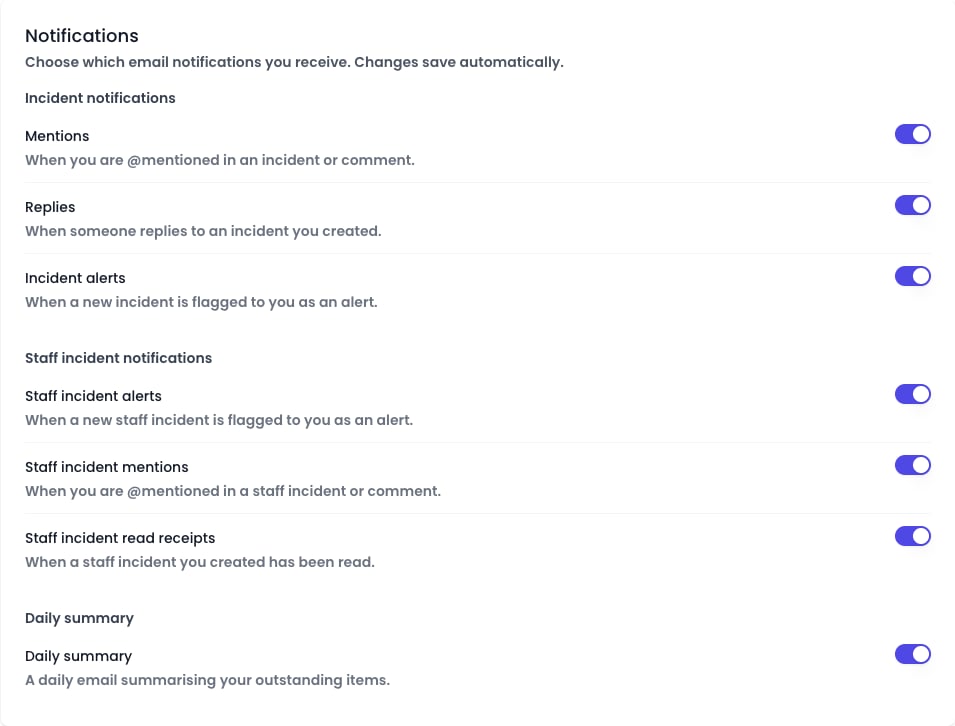
Your settings are grouped so you can find the right switch quickly. Each one is on by default.Incident notifications
- Mentions — when a colleague @mentions you in an incident or a comment.
- Replies — when someone comments on an incident you created, or on one you have been @mentioned in. Staff alerted by a workflow rule are notified in Signal and in their daily summary instead of by email.
- Incident alerts — when a new incident is flagged to you as an alert.
Staff incident notifications
Staff incident settings are only shown to staff with the DSL, Deputy DSL, or Owner role, because only those roles can see staff incidents.
- Staff incident alerts — when a new staff incident is flagged to you as an alert.
- Staff incident mentions — when you are @mentioned in a staff incident or a comment.
- Staff incident read receipts — when a staff incident you created has been read.
Class notifications
- Class notes — when someone writes a class note about a child in a class you teach. On by default for everyone, since class teachers are the intended readers.
Daily summary
- Daily summary — the once-a-day daily digest email that rounds up everything outstanding for you.
Saving your choices
Your settings save automatically the moment you flip a switch — there is no Save button. If a change cannot be saved, Signal shows a message and restores the previous setting, so your preferences always reflect what is stored.What stays on regardless
Some emails are not covered by these settings because they are essential, and cannot be switched off here:- Sign-in codes and other account or security emails.
- Transfer emails to and from other schools.