
Setting the plan format and managing assessment grids requires the Owner, DSL or Deputy DSL role. Other staff can view the grids.
The plan format
The plan format is the list of sections every learning plan is written under, in order — for example Reasonable adjustments and What you need to know about me. Each section has a heading and, optionally, a short note saying what goes in it. When staff draft a plan with AI, it writes each section by following that note. Your school has one plan format, so every plan looks the same and parents always see the same layout.You do not need sections for targets, pupil views or parent views. Every learning plan already has those.
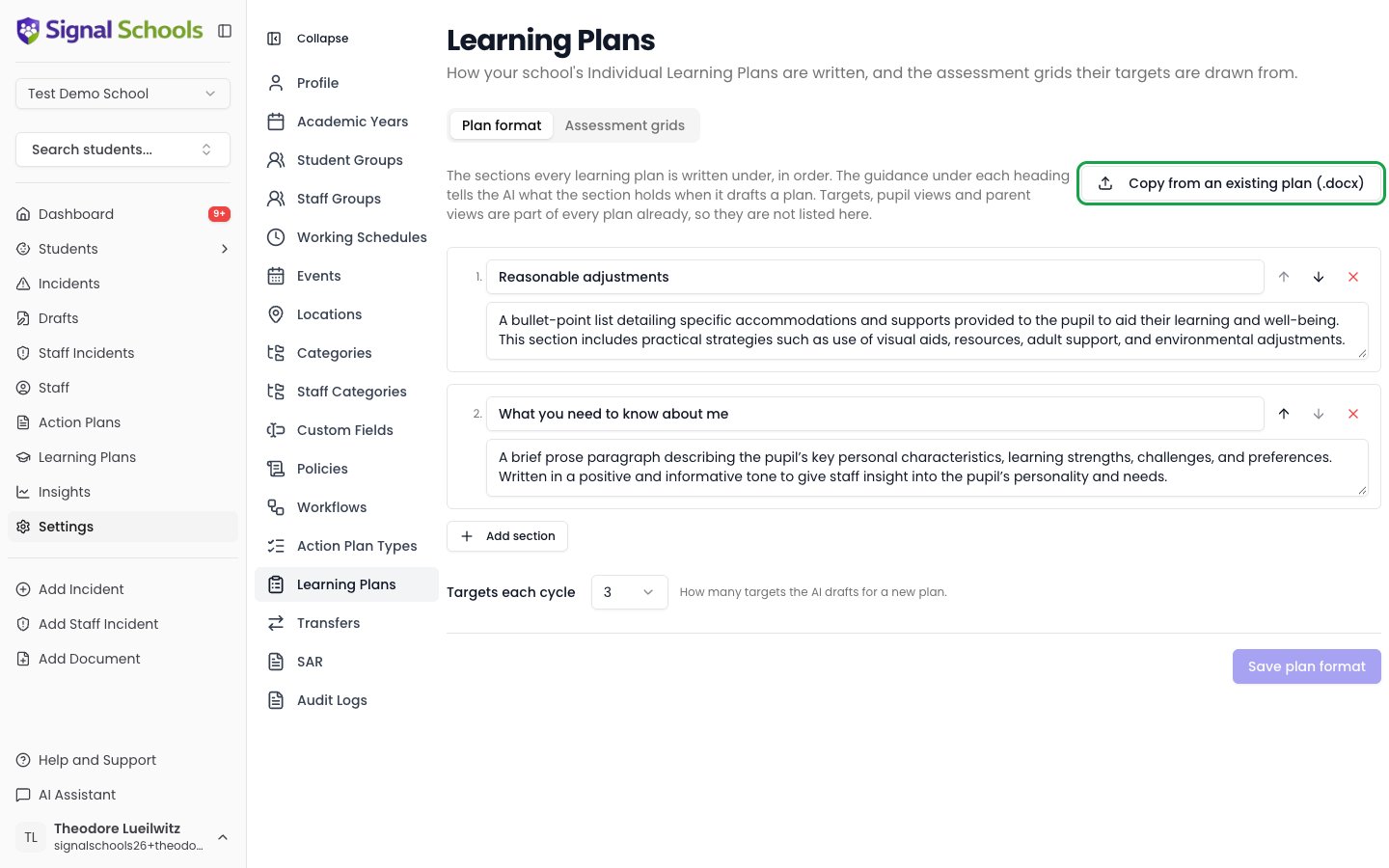
Copy the format from one of your existing plans
The quickest way to set up the format is to upload a learning plan your school already uses.1
Open the plan format
Go to Settings > Learning Plans and stay on the Plan format tab.
2
Upload an existing plan
Click Copy from an existing plan (.docx) and choose one of your school’s ILPs as a Word document.Signal reads the document’s sections and writes a note for each describing what it holds, plus how many targets each cycle has. It leaves out the parts every plan already has — the pupil’s details, pupil and parent views, and the targets table — and never copies anything about the pupil in the example.
3
Check and save
Check the headings and notes, change any you need to, and click Save plan format.
Edit the format by hand
- Click Add section to add a heading, and type what should go in it underneath.
- Use the up and down arrows to reorder sections, and the cross to remove one.
- Targets each cycle sets how many targets the AI drafts for a new plan. Staff can always add or remove targets.
Assessment grids
An assessment grid lists the objectives pupils in one year group work on at each attainment band, for one subject. For example, the Year 4 Writing grid might list what a pupil working towards the expected standard (WTS), at the expected standard (EXS) and at greater depth (GDS) should be able to do. When staff write a plan, they record the band the pupil is working at, and targets are drawn from the objectives at that band and the next one up. Add one grid per subject and year group.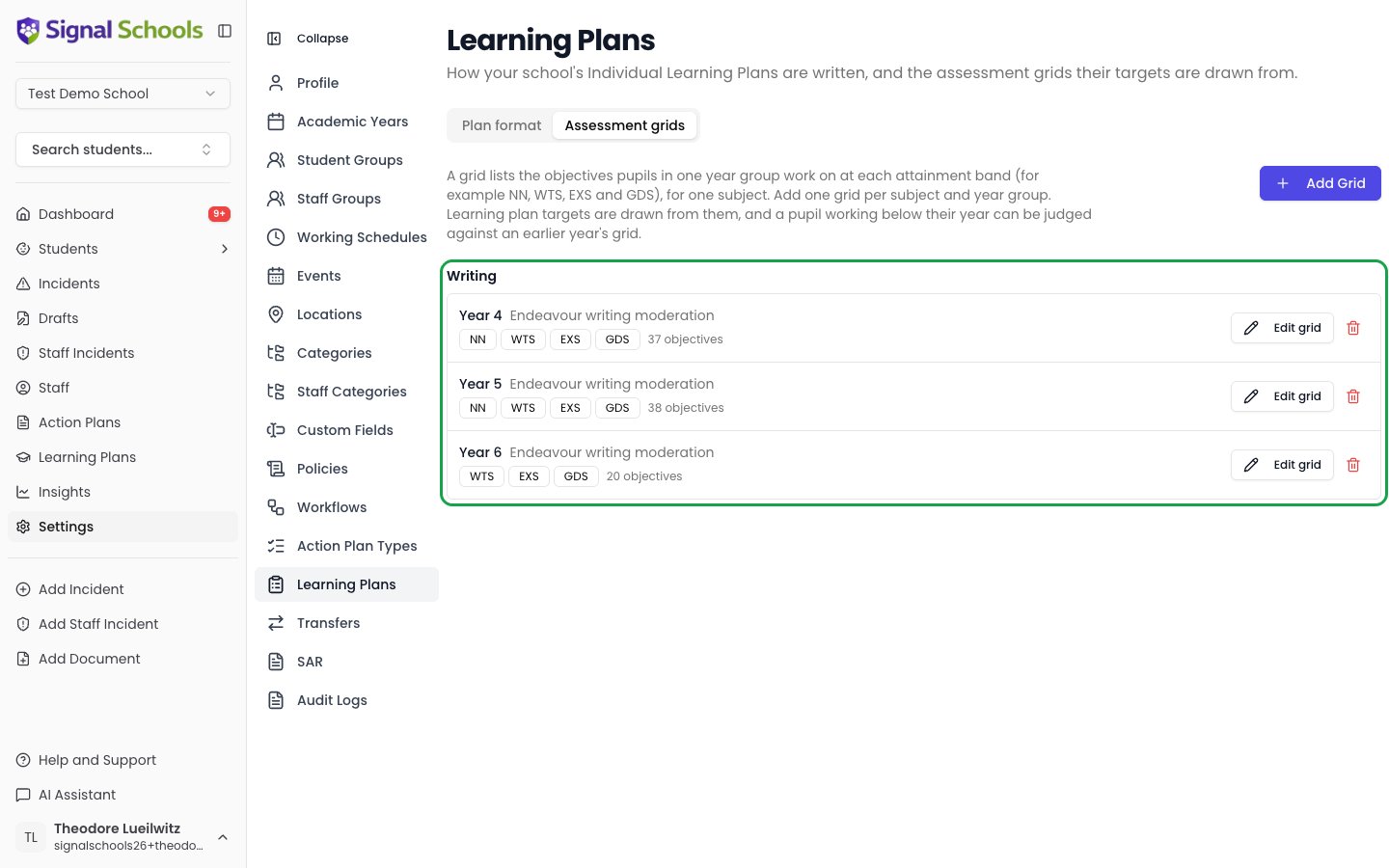
The bands are your school’s own scheme, so name them however you assess. Each grid has its own bands because they can differ by year — a Year 1 grid has no band for objectives carried over from earlier years, for example.
Add a grid from a Word document or Excel workbook
1
Start a new grid
Go to Settings > Learning Plans, open the Assessment grids tab and click Add Grid.
2
Upload your grid
On the Details tab, click Upload grid (Word or Excel) and choose the file.Signal reads the grid’s name, subject, year group, bands and objectives. It works out the year group from the document’s title, a heading, the sheet name or the file name — so “Writing moderation Y4.docx” becomes a Year 4 Writing grid.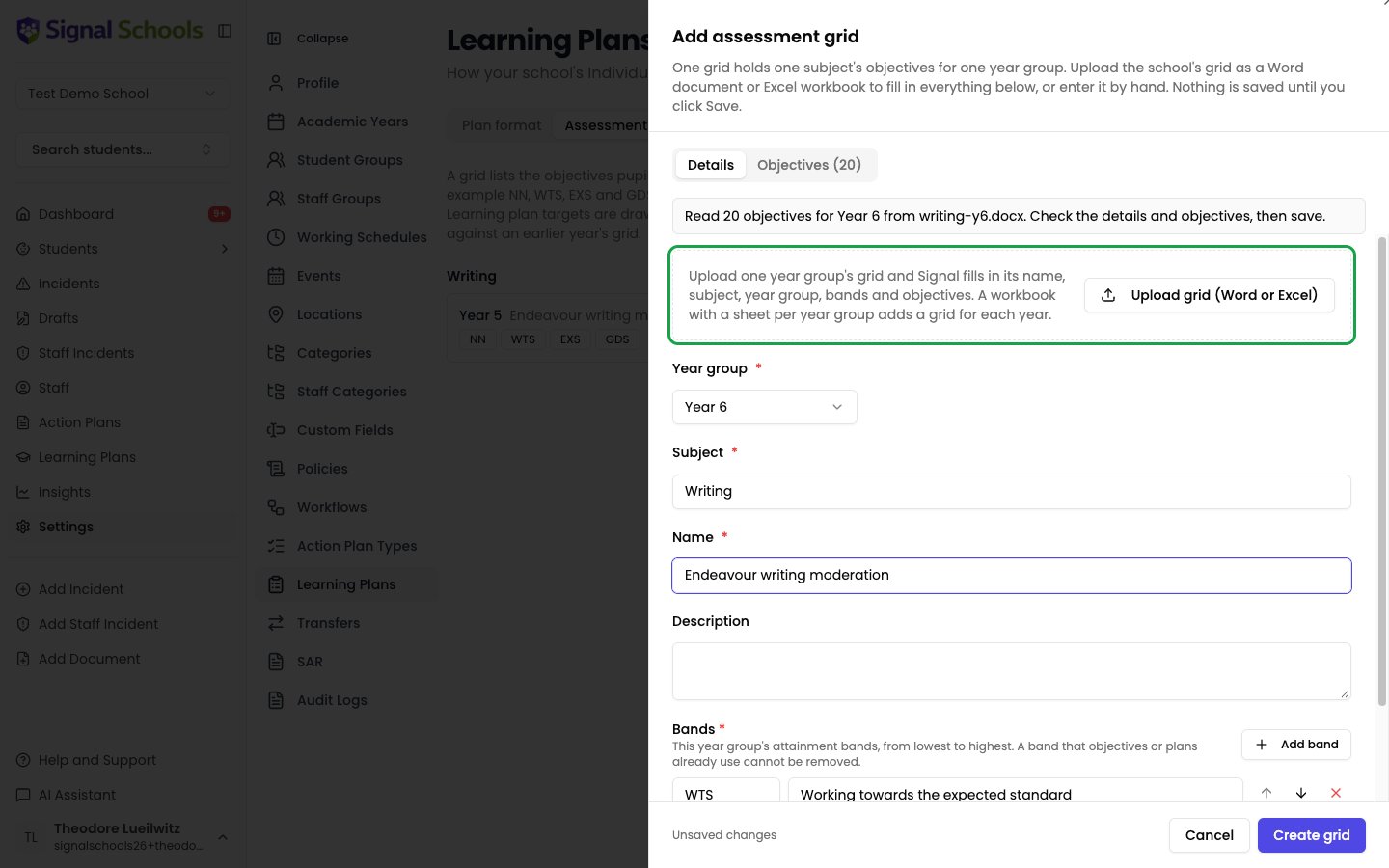
3
Check the objectives
Open the Objectives tab. Each objective sits under the band it belongs to. Edit any line, add one with Add line, or remove one with the cross.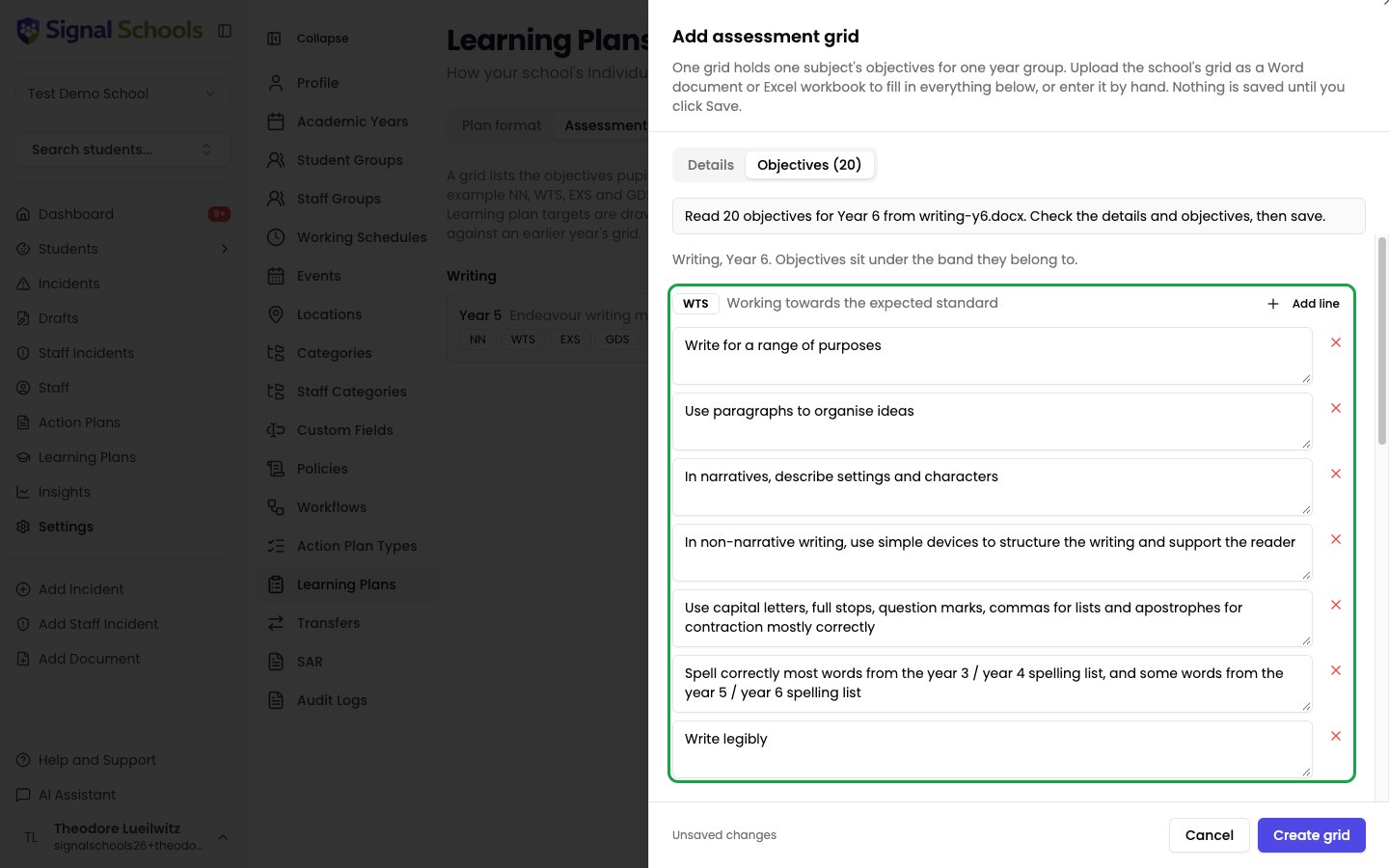
4
Create the grid
Click Create grid. Nothing is saved until you do.
.docx or .xlsx file first.
Add a grid by hand
Click Add Grid, then on the Details tab choose the Year group and enter the Subject and Name. Signal starts you with the bands NN, WTS, EXS and GDS — rename, reorder or remove them to match your scheme. Then add the objectives on the Objectives tab and click Create grid.Edit a grid
Click Edit grid next to it. You can change any detail, band or objective and save them all with Save grid. To replace a grid’s objectives with a newer version of the document, upload it on the Details tab. Signal asks before replacing what is there, and tells you if the document looks like it is for a different year group.When you edit an objective, any learning plan target linked to it keeps its own wording. Unchanged objectives stay linked; an objective you change or remove is simply unlinked from the targets that used it.
Remove a grid
Click the bin icon next to the grid. If no learning plans use it, it is deleted. If plans already use it, it is archived instead: those plans keep their targets, but the grid can no longer be chosen for new plans.Review points
Schools hold their three termly reviews at different points in the year. Set yours on the Review points tab, and Signal suggests each plan’s next review date for you when a plan is written and at every review: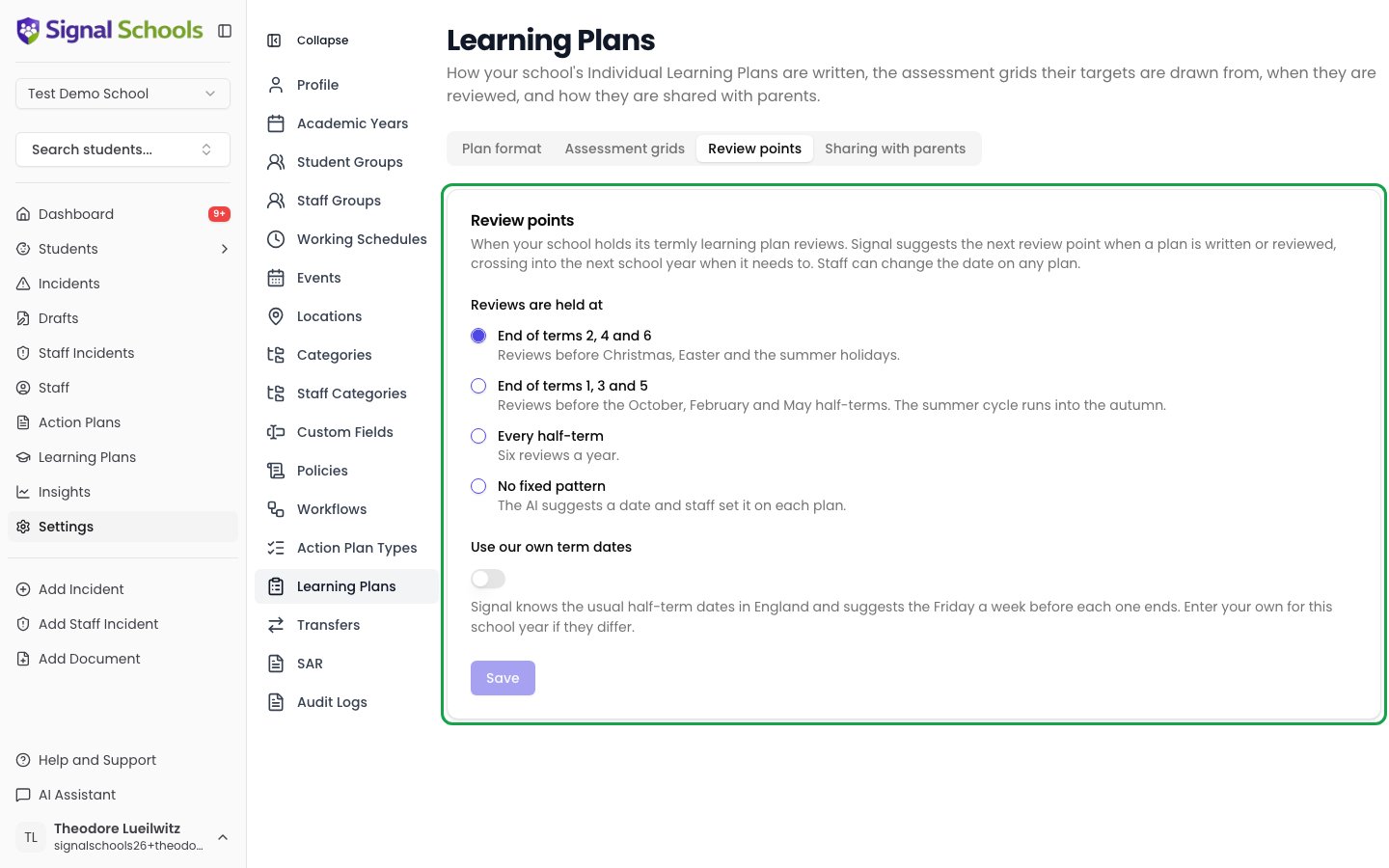
Next steps
Creating a Learning Plan
Write a plan for a pupil and set their targets.
Learning Plans overview
How learning plans work and how they differ from action plans.