
What are Transfers?
Transfers in Signal allow you to securely share safeguarding records when a student moves between schools or educational establishments. The system ensures that critical safeguarding information follows the student, helping receiving schools continue appropriate support and protection.Transfers are encrypted end-to-end and comply with data protection requirements. Only authorized staff at the receiving establishment can access transfer data.
Key Features
Secure Sharing
End-to-end encrypted transfers protect sensitive safeguarding information
AI-Powered Analysis
Automatically analyze PDFs, Word documents, and images to extract student information
CPOMS Integration
One-click transfers from CPOMS using our Chrome extension
Complete Records
Transfer full incident history, actions, alerts, and supporting documents
How Transfers Work
Create Transfer
Select student, choose receiving establishment, and specify what information to share
Transfer Types
Outgoing Transfers
When a student leaves your school, you initiate an outgoing transfer:- Select which incidents, actions, and documents to share
- Choose the receiving establishment
- Add contextual notes for the receiving school
- Track transfer status (pending, accepted, declined)
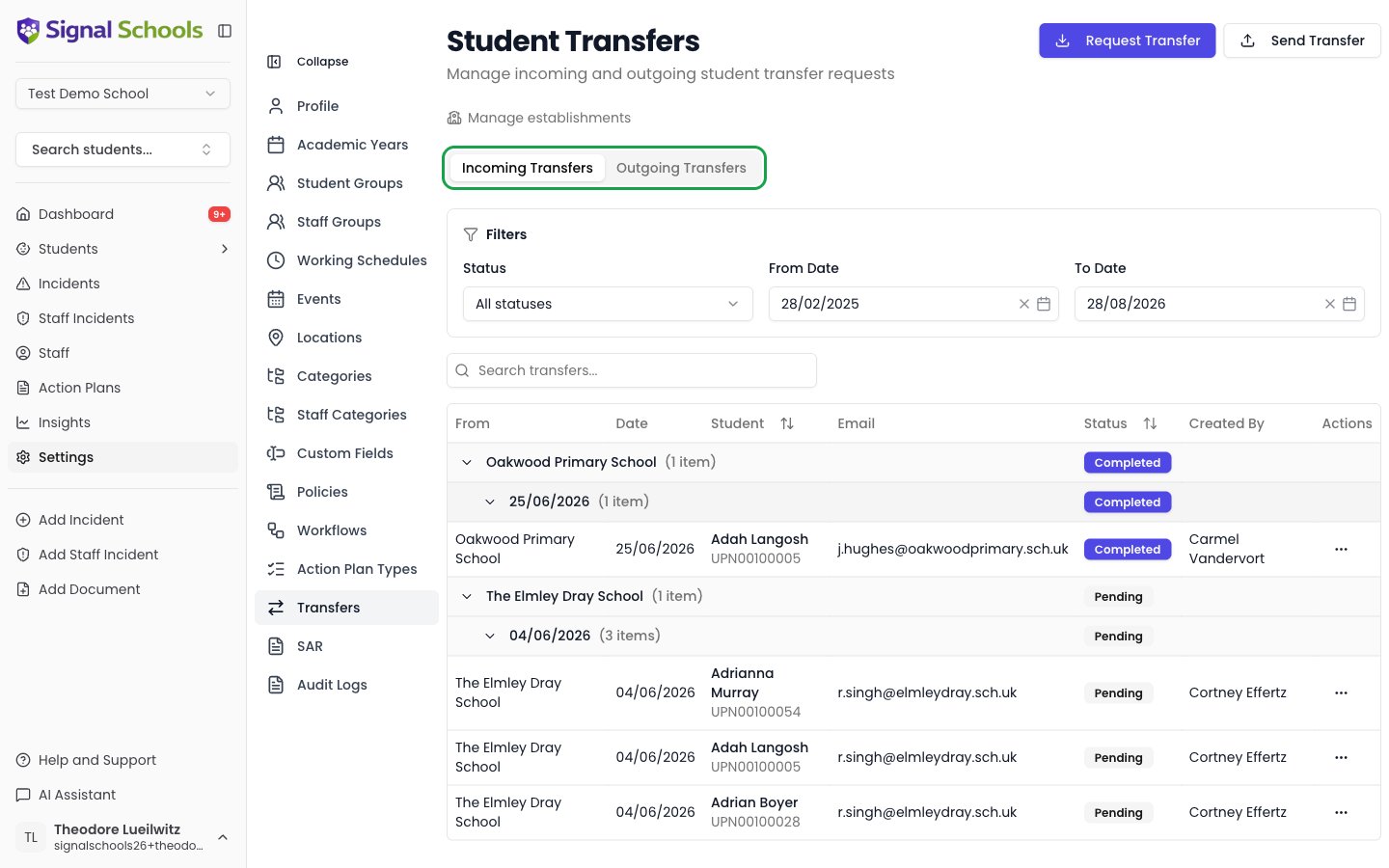
Incoming Transfers
When a student joins your school from another establishment:- Receive email notification with secure access link
- Review complete safeguarding history
- Accept or request additional information
- Records automatically integrate into your system
External User Submissions
Schools not using Signal can still send safeguarding records:- External users access secure transfer portal
- Upload PDFs, Word documents, or images
- AI analyzes documents to extract structured data
- You review and accept into your system
Who Can Manage Transfers?
Permissions by Role
Permissions by Role
Designated Safeguarding Lead
- Create outgoing transfers
- Review and accept incoming transfers
- Setup establishment connections
- View all transfer history
- Delete or decline transfers
Senior Leadership Team
- Create outgoing transfers
- Review and accept incoming transfers
- View all transfer history
- Cannot modify establishment settings
Safeguarding Officer
- View outgoing transfers they created
- View incoming transfers assigned to them
- Cannot accept transfers independently
Viewer
Viewer
- No transfer access
- Cannot view or create transfers
Transfer Workflow
What Can Be Transferred?
When creating a transfer, you can include:- Incidents
- Actions
- Alerts
- Documents
- Context
- All incidents or selected incidents
- Full incident descriptions and notes
- Staff who created/managed incidents
- Categories and severity levels
- Dates and timeline information
Security & Privacy
Data Protection
- End-to-end encryption: All transfers encrypted in transit and at rest
- Access control: Only authorized DSLs can access transfers
- Audit trail: Complete record of who accessed what and when
- Time-limited access: External user links expire after 7 days
- GDPR compliant: Lawful basis for processing under safeguarding obligations
What You Should Transfer
Transfer Guidelines
Transfer Guidelines
✅ Always Transfer
✅ Always Transfer
- Active safeguarding concerns
- Ongoing support plans
- Risk assessments
- Agency involvement (social services, police, etc.)
- Child protection plans
- Recent serious incidents
⚠️ Consider Carefully
- Historical incidents (older than 1 year)
- Low-level behavioral incidents
- Incidents fully resolved with no ongoing concerns
- Information that may stigmatize the student
❌ Don't Transfer
❌ Don't Transfer
- Unsubstantiated allegations
- Information unrelated to safeguarding
- Staff disciplinary matters
- Parental complaints unrelated to student welfare
Common Scenarios
Student Moving to Secondary School
What to transfer:
- Summary of primary school safeguarding history
- Active concerns and support plans
- Agency contacts and involvement
- Transition notes from primary DSL
Mid-Year School Move
What to transfer:
- Complete current academic year incidents
- Active alerts and risk assessments
- Recent agency involvement
- Immediate safety concerns
Student Returning After Extended Absence
What to transfer (from interim placement):
- Incidents during absence
- Support provided
- Changes in circumstances
- Updated contact information
Emergency Placement
Emergency Placement
What to transfer:
- Critical safeguarding information only
- Active child protection plans
- Immediate safety concerns
- Emergency contact details
Getting Started
Setup Establishments
Add schools and establishments to your network
Create Your First Transfer
Send safeguarding records to another school
Managing Transfers
Track and manage incoming and outgoing transfers
External Users Guide
How external schools submit transfers to you
Need Help?
FAQs
Common questions about transfers
Troubleshooting
Solutions to common transfer issues
