
You can review a plan if you can write it: you are in the pupil’s class team, or you are an Owner, DSL or Deputy DSL.
When a review is due
Each plan has its own Next review date. When it is coming up:- It appears in the Learning plans panel on the dashboard of the person who wrote the plan, from a month before it is due.
- It appears in their daily digest when it is due today or overdue.
- It shows on the Learning Plans list and on the pupil’s Plans tab.
Carrying out a review
Open the plan and click Review. The review page has four parts.1
Rate each target
For each target in the current cycle, choose Met, Partially met or Not met, and add the evidence. For example: “Spelled 7 of 10 in dictation; still needs the word bank.” The target’s area of need, how it is measured, its starting point and its success criteria are shown to help you judge.Evidence is required for any target that is partially met or not met. Say what the pupil can do now and what is still hard, because the next target is rewritten from it.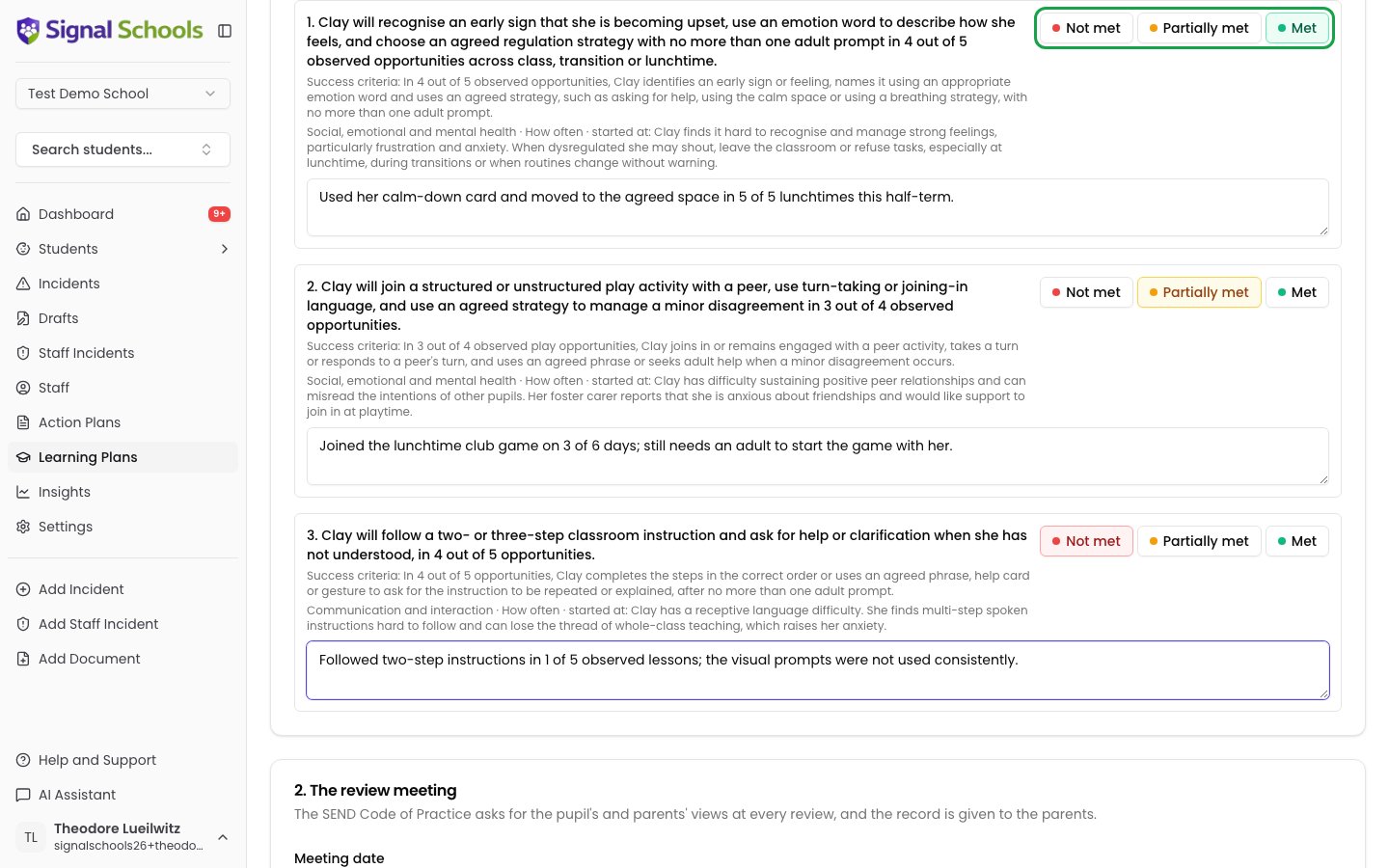
2
Record the review meeting
Enter the Meeting date, tick Pupil attended and Parent or carer attended as appropriate, and record What the pupil said and What the parent or carer said. The SEND Code of Practice asks for the pupil’s and parents’ views at every review.
3
Check what has happened since the last review
Under Since the last review, Signal lists the incidents recorded for the pupil during this cycle, with a count by category. They are all selected to start with; untick any that are not relevant. A change in behaviour or mood can point to an unmet or changing need, so these are part of the review.Add anything else the review should take into account in the box below.
4
Draft the review record
Click Draft review with AI to have Signal write the review record from your ratings, notes, the meeting and the selected incidents. Or click Write it myself to fill it in by hand.
5
Check the review record and the next cycle
The Review record and next cycle section is what is saved and shared with parents. Check every part: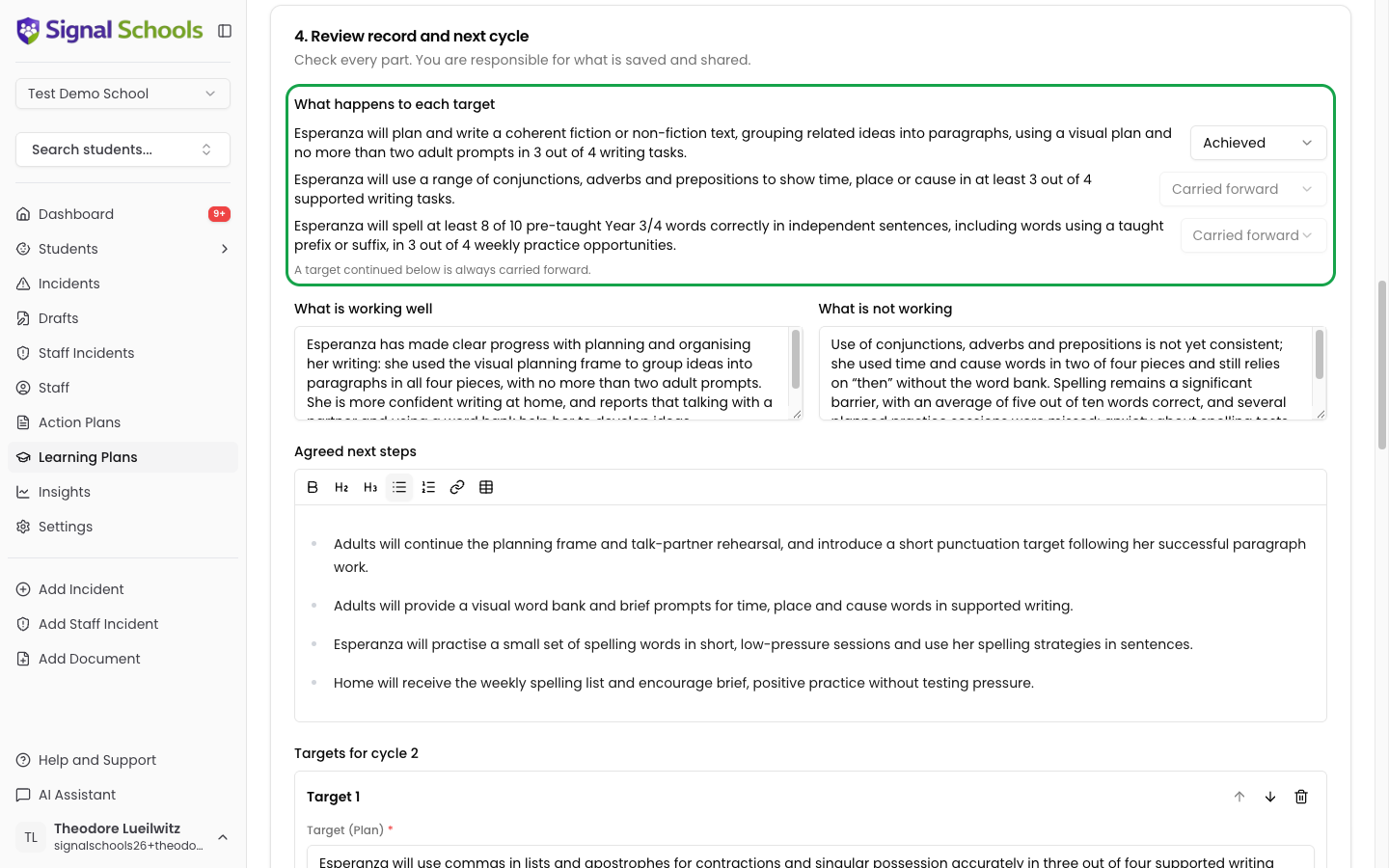
- What happens to each target — Achieved, Carried forward or Dropped. A met target is normally achieved; a target that continues into the next cycle is always carried forward.
- What is working well and What is not working.
- Agreed next steps, for adults, the pupil and home.
- Targets for the next cycle — carried-forward targets and new targets to replace those achieved. Every target needs what adults will do.
- Attainment for the next cycle, if the pupil has moved band.
- Plan detail, and Pupil views on the plan and Parent views on the plan, updated where the review changes them.
- Next review — the date of the next termly review. It is filled in from your school’s review points, and carries on into the next school year when the next review point falls after the summer.
6
Save the review
Click Save review. The current cycle is closed and the next one starts — Signal confirms, for example, “Cycle 1 reviewed. Cycle 2 has started.”
How the AI drafts a review
When you click Draft review with AI, Signal follows the same rules a SENCO would:- A met target is marked achieved, and a new target builds on it. For a target linked to the grid, that is the next objective in the grid. For any other target, it is the next step in the same skill: more independence, a new setting or less adult support, starting from what the pupil can do now.
- A partially met target is carried forward and rewritten from your evidence: moved on from what the pupil can now do, with its success criteria or support adjusted.
- A not met target leads to a rethink of the support — what adults will do — as well as the target. It may be made smaller, or dropped if the evidence shows it no longer fits.
- A carried-forward target is never repeated word for word.
The review history
Every review is kept on the plan under Review History, newest first. Click a review to see its ratings, notes, outcomes, the meeting, and the agreed next steps.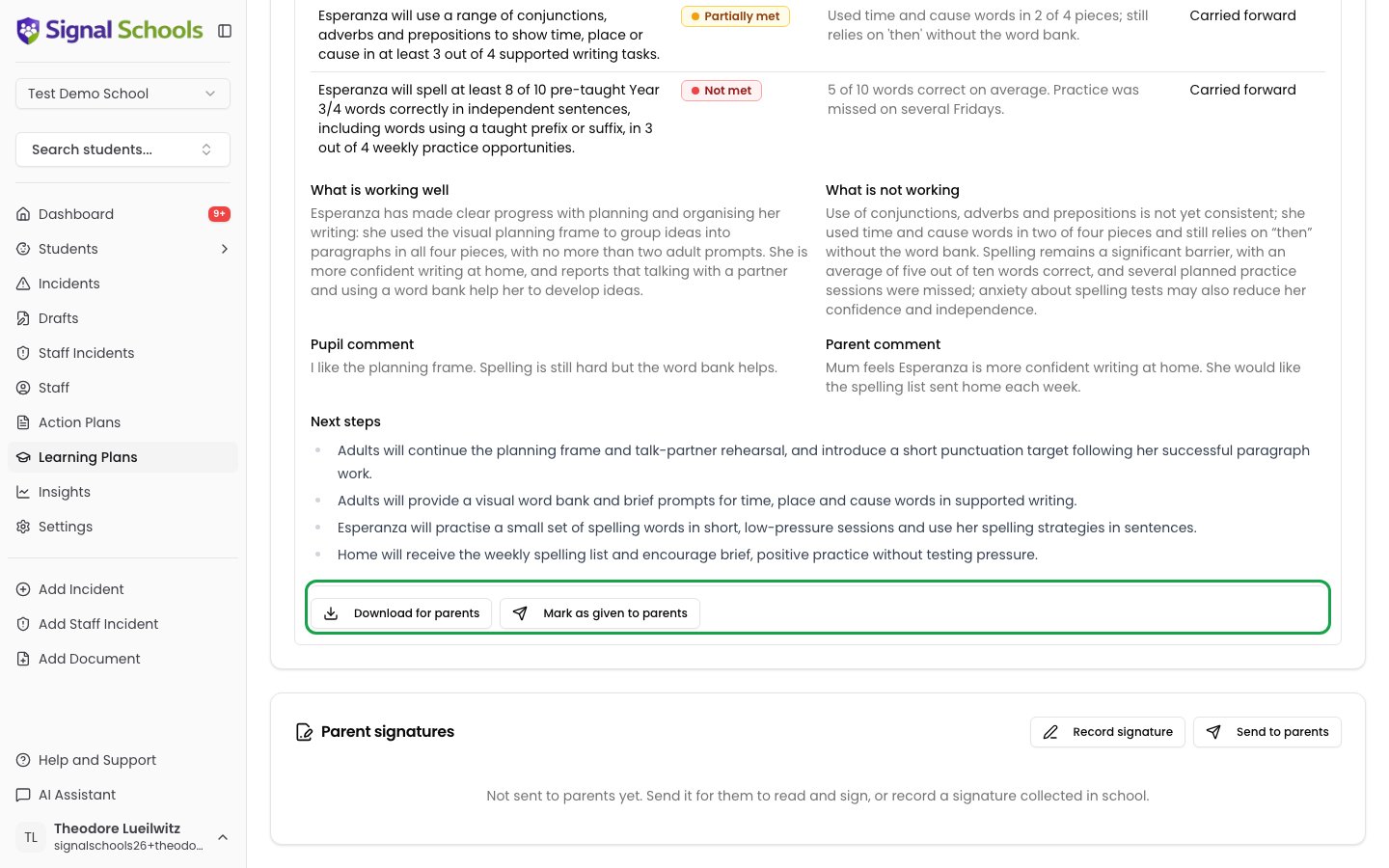
- Download for parents — a PDF of the review record. See Sharing with Parents.
- Mark as given to parents — record that you gave parents a copy another way, such as printed at the meeting.
Next steps
Sharing with Parents
Send parents the updated plan to read and sign.
Creating a Learning Plan
Write a plan and set its targets.