
You can write a learning plan for a pupil in your class if you are in the Staff Group for their class and have a role such as Contributor. Owners, DSLs and Deputy DSLs can write one for any pupil.
Before you start
- Your school’s plan format needs to be set up.
- For targets drawn from the curriculum, add an assessment grid for each subject you set targets in.
- Upload anything the plan should draw on to the pupil’s documents first, such as their EHCP or a specialist’s report. Signal recognises these document types and uses them in the plan.
Write the plan
1
Start a new plan
Go to Learning Plans in the sidebar and click New learning plan. You can also start from the pupil’s page: open the Plans tab and click New learning plan.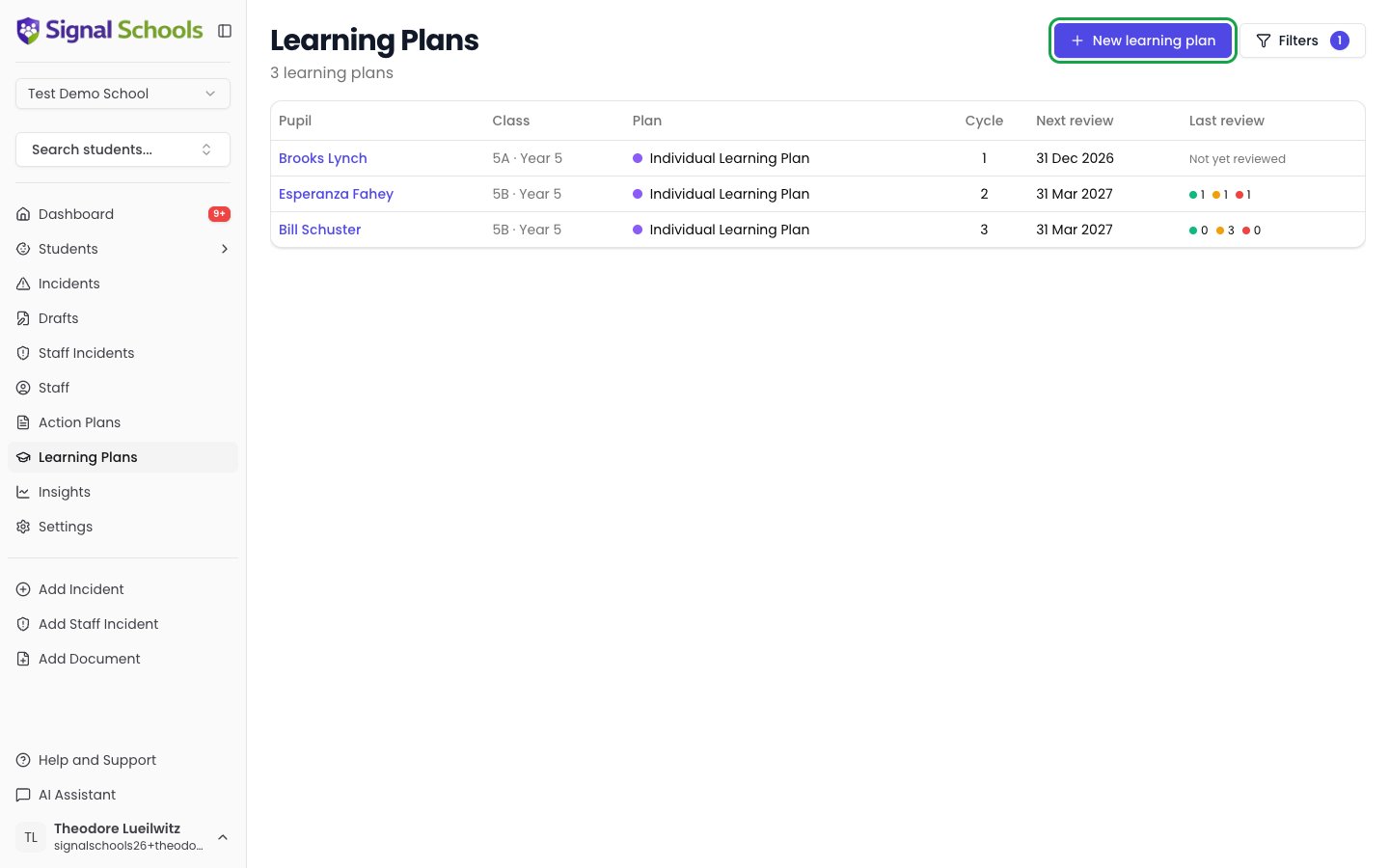
2
Choose the pupil
Search for the pupil under Pupil. Their SEN status, primary need and any secondary need appear beside them, taken from their record. You do not enter them on the plan.If the pupil has an EHCP in their documents, EHCP on file appears under the pupil, with the document’s name and date. Signal also warns you when the records disagree: an EHCP has been uploaded but the pupil’s record does not show one, or the record shows an EHCP but none has been uploaded.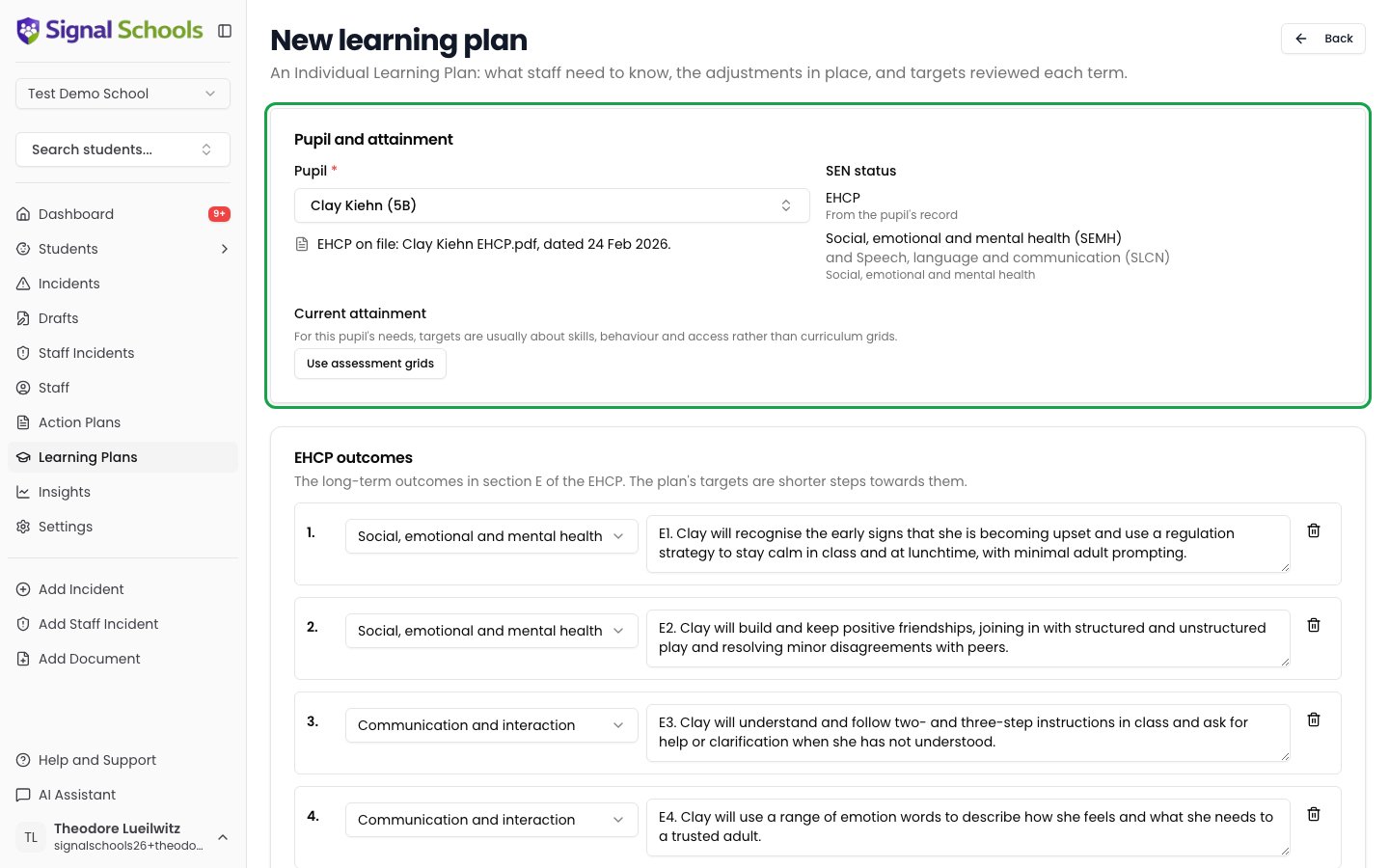
3
Record their current attainment
Assessment grids lead the plan for pupils whose primary need is in cognition and learning, such as a specific or moderate learning difficulty, and for pupils with no need recorded. For other needs, targets are usually about skills, behaviour, communication or access. Current attainment is then folded away. Click Use assessment grids if you want curriculum targets too. Pupils with profound and multiple learning difficulties are usually assessed with the engagement model rather than grids.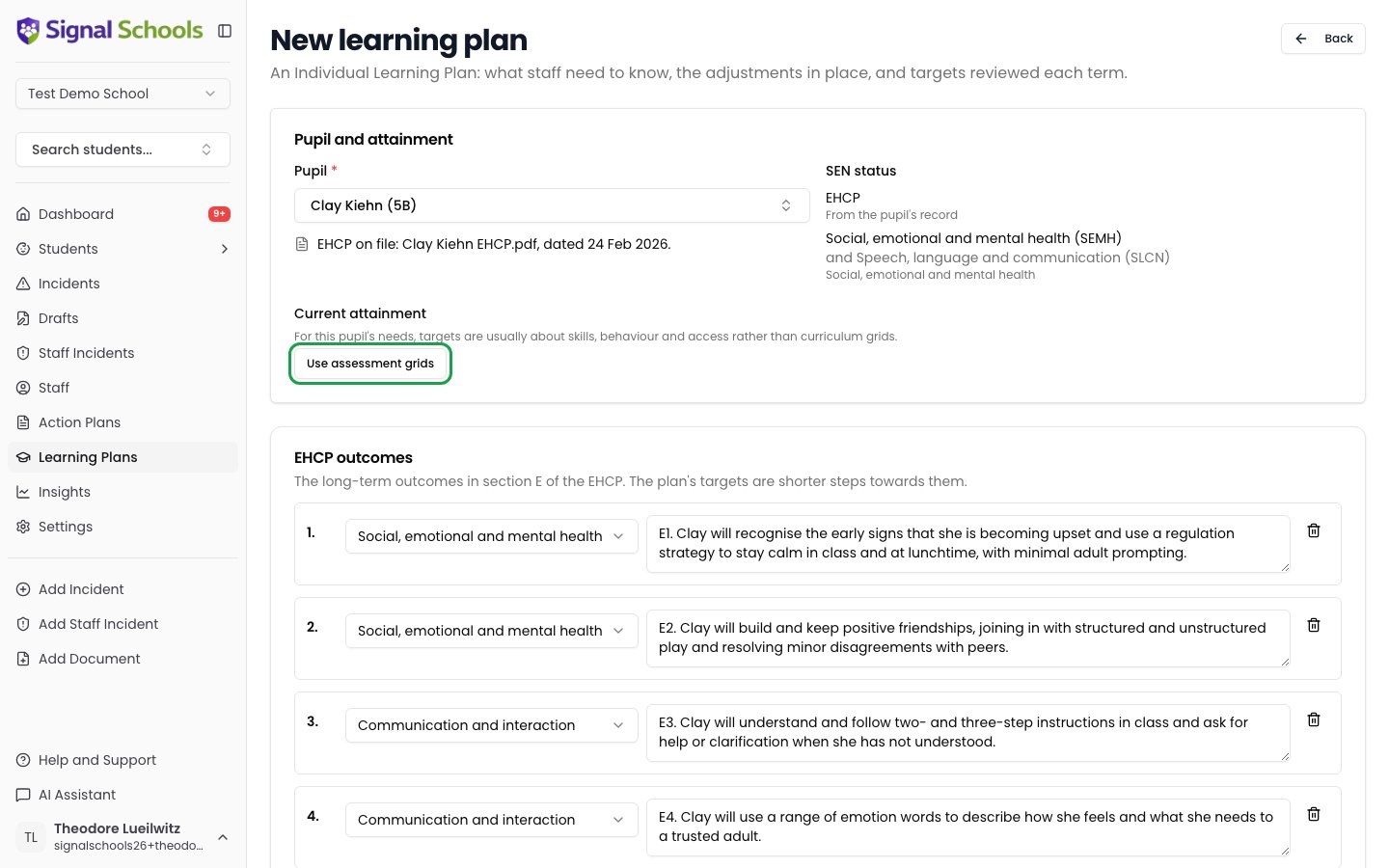
- Choose the year group whose grid the pupil is judged against. It starts on the pupil’s own year (or the nearest year below it that has a grid). Choose an earlier year for a pupil working below their year. If the plan starts in the next school year, for example a plan written in July for September, it starts on the year above, and the page tells you so.
- Choose the band they are working at, for example WTS: Working towards the expected standard. Leave Not assessed for subjects the plan does not cover.
4
Check the EHCP outcomes (EHCP pupils)
For a pupil with an EHCP, the EHCP outcomes card lists the long-term outcomes from section E of their plan, each with its area of need. When the EHCP has been uploaded to the pupil’s documents, the outcomes are filled in from it. Check them against the EHCP, and edit, add or remove outcomes as needed. See EHCP outcomes below.The plan’s targets are shorter steps towards these outcomes. Each target can be linked to the outcome it works towards.
5
Draft the plan with AI (optional)
Under Draft with AI, choose what the draft should draw on: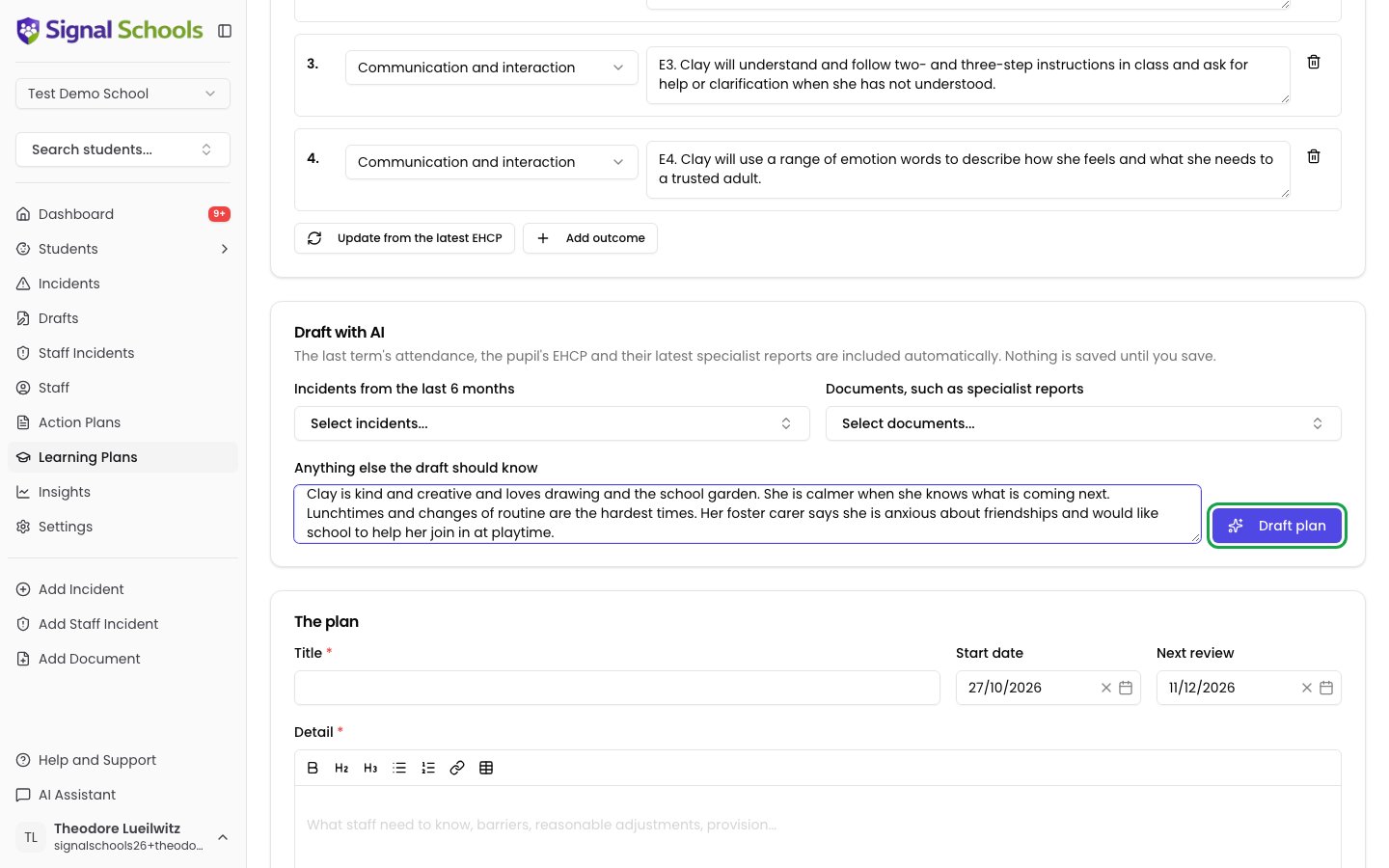
- Incidents from the last 6 months for this pupil.
- Documents, such as specialist reports, from the pupil’s record.
- Anything else the draft should know — a few sentences about the pupil’s needs, what helps them, and anything parents or professionals have said.
- Action plans to build targets from, if the pupil has any open action plans. They are all ticked to start with. Each ticked plan gets at least one target, linked to it, about the skill the plan works on. Untick a plan to leave it out of the draft.
6
Check the plan details
Under The plan, check the Title, Start date and Next review date. The next review date is filled in from your school’s review points, counting from the start date, so a plan written in the summer for September gets a review in the autumn term. Write or edit the plan sections in Detail — the headings follow your school’s plan format.
7
Set the targets
Each target has two required parts, and optional success criteria: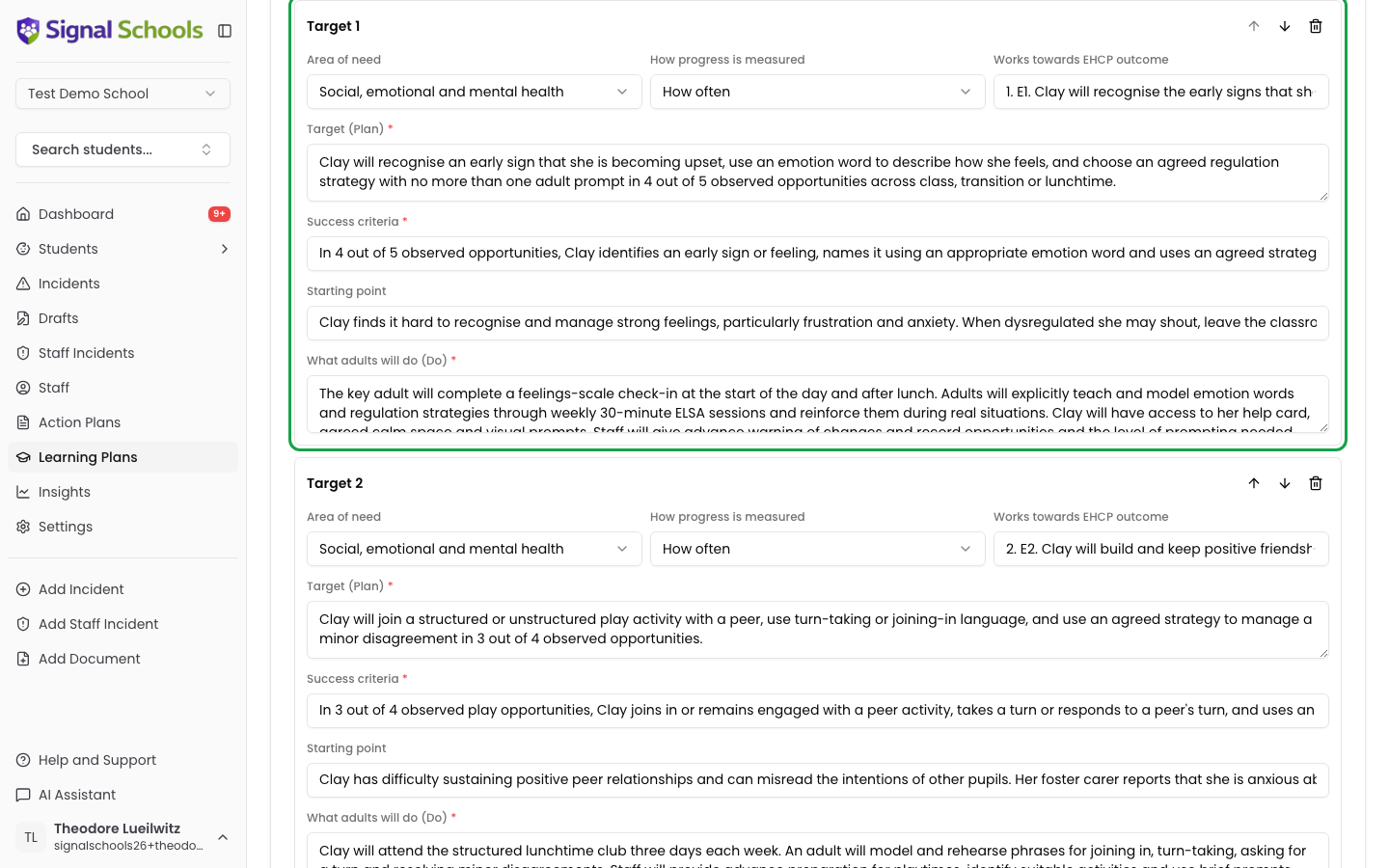
- Target (Plan) — the skill the pupil will show. Write it as a SMART target about the skill, not the support: “Esperanza will spell 8 of 10 pre-taught Year 3/4 words correctly in her own sentences in 3 out of 4 weekly practice opportunities.”
- What adults will do (Do) — the strategies, interventions, resources and how often.
- Success criteria (optional) — how staff will know it has been met.
- Area of need — communication and interaction, cognition and learning, social, emotional and mental health, or sensory and physical. New targets start in the area of the pupil’s primary need, but a target can be in any area.
- How progress is measured — How often (for example, in 4 of 5 lessons), Score on a scale, What adults see, or Grid objective. A target linked to a grid objective is always measured against the grid.
- Starting point — where the pupil is now, for targets not measured against a grid. For example, “joins in a game with a peer once a week”.
- Works towards EHCP outcome — for EHCP pupils, the outcome the target is a step towards.
8
Add pupil and parent views
Record the pupil’s views in their own words under Pupil views, and what their parents or carers have said under Parent views.
9
Create the plan
Click Create plan. The plan opens at cycle 1, and its review date appears on your dashboard and in your daily digest when it is due.If anything required is missing, Signal tells you what to fix — for example, “Target 2 needs its success criteria and what adults will do (Do).”
Bringing across a plan you already have
If you started using Signal after writing a pupil’s learning plan elsewhere, you can bring that plan across instead of starting again. This is only offered for a pupil who has no learning plans in Signal yet.1
Choose the pupil
Start a new plan and choose the pupil. Under the pupil, click Import it from Word or PDF.
2
Choose the file
Choose the pupil’s existing plan as a Word document (.docx) or a PDF, up to 5MB. Signal reads it in about half a minute. The file is not stored.
3
Check the plan against the original
Signal fills in the plan in your school’s format, keeping the plan’s own wording:
- The narrative goes under your plan format’s sections. Anything that does not fit a section is kept at the end, under its original heading.
- The targets come from the most recent cycle that has targets, with their strategies under What adults will do (Do).
- EHCP outcomes listed in the plan fill in EHCP outcomes, unless the pupil’s EHCP has already filled them in.
- The pupil’s attainment fills in Current attainment where it matches one of your assessment grids.
Past reviews and ratings in the original plan are not brought across. The plan starts at cycle 1 in Signal.
EHCP outcomes
An EHCP’s outcomes are set by the local authority and usually cover a whole key stage. A learning plan breaks them into targets you can review each term (SEND Code of Practice 9.69).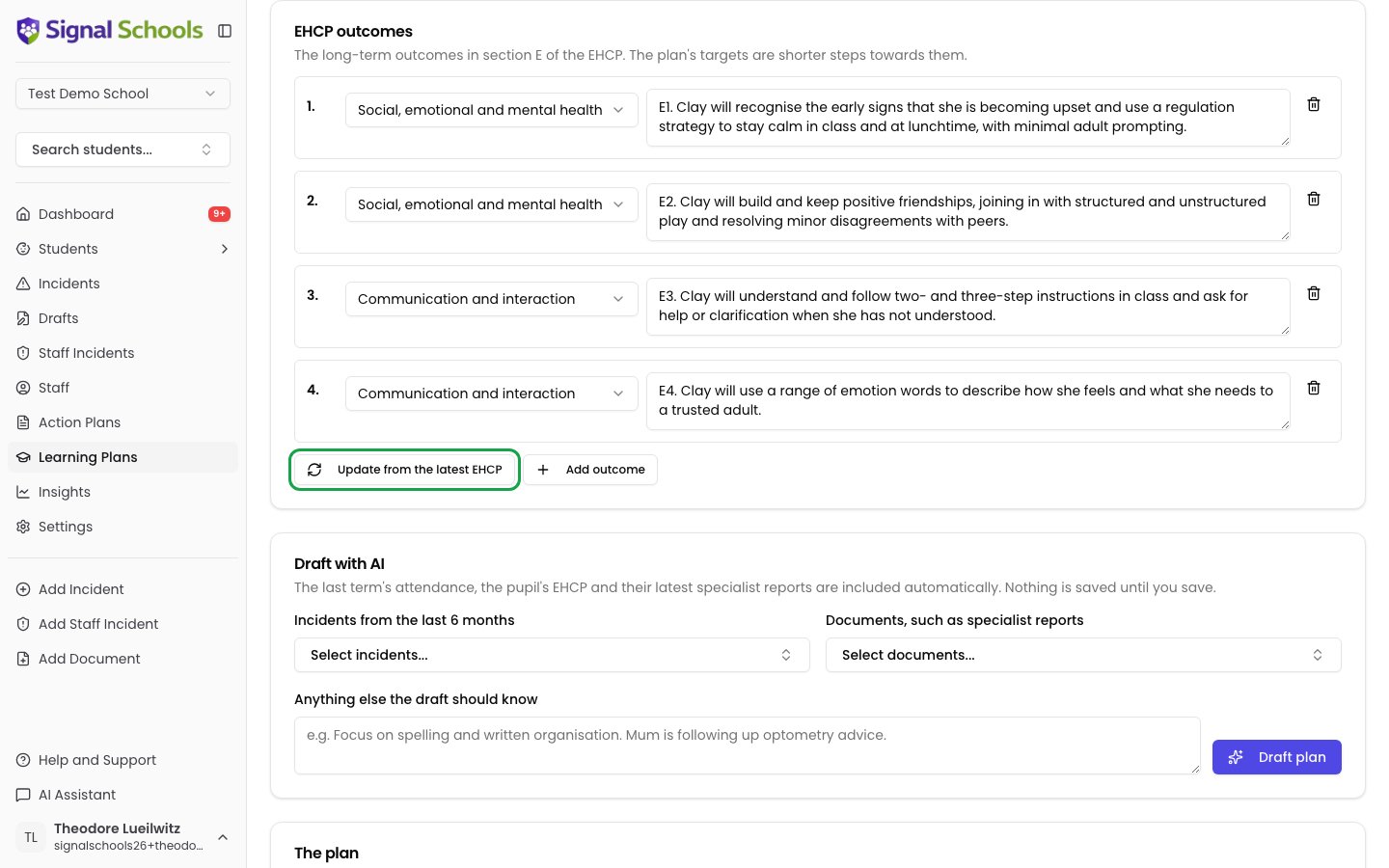
- Which EHCP is used. When a pupil has more than one EHCP or annual review on file, Signal uses the newest: the one with the latest review date, or issue date if it has not been reviewed.
- Filling in the outcomes. On a new plan they are filled in for you. If you cleared them, or the EHCP was read after you started, click Take from the EHCP.
- After an annual review. Upload the annual review to the pupil’s documents, then edit the plan and click Update from the latest EHCP. Signal tells you how many outcomes will be added, kept and removed before it changes anything. Targets linked to a removed outcome are unlinked when you save.
- No EHCP uploaded. Click Add outcome and type each outcome from section E.
Linking targets to the grid
A target can be linked to an objective in the pupil’s assessment grid, so you can see which part of the curriculum it works towards. Targets drafted by AI or added with Add from grid are linked automatically. Under each target’s text:- Link to a grid objective links an unlinked target. Choose from the objectives at the pupil’s current band and the next one up.
- change links the target to a different objective.
- unlink removes the link. The target’s text is unchanged.
Linking a target to an action plan
If the pupil has an open action plan, each target shows Delivered by action plan (optional). Choose the action plan that delivers the target — for example, a target about staying regulated at lunchtime delivered by a behaviour plan. The field only appears when the pupil has an open action plan. When you draft with AI, each ticked action plan gets at least one target, already linked. The target is about the skill the pupil will show, not about what they will stop doing. For a plan to stop a pupil hitting out, the target is about staying regulated: “When he feels angry, Sam will use his calm-down card and move to the agreed space in 4 out of 5 playtimes.” What adults will do comes from the action plan’s strategies.A learning plan is shared with the pupil’s parents, so it never names another child. If an action plan or incident names other pupils, the draft leaves them out, and Signal removes any name the AI writes anyway.
Editing a plan
Open the plan and click Edit. You can change the title, plan sections, review date, current attainment, EHCP outcomes, the current cycle’s targets, and the pupil and parent views. Targets from earlier cycles are part of the plan’s history and are not editable. When you save, the plan’s SEN status is updated from the pupil’s record, so it stays in step with the SEN register.If you leave a page with unsaved changes, Signal asks you to confirm first.
Completing and reopening a plan
When a pupil no longer needs the plan — they leave the SEN register, or leave the school — open the plan and click Complete. No further reviews are due, and the plan stays on the pupil’s record as part of their history. To start using it again, open it and click Reopen.Deleting a plan
Open the plan, click the ⋮ menu, and choose Delete plan. This permanently deletes the plan, its targets, ratings and review history.Deleting a learning plan requires the Owner, DSL or Deputy DSL role.
Next steps
Termly Reviews
Rate the targets and start the next cycle.
Sharing with Parents
Send parents a link to read and sign the plan.